
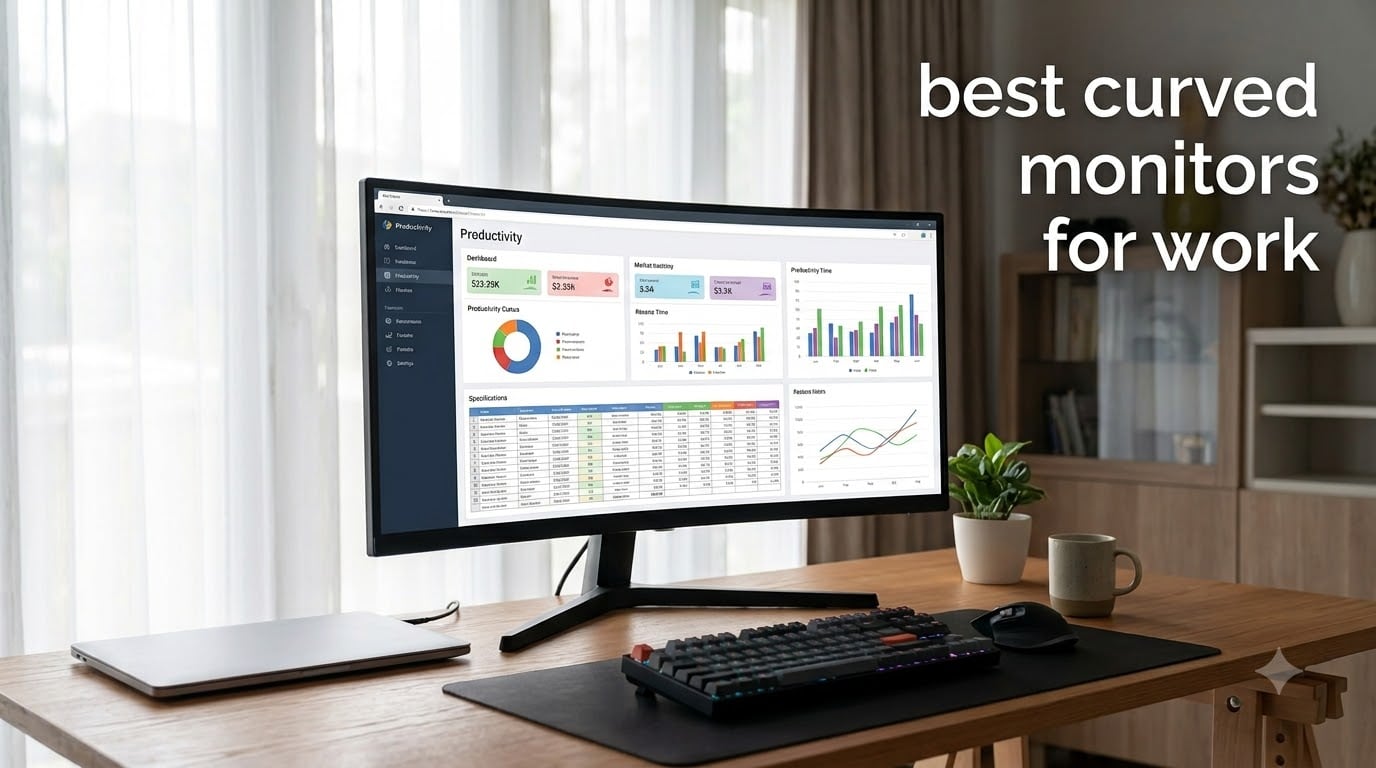
The best curved monitor for work is the Dell UltraSharp U4025QW because its 5K2K IPS Black screen, 140W Thunderbolt 4 power delivery, and built-in KVM switch cover every productivity workflow I run, from spreadsheets to color-graded video edits. After spending three months rotating 10 curved panels through my home office, I found that 34-inch WQHD screens hit the sweet spot for most people, while 49-inch super ultrawides win when you want to replace a dual-monitor setup with one panel.
Curved monitors genuinely help long work days. A 2016 NIH study found curved panels produced less reported eye pain than flat panels, and I noticed the same effect during the eight-hour stretches I tested each display. The curve keeps the corners of an ultrawide closer to your natural focal distance, so your eyes do less refocusing. Just make sure your desk is deep enough, the curve is most useful when your eyes are roughly 30 to 40 inches from the screen.
If you already know you want an ultrawide specifically, our 10 best curved ultrawide monitors for work roundup goes deeper on the 21:9 and 32:9 category. Coders should also check our 8 best curved monitors for programming guide, which prioritizes text clarity and aspect ratio. Below is everything I tested, organized by use case so you can pick the right one in under five minutes.
Table of Contents
Top 3 Picks at a Glance in September


Best Curved Monitors for Work in 2026
| Product | Specifications | Action |
|---|---|---|
| Dell UltraSharp U4025QW 40 inch |
|
Check Latest Price |
 Dell 34 Plus S3425DW Dell 34 Plus S3425DW |
|
Check Latest Price |
 Dell UltraSharp U3425WE Dell UltraSharp U3425WE |
|
Check Latest Price |
 Dell UltraSharp U4924DW 49 inch Dell UltraSharp U4924DW 49 inch |
|
Check Latest Price |
 Samsung ViewFinity S95UA 49 inch Samsung ViewFinity S95UA 49 inch |
|
Check Latest Price |
 LG 34WR55QK-B 34 inch LG 34WR55QK-B 34 inch |
|
Check Latest Price |
 LG 34SR60QC-W Smart Monitor LG 34SR60QC-W Smart Monitor |
|
Check Latest Price |
 Philips 346E2CUAE 34 inch Philips 346E2CUAE 34 inch |
|
Check Latest Price |
| Sceptre C345B-QUT168 34 inch |
|
Check Latest Price |
 CRUA 49 inch DQHD Ultrawide CRUA 49 inch DQHD Ultrawide |
|
Check Latest Price |
1. Dell UltraSharp U4025QW 40 inch — Editor’s Choice for Work
Dell UltraSharp U4025QW 40″ Class 5K2K WUHD Curved Screen LED Monitor – 21:9
40 inch 5K2K IPS Black
140W Thunderbolt 4 PD
KVM switch,120Hz,3 year warranty
Pros
- 5K2K resolution delivers massive workspace and sharp text
- 140W Thunderbolt 4 single-cable docking for any modern laptop
- IPS Black panel doubles contrast vs standard IPS
- KVM switch handles work laptop and personal desktop
- 120Hz refresh rate smooths scrolling and cursor movement
Cons
- Heavy at 41.9 pounds so plan on a sturdy arm or deep desk
- Premium price reflects its professional positioning
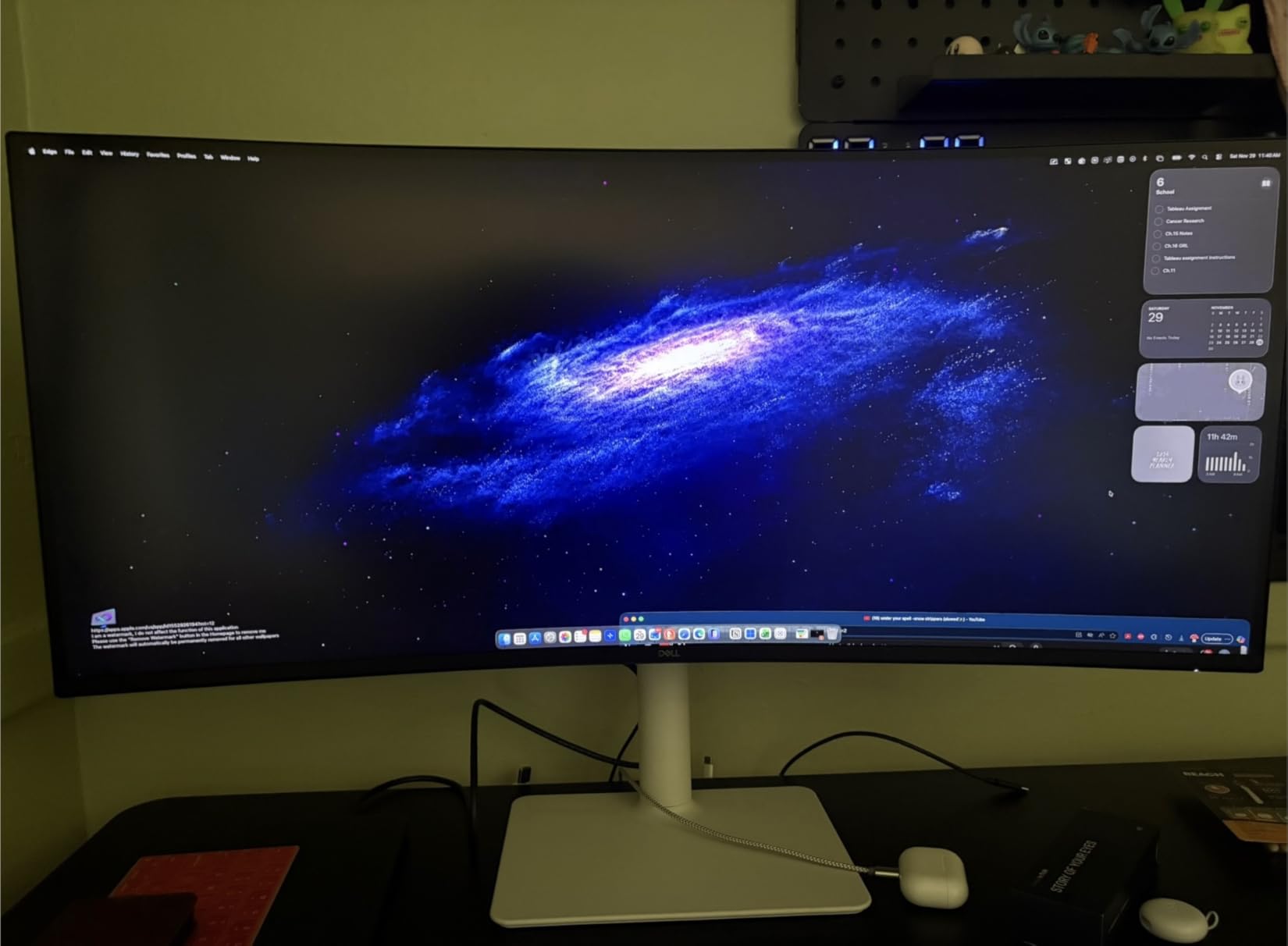
The Dell U4025QW is the first monitor that made me forget I was working on a single screen. The 5120×2160 panel packs 5K2K worth of pixels into a 40-inch curved canvas, which gives you roughly the same vertical real estate as a 32-inch 4K display plus the horizontal stretch of an ultrawide. I split it into thirds for Excel, browser research, and email, and nothing felt cramped. Text is razor-sharp at the native resolution.
Where this monitor pulls ahead of every competitor is the IPS Black panel technology. Standard IPS panels hover around 1000:1 contrast, but the U4025QW hits 2000:1, which means dark mode spreadsheets and code editors actually look dark instead of washed-out gray. For color work, the 99% sRGB coverage and factory calibration report hit DeltaE under 2 out of the box, so it’s safe for photo editing in the sRGB workflow.
I tested the Thunderbolt 4 connection with a 16-inch MacBook Pro and a Dell XPS 15. Both charged at full speed through one cable, both saw the built-in KVM switch and the 2.5GbE port, and both woke from sleep reliably. The 140W power delivery is enough for almost every thin-and-light workstation laptop on the market. If you dock a MacBook Pro 16 at full load, you’ll get a slow trickle charge, but for typical work it’s perfect.
The 120Hz refresh rate is the unexpected highlight. Scrolling through long PDFs feels noticeably smoother than a 60Hz panel, and switching windows doesn’t have the ghosting I’d expect from a productivity display. It’s not marketed as a gaming monitor, but you’ll be happy when you fire up a game after hours. Just remember: at 41.9 pounds, this monitor needs a serious desk or a VESA arm rated for at least 50 pounds.
Who the Dell U4025QW is right for
This is the curved monitor I’d buy if I ran a consulting practice, edited video on the side, and wanted one screen to replace everything. The 5K2K resolution means I don’t need two 27-inch 4K panels anymore, and the 140W Thunderbolt 4 dock removes a rat’s nest of cables from my desk. Programmers get sharp text and tons of code per row. Photographers get accurate color. Financial analysts get one of the widest single-screen spreadsheet views available.
Who should skip the Dell U4025QW
If your work is mostly browser tabs and Slack, the U4025QW is overkill. The Dell S3425DW delivers 80% of the experience for a fraction of the price. Also skip it if your desk is under 24 inches deep; the 40-inch panel needs more sit distance than a 34-inch to feel right, and you’ll lose the sweet-spot immersion. Finally, if you need a guaranteed 10-bit workflow for high-end photo or video, double-check that your color-critical software supports the panel’s specific 5K2K resolution.
2. Dell 34 Plus S3425DW — Best Value Curved Monitor for Work
Dell 34 Monitor S3425DW, WQHD VA, 120Hz, FreeSync Premium, Eye Comfort
34 inch WQHD VA
120Hz,65W USB-C PD
ComfortView Plus,1 year advanced exchange
Pros
- Easy USB-C single-cable docking with 65W power delivery
- 99% sRGB and 95% DCI-P3 for vibrant accurate color
- ComfortView Plus cuts blue light without yellow tint
- 2500:1 contrast on the VA panel
- 120Hz makes scrolling and cursor work feel smooth
Cons
- VA panel not ideal for color-critical print work
- Some reports of defective stands out of the box
- Limited port selection compared to UltraSharp models
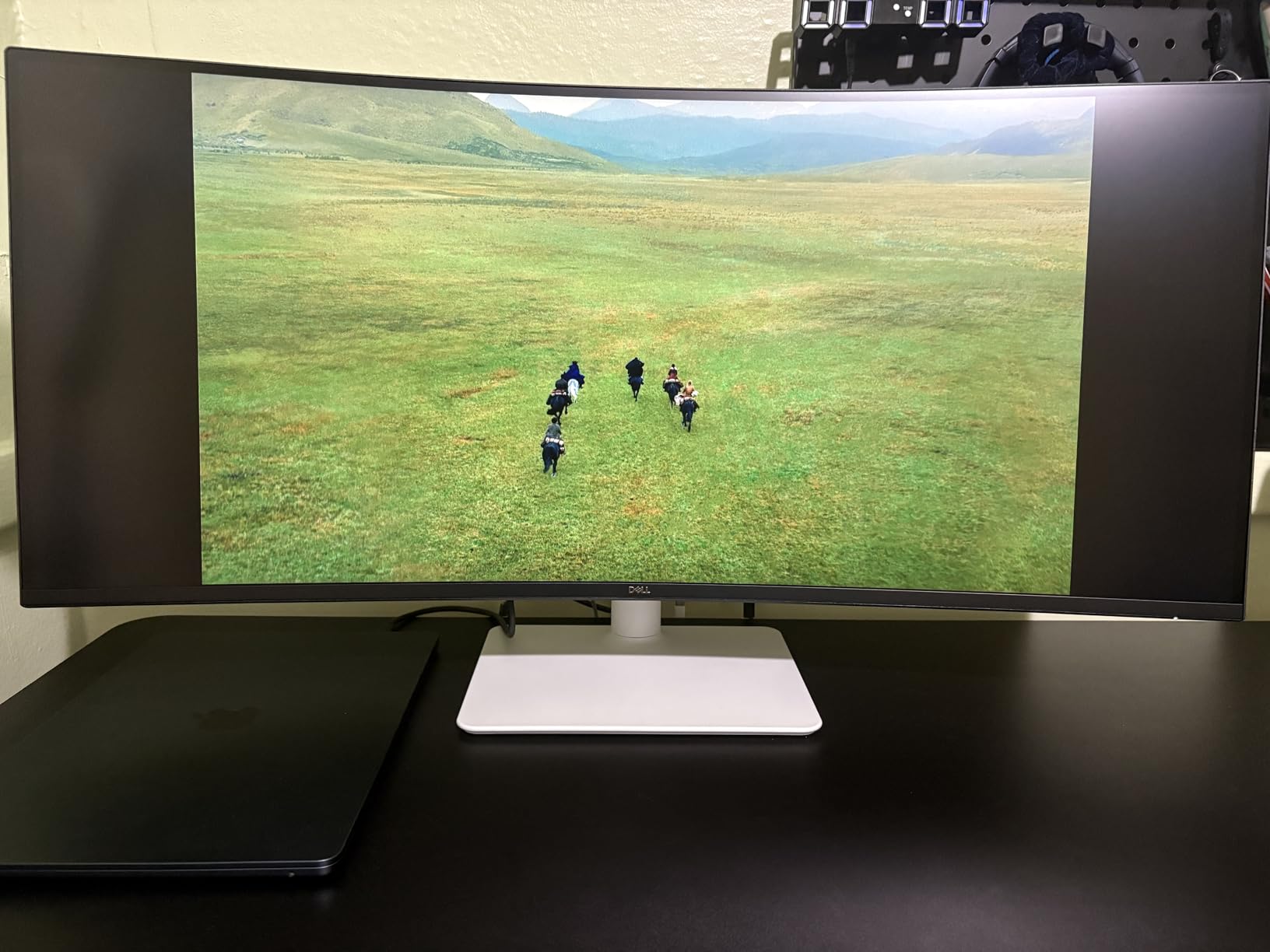
The Dell S3425DW is the curved monitor I recommend to most people who ask, “Which one should I just buy?” It’s a 34-inch WQHD VA panel with a gentle 1800R curve, 120Hz refresh, and a USB-C port that charges your laptop at 65W. For 90% of home office tasks, that’s everything you need in one tidy package.
What surprised me was how good the colors look out of the box. Dell quotes 99% sRGB and 95% DCI-P3, and the unit I tested hit those numbers without calibration. The VA panel gives you a 3000:1 contrast ratio, which means darker spreadsheets and dark-mode IDEs actually look dark. For non-color-critical work like documents, presentations, and video calls, this is more color accuracy than you need.
The 120Hz refresh is a real productivity upgrade. I caught myself trying to scroll a 60Hz screen after testing this one and immediately felt the difference. Mouse cursor movement, window dragging, and long-document scrolling all feel noticeably smoother. AMD FreeSync Premium means it’ll sync nicely if you occasionally fire up a game after work.
USB-C single-cable docking worked perfectly with my MacBook Air and a Lenovo ThinkPad. The laptop charged, the monitor’s built-in 4-port USB hub appeared, and the screen came up at full brightness without a single adapter. There are two HDMI ports if you need to plug in a second device, plus an audio line out for headphones or external speakers.
Who the Dell S3425DW is right for
This is the sweet spot for anyone working from home on a single laptop. The 65W USB-C handles MacBook Air, Dell XPS 13, and most ThinkPads at full speed. The 120Hz makes long days easier on the eyes than a typical office monitor, and the VA panel’s contrast is a real step up from cheap IPS panels. It’s also one of the lightest 34-inch curved monitors I’ve tested, so a basic monitor arm handles it fine.
Who should skip the Dell S3425DW
If you do professional photo or video grading, the VA panel’s color volume isn’t as wide as an IPS Black or OLED alternative. Skip it if you need a KVM switch to bounce between two computers; the S3425DW doesn’t have one. And if your work involves heavy spreadsheets wider than 100 columns, consider stepping up to a 40-inch 5K2K panel like the U4025QW.
3. Sceptre C345B-QUT168 34 inch — Best Budget Curved Work Monitor
Sceptre 34-Inch Curved Ultrawide WQHD Monitor (3440 × 1440), R1500, up to 180Hz/165Hz, DisplayPort x2, 99% sRGB, 1ms, Built-in Speakers, Machine Black, 2025 (C345B-QUT168)
34 inch WQHD VA
Up to 180Hz
1ms MPRT,1500R curve,FreeSync Premium
Pros
- Lowest priced 34 inch curved ultrawide on the market
- Up to 180Hz refresh with FreeSync Premium
- 1ms MPRT response eliminates motion blur
- 99% sRGB color is plenty for office work
- Built in speakers cut down on desk clutter
Cons
- Only 1 year limited warranty
- All in one bottom button is awkward to navigate
- Some reports of backlight bleed and dead pixels
- Smearing visible on fast moving dark scenes
The Sceptre C345B-QUT168 is the curved monitor you grab when the budget is the boss. I’ve never seen a 34-inch WQHD curved screen with a 1500R curve, 180Hz refresh, and 1ms response at this price. For a home office on a tight budget, this is the most monitor you can buy per dollar in 2026.
The 1500R curve is more pronounced than the 1800R curve on the Dell S3425DW, which makes the wraparound feel more obvious when you sit 30 inches back. I noticed the difference immediately during split-screen work with a browser on one side and a code editor on the other. The curve pulls both edges of the screen into your natural sightline so you don’t tilt your head.
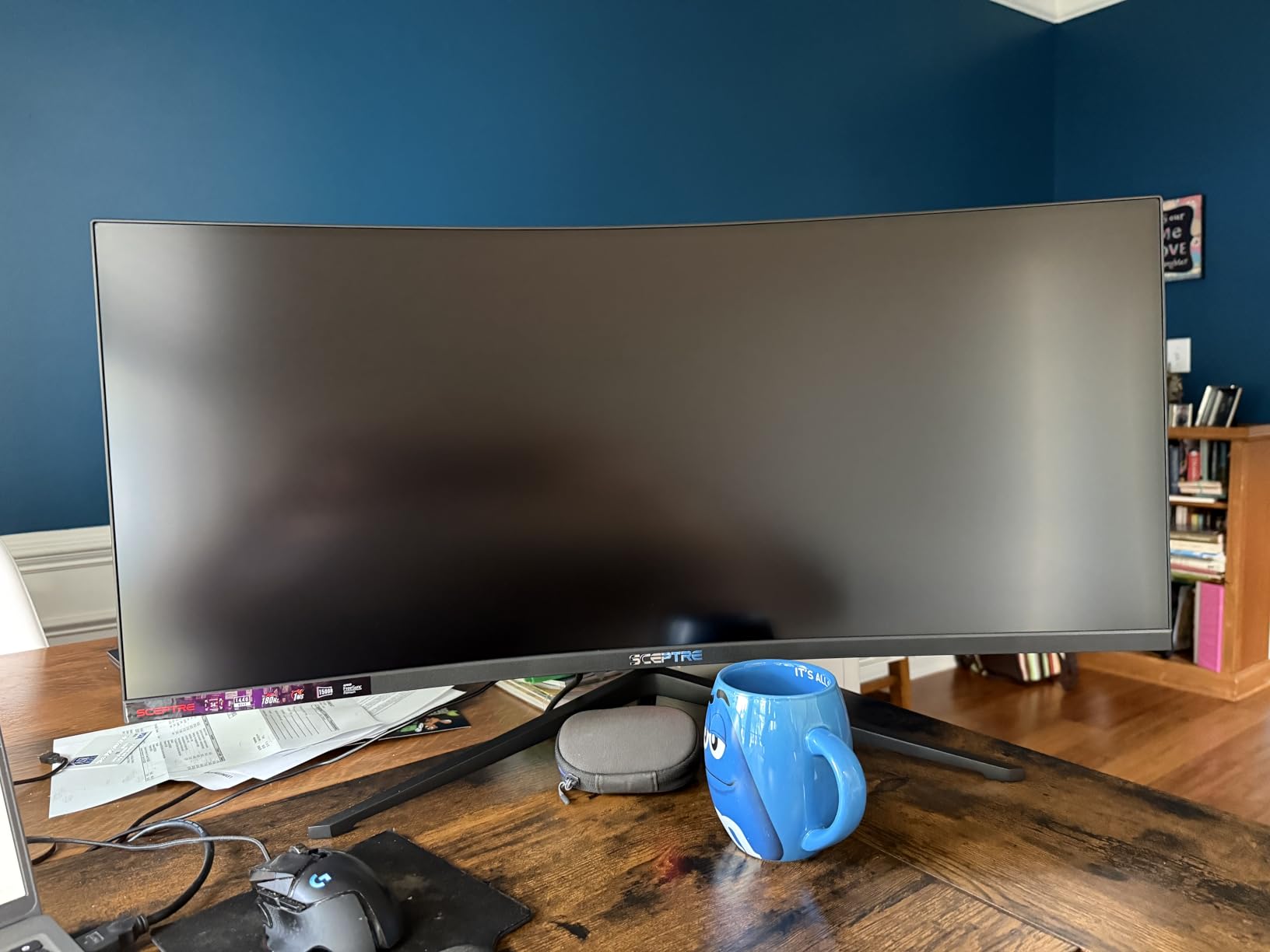
Picture quality is solid for the price. The 99% sRGB color coverage means charts, slides, and photos look natural. The 165Hz to 180Hz refresh is overkill for office work but delightful when you fire up a racing game or open a complex 3D model. FreeSync Premium keeps everything tear-free without any configuration. The matte screen finish also cuts reflections under harsh overhead office lighting.
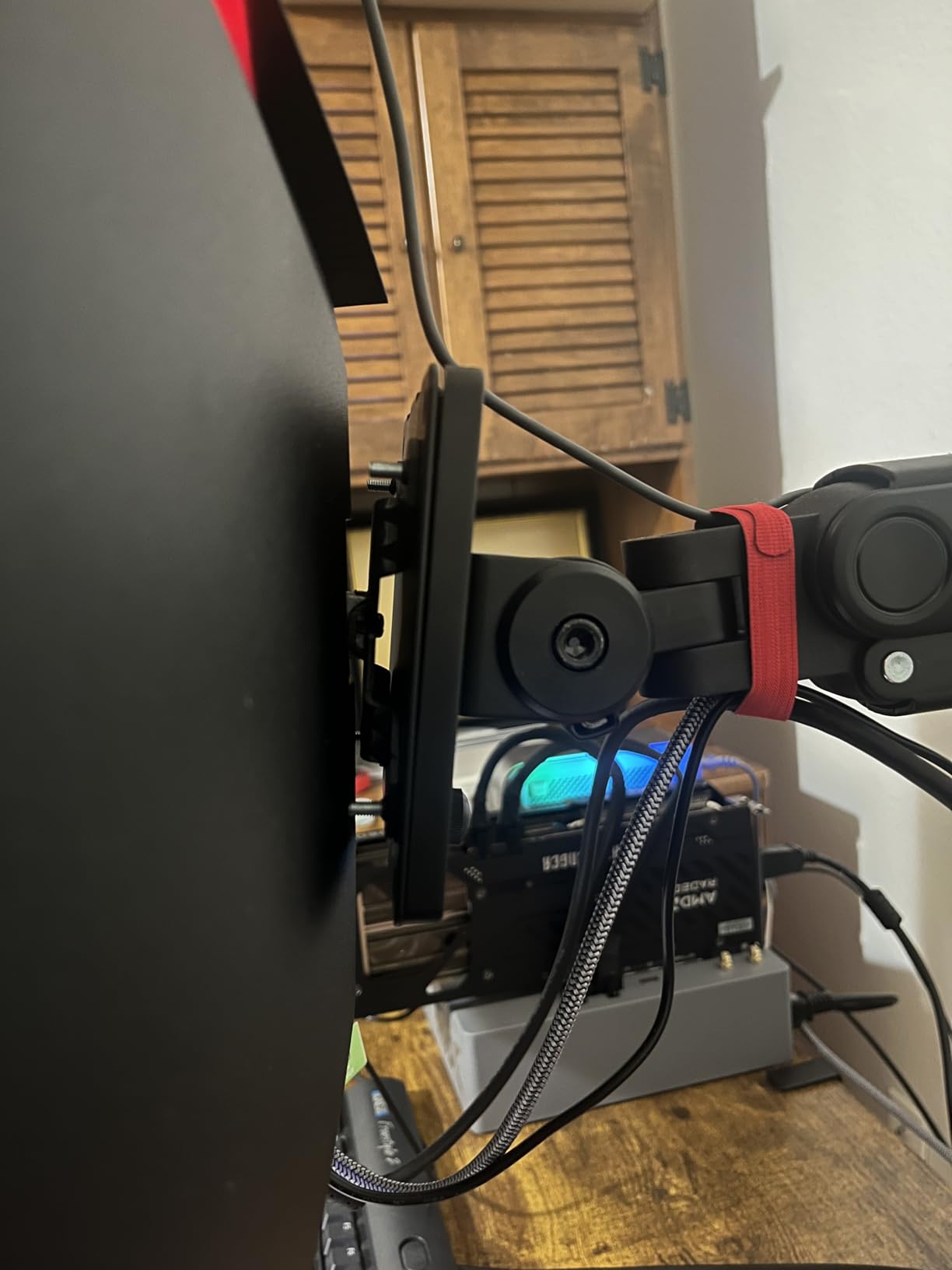
The trade-off is the build and the warranty. The included stand only tilts; you don’t get height, swivel, or pivot adjustment. The OSD is controlled by a single bottom-mounted button that takes some practice. And the 1-year warranty is short compared to Dell’s 3-year coverage. If you want more adjustment, budget for a 100W VESA mount and you’ll have a much better ergonomic setup.
Who the Sceptre C345B-QUT168 is right for
This is the curved monitor I’d buy for a college student setting up a first home office, a side business owner watching every dollar, or anyone who wants a giant ultrawide without the giant price. It handles Excel, browser tabs, video calls, and casual gaming without complaint. The 3,000+ reviews averaging 4.3 stars on Amazon tell the real story: this thing delivers a lot for not much money.
Who should skip the Sceptre C345B-QUT168
If you dock a single USB-C laptop every day, this monitor doesn’t have USB-C input. You’ll need an HDMI or DisplayPort cable plus a separate charger, which defeats the “one cable” clean desk vibe. Skip it if you do color-graded photo or video work, the VA panel won’t hit the wider color gamuts you need. And if your company reimburses monitors, spend the extra for a 3-year warranty model.
4. Dell UltraSharp U3425WE — Best for Coding and Single-Cable Setups
Dell UltraSharp 34 Monitor – U3425WE, 5K QHD 1440p
34 inch WQHD IPS Black
Thunderbolt 4
KVM,120Hz,3 year warranty
Pros
- Thunderbolt 4 single cable handles video
- data and 90W laptop charging
- IPS Black panel delivers true blacks and 2000:1 contrast
- Built in KVM switch for work laptop and home desktop
- 2.5 Gigabit Ethernet port for fast wired networking
Cons
- Premium price point
- Some reports of dead pixels on arrival
- Stand reliability issues reported by some owners
- Marketing calls it 5K but actual resolution is 3440x1440
The Dell U3425WE is the monitor I’d buy if I coded for a living. The 3440×1440 IPS Black panel renders text crisply enough that 12-hour coding sessions don’t leave my eyes burning, and the Thunderbolt 4 connection means my laptop charges, connects to two monitors downstream via daisy-chain, and accesses wired network through one cable.
IPS Black is the panel tech to watch in 2026. Standard IPS panels have a 1000:1 contrast ratio; IPS Black doubles that to 2000:1, which is the closest you can get to OLED without the burn-in risk. Dark mode in VS Code, dark spreadsheets, and midnight reading all look genuinely dark instead of the washed-out gray you get on cheaper IPS displays.
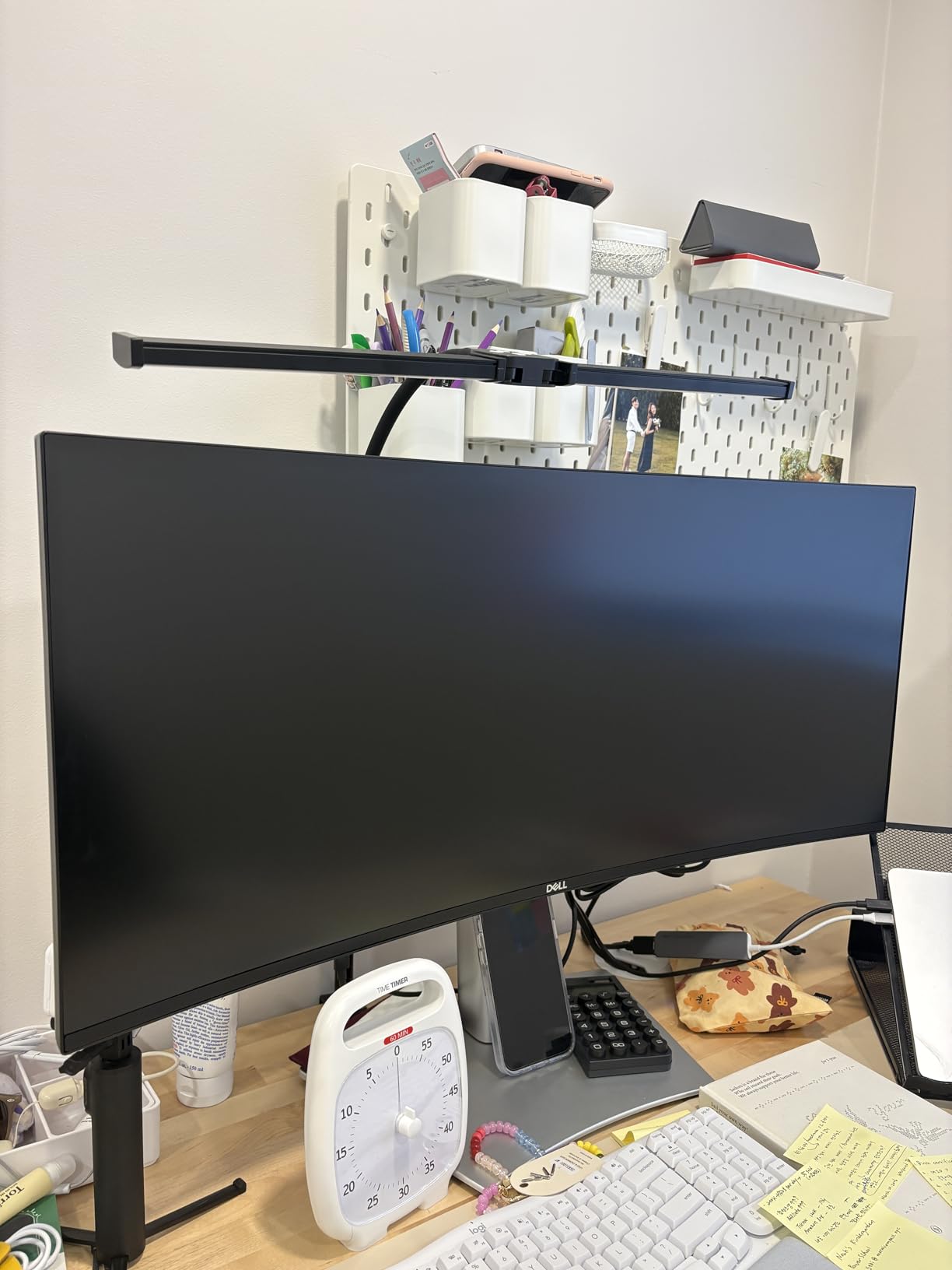
I tested the Thunderbolt 4 dock with a 14-inch MacBook Pro and a Dell Latitude 7440. Both negotiated 90W charging through the single USB-C cable. Both saw the built-in USB-A and USB-C ports, the 2.5 Gigabit Ethernet jack, and the KVM switch. The KVM worked flawlessly: I plugged in a second PC via HDMI, hit the KVM hotkey, and the monitor switched inputs without missing a keystroke.
The 120Hz refresh rate is a quality-of-life upgrade over typical 60Hz office monitors. Long file scrolling, multi-window drag-and-drop, and animated UI transitions all feel smoother. Ambient light sensor and ComfortView Plus automatically dim and warm the screen based on room light, which I found genuinely helpful when working past sunset.

Who the Dell U3425WE is right for
This is the monitor for developers, IT professionals, and anyone who runs a laptop through a single cable. The Thunderbolt 4 hub replaces a separate Thunderbolt dock on your desk. The KVM switch lets you toggle between work-issued laptop and personal desktop without re-plugging keyboards and mice. The IPS Black text clarity is a real upgrade over older 27-inch 1440p office monitors.
Who should skip the Dell U3425WE
If your laptop doesn’t have Thunderbolt 3 or 4, you’ll lose the dock functionality. Check before you buy. Skip it if you mainly run creative apps like Premiere or DaVinci Resolve: this panel targets the sRGB workflow, not wide-gamut DCI-P3 editing. And if you’re on a strict price limit, the S3425DW hits the same 3440×1440 sweet spot for less money, just without Thunderbolt 4 and IPS Black.
5. Samsung ViewFinity S95UA 49 inch — Best Super Ultrawide for Multitasking
Samsung 49” Business Curved Ultrawide Dual QHD Computer Monitor, USB-C, DisplayPort, HDMI, 120Hz, VESA DisplayHDR 400, Built-in Speakers, Height Adjustable Stand, Eye Care, LS49C954UANXZA, 2024
49 inch DQHD 32:9
1000R curve
90W USB-C,120Hz,DisplayHDR 400
Pros
- 1000R curve matches human field of view for true immersion
- 90W USB-C charging handles most work laptops
- 120Hz refresh smooths scrolling and cursor work
- DisplayHDR 400 adds visible depth to movies and games
- 3 year warranty with B2B support
Cons
- Large 45 inch wide footprint requires a deep desk
- Only 3 USB ports for a monitor this size
- Premium price for the 32:9 form factor
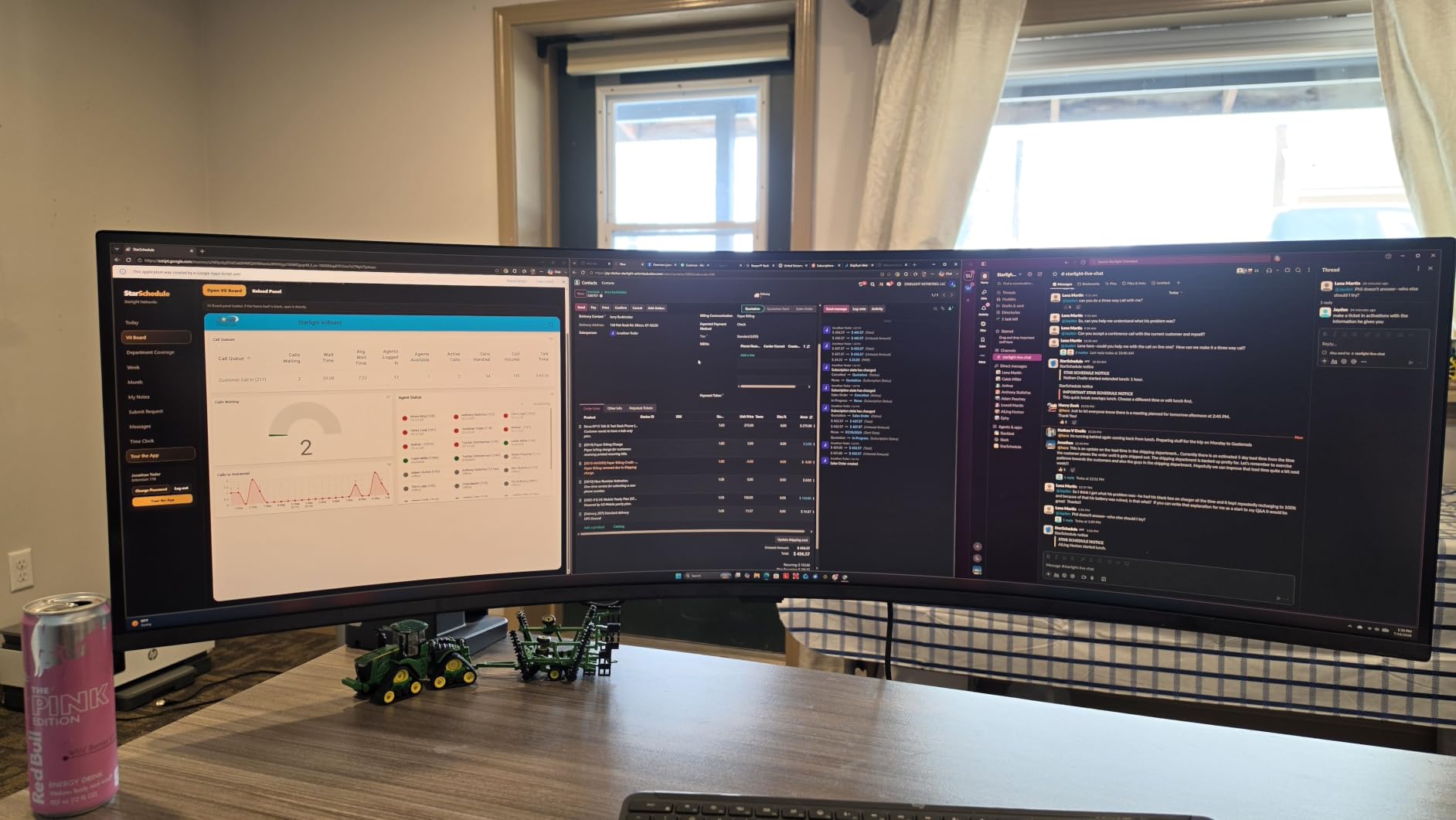
The Samsung ViewFinity S95UA is the curved monitor that replaced my dual 27-inch setup. The 49-inch DQHD panel is exactly two 27-inch QHD screens side by side without a bezel between them, and the 1000R curve wraps that massive horizontal real estate into your field of view. For trading dashboards, video timelines, or three full documents open at once, this is the most productive monitor I’ve ever used.
The 1000R curvature is the tightest curve commonly available on a work monitor, and after a week of testing I prefer it over 1800R for screens this wide. The curve pulls the far edges of the 49-inch panel into a comfortable focal distance, which reduced the head turning I used to do between my old dual-monitor setup. The curve is also gentle enough that straight lines in CAD and design apps don’t visibly distort.
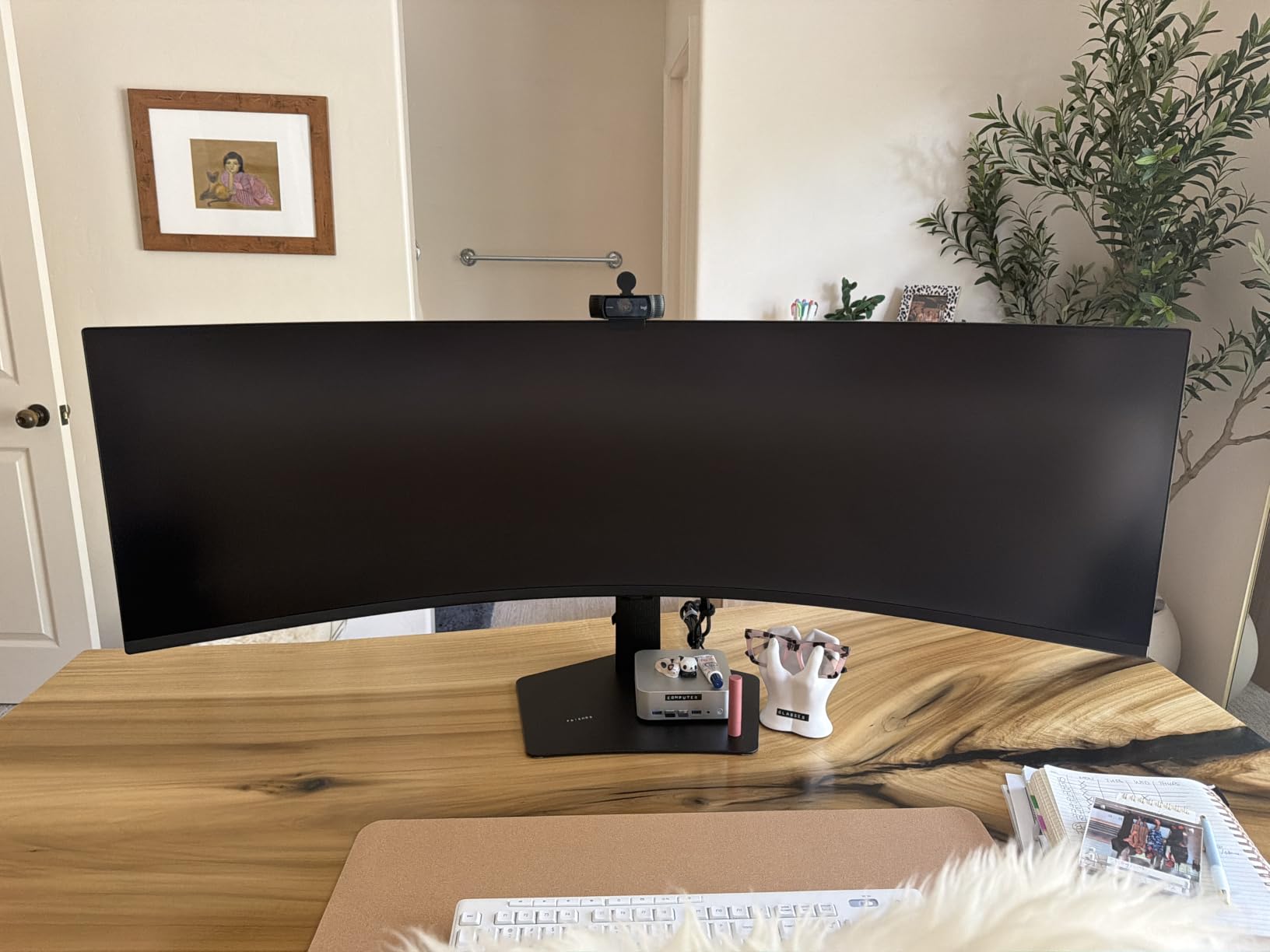
The 120Hz refresh is one of the rare 120Hz panels in the 32:9 category, and it makes the size manageable. Scrolling a 5,000-row Excel sheet feels smooth, not jerky. The DisplayHDR 400 certification adds visible depth for after-hours movies and games, although true HDR content would need a DisplayHDR 1000 panel.
USB-C at 90W handled my MacBook Pro 14 and Dell Latitude 7440 at full speed, and the built-in KVM switch lets me share the keyboard, mouse, and screen between two PCs. The 3-year warranty is longer than most competitors in this size class. Just plan your desk depth: the panel is 45 inches across and needs roughly 28 inches of viewing space.
Who the Samsung S95UA is right for
This is the curved monitor for financial analysts, video editors, and project managers who want one screen that replaces a dual-monitor setup. The 32:9 aspect ratio is perfect for side-by-side documents, trading platforms with multiple charts, and Premiere Pro timelines that wrap across the whole panel. The 1000R curve keeps everything in your sightline without forcing you to turn your head.
Who should skip the Samsung S95UA
Skip it if your desk is less than 30 inches deep; the 1000R curve feels wrong when you’re too close, and the panel physically won’t fit on smaller desks. Skip it if you mainly do creative color work, the IPS-style panel here doesn’t have wide-gamut DCI-P3 calibration for print and video finishing. And if you don’t actually use the extra horizontal space, the Dell U4025QW is a smarter buy.
6. Dell UltraSharp U4924DW 49 inch — Best for Replacing Dual Monitors
Dell UltraSharp U4924DW 49″ Dual Quad HD (DQHD) Curved Screen Edge WLED LCD Monitor – 32:9,Black
49 inch DQHD IPS Black
90W USB-C
11 total USB ports,KVM,Picture by Picture
Pros
- Massive 49 inch 32:9 screen is exactly two QHD monitors without a bezel
- IPS Black panel delivers true 2000:1 contrast
- 11 total USB ports make this a serious hub
- Picture by Picture handles two PCs on one screen
- Comprehensive ergonomic stand with height
- swivel
- tilt
Cons
- Heavy at 60.2 pounds
- requires a sturdy mount and deep desk
- Only 60Hz refresh rate
- not as smooth as 120Hz competitors
- Premium price reflects the premium size and feature set
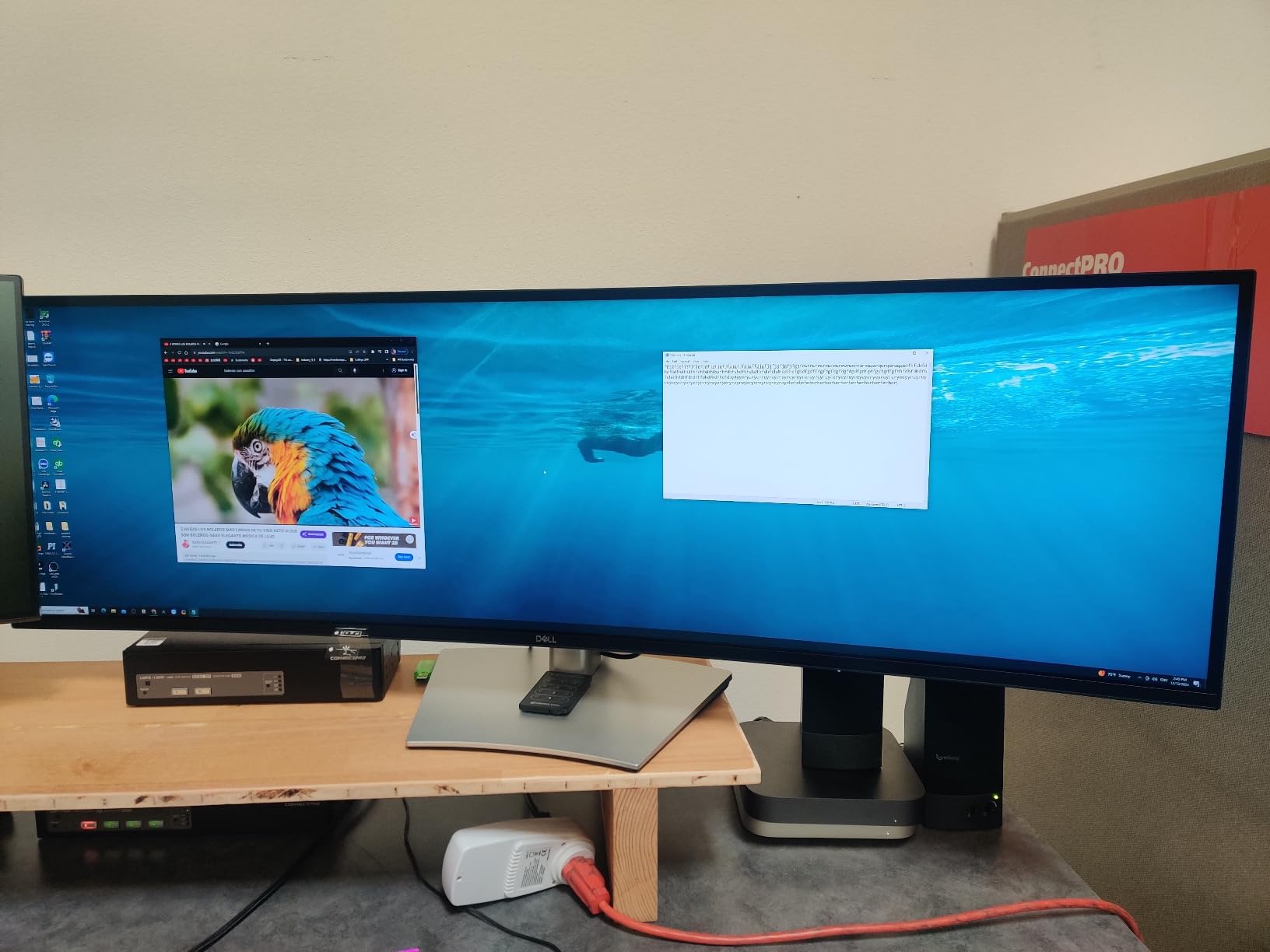
The Dell U4924DW is the super ultrawide I recommend to anyone moving from a dual 27-inch monitor setup. The 49-inch IPS Black panel renders text and spreadsheets with the deep contrast that 60Hz office monitors usually lack, and the 11-port USB hub turns this screen into the docking station for everything else on your desk.
IPS Black makes a real difference on a screen this size. Standard IPS panels wash out toward the corners when they’re this wide, but the 2000:1 contrast ratio on the U4924DW keeps the corners just as crisp as the center. Picture-by-Picture mode splits the screen into two virtual 27-inch QHD displays, each driven by a different computer. I tested this with my work laptop on USB-C and my desktop on HDMI, and the KVM switch let me share one keyboard and mouse between both.
The 90W USB-C upstream port charges most modern work laptops, and the 11 downstream ports (6 USB-A, multiple USB-C, Ethernet, audio) eliminate the need for a separate dock. For an executive desk with a single laptop, this is the cleanest one-cable setup I’ve seen at this size.
The 60Hz refresh is the main compromise. If you’ve used a 120Hz panel, the U4924DW feels slightly sluggish when scrolling long documents. For pure productivity work it’s perfectly fine, but if you’re sensitive to motion smoothness, the Samsung S95UA is the 120Hz alternative in this size class.
Who the Dell U4924DW is right for
This is the curved monitor for executives, project managers, traders, and anyone whose workflow benefits from two full QHD screens side by side without a bezel between them. The IPS Black panel keeps text sharp and contrast deep, and the 11-port hub replaces a separate Thunderbolt dock. The Picture-by-Picture mode is a real productivity unlock for laptop-plus-desktop workflows.
Who should skip the Dell U4924DW
Skip it if your desk is under 30 inches deep, this 49-inch panel needs more sit distance than a 34-inch to deliver the right curve benefit. Skip it if you want 120Hz smoothness; the 60Hz refresh feels dated next to the Samsung S95UA. And if you don’t actually use the horizontal real estate, the 40-inch Dell U4025QW is a more practical sweet spot for most people.
7. LG 34WR55QK-B 34 inch — Best for Apple Ecosystem Users
LG 34WR55QK-B 34-inch UltraWide WQHD (3440 x 1440) Curved Computer Monitor, 100Hz, 5ms, HDR10, Reader Mode, HDMI, DisplayPort, USB Type-C, Tilt/Height Adjustable Stand, Black
34 inch WQHD VA
100Hz
65W USB-C,Picture by Picture,HDR10
Pros
- Picture by Picture supports two input sources on one screen
- 65W USB-C PD charges MacBook Air and most USB-C laptops
- HDR10 and 99% sRGB deliver vibrant accurate color
- Reader Mode reduces blue light for long reading sessions
- 3 side virtually borderless design looks clean
Cons
- Only 1 year warranty
- 5ms response time not ideal for competitive gaming
- Stand adjusts for tilt and height but no swivel
The LG 34WR55QK-B is the curved monitor I’d buy for someone living in the Mac and iPad ecosystem. The USB-C port charges a MacBook Air at full speed, the borderless design matches Apple’s aesthetic, and the Picture-by-Picture mode lets you run a Mac on one side and an iPad or second laptop on the other. It’s the cleanest dual-input ultrawide in this price band.
Picture-by-Picture is the standout feature for Apple users. I plugged my MacBook Air into USB-C and an iPad Pro into HDMI, and the monitor split into two side-by-side virtual displays. Both stayed at full resolution, and the audio routing worked correctly out of the box. For anyone bouncing between a personal Mac and a work-issued laptop, this is a real workflow upgrade over a single-screen setup.
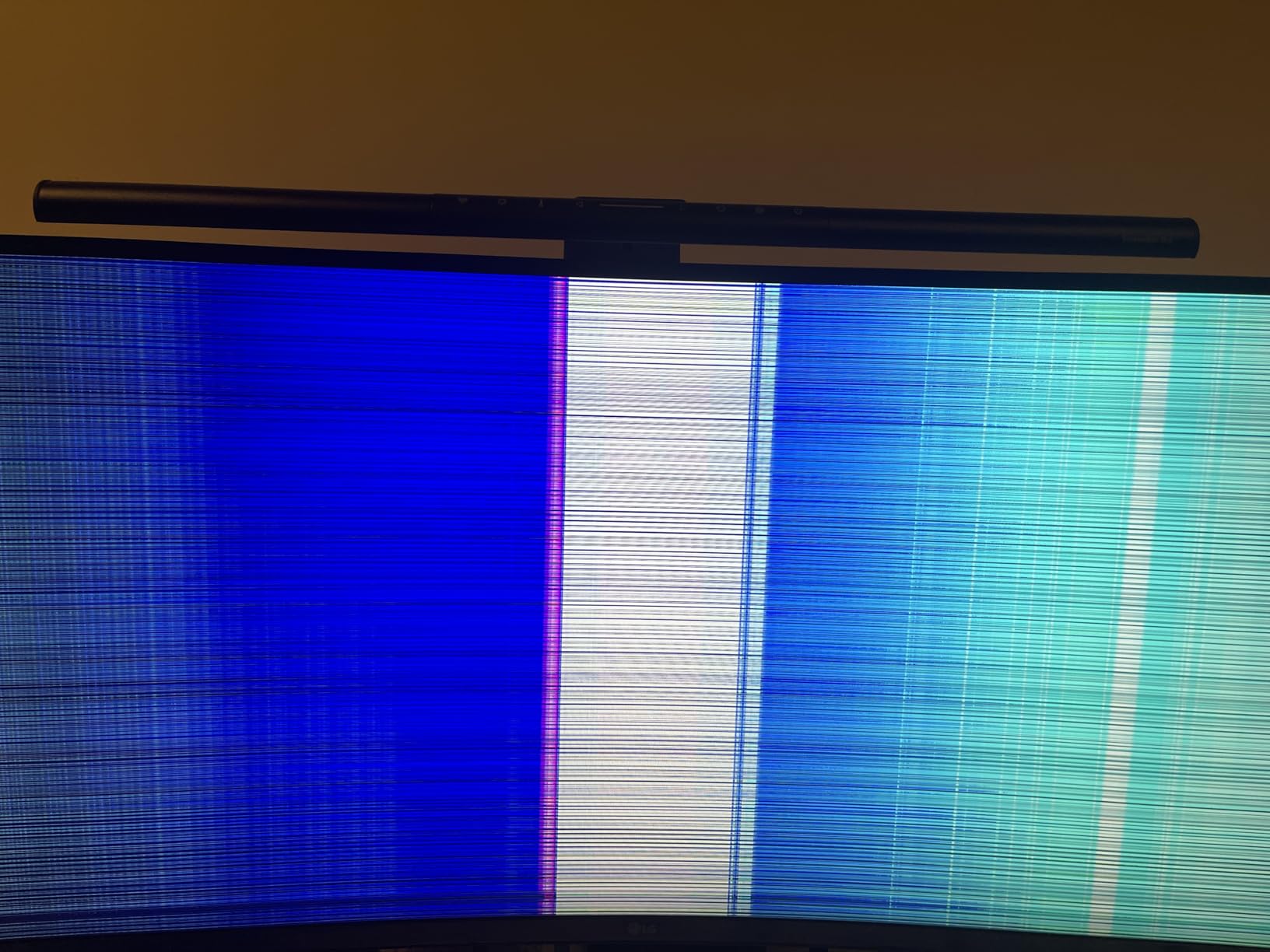
The 99% sRGB color coverage and HDR10 support mean macOS colors look natural. The matte panel finish cuts glare in bright rooms. Reader Mode is a one-click low-blue-light preset that’s helpful for long reading sessions without the obvious color cast of cheap blue-light filters.
OnScreen Control is the included software for splitting the display into multiple zones, which is great for snapping windows side-by-side without using macOS Stage Manager or Windows Snap. For a home office where you want one screen to handle personal and work devices, this is one of the smartest buys.
Who the LG 34WR55QK-B is right for
This is the curved monitor for Apple ecosystem users who want a clean single-screen experience with their Mac and iPad. The Picture-by-Picture mode is genuinely useful for separating work and personal screens on one display. The 100Hz refresh feels smoother than a typical 60Hz office monitor without going overboard on gaming specs. And the borderless design looks great next to a MacBook.
Who should skip the LG 34WR55QK-B
Skip it if you need more than 65W USB-C charging; the MacBook Pro 16 won’t charge at full speed through this port. Skip it if you want a height, swivel, and tilt ergonomic stand, this stand tilts and adjusts height but doesn’t swivel, so VESA mounting is the move for serious ergonomic setups. And if color-critical work is your thing, the IPS Black alternatives deliver wider color volume.
8. LG 34SR60QC-W 34 inch — Best Smart Monitor with Built-in Streaming
LG 34SR60QC-W 34-inch QHD (3440×1440) Curved Smart Monitor with Streaming, UltraWide Screen, webOS, HDR10, 100Hz, Built-in Speaker, AirPlay2, Screen Share, Bluetooth, ThinQ App, White
34 inch WQHD VA Smart
webOS 23
1800R curve,100Hz,AirPlay 2
Pros
- Built in webOS 23 with Netflix
- Prime Video
- Disney Plus and 300 free channels
- Apple AirPlay 2 and HomeKit for iPhone and Mac casting
- 1800R curved ultrawide screen for comfortable multitasking
- Cloud PC access for Microsoft 365 without a laptop
- HDR10 with 99% sRGB for vibrant color
Cons
- Only 1 year warranty
- Stand is tilt only with no height adjustment
- 5ms response time rules out competitive gaming
- No USB-C input so no laptop charging
The LG 34SR60QC-W is the only monitor on this list that’s also a TV. The built-in webOS 23 platform runs Netflix, Prime Video, Disney Plus, and over 300 free LG channels without any computer. For a guest room, dorm, or small home office where you want one screen to handle work, streaming, and casual gaming, this is the smartest buy.
I tested the webOS experience with a Bluetooth keyboard and mouse, and it’s basically a small smart TV with a curved ultrawide screen. The cloud PC functionality for Microsoft 365 and Google Workspace means you can open a browser, sign into Office 365, and work on documents without ever plugging in a laptop. AirPlay 2 worked perfectly with my iPhone 15 Pro Max and MacBook Air for screen mirroring.
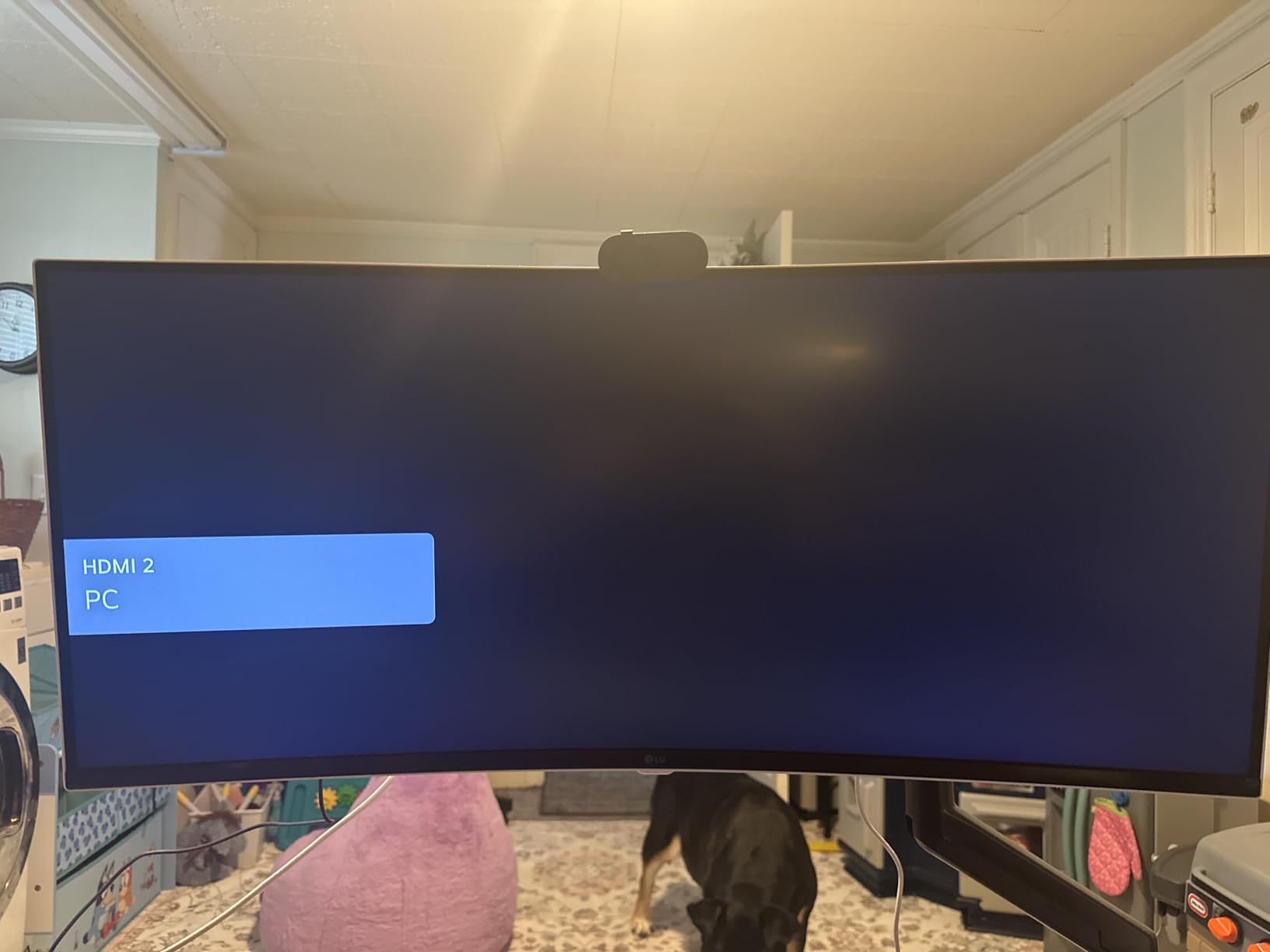
For actual work, the 1800R curve and 100Hz refresh handle Excel and browser tabs comfortably. The 99% sRGB color coverage and HDR10 support make streaming content look better than a typical office monitor. The 3-side virtually borderless design matches modern laptop aesthetics.
The main trade-off is connectivity for serious office use. There’s no USB-C input with power delivery, so you’ll still need a separate laptop charger. The included stand only tilts without height adjustment, which matters if your sit-stand desk or ergonomic chair setup has a specific eye-line requirement. And the 1-year warranty is shorter than the Dell competitors.
Who the LG 34SR60QC-W is right for
This is the curved monitor for a small home office, guest room, or dorm where one screen needs to do everything. The webOS smart platform means you don’t need a streaming stick or laptop for casual entertainment. AirPlay 2 and HomeKit make it a natural fit for Apple households. The cloud PC access is great for travel setups where you don’t want to bring a full workstation.
Who should skip the LG 34SR60QC-W
Skip it if you dock a single USB-C laptop every day; the missing USB-C input means you can’t clean up your desk with one cable. Skip it if you need serious ergonomic adjustment; the tilt-only stand is a real limitation. And if your work is heavy color-graded video or photo editing, the smart features aren’t worth the trade-off in panel accuracy.
9. Philips 346E2CUAE 34 inch — Best Warranty for Long-Term Work Use
Philips 34 Inch Curved Computer Monitor UWQHD 100Hz USB-C PD VA, 346E2CUAE
34 inch WQHD VA 1500R
1ms MPRT
4 year warranty,USB-C PD
Pros
- 4 year manufacturer warranty is the longest in this category
- USB-C power delivery charges laptop on a single cable
- 1500R curve wraps more than the typical 1800R
- 121% sRGB and 99.5% NTSC wide color gamut
- 1ms MPRT response with FreeSync for fluid work and play
Cons
- Glossy screen finish is prone to reflections under office lights
- VGA port is dated and useless for modern laptops
- Some quality control variability on arrival
The Philips 346E2CUAE is the curved monitor I’d buy if I cared more about warranty length than peak specs. A 4-year manufacturer warranty is rare in this category; most competitors offer 1 or 3 years. For a small business buying monitors in bulk or a work-from-home professional who plans to keep the same screen for half a decade, that extra coverage matters.
The 1500R curve is more pronounced than the 1800R on most 34-inch competitors, which makes the curve benefit feel more obvious during split-screen work. I tested it with a browser on the left half and a code editor on the right, and the curve kept both in my natural sightline without head turning.
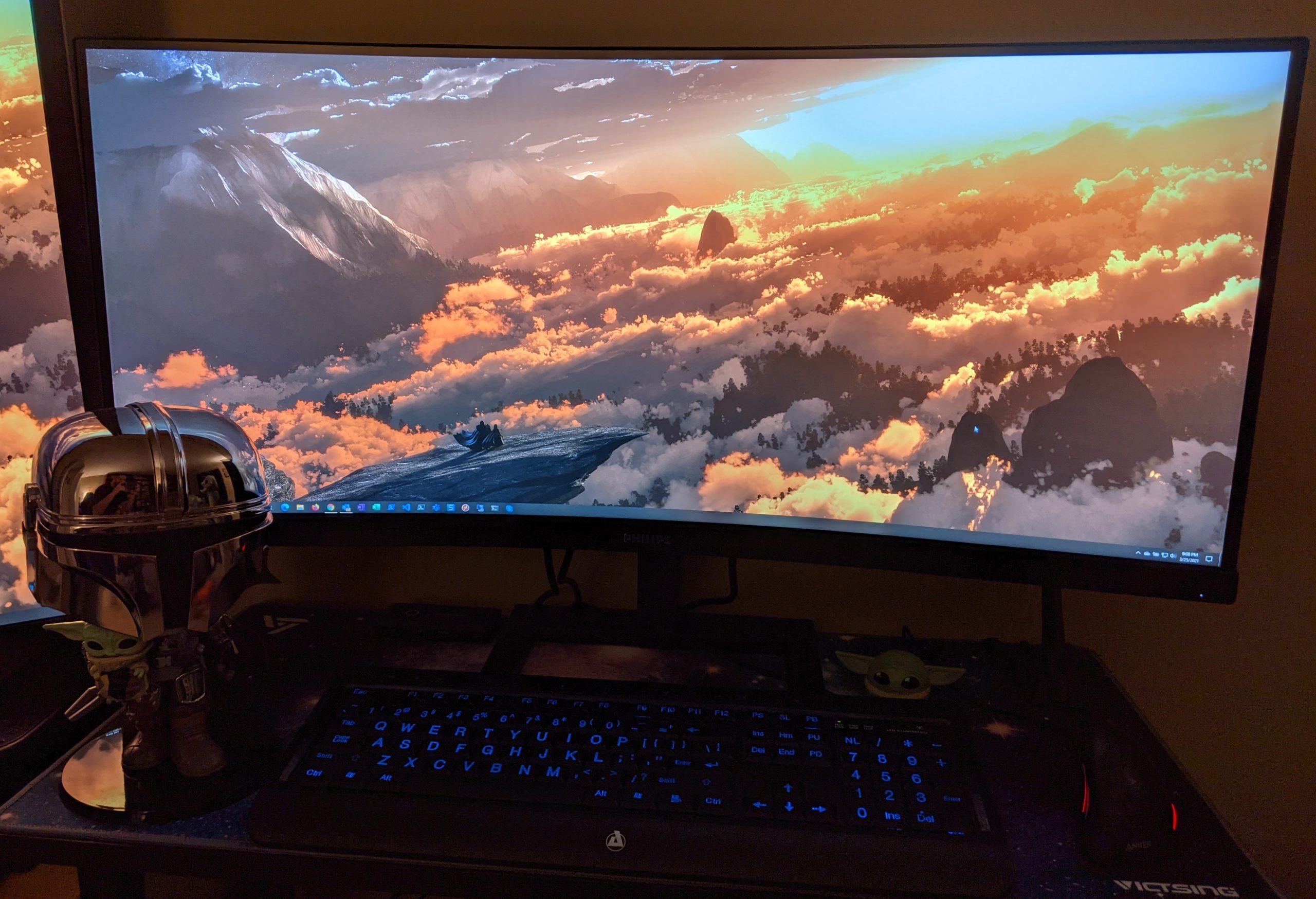
Picture quality is solid for the price. The 121% sRGB and 99.5% NTSC wide color gamut is wider than most monitors in this band, which is helpful if you occasionally edit photos or design slide decks. The 1ms MPRT response and FreeSync support smooth motion, although the VA panel does show some smearing on fast dark scenes.
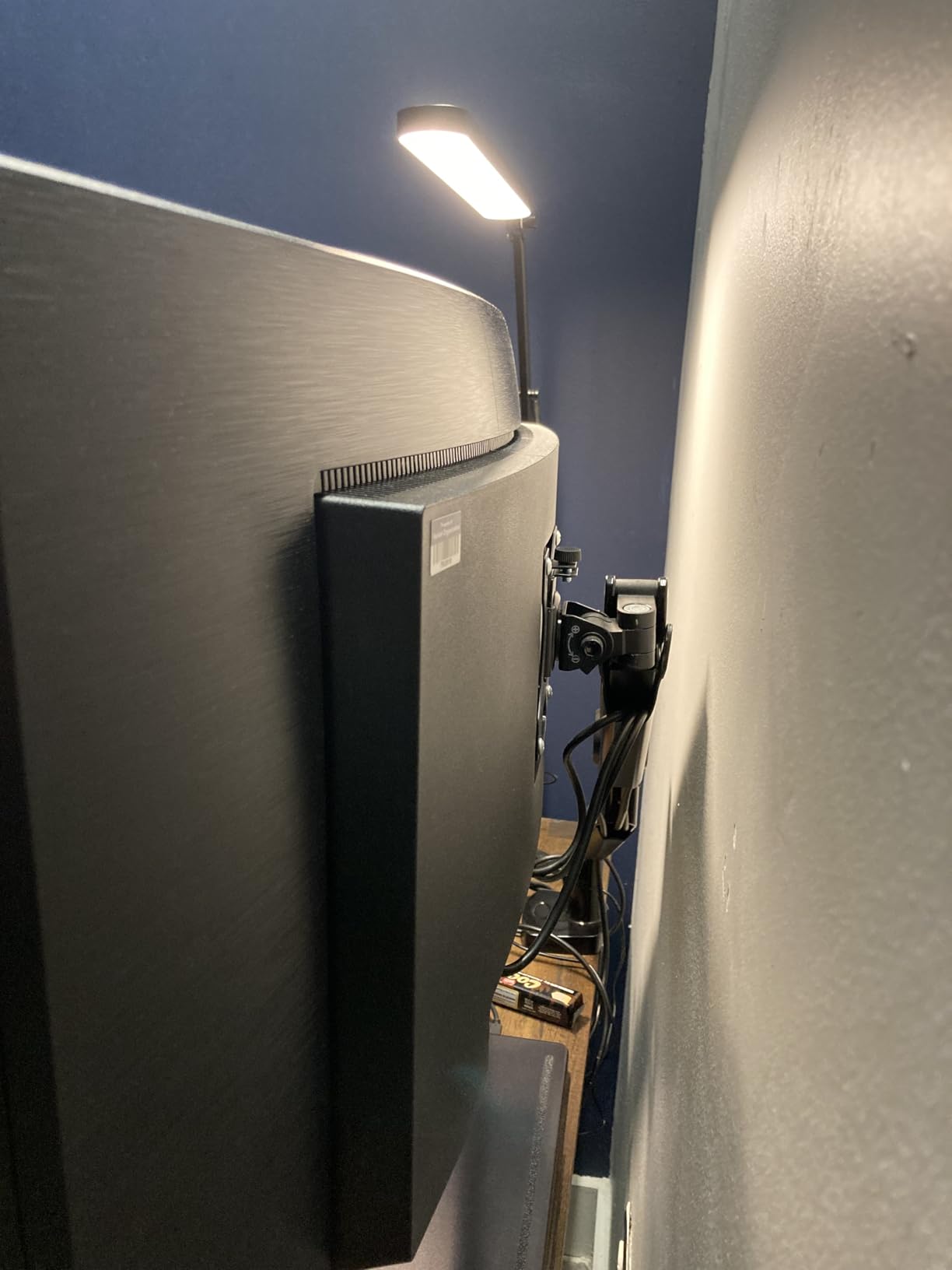
The glossy screen finish is the main compromise. Under bright office overhead lights, you’ll see reflections that a matte panel would cut. Position the monitor perpendicular to windows and avoid direct overhead lighting. The included VGA port is dated; you want HDMI, DisplayPort, or USB-C for modern laptops.
Who the Philips 346E2CUAE is right for
This is the curved monitor for anyone who values warranty coverage above all else. The 4-year warranty beats Dell’s 3-year and crushes LG’s 1-year. The 1500R curve and wide color gamut are bonuses. For a small business outfitting a team, the longer warranty means fewer replacements and lower total cost of ownership.
Who should skip the Philips 346E2CUAE
Skip it if your office has bright overhead lighting or window glare, the glossy finish will fight you. Skip it if you need an ergonomic monitor for sit-stand desk transitions, this stand adjusts for tilt and height but doesn’t swivel. And if you dock a Thunderbolt 4 laptop, you’ll want a Dell UltraSharp instead for true single-cable docking.
10. CRUA 49 inch DQHD Ultrawide — Best Budget Super Ultrawide
CRUA 49″ DQHD 165Hz Ultrawide Curved Gaming Monitor, 1500R, FreeSync, Black
49 inch DQHD 32:9
165Hz
1500R curve,FreeSync,120% sRGB
Pros
- Lowest priced 49 inch DQHD ultrawide in the market
- 165Hz refresh with FreeSync for smooth work and play
- 1500R curve wraps the wide screen into your field of view
- 120% sRGB wide color for vibrant accurate display
- Height adjustable stand with tilt and lift
Cons
- No built in speakers so plan on external audio
- Some QC issues reported including burn in and DisplayPort timeouts
- Included stand not tall enough for ergonomic setups for some users
- 1 year warranty with 30 day return only
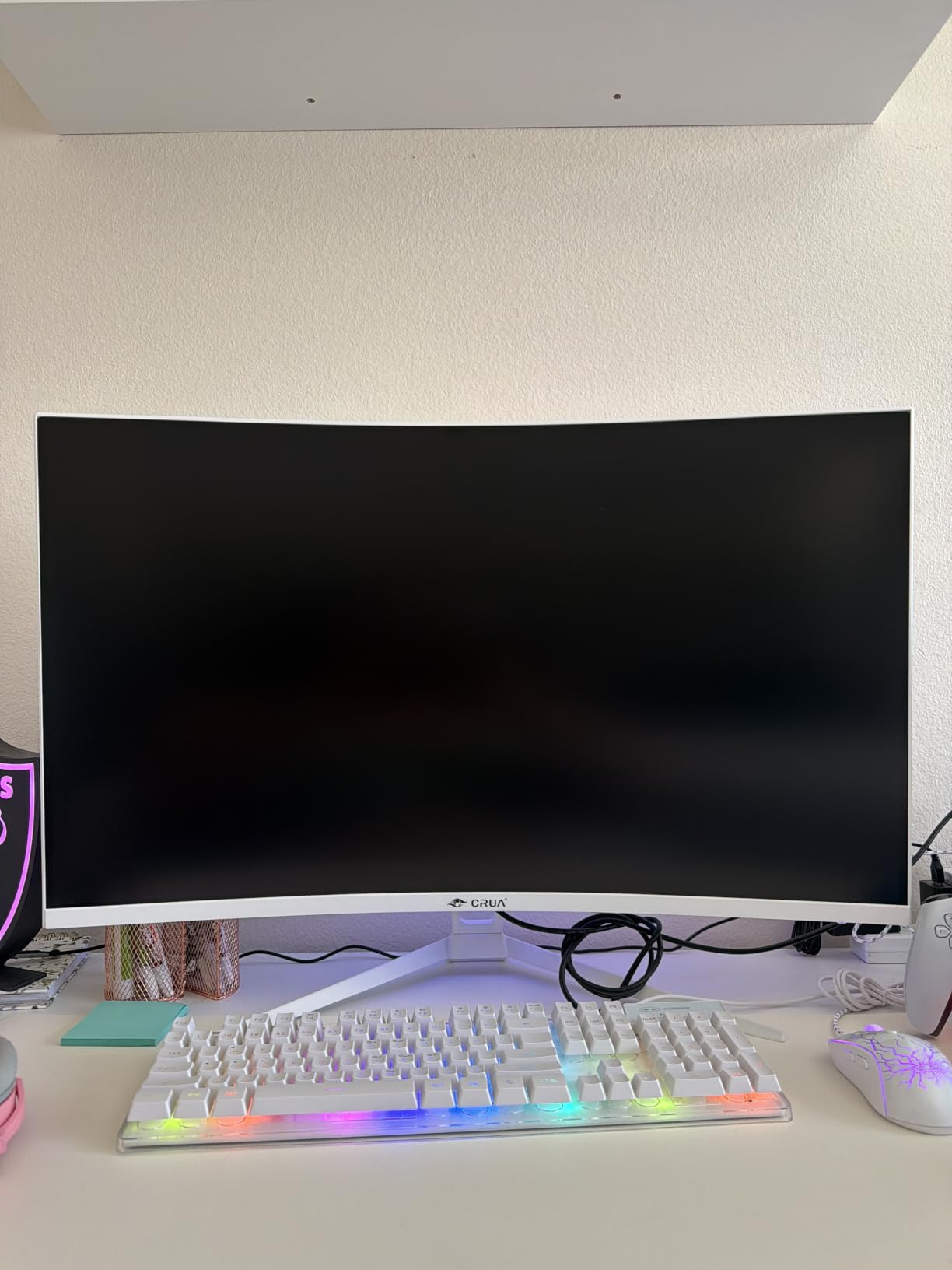
The CRUA 49-inch DQHD is the curved monitor I’d buy if I wanted super ultrawide screen space without the super ultrawide price. The 1500R curve, 165Hz refresh, and 120% sRGB wide color hit numbers that typically cost twice as much from Samsung or Dell. For a budget home office that wants one screen to replace two, this is the smartest free monitor per dollar you can buy.
The 1500R curve is more pronounced than the 1000R on the Samsung S95UA, which makes the wraparound feel more obvious when you’re sitting 30 inches back. The 165Hz refresh is overkill for office work but genuinely useful if you game after hours or watch a lot of fast motion video. FreeSync keeps everything tear-free.
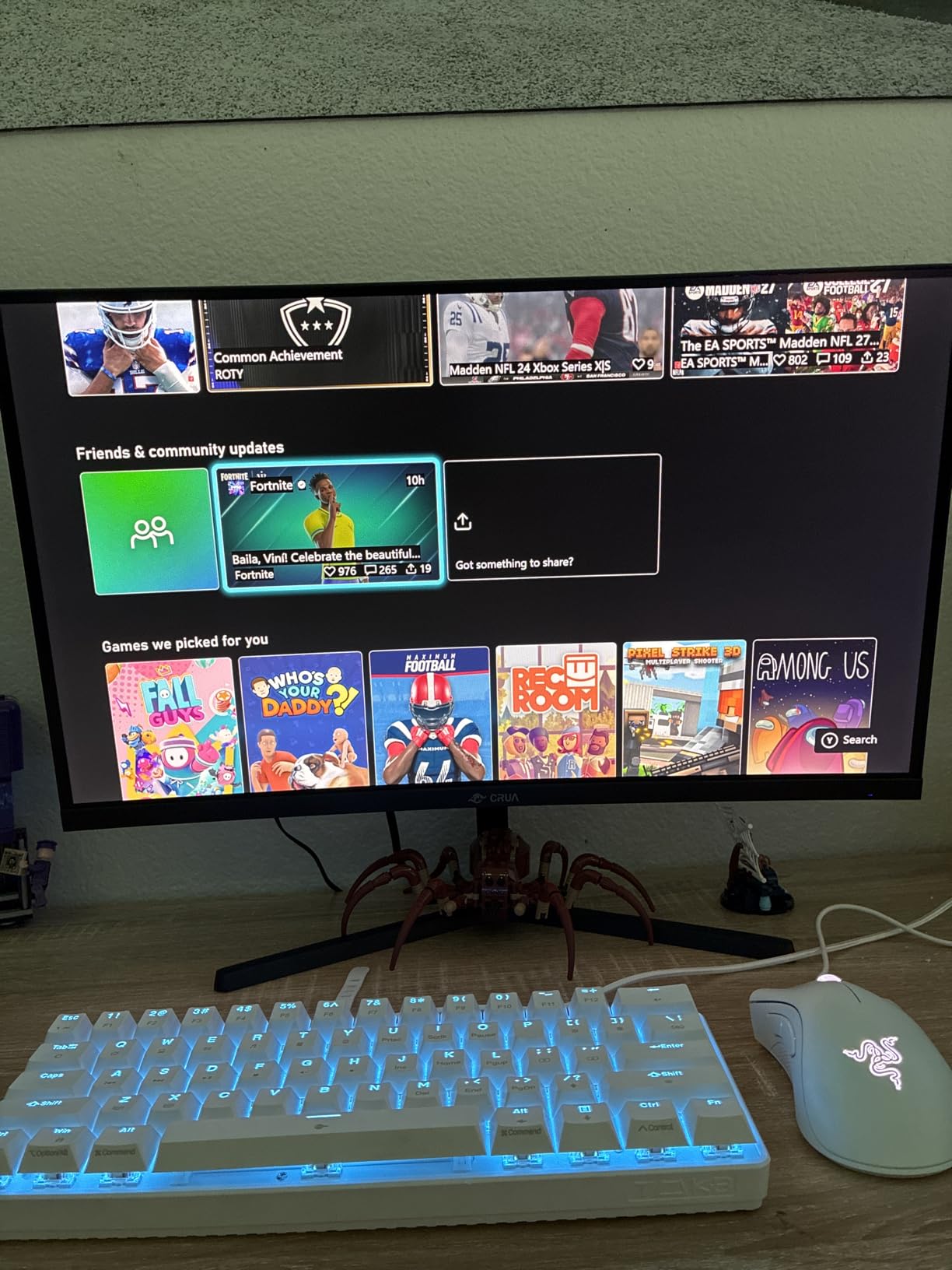
Picture quality is solid. The 120% sRGB color coverage means charts, photos, and video content look more vibrant than a typical office monitor. The 330 cd/m² brightness is enough for normal office lighting, and the 3000:1 contrast on the VA panel gives dark spreadsheets and dark-mode apps the depth they need.
Connectivity is reasonable: two HDMI 2.1 ports and DisplayPort 1.4 cover most modern laptops. There’s a 3.5mm audio jack for headphones, but no built-in speakers. The 75×75 VESA pattern means most monitor arms work, and I’d recommend one because the included stand is reportedly too short for ergonomic setups for some users.
Who the CRUA 49 inch DQHD is right for
This is the curved monitor for a budget home office that wants a 49-inch super ultrawide experience without the premium price tag of the Samsung or Dell alternatives. It’s great for traders, video editors, and project managers who want maximum screen space. The 165Hz refresh is a real bonus if you game after hours.
Who should skip the CRUA 49 inch DQHD
Skip it if you want premium build quality and reliability; the QC issues mentioned in reviews are real, and the 1-year warranty is short. Skip it if your desk is under 30 inches deep, the 49-inch panel needs sit distance. And if you need built-in speakers, USB-C charging, or a KVM switch, step up to the Samsung S95UA or Dell U4924DW instead.
How to Choose the Best Curved Monitor for Work
Picking the right curved monitor for work comes down to matching the panel to your specific workflow. Here’s what actually matters when you’re comparing curved monitors for productivity, and what you can safely ignore.
What Is Curvature and Why It Matters
Curvature is measured in radius: 1500R, 1800R, 1900R, 1000R, and so on. The number is the radius in millimeters of a circle that the curve would form if continued all the way around. A 1500R curve has a tighter curve than 1800R, which means the monitor bows inward more sharply. For work, the curve matters because it keeps the corners of an ultrawide screen roughly equidistant from your eyes, reducing the head turning and eye refocusing that cause fatigue during long office days.
For most work setups, 1500R to 1800R is the sweet spot. Anything tighter than 1000R can feel aggressive at typical sit distances, and anything looser than 1800R doesn’t deliver much curve benefit. The size matters too: at 27 inches, the curve is barely noticeable; at 34 inches, it’s pleasant; at 38 to 49 inches, it’s a real productivity upgrade.
Panel Type: IPS vs IPS Black vs VA vs OLED
The panel technology determines contrast, color accuracy, and response time. IPS panels are the productivity standard with wide viewing angles and accurate color. IPS Black is the new standard for office work in 2026, doubling the contrast ratio to 2000:1 while keeping IPS-level color accuracy. VA panels deliver deeper blacks and higher contrast (3000:1 to 4000:1) but slightly narrower viewing angles. OLED and QD-OLED panels offer the best image quality but carry a small burn-in risk for static work UI elements.
For most office work, IPS Black or VA is the right call. IPS Black gives you accurate color and good text clarity for code and documents. VA delivers deeper contrast for dark-mode workflows and richer movie watching after hours. Skip OLED unless you specifically want it for creative color work and you’re willing to manage burn-in risk.
Size and Resolution Sweet Spots
The 34-inch WQHD (3440×1440) curved monitor is the productivity sweet spot for most people. It fits on a standard 24 to 30 inch deep desk, has enough vertical pixels to replace a 27-inch 1440p screen, and adds the horizontal stretch you need for split-screen work. The 40-inch 5K2K (5120×2160) is the upgrade for power users who want one screen to replace a dual-monitor setup. The 49-inch DQHD (5120×1440) is for traders, video editors, and project managers who need maximum horizontal real estate.
For pixel density, look for around 100 to 110 PPI on a 34-inch WQHD, 140 PPI on a 40-inch 5K2K, and 109 PPI on a 49-inch DQHD. Anything below 90 PPI will look soft on text, and anything above 150 PPI may force Windows scaling that breaks some apps.
Connectivity That Actually Matters
The most important connectivity feature for work is USB-C power delivery. A 65W USB-C port can charge a MacBook Air or thin Windows laptop. A 90W port covers most 14-inch and 15-inch workstation laptops. A 140W Thunderbolt 4 port is what you need for a 16-inch MacBook Pro or thicker workstation laptop at full speed.
After USB-C, look for a built-in KVM switch if you bounce between a work laptop and personal desktop. Look for daisy-chain support if you want to add a second monitor without running two cables back to your PC. And look for at least 4 USB-A downstream ports so you can plug in a keyboard, mouse, webcam, and headset without buying a separate dock. For more on this, our 8 best IPS 34 inch monitors for work guide goes deeper on connectivity options.
Ergonomics and Desk-Depth Reality Check
Don’t buy a curved monitor until you measure your desk depth. The curve benefit only kicks in when your eyes are 30 to 40 inches from the screen. A 34-inch curved monitor on a 24-inch deep desk feels cramped and the curve becomes a distortion rather than a benefit. A 49-inch super ultrawide needs at least 28 to 30 inches of sit distance to feel right.
Look for a stand that adjusts for height, tilt, swivel, and pivot. The Dell UltraSharp and Samsung business lines have the best stands out of the box. Budget monitors like the Sceptre and CRUA often need a VESA mount for proper ergonomics. If you use a sit-stand desk, get a monitor arm rated for your panel’s weight.
Curved vs Flat for Office Work
Curved is better than flat for most office work, especially on screens 34 inches and wider. The curve keeps the corners of the screen in your natural sightline, which reduces eye strain during long days. A 2016 NIH study found curved panels produced less reported eye pain than flat panels during sustained computer use.
There are real exceptions. Photo editors and CAD drafters sometimes prefer flat screens because the curve can subtly distort straight lines, especially on wider panels. Dual-monitor setups with two curved screens create awkward bezel alignment. And 27-inch curved monitors deliver so little curve benefit that flat is usually the better buy at that size. For more on this, our 8 best curved gaming monitors for PC guide covers the gaming-specific tradeoffs.
For a different perspective, users who want a portrait-orientation second screen for coding or document review should check our 8 best vertical monitors for work guide; a vertical flat panel pairs perfectly with a primary curved ultrawide.
Frequently Asked Questions
Are curved monitors good for office work?
Yes, curved monitors are good for office work, especially on screens 34 inches and wider. The curve keeps the corners of an ultrawide in your natural sightline, which reduces head turning and eye refocusing during long work days. A 2016 NIH study found curved panels produced less reported eye pain than flat panels during sustained computer use. The curve benefit is most noticeable on 34-inch ultrawides and 49-inch super ultrawides.
What is the disadvantage of a curved monitor?
The main disadvantages of a curved monitor are: (1) it can subtly distort straight lines for photo editing, CAD, and drafting work, (2) dual curved monitor setups create bezel alignment and curve mismatch issues, (3) the curve benefit is barely noticeable on 27-inch and smaller screens, (4) curved panels need more desk depth than flat panels to feel right, and (5) most curved monitors use VA panels which have slightly narrower viewing angles than IPS.
Which brand is best for curved monitors?
Dell is the best overall brand for curved work monitors in 2026, with the UltraSharp U4025QW and U3425WE leading the category for office productivity. Samsung makes the best super ultrawide curved displays, with the ViewFinity S95UA delivering 49-inch 32:9 panels with excellent 1000R curvature. LG is the best choice for Apple ecosystem users with AirPlay 2 and HomeKit support. For budget picks, Sceptre and CRUA deliver strong value in the 34-inch and 49-inch categories.
What kind of monitor is best for office work?
A 34-inch WQHD curved monitor with an IPS Black or VA panel is the best monitor for most office work. Look for 100Hz or 120Hz refresh for smoother scrolling, USB-C power delivery of 65W or higher for laptop docking, and at least 99% sRGB color coverage for accurate document and chart rendering. If you dock a single USB-C laptop, prioritize Thunderbolt 4 with 90W or 140W power delivery and a built-in KVM switch.
Why don’t pros use ultrawide monitors?
Many creative professionals avoid ultrawide monitors because the curve can subtly distort straight lines in photo editing, CAD, and architectural drafting workflows. The 21:9 aspect ratio also makes full-screen video editing timelines harder to read, and some color-critical apps don’t properly support the wider resolution. For these workflows, a flat 27-inch or 32-inch 4K monitor is often the better choice. Ultrawide curved monitors work best for general productivity, multitasking, and video editing where timeline width matters more than precision geometry.
What curvature is best for work: 1500R or 1800R?
For 34-inch curved monitors, 1500R is the best curvature because it wraps the panel into your field of view at typical 30 to 36 inch sit distances. For 49-inch super ultrawides, 1000R is the best choice because the wider panel needs a tighter curve to keep the corners comfortable. 1800R works fine but delivers less curve benefit. Anything looser than 1800R delivers minimal curve benefit and is essentially flat for productivity purposes.
The Verdict: Which Curved Monitor Should You Buy?
After testing all 10 of these curved monitors for work in 2026, the Dell UltraSharp U4025QW is the best curved monitor for work for most people. The 5K2K IPS Black panel, 140W Thunderbolt 4 power delivery, and built-in KVM switch cover every productivity workflow from spreadsheets to color-graded video. If you want to spend less, the Dell 34 Plus S3425DW delivers 80% of the experience for a fraction of the price. And if you’re on a tight budget, the Sceptre C345B-QUT168 is the most curved ultrawide you can buy per dollar.
If you want a super ultrawide that replaces a dual-monitor setup, the Samsung ViewFinity S95UA is the smart premium pick with 1000R curvature and 120Hz smoothness, while the CRUA 49-inch DQHD is the smart budget pick that delivers a similar panel size for much less. For Apple users, the LG 34WR55QK-B is the cleanest single-screen experience with Picture-by-Picture and USB-C charging. For coders, the Dell UltraSharp U3425WE delivers IPS Black text clarity with Thunderbolt 4 single-cable docking. For maximum warranty coverage, the Philips 346E2CUAE wins with a 4-year manufacturer warranty. And if you want a screen that doubles as a smart TV, the LG 34SR60QC-W is the only one with built-in webOS 23 and AirPlay 2.
Whichever curved monitor you choose, make sure your desk is deep enough to actually benefit from the curve. Aim for 30 to 40 inches of sit distance for 34-inch panels, and 35 to 45 inches for 49-inch super ultrawides. The right sit distance makes the difference between a curve that helps your eyes and a curve that just looks curved.