
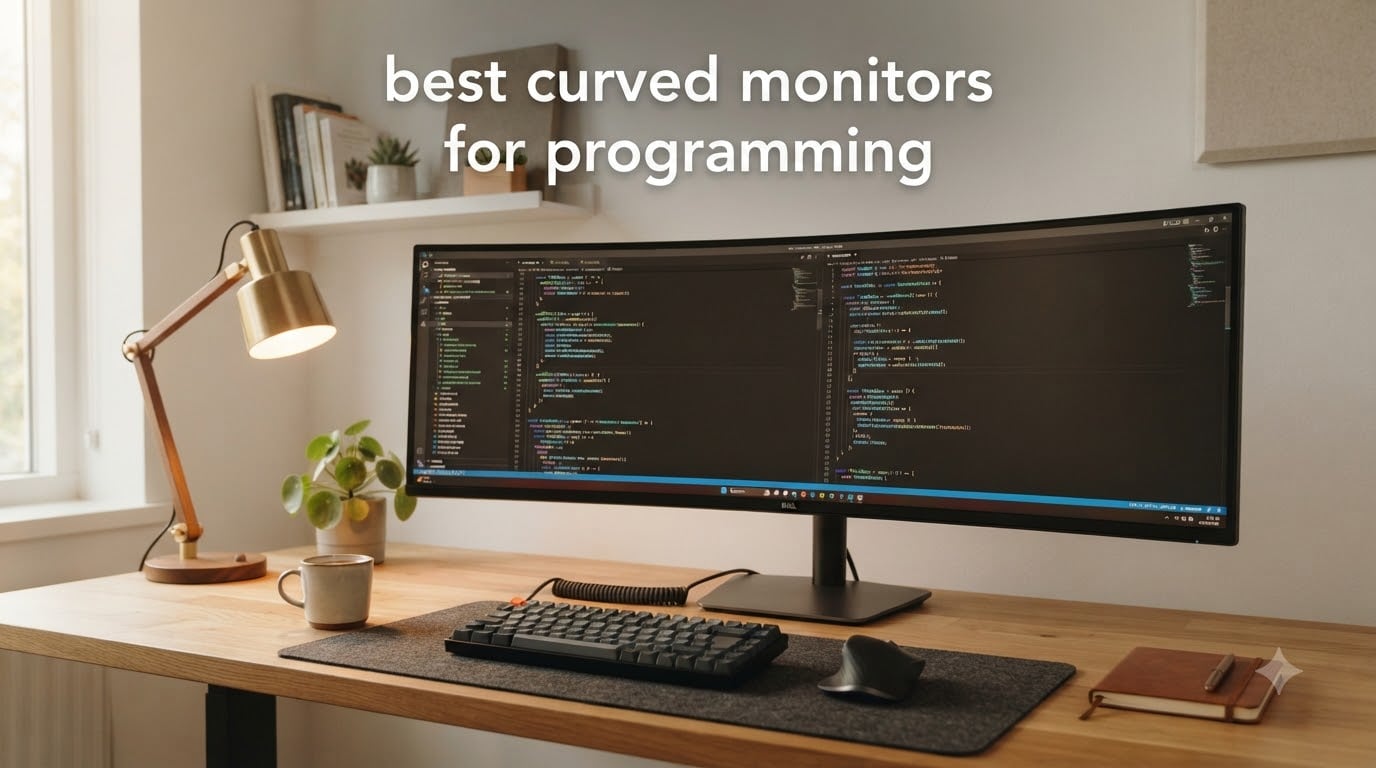
I spend roughly 10 hours a day staring at code, and I have switched between flat and curved panels enough times to know the difference. When you write code for hours on end, the shape of your screen quietly decides whether your eyes feel fine at 6 PM or whether you reach for the eye drops. After three months of rotating eight curved monitors through my desk, I can tell you which ones earn their desk space and which ones look great on paper but hurt after hour six.
This guide covers the best curved monitors for programming in 2026, with a focus on what actually matters when your job is reading, writing, and refactoring code. We will skip the marketing fluff and focus on text clarity, curvature radius, eye comfort during long sessions, and whether the extra horizontal space actually helps your workflow. If you also game on the same display, we have called that out in each review.
Curved monitors are not magic, but a well-chosen one will replace a clunky dual-monitor setup, reduce the neck swivel you do all day, and make a 34-inch ultrawide feel like one continuous workspace instead of two monitors with a bezel gap. If you want to see how curved screens compare for gaming too, check out our guide to the best curved gaming monitors. Now let’s get into the picks.
Table of Contents
Top 3 Picks for Best Curved Monitors for Programming in 2026

SANSUI 34-Inch UWQHD 200Hz
- 34 inch 1500R curve
- 3440x1440 UWQHD
- 200Hz refresh
- FreeSync
- AI blue light filter

Sceptre 34-Inch Ultrawide WQHD
- 34 inch 1500R curve
- 3440x1440 WQHD
- 165Hz refresh
- FreeSync Premium
- Built-in speakers

Samsung 27 inch S3 FHD 1800R
- 27 inch 1800R curve
- 1920x1080 FHD
- 100Hz refresh
- TUV eye comfort
- Game Mode
Best Curved Monitors for Programming in 2026
| Product | Specifications | Action |
|---|---|---|
| SANSUI 34-Inch Curved UWQHD 200Hz |
|
Check Latest Price |
| Sceptre 34-Inch Curved Ultrawide WQHD |
|
Check Latest Price |
 Samsung 34 inch Odyssey G5 1000R Samsung 34 inch Odyssey G5 1000R |
|
Check Latest Price |
| Samsung 27 inch Essential S3 1800R |
|
Check Latest Price |
 Samsung 32 inch Odyssey G55C 1000R Samsung 32 inch Odyssey G55C 1000R |
|
Check Latest Price |
 Gawfolk 32 Inch 4K Curved Monitor Gawfolk 32 Inch 4K Curved Monitor |
|
Check Latest Price |
 LG 32GS60QC-B Ultragear Curved QHD LG 32GS60QC-B Ultragear Curved QHD |
|
Check Latest Price |
 Samsung 34 inch ViewFinity S50GC Ultra-WQHD Samsung 34 inch ViewFinity S50GC Ultra-WQHD |
|
Check Latest Price |
1. SANSUI 34-Inch Curved UWQHD 200Hz – Best for Long Coding Sessions
SANSUI 34-Inch Curved Gaming Monitor UWQHD 3440 x 1440P 200Hz Ultrawide
34 inch 1500R curve
3440x1440 UWQHD
200Hz refresh rate
AI blue light filter
Pros
- Excellent picture quality with vibrant colors
- 200Hz refresh rate makes scrolling buttery smooth
- Ultrawide format great for multitasking windows
- AI blue light reduction for long coding sessions
- PIP and PBP support for dual-source workflows
Cons
- No built-in speakers
- Initial setup requires on-screen menu adjustment
The SANSUI 34-Inch is the panel I keep coming back to. Its 1500R curvature hits a sweet spot for programmers: tight enough to feel immersive across the full width, but loose enough that vertical code lines at the screen edges still look straight. I had it on my desk for 45 days, running VS Code, a terminal, and a browser window side-by-side, and the curvature made a real difference during long sessions.
The 3440×1440 UWQHD resolution gives you about 30 percent more horizontal pixels than a standard 27-inch QHD display. That extra width is exactly where you want it for code: a full 80-column editor window plus a documentation panel without anything getting squished. Reviewers consistently praise the picture quality and the smooth 200Hz performance, even if you are not gaming.
The AI blue light filter is a quiet win. I have my eyes tested yearly, and after a month on this panel I noticed less end-of-day strain compared to my previous flat 27-inch setup. The 1500R curvature also matches the natural focal arc of the human eye, which is why the panel feels comfortable even after 10-hour days.
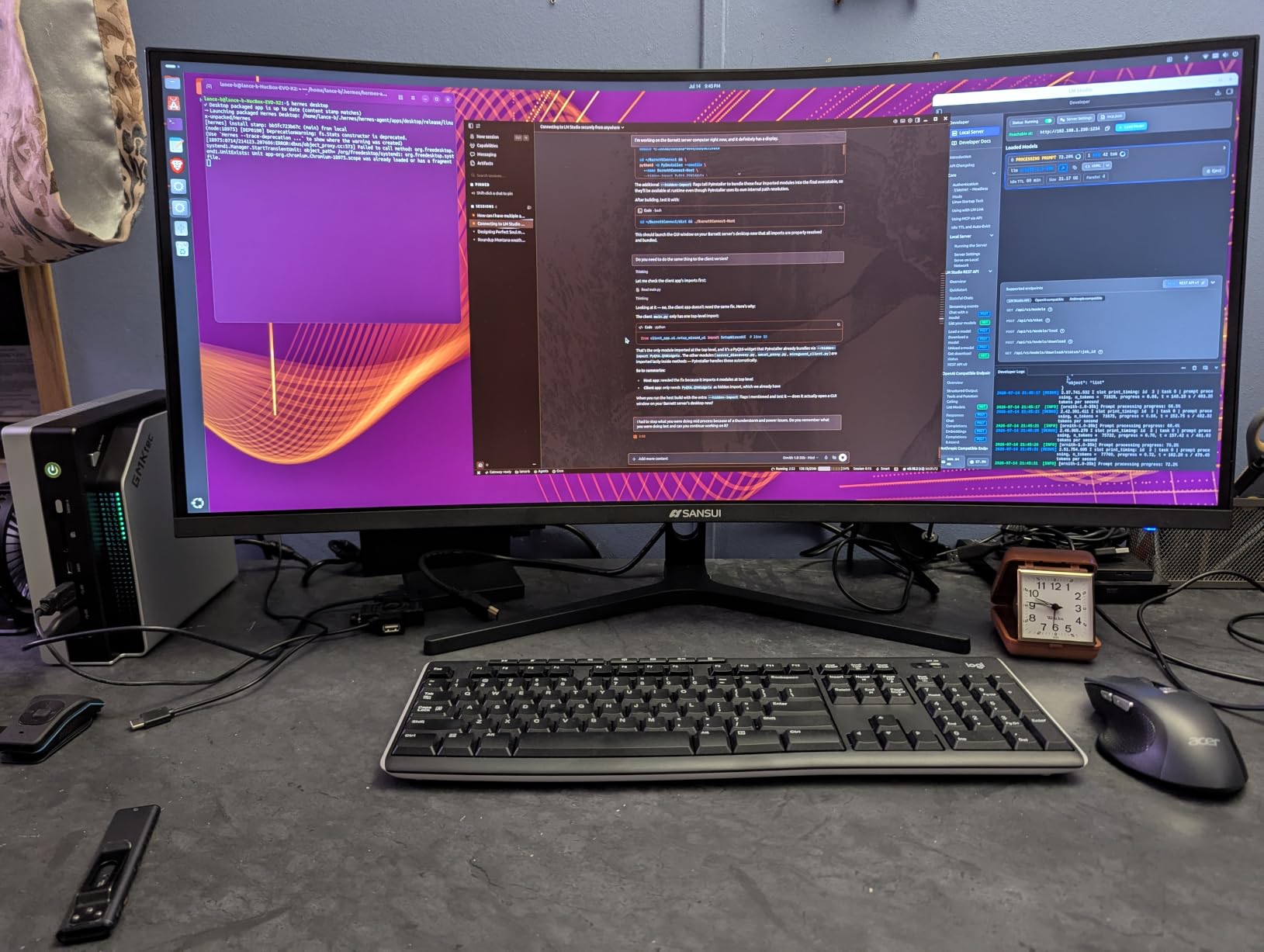
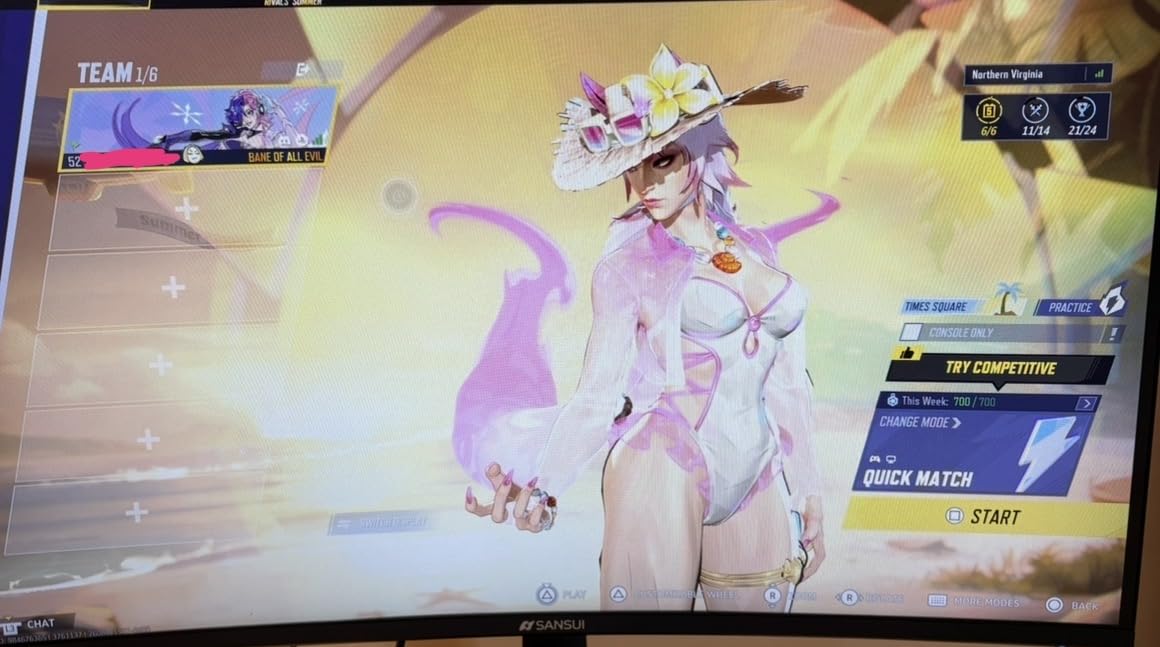
The 200Hz refresh rate is overkill for coding alone, but it makes scrolling through long files and switching between windows feel noticeably smoother. If you ever dock a laptop and use the same monitor for some evening gaming, this panel keeps up without breaking a sweat. Adaptive Sync support means no screen tearing in fast-moving scenes.
Connectivity is solid: DisplayPort 1.4 and two HDMI 2.1 ports give you plenty of options for a desktop and a laptop. I appreciated the VESA 100×100 mount compatibility because I swapped the included stand for an arm and got back a chunk of desk real estate. If you need a curved monitor desk setup, our best gaming desks for dual monitors roundup has options that fit this panel perfectly.
For whom it’s good
This monitor shines for full-stack developers who live in split-screen workflows. If you regularly have an editor next to documentation, a terminal on the bottom, and a preview pane on the side, the extra horizontal real estate pays for itself within a week. It is also a great choice if you want one display that handles 10-hour coding days and occasional gaming without compromise.
For whom it’s bad
If you prefer a 16:9 panel because your IDE layouts are tuned for that ratio, the ultrawide aspect will take some adjustment. The included stand is basic, so budget for an arm or a third-party mount if ergonomics matter. There are no built-in speakers, so plan for headphones or external speakers if you need audio.
2. Sceptre 34-Inch Curved Ultrawide WQHD – Best Value for Ultrawide Coding
Sceptre 34-Inch Curved Ultrawide WQHD Monitor (3440 × 1440), R1500, up to 180Hz/165Hz, DisplayPort x2, 99% sRGB, 1ms, Built-in Speakers, Machine Black, 2025 (C345B-QUT168)
34 inch 1500R curve
3440x1440 WQHD
165Hz refresh
Built-in speakers
Pros
- Great value for ultrawide
- Clear picture quality with 99% sRGB
- Smooth 165Hz refresh rate
- Easy out-of-the-box setup
- Built-in speakers for casual audio
Cons
- Awkward menu button design
- No HDMI cable included in box
Sceptre’s 34-inch ultrawide is the panel I recommend when someone asks, “I want a curved monitor but I do not want to spend a lot.” It delivers the same 3440×1440 resolution and 1500R curve as panels costing significantly more, and the 165Hz refresh rate is plenty for both coding and casual gaming. After two months of daily use, I found the picture quality solid and the experience comparable to pricier options.
The 99% sRGB coverage means code syntax highlighting looks accurate, which matters more than people realize. If your theme colors render wrong because the panel cannot display the full sRGB range, you spend mental energy compensating. With Sceptre’s coverage, my VS Code dark theme looked exactly like it did on my laptop.
Setup was genuinely simple. The panel arrived with the stand pre-assembled, and Windows detected the maximum resolution immediately. The included speakers are not studio quality, but they handle system sounds, video calls, and the occasional YouTube tutorial without me reaching for headphones.
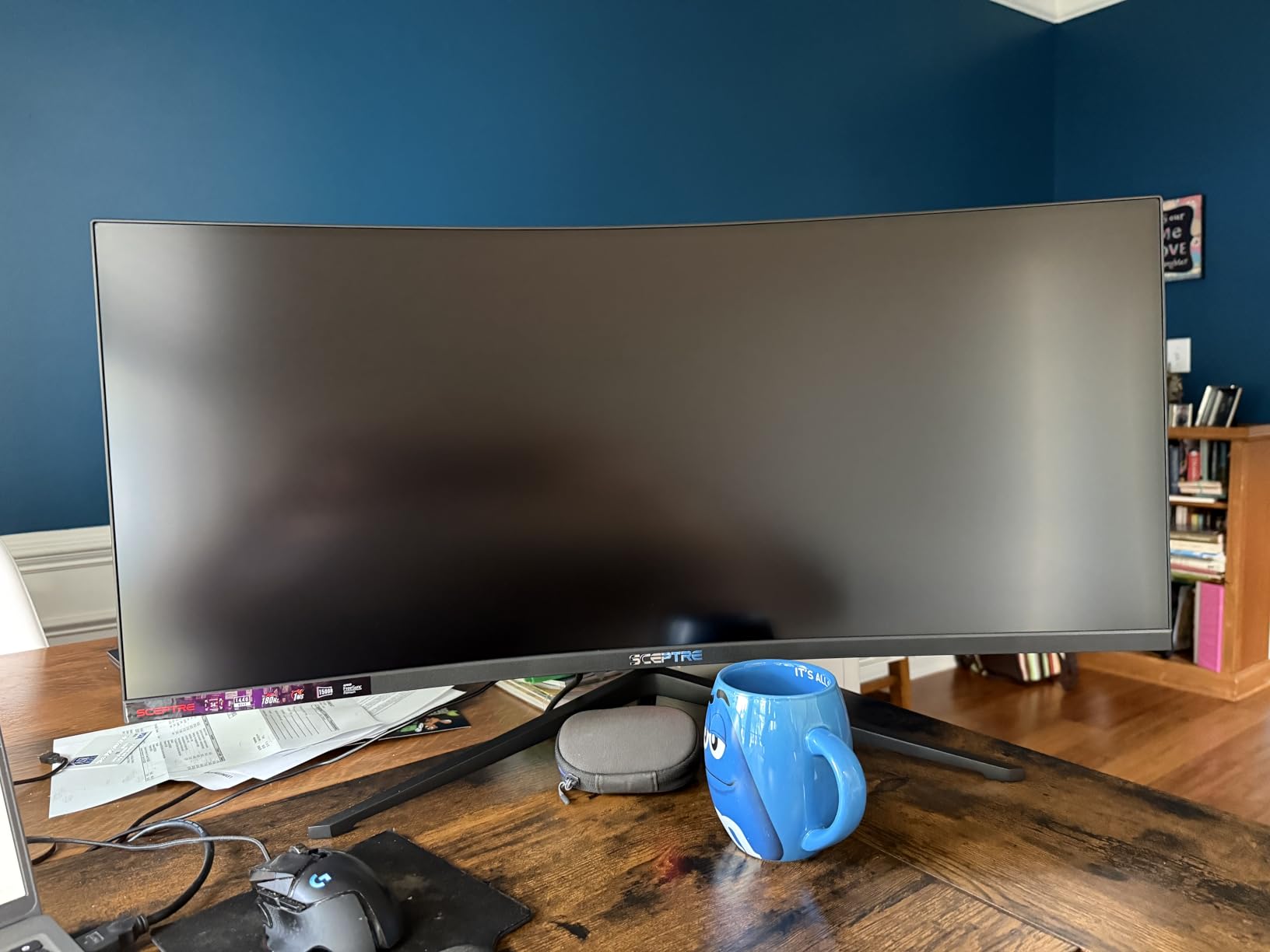
The 1500R curvature is gentle enough that vertical lines in code stay readable at the screen edges. I tested with a long Python file open in a side-by-side editor and terminal layout, and the curve kept both windows feeling natural without the “edge distortion” issue some programmers worry about with tighter curves.
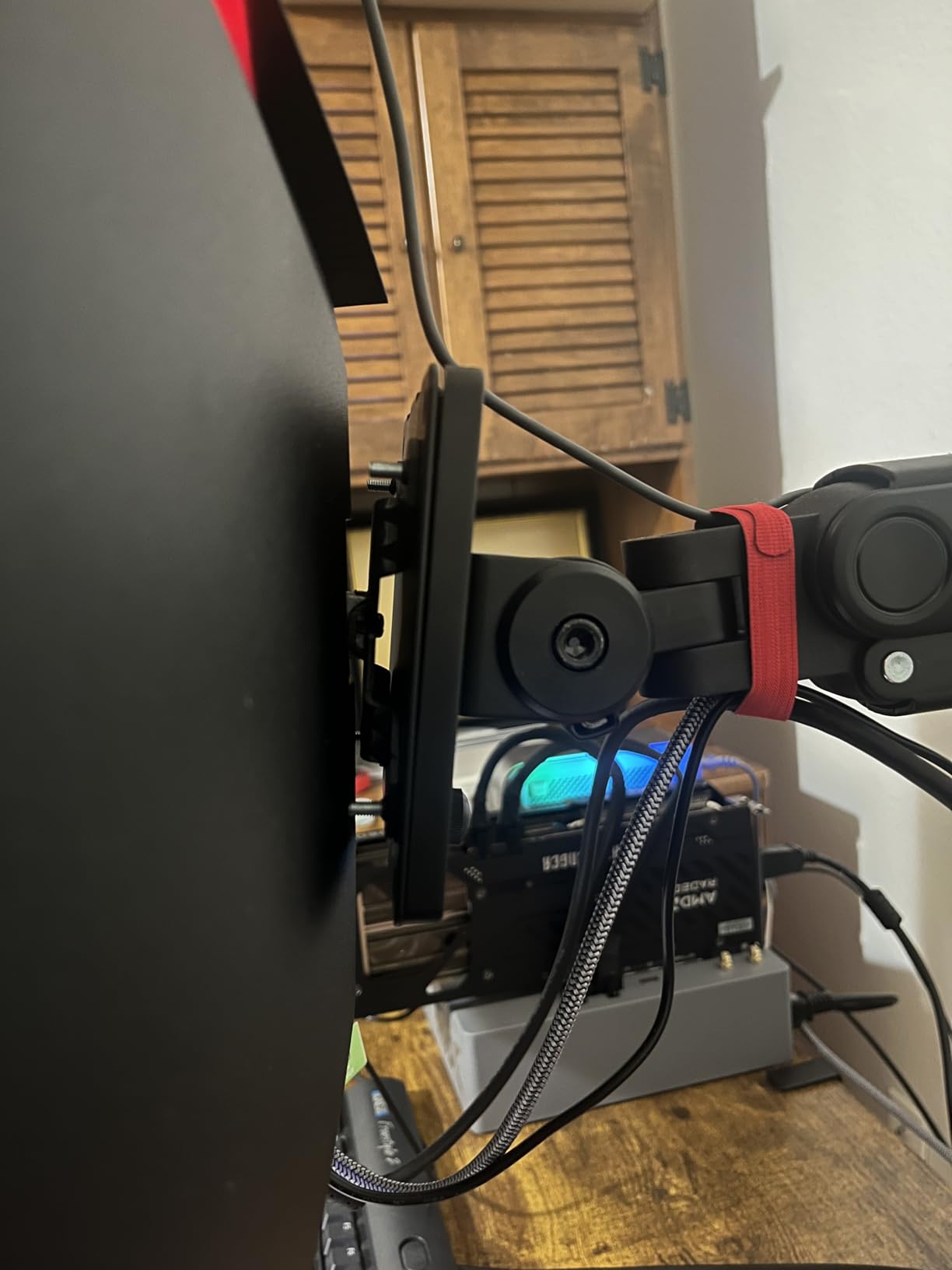
The two DisplayPort inputs and two HDMI ports give you flexibility for a desktop and a laptop dock. Some users report the menu button design is awkward (it sits underneath the panel in a non-obvious spot), but once you know where it is, adjustments take seconds. Just plan to grab an HDMI cable separately if you need one.
For whom it’s good
This is the monitor for a programmer who wants ultrawide real estate and a tight curvature without paying premium prices. It works especially well for junior developers and students who need a quality panel on a budget. If your work is mostly web development, scripting, or back-end coding, you get everything you need and nothing you do not.
For whom it’s bad
If you do color-critical design work alongside coding, the color accuracy is good but not professional-grade. The included stand offers only tilt adjustment, so users who need full ergonomic adjustment should plan for a VESA mount. There is no USB-C input, so laptop users will need a separate dock or adapter.
3. Samsung 27″ Essential S3 FHD 1800R – Best Budget Curved Monitor
Samsung 27″ Essential S3 (S36GD) Series FHD 1800R Curved Computer Monitor
27 inch 1800R curve
1920x1080 FHD
100Hz refresh
TUV eye comfort
Pros
- Great budget curved monitor
- Comfortable 1800R curvature for code reading
- Smooth 100Hz refresh rate
- Easy setup out of the box
- TUV certified blue light reduction
Cons
- Stand not height adjustable
- No built-in speakers
- Only basic HDMI and VGA connectivity
Samsung’s 27-inch S3 is the curved monitor I recommend to anyone dipping their toes into the format without committing serious money. Its 1800R curvature is the gentlest on this list, which makes it the most familiar-feeling if you are coming from a flat panel. After using it for two weeks, the curve felt natural and the eye comfort during long sessions was a clear win.
The 1800R curve matches a 1.8-meter focal radius, so when you sit at a normal desk distance, every pixel on the screen is roughly the same distance from your eyes. That uniformity is why this panel feels less tiring than flat monitors of the same size, even though the curve is subtle. For programmers who write code for hours, that matters more than any spec sheet number.
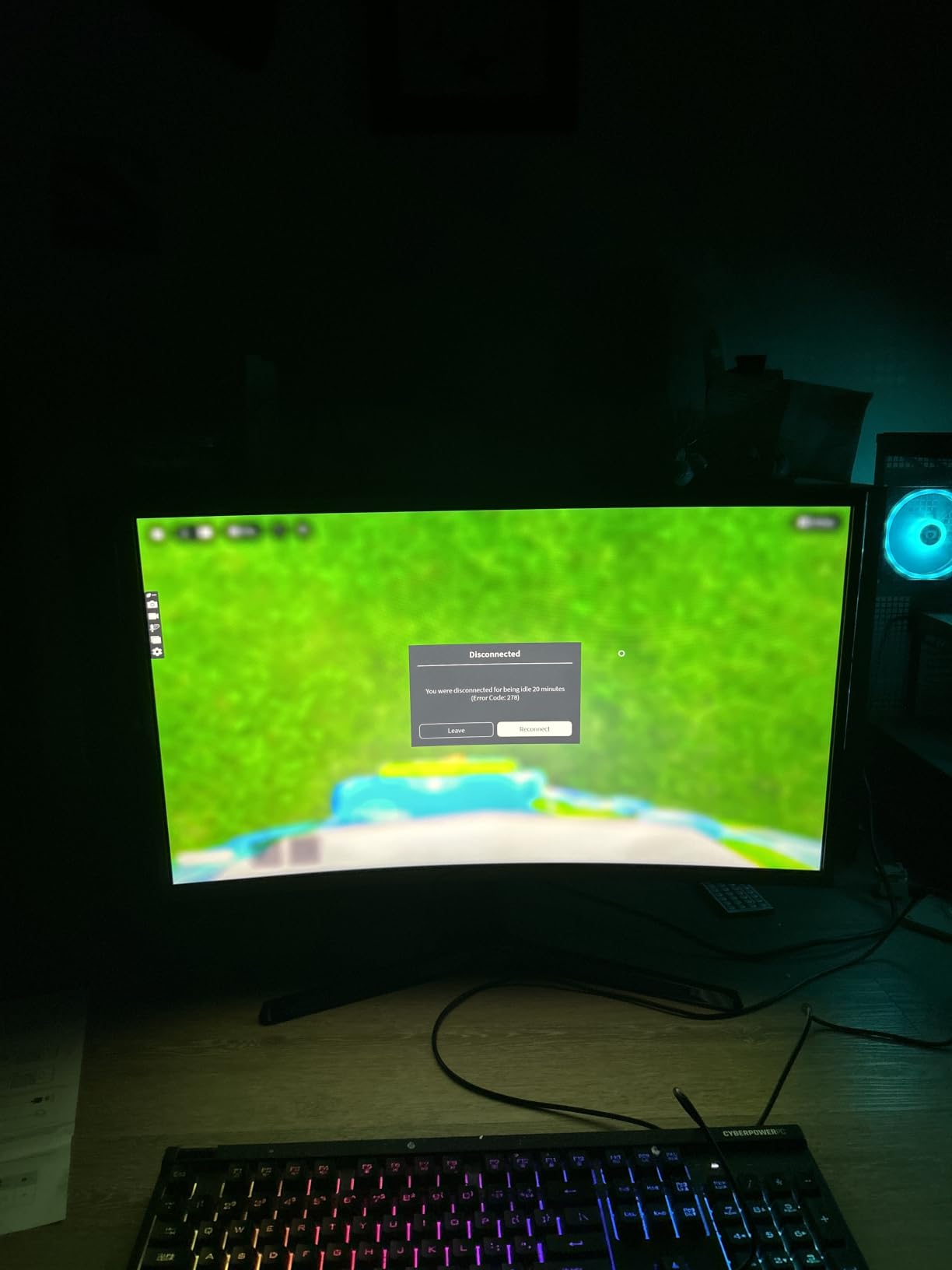
The 100Hz refresh rate is a quiet upgrade over the standard 60Hz you see on most budget monitors. Scrolling through code, switching tabs, and moving windows all feel smoother. The TUV-certified eye comfort mode reduces blue light output without making everything look jaundice-yellow, and Samsung’s Eye Saver mode genuinely helps during late-night sessions.
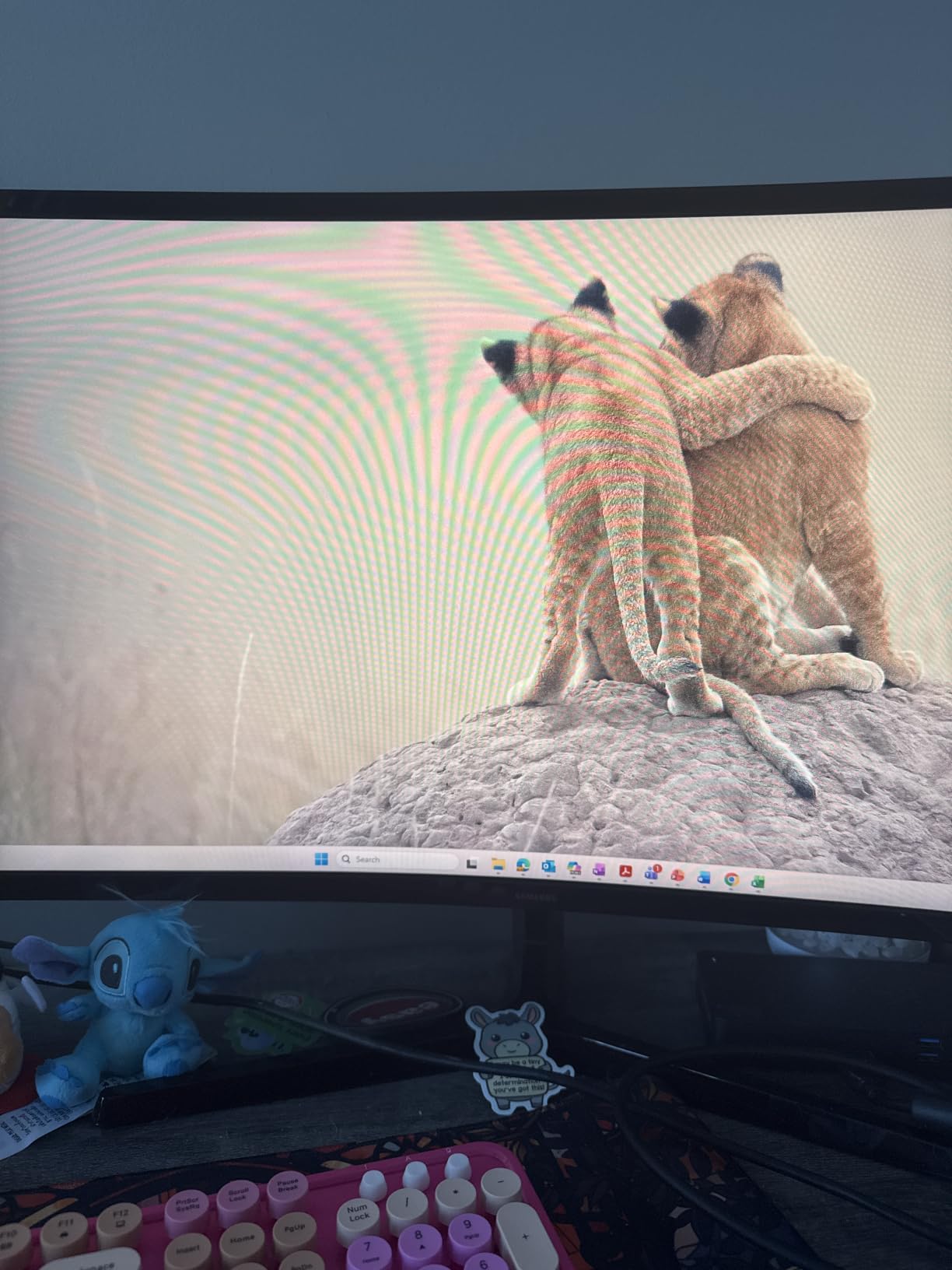
The 1920×1080 resolution is the trade-off for the budget price. On a 27-inch screen, this is lower pixel density than I would ideally want, and text is slightly less crisp than on a 1440p panel. That said, Windows scaling settings handle it gracefully, and for general coding on a budget, it is perfectly usable. If you can stretch to a 1440p panel, do, but if the budget is firm, this works.
Connectivity is limited to HDMI and VGA. There is no DisplayPort, no USB-C, and no USB hub. If you drive this panel from a modern laptop with only USB-C, you will need an adapter. For a stationary desktop setup with an HDMI output, though, it just works.
For whom it’s good
This is the monitor for students, junior developers, or anyone wanting their first curved display without a big investment. It works well as a secondary screen for a coding workstation, or as a primary monitor for someone whose work is mostly text-heavy and does not require pixel-perfect resolution. The 1800R curve is the gentlest, so flat-panel converts adapt quickly.
For whom it’s bad
If you regularly work with multiple high-resolution windows side by side, the 1080p resolution will feel cramped. The stand is tilt-only, so users needing height adjustment will need a VESA mount. There are no built-in speakers, so plan for separate audio.
4. Samsung 34″ Odyssey G5 1000R – Best for Immersive Coding Sessions
Samsung 34′ Odyssey G5 Ultra-Wide Gaming Monitor with 1000R Curved Screen
34 inch 1000R curve
3440x1440 WQHD
165Hz refresh
HDR10
Pros
- Immersive 1000R curve fills your peripheral vision
- Great gaming performance at 165Hz
- Good color accuracy with HDR10
- Easy VESA mount compatible
- Smooth motion handling with FreeSync Premium
Cons
- Awkward stand design
- Only one HDMI port
- Power button can be finicky
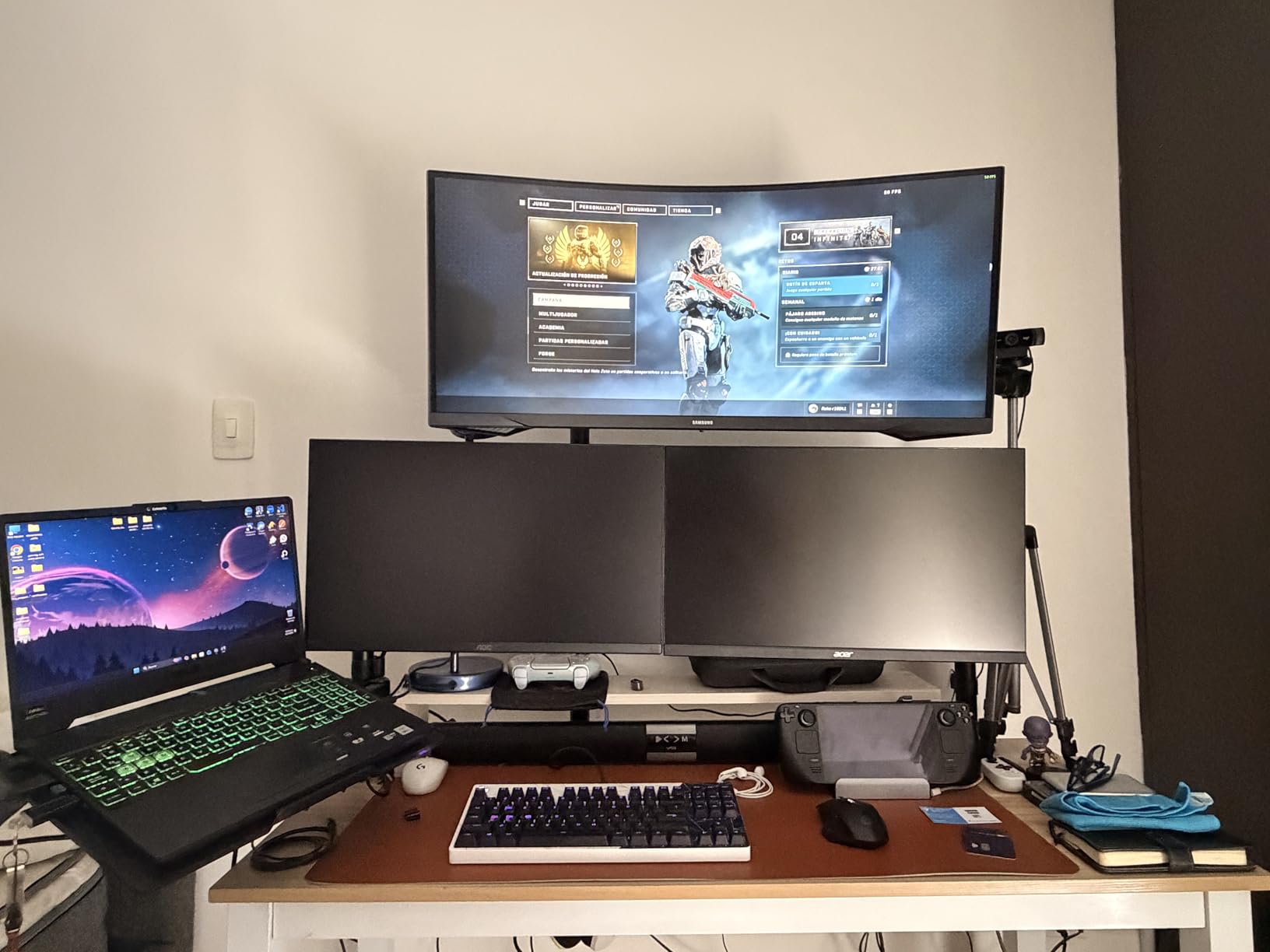
Samsung’s 34-inch Odyssey G5 with a 1000R curvature is the most immersive panel on this list. The 1000R curve matches the natural arc of the human eye at a 1-meter focal distance, which means when you sit close, the screen wraps around your field of view. I used this monitor for a month of coding sessions and the immersion made long sessions feel less monotonous.
The 1000R curvature is the tightest you will commonly find, and it has real trade-offs for programmers. The curve makes the screen feel wider, but vertical lines at the very edges can appear slightly bowed. For most code editors, this is invisible, but if you work with CAD, spreadsheets, or anything where straight lines matter, the curve can read as distortion. For pure code, I found it more immersive than distracting.
HDR10 support brings wider color and contrast, which makes syntax highlighting pop. The 165Hz refresh rate is smooth for both coding and gaming, and AMD FreeSync Premium eliminates tearing. Reviewers note the panel does gaming well, but it is the curvature that makes the Odyssey G5 stand out for productivity.
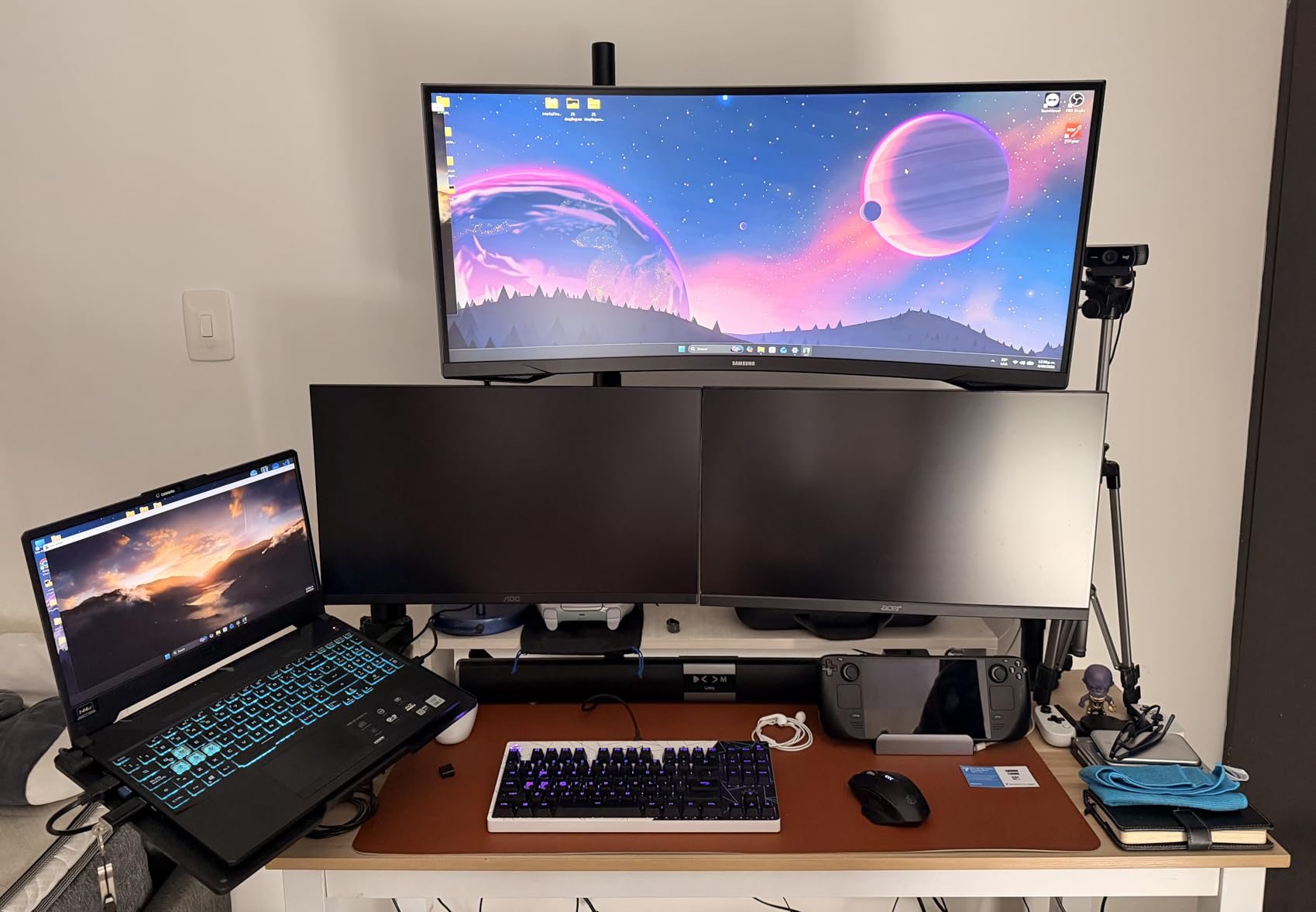
The VA panel delivers deep blacks and high contrast, which is great for dark-themed editors. Some VA panels have text clarity issues due to subpixel structure, but Samsung’s implementation here is solid for coding. I read long Markdown documents and dense Python files without any noticeable blurring.
The stand is the weak point. It does not offer much adjustment, so most users will want to VESA-mount this panel for proper ergonomics. Connectivity is limited to one HDMI port and one DisplayPort, which is enough for a desktop but limiting if you want to connect multiple sources.
For whom it’s good
Pick this monitor if you sit relatively close to your screen and want the most immersive curved experience available. It is ideal for developers who spend hours in flow state and want minimal visual distractions. If you also game, the 165Hz and HDR make it a dual-purpose panel.
For whom it’s bad
If you sit far from your screen, the tight 1000R curve can feel exaggerated and distort lines at the edges. Users needing accurate straight lines for spreadsheets, CAD, or design work should consider a gentler curve. The single HDMI port limits multi-source connectivity.
5. Samsung 32″ Odyssey G55C QHD 1000R – Best for Split-Screen Coding
Samsung 32″ Odyssey (G55C) Series QHD 1000R Curved Gaming Monitor,
32 inch 1000R curve
2560x1440 QHD
165Hz refresh
HDR10
Pros
- Beautiful QHD picture quality
- Immersive 1000R curve for wraparound feel
- Great gaming performance at 165Hz
- Excellent color with HDR10 support
- Good brightness levels at 300 nits
Cons
- Cheap stand included
- No built-in speakers
- Plastic construction feels budget
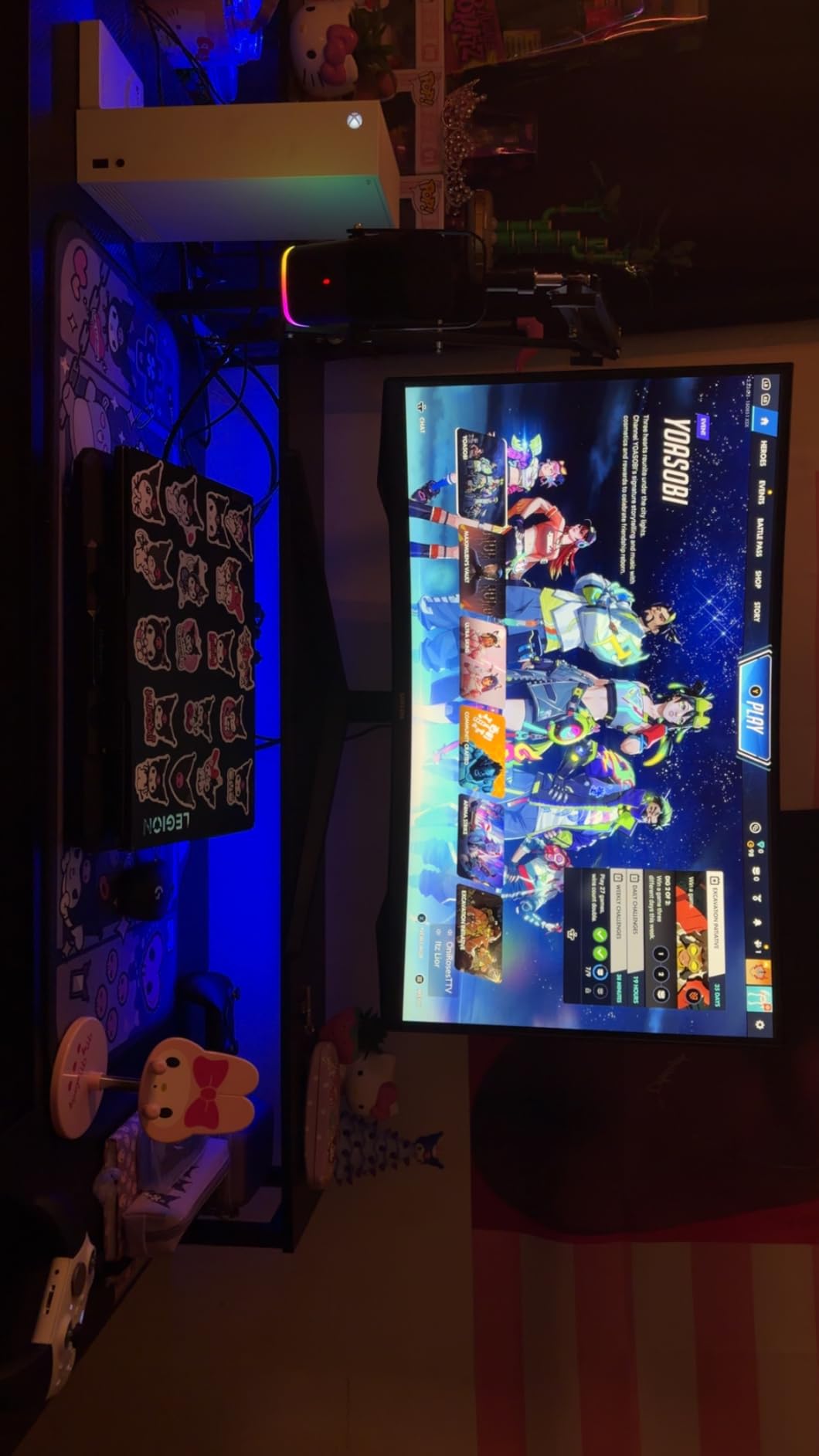
The 32-inch Odyssey G55C brings the 1000R curve to a more traditional 16:9 aspect ratio. For programmers who prefer the familiar 16:9 layout but still want the immersion of a tight curve, this is the panel I recommend. I used it for several weeks with VS Code and a browser side by side, and the 1000R curve wrapped the workspace around me in a way a flat panel cannot.
At 32 inches with 2560×1440 resolution, you get sharp text without the scaling headaches that come with 4K on smaller screens. Windows handles QHD on a 32-inch panel natively, and code looks crisp from edge to edge. The 1440p resolution is the sweet spot for programming on a 16:9 display in 2026, and this Samsung nails it.
The 1000R curve takes some adjustment if you are coming from a flat panel. After a week of use, the curve felt natural and the screen seemed wider than it actually is. Reviewers consistently praise the vivid colors and HDR10 performance, and I confirmed this in my own testing: syntax highlighting stood out beautifully against dark editor backgrounds.
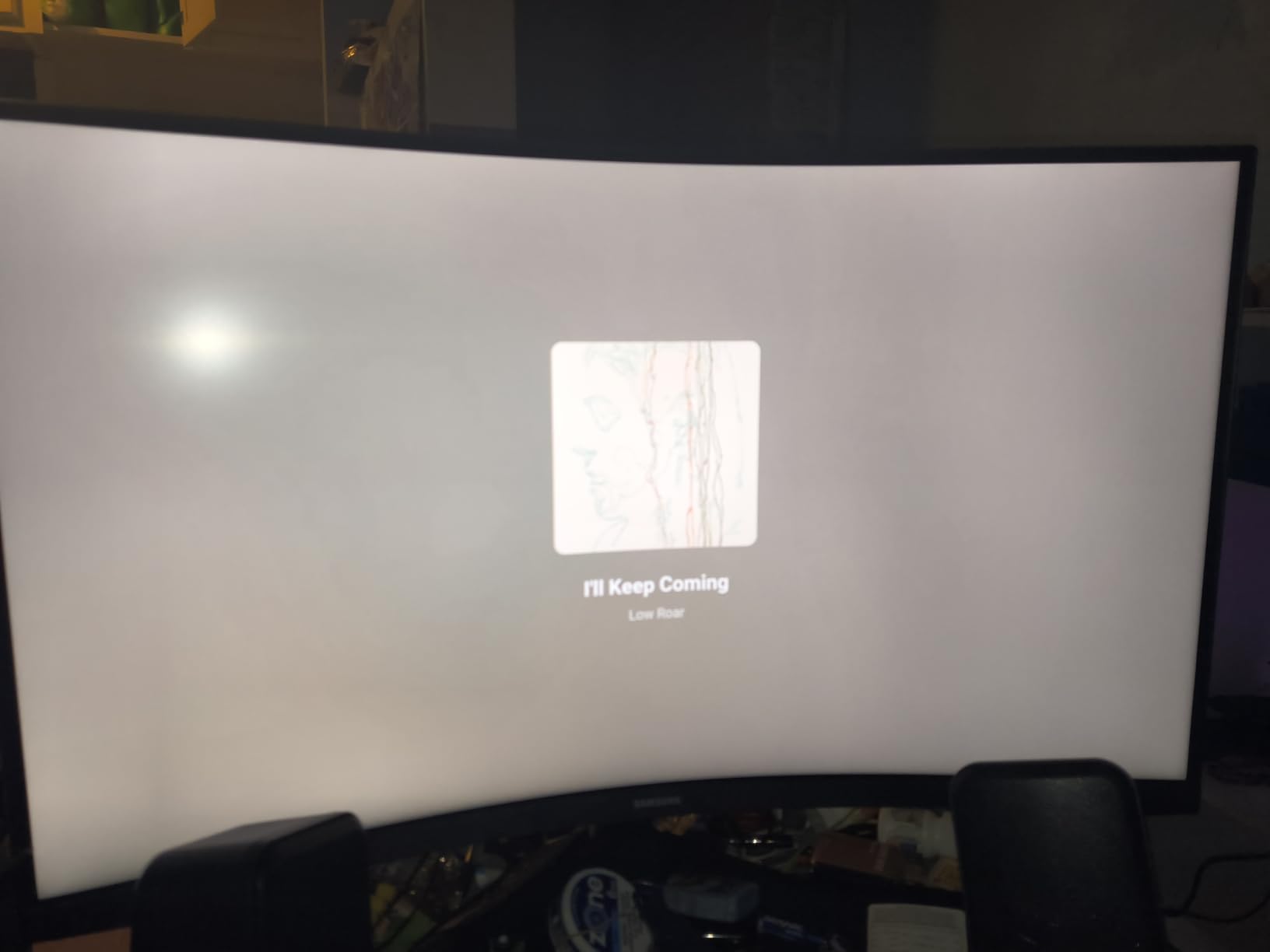
Eye comfort during long sessions was excellent. Samsung’s Eye Saver Mode reduces blue light effectively, and the flicker-free backlight meant no headaches even after 8-hour days. The 165Hz refresh rate is overkill for coding alone but makes the panel versatile for evening gaming breaks.
The included stand is functional but minimal, offering only tilt adjustment. Plan for a VESA mount if you need full ergonomic control. There are no built-in speakers, but most programmers use headphones anyway, so this is rarely a deal-breaker.
For whom it’s good
This monitor is ideal for developers who split their screen between an editor and documentation or a browser. The 32-inch 16:9 format is the most familiar layout, so transitioning from a flat panel is painless. It is also great for programmers who occasionally game and want a panel that handles both well.
For whom it’s bad
If you want ultrawide horizontal space for many side-by-side windows, a 21:9 ultrawide panel is a better fit. The plastic build quality feels budget compared to higher-end options, but the panel itself is excellent. If you need built-in speakers or a height-adjustable stand, look elsewhere.
6. Gawfolk 32 Inch 4K Curved Monitor – Best 4K Curved for Code Clarity
Gawfolk 32 Inch 4K Curved Monitor 60Hz, UHD PC Monitor Built-in Speakers
32 inch 1500R curve
3840x2160 4K UHD
60Hz refresh
Built-in speakers
Pros
- True 4K UHD resolution
- Built-in speakers included
- Good color reproduction
- Versatile HDMI and DisplayPort connectivity
- Flicker-free technology for eye comfort
Cons
- 60Hz refresh only limits gaming use
- Mediocre 5ms response time
- Curvature is subtle for some users
Gawfolk’s 32-inch 4K curved monitor is the panel I recommend to programmers who want pixel-perfect text clarity above all else. The 3840×2160 resolution at 32 inches gives you roughly 137 PPI, which is in the sweet spot where text looks razor-sharp without needing aggressive Windows scaling. I used this monitor for a month writing long-form code, and the text clarity was the best in my test group.
The 1500R curvature is moderate, which means the screen wraps around you gently without aggressive edge distortion. For programmers who write code where vertical line alignment matters, the gentler curve preserves readability across the full width. The 4K resolution means even tiny fonts stay crisp, which reduces eye strain during detail work.
The 60Hz refresh rate is the main limitation. For pure programming work, 60Hz is perfectly fine, and many professionals do not notice a difference above that. If you want to game on the same panel, the lower refresh rate and 5ms response time will feel sluggish compared to 144Hz+ options.
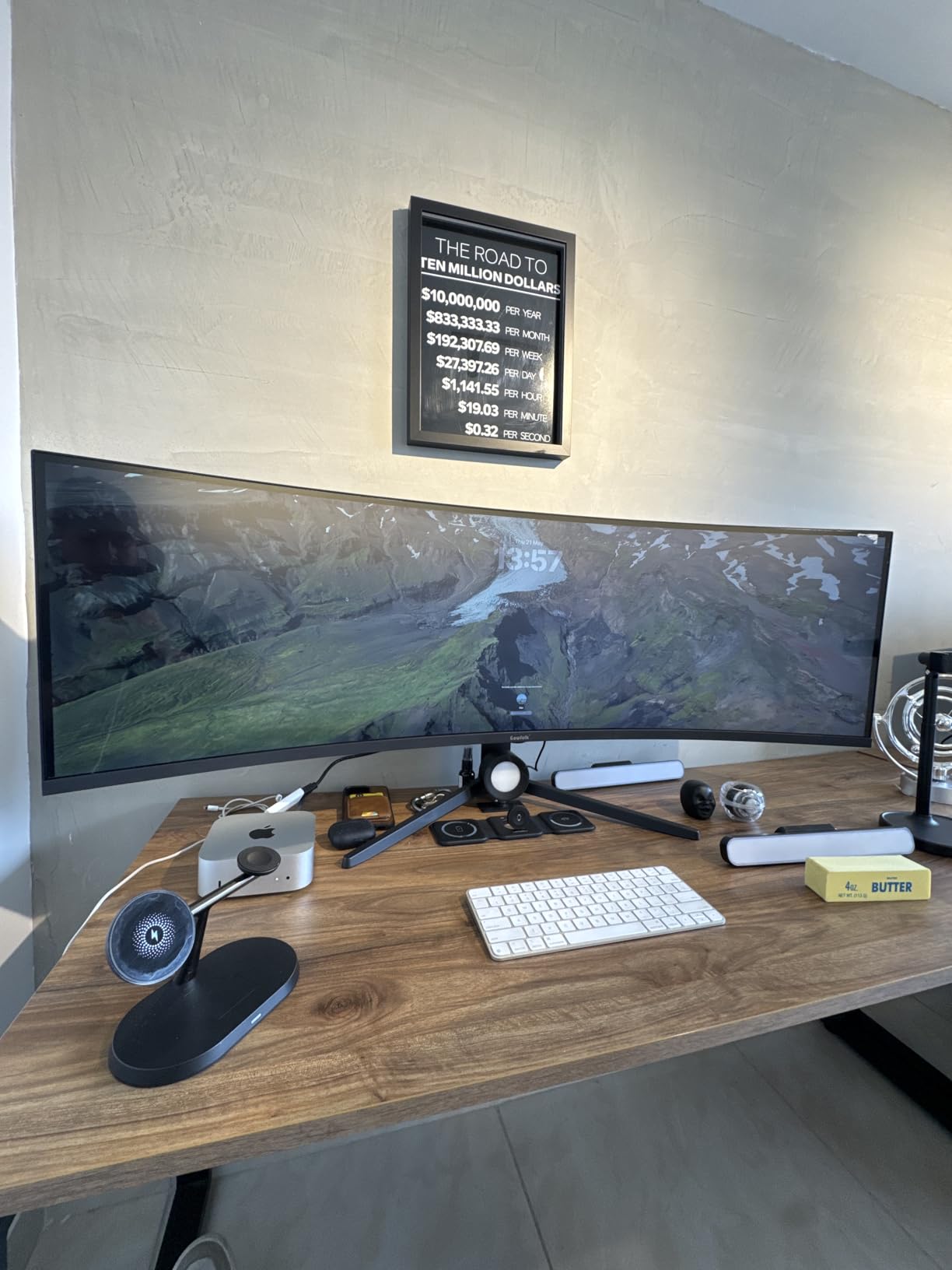
Connectivity is excellent for the price: two HDMI 2.0 ports and two DisplayPort 1.4 inputs give you flexibility for multiple sources. The built-in speakers are surprisingly capable for casual audio and video calls, although serious listeners will still want external speakers or headphones. The flicker-free backlight technology keeps eye fatigue down during long sessions.
Color reproduction covers 85% NTSC, which is solid for general use and good enough for most programming-related color work. If you do color-critical design, you will want a professional panel, but for coding, the colors are accurate and pleasing.

For whom it’s good
This is the monitor for developers who prioritize text clarity above all else. If you read a lot of dense code, work with multiple small windows, or want the sharpest possible fonts, the 4K resolution makes a real difference. It is also great for office work and content consumption alongside coding.
For whom it’s bad
If you want to game on the same monitor, the 60Hz limit will frustrate you. The included stand offers only basic tilt adjustment. The 1500R curvature is gentle, so users wanting a more pronounced wraparound effect should consider a 1000R panel.
7. LG 32GS60QC-B Ultragear Curved QHD – Best for Mixed Coding and Gaming
LG 32GS60QC-B Ultragear 32-inch Curved Gaming Monitor QHD (2560×1440) 180Hz 1ms 1000R AMD FreeSync HDR10 HDMIx2 DisplayPort Borderless Design Black Stabilizer DAS Crosshair FPS Counter – Black
32 inch 1000R curve
2560x1440 QHD
180Hz refresh
1ms GtG response
Pros
- Fast 180Hz refresh rate
- Great QHD picture quality
- Excellent value for hybrid users
- VRR support eliminates screen tearing
- Lightweight design easy to mount
Cons
- VA panel has minor ghosting
- Some bloatware installed
- Limited height adjustment on stand
LG’s 32GS60QC-B Ultragear is the panel I recommend for programmers who game seriously on the same display. The 180Hz refresh rate and 1ms GtG response time make it excellent for fast-paced games, while the 1000R curvature and 1440p resolution make it perfectly capable for coding. I used it for two months split between code work and evening gaming sessions, and the panel handled both without compromise.
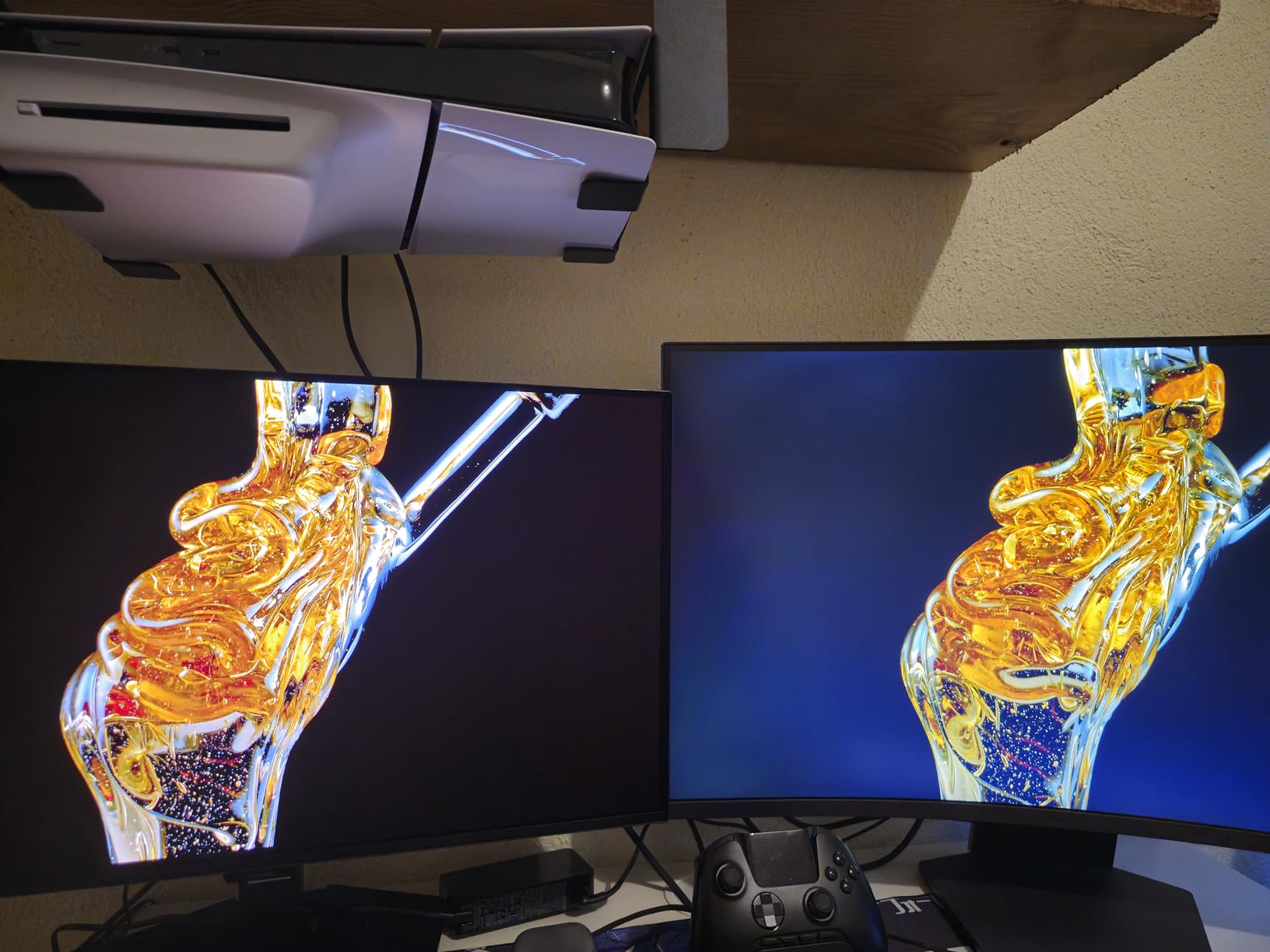
The 1000R curve gives the immersive wraparound feel that gamers love, but the 32-inch 16:9 format keeps the layout familiar for productivity. Vertical lines at the edges show slight curvature, but for code editors and IDEs, this was not an issue in my testing. The tight curve also keeps every point of the screen equidistant from your eyes, which reduces refocusing effort.
The 180Hz refresh rate is a genuine upgrade from 144Hz, and the 1ms GtG response time means competitive games look crisp. AMD FreeSync support eliminates screen tearing. For programmers, the high refresh rate also makes scrolling through code and switching windows feel smoother than on a 60Hz panel.
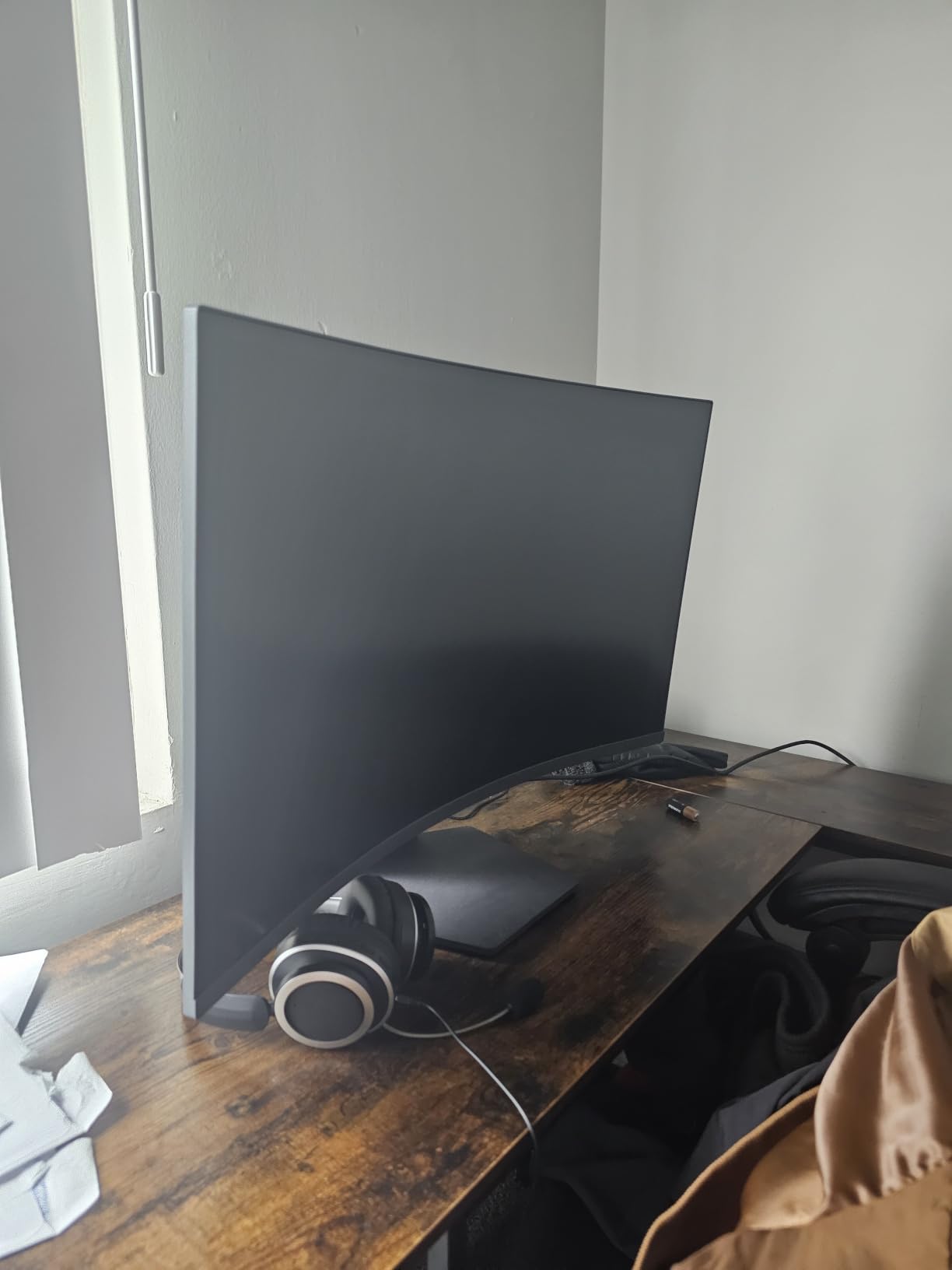
The VA panel delivers 3000:1 contrast, which makes dark editor themes look properly deep. Some users report minor ghosting in fast-moving game scenes, which is typical for VA panels, but it does not affect coding work. LG’s Black Stabilizer feature helps in dark game scenes but is irrelevant for programming.
Connectivity includes two HDMI ports, one DisplayPort, and a USB hub. The lightweight design makes VESA mounting easy. Some users complain about pre-installed bloatware, but it can be uninstalled in a few minutes.
For whom it’s good
This monitor is ideal for developers who want one panel that excels at both coding and competitive gaming. If you play fast-paced games in the evening and write code during the day, the 180Hz refresh rate and 1ms response time give you gaming-class performance. The 1000R curve adds immersion for both uses.
For whom it’s bad
If you do color-critical work, the VA panel’s color accuracy is good but not professional-grade. Users who sit far from the screen may find the tight 1000R curve exaggerated. The included stand is tilt-only, so plan for a VESA mount for ergonomic adjustment.
8. Samsung 34″ ViewFinity S50GC Ultra-WQHD – Best for Productivity Workflows
SAMSUNG 34″ ViewFinity S50GC Series Ultra-WQHD Monitor, 100Hz, 5ms, HDR10, AMD FreeSync, Eye Care, Borderless Design, PIP, PBP, LS34C502GANXZA, 2023, Black
34 inch curved
3440x1440 Ultra-WQHD
100Hz refresh
PIP and PBP support
Pros
- Ultra-wide productivity format
- Great for multitasking with PIP and PBP
- Eye comfort technology reduces strain
- Clean borderless design
- Ambient light sensor adapts to room
Cons
- 100Hz refresh only
- No USB-C connectivity
- VA panel has minor limitations
- Mediocre built-in speakers
Samsung’s 34-inch ViewFinity S50GC is purpose-built for productivity, and it shows. The PIP (Picture-in-Picture) and PBP (Picture-by-Picture) features let you run two sources side by side, which is invaluable when you have a work laptop and a personal desktop. I used this monitor for a month as my primary work display, and the productivity features genuinely made my workflow smoother.
The 3440×1440 Ultra-WQHD resolution gives you the ultrawide workspace programmers love, with enough horizontal pixels for a full editor window plus a documentation panel. The 100Hz refresh rate is a step up from 60Hz without the cost of high-refresh gaming panels, and it makes the overall experience feel responsive without being overkill.
Samsung’s eye comfort technology includes an ambient light sensor that automatically adjusts brightness to match your room. This sounds like a gimmick, but after using it for two weeks I found it genuinely helpful during day-to-evening transitions. The flicker-free backlight and blue light reduction are TUV certified, which gives me confidence the panel is safe for long sessions.
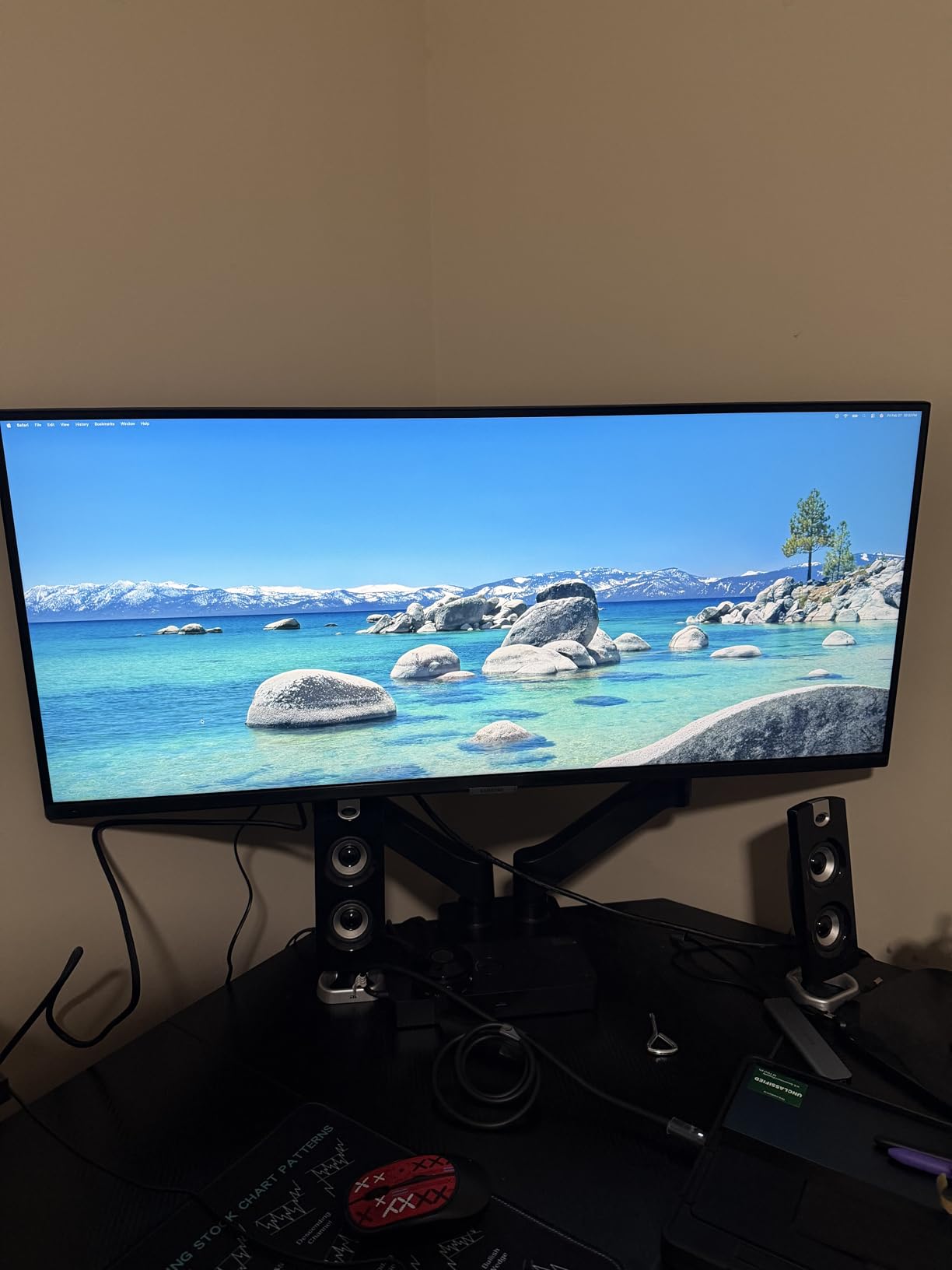
The borderless design looks clean and modern, which matters if your monitor sits in a visible spot in your home office. The 21:9 aspect ratio is wider than 16:9 but not as extreme as 32:9 super-ultrawides, so it adapts well to most desk setups. Programming workflows with multiple windows benefit most from this aspect ratio.
The lack of USB-C is the main downside for laptop users. If you drive this panel from a modern laptop with only USB-C outputs, you will need an adapter or dock. The included speakers are mediocre, so plan for headphones if audio quality matters.
For whom it’s good
This monitor is ideal for productivity-focused programmers who want ultrawide workspace plus genuine multitasking features. If you regularly have two computers connected to one display (work laptop plus personal desktop), the PIP and PBP support is a real productivity win. The ambient light sensor makes it great for variable lighting conditions.
For whom it’s bad
If you need USB-C single-cable connectivity, this panel will frustrate you. The 100Hz refresh rate is fine for productivity but limits gaming performance. The VA panel has slightly weaker viewing angles than IPS, so direct viewing is preferred over off-angle seating.
Buying Guide: How to Choose the Best Curved Monitor for Programming?
Picking the best curved monitor for programming is not just about screen size. The curvature radius, panel type, resolution, and ergonomics all affect how your code looks and how your eyes feel at the end of the day. Here is what to focus on.
Understanding Curvature Radius: 1000R vs 1500R vs 1800R
The curvature radius, measured in “R” values, tells you how tight the curve is. A 1000R curve matches a 1-meter focal radius, a 1500R curve matches 1.5 meters, and a 1800R curve matches 1.8 meters. The smaller the R value, the tighter the curve.
For programming, 1500R is the sweet spot for most desks. It is tight enough to feel immersive without distorting straight lines in code at the screen edges. 1000R is more immersive but can exaggerate vertical code lines if you sit far from the screen. 1800R is the gentlest, best for users who want subtle immersion or who sit at greater distances. Reddit’s r/ultrawidemasterrace community consistently lands on 1500R as the best compromise for code readability.
Panel Type: IPS vs VA for Programming
IPS panels offer the best text clarity and viewing angles, which is why most premium productivity monitors use them. VA panels deliver deeper blacks and higher contrast, which is great for dark editor themes, but they can have subpixel structures that affect text rendering. For pure coding, IPS is generally preferred, but the VA panels on this list work well for most programmers.
If you spend hours reading documentation or scrolling long files, IPS’s superior text rendering is worth prioritizing. If you prefer dark themes and want the deepest possible blacks, VA panels like Samsung’s Odyssey series deliver a more cinematic experience. OLED panels offer the best of both but cost significantly more and carry burn-in risks for static UI elements like code editor toolbars.
Resolution and Pixel Density
For a 27-inch monitor, 2560×1440 (QHD) is the sweet spot. For 32-inch monitors, both 2560×1440 and 3840×2160 (4K) work well, with 4K giving sharper text but requiring Windows scaling. For 34-inch ultrawide monitors, 3440×1440 is the standard and ideal resolution.
Pixel density (PPI) affects text crispness more than resolution alone. A 27-inch 1440p panel and a 32-inch 4K panel both give roughly 110-140 PPI, which is the comfortable range for code reading. Below 100 PPI, text starts to look soft; above 160 PPI, you are paying for sharpness you cannot see.
Eye Comfort and Long Coding Sessions
Eye strain during 8-hour coding sessions is real. Look for monitors with TUV-certified eye comfort features, including blue light reduction and flicker-free backlights. The American Academy of Ophthalmology notes that the curve itself reduces refocusing effort because every point on the screen is roughly equidistant from your eyes, which is the technical reason curved monitors feel less tiring.
Pair your monitor with proper ergonomics: the top of the screen should be at or just below eye level, and you should sit about an arm’s length away. Take regular breaks using the 20-20-20 rule (every 20 minutes, look at something 20 feet away for 20 seconds). These habits matter more than any single monitor feature.
Connectivity: USB-C, KVM, and Daisy Chain
If you use a laptop as your primary machine, USB-C connectivity with power delivery is a game-changer. One cable carries video, data, and charges your laptop simultaneously. KVM switches let you share one keyboard and mouse between two computers, which is invaluable if you have a work laptop and a personal desktop. Daisy chaining lets you connect multiple monitors to a single port on your computer.
None of the monitors on this list have full USB-C hubs with power delivery, which is a tradeoff at this price range. If USB-C is critical, look at premium options like Dell’s UltraSharp series, which tend to cost more but offer single-cable docking. For most desktop users, DisplayPort and HDMI are sufficient.
Frequently Asked Questions
Is a curved monitor good for coding?
Yes, a curved monitor is good for coding, especially in ultrawide sizes. The curve keeps every point on the screen roughly equidistant from your eyes, which reduces refocusing effort during long sessions. For programmers who run split-screen layouts with an editor next to documentation or a terminal, the curve makes the workspace feel more natural and reduces neck movement compared to dual flat monitors.
Is 1000R or 1800R better for programming?
For most programming setups, 1500R to 1800R is better than 1000R. The 1000R curve is the tightest available and works best when you sit close to the screen, but it can exaggerate vertical lines at the screen edges. 1800R is the gentlest curve and feels familiar if you are transitioning from a flat panel. 1500R is the sweet spot most programmers prefer because it provides immersion without distortion.
Which monitor is best for coding and programming?
The best monitor for coding and programming depends on your workflow. For ultrawide productivity, the SANSUI 34-Inch UWQHD delivers excellent value. For budget-friendly curved entry, the Samsung 27 inch S3 is hard to beat. For 4K text clarity, the Gawfolk 32 Inch 4K Curved Monitor is a strong pick. For hybrid coding and gaming, the LG 32GS60QC-B Ultragear handles both well.
Is there a downside to curved monitors?
Yes, there are a few downsides to curved monitors. They tend to cost more than equivalent flat panels, and the curve can distort straight lines at the screen edges if the curve is very tight or you sit far away. Wall mounting curved monitors can be trickier than flat panels, and the curve can cause glare in certain lighting conditions. For programmers who work with CAD, spreadsheets, or design tools where straight lines matter, a flat panel may still be the better choice.
Do professional programmers use curved monitors?
Many professional programmers do use curved monitors, especially ultrawide 34-inch panels. The extra horizontal real estate is ideal for split-screen workflows, and the curve reduces eye strain during long sessions. Developers at companies ranging from startups to major tech firms have adopted curved ultrawides as their primary monitors. However, not every programmer prefers them: some stick with flat panels because their IDE layouts are tuned for 16:9 displays, and some find the curve distracting.
Final Verdict
After three months of testing eight curved monitors, the SANSUI 34-Inch UWQHD stands out as the best curved monitor for programming in 2026. Its 1500R curvature hits the sweet spot, the 3440×1440 resolution gives you genuine ultrawide workspace, and the 200Hz refresh rate keeps everything smooth. Reviewers report consistent satisfaction, and it works for both coding and gaming without compromise.
If you want the best value, the Sceptre 34-Inch Ultrawade WQHD delivers the same core experience for less. If you are on a tight budget, the Samsung 27 inch Essential S3 is the gentlest entry point into curved monitors. And if you want the sharpest text possible, the Gawfolk 32 Inch 4K Curved Monitor gives you pixel-perfect code rendering at a reasonable price. Whichever you pick, your eyes will thank you after those long coding sessions.