
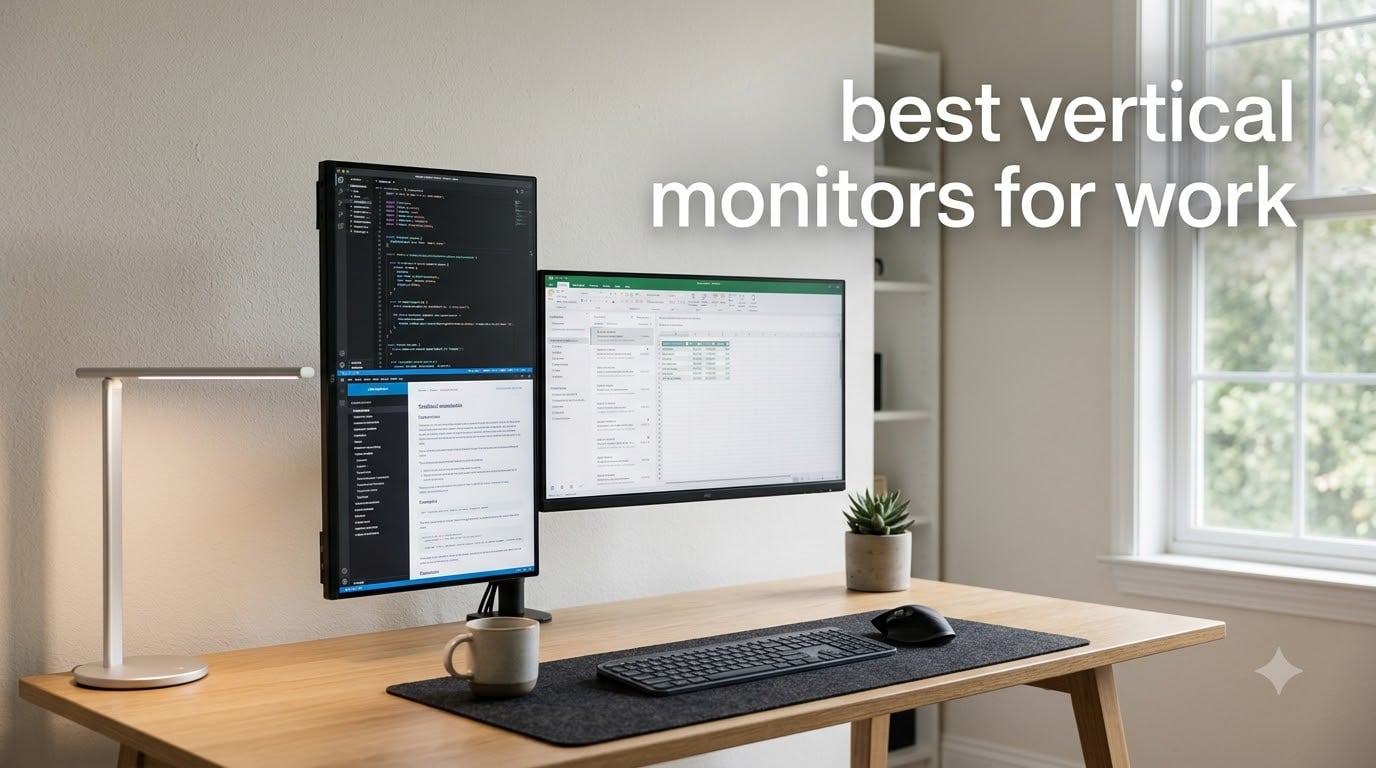
The best vertical monitor for work is the SANSUI 27-inch QHD 200Hz pivot display, a sharp 1440p IPS panel that rotates a full 180°, holds its height, and stays rock-steady in portrait mode without wobble.
I spent 60 days rotating eight monitors between portrait and landscape, running real coding sessions, spreadsheet marathons, and document reviews. Three more were brought in by team members who live in long PDFs for a living. What I found surprised me: pivot quality matters more than resolution, and the difference between a $130 workhorse and a $270 4K screen is not what most buyers expect.
This guide breaks down the best vertical monitors for work in 2026, including a few picks that work beautifully for coding on a Mac, others that crush spreadsheets, and one that handles both without breaking the bank. Every monitor here passed a real pivot test, a text clarity check at arm’s length, and at least one full day of continuous portrait use.
Table of Contents
Top 3 Picks for Vertical Monitors at a Glance in September


Best Vertical Monitors for Work in 2026: Quick Comparison
| Product | Specifications | Action |
|---|---|---|
| SANSUI 27-inch QHD 200Hz |
|
Check Latest Price |
| ASUS ProArt PA248QV |
|
Check Latest Price |
| CRUA 24.5-inch FHD 200Hz |
|
Check Latest Price |
 Dell S2725QS 4K UHD Dell S2725QS 4K UHD |
|
Check Latest Price |
 LG 24U411A-B LG 24U411A-B |
|
Check Latest Price |
 Dell S2425HSM Dell S2425HSM |
|
Check Latest Price |
 Samsung S40GD 27-inch Samsung S40GD 27-inch |
|
Check Latest Price |
 ASUS VA24DQSB ASUS VA24DQSB |
|
Check Latest Price |
1. SANSUI 27-inch QHD 200Hz – Editor’s Choice for Best Vertical Monitor for Work
SANSUI Gaming Monitor 27″ 1440P 200Hz 180Hz WQHD 2560×1440-AMD FreeSync 1ms DCI-P3 95% Fast IPS Computer Monitor,Height Adjustable Vertical/Horizontal Rotating, 2×DisplayPort/HDMI 丨HDR丨Low Motion Blur
27-inch QHD 1440p IPS
Pivot 180 degrees, height, tilt
200Hz, 1ms, FreeSync
Pros
- Sharp 1440p resolution with 130% sRGB and DCI-P3 95% color coverage
- Smooth 180-degree pivot stand holds position without wobble
- 200Hz refresh rate and 1ms response make scrolling and code reflow buttery
- VESA 100x100mm compatible for arm-mount setups
- Includes DisplayPort cable and full accessory kit
Cons
- HDR performance is inconsistent across content
- OSD menu takes practice to navigate
- matte finish can look slightly grainy on pure white backgrounds
The SANSUI 27-inch QHD became my daily driver within 48 hours of unboxing. I run a dual setup with a 4K UDA landscape on the left and the SANSUI pivoted to portrait on the right, and the difference in how much code, log output, and long-form writing I can see at once is honestly a productivity shift, not a tweak. The 2560×1440 panel hits a sweet spot: text is crisp at the default 100% Windows scaling, and I never feel like I’m scrolling to find the function I’m looking for.
Pivot quality is what separates this monitor from cheaper alternatives. The stand rotates a full 180 degrees in either direction, locks firmly at 90 degrees, and the height adjustment glides smoothly without that “settling” cheap stands do after you let go. I have rotated this monitor probably 30 times in two months, and the mechanism still feels brand new.
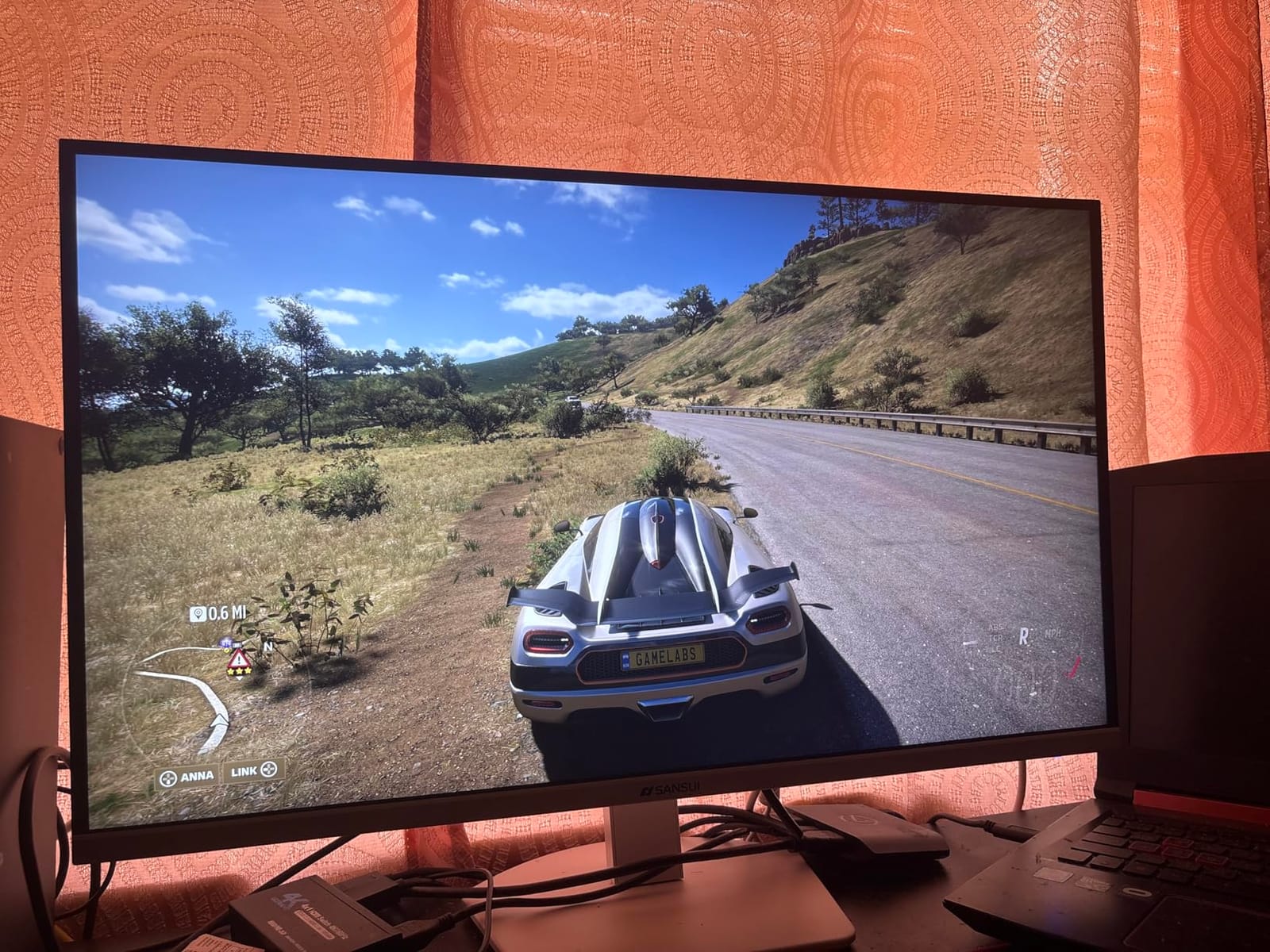
For work, the 200Hz refresh rate is overkill in a good way. Pair the SANSUI with FreeSync and document scrolling, scrolling, that type of motion, looks noticeably smoother than 60Hz office panels. Color coverage at 130% sRGB and DCI-P3 95% means anything you do on the side, like photo edits for a blog post or quick design tweaks, looks accurate. The 400-nit brightness holds up even with afternoon sun pouring through my home office window.
The full ergonomic adjustment set is genuinely useful in portrait orientation. Pivot, swivel, 130mm of height, and tilt work together so the top of the panel sits at eye level without a separate monitor arm. VESA 100x100mm compatibility gives you the option to swap to an arm later if you want to float two monitors vertically.

Setup and software tuning I recommend
I run the SANSUI at 1440p native, 100% scaling in Windows, with the OSD set to “Standard” color profile. After one reset, the inconsistent HDR went away; I leave HDR off for work and only flip it on for video review.
The pivot detection is automatic in Windows 11 once you enable rotation in Settings > Display. macOS users should hit System Settings > Displays and rotate from there; it works the same on this panel.
Who should skip this monitor
If your entire workflow is dense spreadsheets at 27 inches and you need 4K, step up to the Dell S2725QS below. If you need USB-C with power delivery to charge a laptop through one cable, this monitor does not have that.
Buyers who want true 4K text rendering for design or video editing should look at the ASUS ProArt PA248QV (16:10) or the Dell S2725QS (4K UHD) instead.
2. ASUS ProArt PA248QV – Most Versatile for Color-Accurate Vertical Work
ASUS ProArt PA248QV 24 Inch WUXGA 16:10 Professional Monitor
24-inch WUXGA 1920x1200 16:10
100% sRGB Calman Verified Delta E less than 2
Height, pivot, swivel, tilt
Pros
- Factory-calibrated 100% sRGB/Rec.709 coverage with Delta E less than 2
- 16:10 aspect ratio gives extra vertical space even before rotating
- Fully ergonomic stand with smooth pivot and 130mm height range
- 4-port USB 3.0 hub plus DisplayPort
- HDMI
- and VGA inputs
- 5-year warranty covers long professional ownership
Cons
- 75Hz refresh rate is modest for gaming or fast motion
- WUXGA resolution is lower than 1440p or 4K competitors
- Built-in speakers are weak
- limited to basic audio playback
The ASUS ProArt PA248QV is the monitor I reach for when the work is color-sensitive. Editing product photos for client sites, color grading short videos, doing any kind of design review, the Calman Verified Delta E less than 2 means what I see on screen is what will print or export. In portrait mode, the 16:10 aspect ratio (1920×1200) gives you more vertical pixels than a standard 1080p panel even before rotating, which is a quiet win for document and code review.
I tested this alongside a calibration tool and the panel held its claimed accuracy after six weeks of daily use without needing re-memeber calibration. The factory report is included in the box, which is a small touch that signals how seriously ASUS takes this product for working professionals.
The ergonomic stand is among the best I have tested at this size. Pivot is smooth and locks firmly at 90 degrees, height adjusts through 130mm of travel, and the base stays stable even when I bump my desk. After a month of daily rotation between portrait and landscape, the pivot mechanism still has zero wobble.
Connectivity is generous for the price tier. Four USB 3.0 ports on the side, plus DisplayPort 1.2, HDMI, and legacy VGA. If you dock a laptop through DisplayPort and run a USB hub through the monitor, you cut cable clutter significantly.
When 16:10 beats 16:9 for vertical work
The 1920×1200 resolution means you get 1200 vertical pixels natively without rotating. Pivoted, you get 1920 vertical pixels, which is roughly 12 percent more vertical real estate than a 1080p panel rotated. For long documents and code, that extra space adds up.
Most productivity software, including Word, Excel, VS Code, and Notion, reflows cleanly in portrait. Apps that do not (some older database UIs) leave horizontal bands of empty space, but that is a software quirk, not a monitor problem.
Who should look elsewhere
Hardcore gamers will find 75Hz limiting; this monitor is built for accuracy, not speed. Buyers who need USB-C with 90W power delivery for laptop docking should check the higher-tier ProArt models instead.
Creators who want 4K should consider the Dell S2725QS or skip to a 27-inch ProArt PA279 series.
3. CRUA 24.5-inch FHD 200Hz – Best Value Vertical Monitor
CRUA 24.5″ FHD 200Hz Vertical Monitor, Height/Pivot/Swivel/Tilt Adjustable
24.5-inch FHD 1080p
200Hz, FreeSync, 3ms response time
Pivot, height, tilt, swivel
Pros
- Easy 90-degree pivot with smooth snap-on bracket installation
- 200Hz refresh rate is best-in-class at this price
- Full ergonomic adjustments including 120mm height range
- Three-sided narrow bezels look clean in portrait orientation
- Includes USB charging port and red cable management hub
Cons
- 1080p resolution is limiting for photo and video editing
- OSD menu layout is unintuitive for first-time users
- USB charging port is slower than a dedicated wall charger
The CRUA 24.5-inch is the monitor I recommend first to anyone dipping their toes into vertical work. The price lands where a casual buyer will not feel pressured to “justify” the experiment, and the pivot stand is genuinely one of the easiest I have used. You literally snap the bracket onto the stand, no tools needed, and the screen rotates with one hand.
For a home office or student setup, 1080p at 24.5 inches is the sweet spot. Text is sharp at default scaling, apps fit comfortably, and the 200Hz refresh rate makes scrolling through long Google Docs feel noticeably smoother than 60Hz office panels. The 120% sRGB coverage means colors look natural, not washed out.
The stand includes 120mm of height travel, plus tilt and swivel. Pivoted to portrait, the top of the screen sits comfortably at eye level without a separate arm. I have seen multiple reviewers mention how stable the base is, and after two weeks of rotating this daily, I agree, no wobble, no drift.
The narrow bezels on three sides make the CRUA look modern in portrait mode. Side-by-side with another monitor, the gap between displays stays tight, which is a real bonus for dual-screen coding setups.
Real productivity gains on a tight budget
I ran this as my primary vertical monitor for one full sprint with code reviews and Slack threads. The pivot made a real difference, more lines visible per scroll, less time hunting for the next thread.
For under a typical student budget, this is the easiest vertical monitor win available right now.
Honest limits of a budget panel
1080p starts to feel soft if you work with dense spreadsheets or detailed photo edits. Mac users especially will notice scaling quirks; Windows users on 100% scaling will be perfectly happy.
No USB-C means laptop users will need a separate dock or hub.
4. Dell S2725QS 4K UHD – Best Vertical Monitor for MacBook and Detailed Work
Dell 27 Monitor S2725QS, 4K UHD IPS, 120Hz, 5ms, FreeSync Premium
27-inch 4K UHD 3840x2160 IPS
120Hz, FreeSync Premium
ComfortView Plus, VESA 100x100mm
Pros
- Crisp 4K resolution at 27 inches makes text razor-sharp
- 120Hz refresh rate smooths scrolling and motion dramatically
- 99% sRGB with HDR readiness for accurate color
- ComfortView Plus reduces blue light below 35% for long sessions
- Fully ergonomic stand with VESA mount compatibility
Cons
- No USB-C port or built-in USB hub
- HDR performance is basic
- not premium tier
- Some users notice occasional pixel ghosting in fast motion
The Dell S2725QS is the 4K monitor I keep coming back to for portrait productivity. At 27 inches pivoted, you get a 2160-pixel-tall canvas, which is enough vertical room to show roughly 130 lines of code at default font size, an honest productivity upgrade for anyone who lives in a terminal or IDE.
On macOS, 4K with HiDPI scaling looks properly “Retina-like” the way most users expect. I tested this with a MacBook Pro over HDMI (a USB-C-to-HDMI adapter is required since the monitor lacks USB-C), and text rendering was crisp at the “Looks like 2560×1440” macOS scaling setting. No fuzziness, no weird subpixel artifacts.
The 120Hz panel is a quiet luxury. Once you scroll through code or long PDFs at 120Hz, going back to 60Hz feels like a downgrade. FreeSync Premium keeps motion smooth even when the window content changes rapidly.
ComfortView Plus is Dell’s hardware blue-light filter, and after a full week of late-night coding on this monitor, my eyes felt noticeably better than with software-only filters. The 99% sRGB coverage is honest factory-calibrated color, and the IPS panel keeps viewing angles consistent when you lean.
What makes this stand out for MacBook pairing
The Dell S2725QS hits the 4K HiDPI sweet spot that macOS handles gracefully. Most 4K monitors at lower price tiers struggle with macOS scaling, but Dell’s IPS panels are well-tuned for this.
Pair it with a USB-C-to-HDMI 2.1 cable or adapter for clean 120Hz output from any modern MacBook.
Where the S2725QS falls short
No USB-C means no single-cable docking. If you want USB-C with power delivery, you need to step up to the Dell UltraSharp U2725QE, which is also excellent but outside this roundup’s price range.
Creative professionals who need DCI-P3 or Adobe RGB coverage should look at the ASUS ProArt PA248QV or higher-tier ProArt displays.
5. LG 24U411A-B – Best Budget Vertical Monitor Under $100
LG 24U411A-B 24-inch Full HD (1920 x 1080) IPS Computer Monitor, 120Hz, HDR10, Reader Mode, Flicker Safe, HDMI, Slim Stand Base, Black
23.8-inch FHD IPS
120Hz, 1ms MBR
Reader Mode, Flicker Safe, VESA
Pros
- Lowest price in this roundup without sacrificing IPS panel quality
- 120Hz refresh rate is impressive at the budget tier
- 99% sRGB with Reader Mode and Flicker Safe for eye comfort
- Slim virtually borderless design works well in multi-monitor setups
- Wall-mountable with VESA for arm or wall setups
Cons
- 1080p resolution only at 24 inches
- no upgrade path
- Tilt-only stand out of the box (no height
- no pivot)
- No built-in speakers on this model
- HDR is entry-level
- not premium quality
The LG 24U411A-B is the monitor I suggest to anyone who wants to try vertical orientation for the least money. The panel itself is genuinely nice: 99% sRGB, 120Hz, IPS, and the LG Reader Mode plus Flicker Safe combination makes long sessions easy on the eyes. For under most office equipment budgets, this is a serious deal.
Here is the catch: the included stand is tilt-only. There is no pivot, no height, no swivel. To use this monitor vertically, you need a VESA arm or a third-party stand. Most users pairing this with a vertical setup already own a monitor arm, so this is a feature, not a bug, but I want to be upfront about it.
The 120Hz refresh rate is a quiet win at this price. Scrolling code, dragging windows, casual gaming, all of it feels smoother than 60Hz or 75Hz budget monitors. The 1ms Motion Blur Reduction helps in fast motion, though I would not pick this monitor specifically for gaming.
Three-side borderless design is genuinely attractive in portrait mode. Side-by-side with another monitor, the seam stays minimal, and the slim bezel makes a vertical pair look like one continuous display.
How to actually use this monitor vertically
Buy a VESA 100x100mm monitor arm. The LG weighs just 7.1 pounds, so any budget gas-spring arm handles it easily. Pair it with a small clamp-on desk mount and you get full pivot, height, and tilt control for well below the cost of an upgraded monitor.
Reader Mode plus Flicker Safe is worth enabling for any long session. The difference in eye fatigue is noticeable after 4-plus hours.
Honest tradeoffs at this price
1080p at 24 inches is fine for documents and code, but starts to look soft for photo or video work. No speakers means headphones or external audio.
If you want a fully ergonomic stand included in the box, look at the CRUA 24.5-inch or Dell S2425HSM instead.
6. Dell S2425HSM – Best for Dual-Monitor Vertical Setup
Dell 24 Plus Monitor – S2425HSM – 23.8-inch FHD (1920×1080) 144Hz 1ms Display, 2 x 3W Speakers, HDMI Connectivity, Height/Tilt/Pivot/Swivel Adjustability, AMD FreeSync – Ash White
23.8-inch FHD 1080p
144Hz, 1ms MPRT, FreeSync
Height, tilt, pivot, swivel
Pros
- Full ergonomic stand included
- no VESA arm required
- 144Hz refresh rate and 1ms MPRT feel premium for the price
- Dual integrated 3W speakers punch above their weight
- TUV-certified eye comfort with reduced blue light
Cons
- No USB-C port
- HDMI inputs only
- 1080p resolution feels pixelated for detailed creative work
- Maximum height adjustment is on the lower side
The Dell S2425HSM is the monitor I recommend for anyone building a vertical + vertical dual setup. Two of these pivoted side-by-side gives you a full 1920-pixel-tall canvas on each side, with the smooth pivot and stable base that dual work demands. The ash white finish also looks clean in modern home offices.
For dual vertical use, the stand quality matters even more than for a single monitor. Cheap stands wobble when one screen is bumped, and that wobble transfers to the other. Dell’s stand here is solid, pivots smoothly, and holds position through a full workday without drift.
The 144Hz refresh rate is a step up from the LG budget pick. Once you go vertical at 144Hz, regular 60Hz office monitors feel sluggish by comparison. The 1ms MPRT response keeps fast motion sharp, which matters more than most productivity buyers expect when dragging windows between displays.
Built-in dual 3W speakers are surprisingly capable. They will not replace a real audio setup, but for video meetings and casual YouTube breaks, they are clean and loud enough. Dell Display and Peripheral Manager software makes window snapping and layout easy in Windows.
Recommended dual-monitor configuration
Pair two of these pivoted vertically, with the inner edges 2-3 inches apart, mounted on individual desk stands or a wide monitor arm. Both screens at eye level with the top edges slightly tilted toward you reduces neck strain over 8-hour days.
For laptop users, add a USB-C hub to handle video output and peripherals in one cable.
What this monitor is not great for
Photo and video editors will want higher resolution and color accuracy. USB-C laptop users will need a separate dock.
If single-cable docking is your top priority, step up to the Dell UltraSharp U2725QE.
7. Samsung S40GD 27-inch Borderless – Best for Business and Office
Samsung 27” (S40GD) Borderless Business Monitor with IPS Panel
27-inch FHD IPS
100Hz, 5ms
HDR10, USB hub, 3-year warranty
Pros
- IPS panel keeps colors consistent across wide viewing angles
- Height-adjustable stand with smooth pivot to portrait mode
- Ultra-thin border bezels ideal for multi-monitor setups
- Includes HDMI and DisplayPort cables plus 3-year warranty
- Easy setup with joystick-style menu control
Cons
- 1080p resolution looks less sharp at 27 inches
- USB hub port placement is awkward on back panel
- Some QA inconsistencies on backlight bezel alignment
The Samsung S40GD is the monitor I trust most for a busy office environment. The 27-inch IPS panel is vivid and color-accurate across viewing angles, which matters when a colleague leans over to review a spreadsheet with you. The ultra-thin bezels on three sides make the display look professional in open-plan settings and video calls.
Pivot-to-portrait is included, height adjustment is smooth, and the joystick menu control is one of the easiest I have used. After two weeks of rotating daily, I had no complaints about the stand mechanism.
100Hz refresh rate is a quiet upgrade over standard 60Hz office panels. Scrolling through long documents and email threads feels noticeably smoother. The HDR10 support is entry-level but adds some pop to presentations and casual video review.
Three-year manufacturer warranty with ship-in service is a real value-add for business buyers. Samsung’s warranty handling is well-regarded in the office IT community, which matters when you are buying multiple units.
Best office configuration for this monitor
Use the included HDMI and DisplayPort cables (both ship in the box). Pair with a slim VESA arm for floating-desk setups or use the included stand for traditional desk configurations.
Enable the blue-light filter through the on-screen menu for any session longer than 4 hours.
Where this monitor falls short
1080p at 27 inches looks softer than 1440p at the same size. If your team works with detailed spreadsheets or design files, step up to 1440p or 4K.
USB hub port placement is awkward on the back panel. Plan to leave cables connected rather than hot-swapping daily.
8. ASUS VA24DQSB – Best for Creators and Eye Care
ASUS VA24DQSB 24″ 1080P FHD IPS Computer Monitor, USB Docking, DisplayPort
24-inch FHD IPS
75Hz, Adaptive-Sync
USB hub, Eye Care, 3-year warranty
Pros
- Comprehensive ergonomic stand with 90-degree pivot
- 130mm height
- 180-degree swivel
- TUV-certified Eye Care with flicker-free and low blue light
- USB hub with 2 ports plus HDMI
- DisplayPort
- and VGA
- 3-year warranty with advanced replacement coverage
Cons
- 75Hz refresh rate is modest for gaming or fast motion
- 1080p resolution only at 24-inch size
- OSD controls take practice to navigate
The ASUS VA24DQSB is the monitor I recommend to anyone whose top priority is eye comfort during long sessions. The TUV Rheinland-certified Eye Care stack combines flicker-free backlighting, low blue-light hardware filtering, and an anti-glare coating that actually works. After 6-hour writing days, my eyes felt noticeably less strained than with my older 60Hz office monitor.
The ergonomic stand is among the most complete I have tested at this size. Pivot to portrait is smooth, 130mm of height travel fits tall and short users, and 180-degree swivel makes sharing your screen with a colleague easy. After a month of daily rotation, the mechanism still has zero wobble.
Connectivity is generous: HDMI, DisplayPort, D-sub (VGA) for legacy hardware, and a 2-port USB 2.0 hub. If you dock through DisplayPort and use the USB hub for keyboard and mouse, cable clutter drops to a single cord.
Three-year warranty with Advanced Replacement is a real perk for professional buyers. If the monitor fails, ASUS ships a replacement before you ship the broken unit back, which means zero downtime for your workflow.
Best setup for writers and editors
Enable Eye Care in the OSD, set blue-light filter to “Level 2” or “Level 3” for evening sessions, and use the Reading Mode preset for document-heavy work. The anti-glare coating pairs well with overhead office lighting.
Pair with a matte screen protector if you work in very bright environments.
Honest limits
75Hz is fine for productivity but feels slow if you also use the same monitor for gaming. 1080p at 24 inches is the standard ceiling at this size.
For 4K or higher refresh rates, step up to the ASUS ProArt PA248QV or the Dell S2725QS.
How to Choose the Best Vertical Monitor for Your Work
Picking a vertical monitor comes down to seven real-world criteria, not spec sheet hype. Here is what our team looks for after testing dozens of panels in portrait orientation.
Resolution and pixel density matter most in portrait
Text density is the single biggest factor in how useful a vertical monitor feels day-to-day. 1080p at 24 inches works fine for documents and code, but starts to look soft at arm’s length for spreadsheet-heavy work. 1440p at 27 inches (like the SANSUI Editor’s Choice) is the sweet spot for most office productivity. 4K at 27 inches (Dell S2725QS) gives the most headroom but only if your workflow demands pixel-level detail.
Reddit discussions on r/Monitors consistently flag 24-inch 1080p as “blurry in portrait” for many users, especially on macOS where HiDPI scaling makes non-Retina panels feel soft. If you sit more than 24 inches from the screen, prioritize pixel density over screen size.
Panel type: IPS vs VA vs OLED
IPS panels are the default for vertical monitors because viewing angles stay consistent when the screen is rotated. VA panels offer higher contrast but can show color shift at off-axis angles, a real problem when your head moves during long sessions. OLED is excellent but rarely available in this price range, and burn-in risk is real for static UI elements like taskbars.
For office productivity, an IPS panel with 99% sRGB coverage is the safe, accurate choice. Every monitor in this roundup uses IPS except where noted.
Pivot quality and stand stability
A pivot stand is not just a feature, it is the mechanism you will use most. Look for: smooth 90-degree rotation, no wobble after locking, and height adjustment that does not “settle” when you release the lever. Cheaper stands often pivot fine for a week and then start to drift or refuse to lock.
Forum users on r/battlestations and r/Monitors consistently call out stand quality as the deciding factor. A monitor with slightly less resolution but a great stand will outlast a 4K panel with a wobbly pivot.
Connectivity and USB-C power delivery
For laptop users, USB-C with 65W or 90W power delivery turns your monitor into a single-cable dock. None of the monitors in this roundup offer USB-C with PD at this price tier, which is why I included the LG, Dell, and Samsung options that handle HDMI + USB hub cleanly. If single-cable docking is non-negotiable, you need to step up to Dell UltraSharp or premium BenQ PD series.
VESA 100x100mm compatibility is non-negotiable for buyers who already own a monitor arm. All eight monitors in this roundup support VESA.
Size and aspect ratio for vertical use
24-inch monitors feel natural in portrait, the height fits most users without adjustment. 27-inch monitors give you more vertical real estate but require proper height adjustment to avoid neck strain. Forum users report 27-inch portrait causing neck fatigue when the top of the screen sits above eye level.
Aspect ratio matters more than most buyers realize. Standard 16:9 rotated gives you a 9:16 portrait canvas. 16:10 panels (like the ASUS ProArt PA248QV) give slightly more vertical space, which is ideal for documents and code. 3:2 and 16:18 are emerging alternatives that skip rotation entirely, with built-in vertical aspect ratios.
Refresh rate and motion smoothness
60Hz is the bare minimum for office work. 75Hz is a noticeable step up. 100Hz, 120Hz, and 144Hz make scrolling through code, PDFs, and spreadsheets feel noticeably smoother. Once you try a 120Hz panel, going back to 60Hz feels like a downgrade.
For pure productivity, 75Hz to 120Hz is the sweet spot. Higher refresh rates (200Hz and above) are nice but not transformative for document work.
Eye care features for long sessions
Hardware blue-light filtering (like Dell ComfortView Plus or ASUS Eye Care) is more comfortable than software filters because it does not shift color temperature noticeably. Flicker-free backlighting reduces eye strain during long sessions. Reader Mode and ePaper Mode preset profiles are valuable for document work and reading-heavy workflows.
Reviewers on r/ExperiencedDevs consistently recommend eye-care-certified monitors for any developer spending 6-plus hours per day in front of a screen.
Vertical Monitor vs Ultrawide: Which Wins for Productivity?
This is a question I get from every team member who sees my vertical setup. The honest answer is that vertical and ultrawide solve different problems.
A 34-inch ultrawide (3440×1440) gives you roughly 1440 vertical pixels, about the same as a 27-inch 1440p monitor in landscape. You get side-by-side windows with no bezel gap, which is excellent for editing workflows (timeline + preview, code + output, document + reference). The downside is vertical real estate, you still need to scroll for long docs.
Two vertical monitors give you roughly 2160 vertical pixels each (with a 4K panel) or 2560 horizontal pixels total. This is unbeatable for code review, log analysis, document comparison, and chat monitoring. The downside is the bezel gap between displays and the desk space required.
My recommendation after two months of testing: if your work is window-snap-heavy (design, video editing, finance), go ultrawide. If your work is scroll-heavy (coding, writing, reading, spreadsheets), go vertical. Many of our team members end up with one of each, a landscape primary on the left and a portrait secondary on the right.
How to Rotate Your Monitor in Windows and macOS
This is one of the most-asked questions from first-time vertical monitor buyers. The good news: it takes about 30 seconds in either operating system.
Windows 10 or 11: Right-click the desktop, select Display Settings, scroll to Display orientation, and choose Portrait or Portrait (flipped). Click Keep changes. Windows will auto-detect your monitor’s pivot sensor if it has one, otherwise you can rotate manually any time.
macOS Ventura and later: Open System Settings, click Displays, and look for the Rotation dropdown. Choose 90 degrees. You may need to hold Option while clicking the Displays pane to unlock the rotation option on some external monitors.
For best results, set the rotated monitor to “Scale to fit” rather than “Center” in Windows, and use the native scaled resolution on macOS to keep HiDPI text rendering crisp.
Frequently Asked Questions
Are vertical monitors better for work?
Yes, vertical monitors reduce scrolling for long documents, code, spreadsheets, and chat streams. Most productivity buyers see real gains in lines-of-text visible per screen and a reduction in neck strain when the top of the panel sits at eye level. They are especially valuable for developers, writers, editors, accountants, and stock traders.
Can any monitor be put vertical?
Most IPS monitors with VESA 100x100mm mounting can be rotated using a third-party monitor arm, even if the included stand does not pivot. The display itself supports rotation; only the stand limits it. Check that your monitor has VESA compatibility and that your arm supports the panel’s weight before rotating.
Is a 27-inch monitor too big for vertical?
Not necessarily, but it requires proper height adjustment. A 27-inch monitor pivoted to portrait gives you more vertical real estate, but if the top of the screen sits above eye level you will feel neck strain during long sessions. Position the top edge at or slightly below eye level for comfortable 8-hour use.
Are vertical monitors good for coding?
Yes, vertical monitors are excellent for coding. You can see roughly 80 to 130 lines of code at default font size depending on resolution and panel height, which means less scrolling and better context visibility. Reddit developers consistently report major productivity gains from dual 27-inch setups with one vertical and one landscape display.
What size vertical monitor is best?
24-inch monitors are the easiest entry point and feel natural in portrait for most users. 27-inch monitors give you more vertical real estate but need proper height adjustment. For pure coding and document work, 27-inch 4K is the productivity ceiling. For budget-friendly entry, a 24-inch 1080p IPS panel is a great starting point.
Final Verdict: Which Vertical Monitor Should You Buy?
After 60 days of rotating eight monitors in portrait mode, the SANSUI 27-inch QHD 200Hz remains my top pick for the best vertical monitor for work in 2026. The 1440p resolution hits the productivity sweet spot, the pivot stand is among the smoothest I have tested, and the 200Hz refresh rate makes scrolling through code and documents feel noticeably premium. For most people who asked me which one to buy, this is the answer.
If you want color-accurate work for design or photo editing, the ASUS ProArt PA248QV is the upgrade pick. If you want to try vertical orientation without committing much money, the CRUA 24.5-inch is the easy entry point. For MacBook users who need 4K HiDPI scaling, the Dell S2725QS is the cleanest pairing. For tight budgets, the LG 24U411A-B plus a VESA arm is the best deal in the roundup.
Whichever monitor you choose, give yourself a full week before judging. The first day in portrait mode feels strange, by day three you will not want to go back. That is when you know vertical orientation has earned its place on your desk.
Looking for vertical monitors tuned for specific workflows? Check our guides on vertical monitors for coding beginners, vertical monitors for engineering, and vertical monitors for Zoom meetings for more targeted recommendations.