
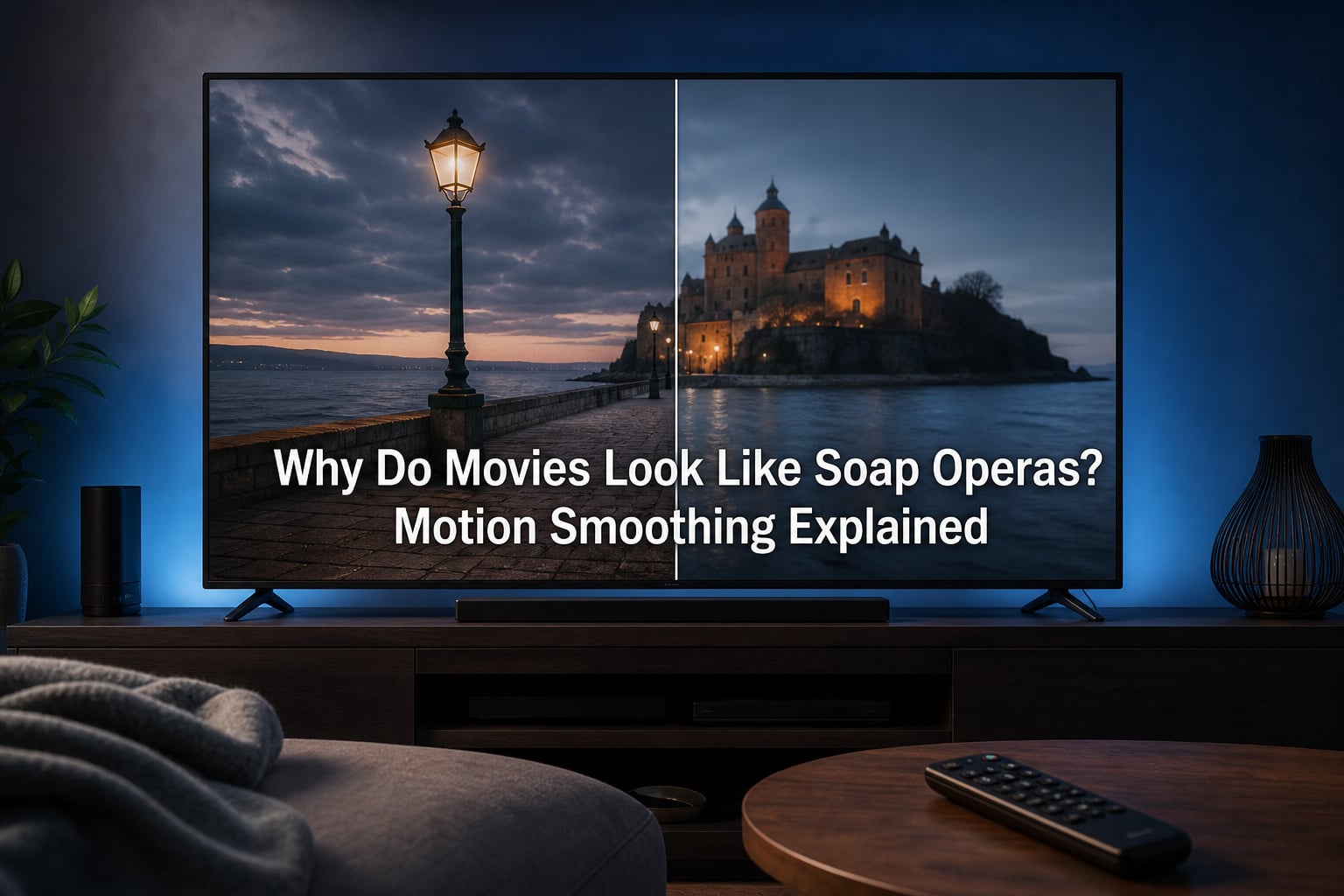
A movie can look strangely like daytime television when your TV adds extra frames that were never in the original picture. This is called the soap opera effect, and it is usually caused by a picture setting named motion smoothing, motion interpolation, or MEMC.
Why do movies look like soap operas? Motion smoothing explained means looking at both the film’s original frame rate and the processing your television applies after it receives that signal. Once you know where to look, you can usually change the picture in a few minutes.
This guide explains what is happening, the names manufacturers use for the setting, how to switch it off, and the situations where a little motion processing can make sense.
Table of Contents
The soap opera effect is a film that looks unnaturally smooth and video-like
The soap opera effect describes the hyper-smooth, almost live look some TVs give to movies and scripted shows. Instead of the familiar cinematic motion people expect, faces, camera pans, and movement can resemble a studio broadcast or a low-budget video production.
The phrase is not a judgment about soap operas. Many soap operas and live TV programs historically used video-based production and display methods that produced more motion samples per second than a typical film.
Films usually use 24 frames per second, which creates their familiar motion character
Most feature films are photographed and finished at 24 frames per second, often written as 24 fps. Each frame is a separate still image, and your brain reads the rapid sequence as motion.
That rate has limits: fast pans can look a little blurred or juddery, especially on a large modern screen. But it is also part of the motion character the director, cinematographer, and editor saw while making the film.
TVs can display more frames than a film contains, but those frames are not original film frames
Modern panels commonly refresh at 60 Hz or 120 Hz, so they are capable of showing many updates each second. A 24 fps source can fit evenly into a 120 Hz display by repeating each source frame five times.
Motion smoothing takes a different route. It creates estimated in-between images, which can make a 24 fps film appear closer to a higher-frame-rate video source.
Quick check: If a movie looks normal on one input or app but oddly slick on another, compare picture modes and motion controls for each input. Many TVs save settings separately by source, app, or picture preset.
Motion smoothing happens because frame interpolation estimates new frames between real ones
Frame interpolation is the process behind the effect. The TV studies two real frames, identifies movement, then generates one or more predicted frames that appear between them.
Manufacturers may call the process MEMC, short for motion estimation and motion compensation. “Estimation” matters: the television is making a best guess from image data, not recovering footage that the camera captured.
The TV tracks objects and then predicts where they should be in an in-between moment
In a simple example, a ball moves from the left side of the screen in one frame to a position slightly farther right in the next. The TV may create an intermediate image with the ball midway between those positions.
This calculation happens across the whole picture, including actors, scenery, text, reflections, and camera movement. It is demanding work, and it can look convincing in an easy scene.
The process can create artifacts when the TV cannot accurately read the scene
Interpolation has trouble with objects crossing in front of one another, quick cuts, smoke, rain, confetti, fine hair, and fast camera moves. You may see a halo around a person, a warped hand, a flickering edge, or background details that wobble for a moment.
Those glitches are interpolation artifacts. They are a useful clue that the picture is being processed, rather than merely displayed at the source’s native motion.
Judder reduction and blur reduction are related controls, but they do different work
Some TVs split motion controls into two sliders. Judder reduction generally targets the choppy appearance of low-frame-rate material such as 24 fps film, while blur reduction often targets the sample-and-hold blur associated with fast movement on an LCD display.
Turning up judder reduction is the control most likely to create the soap opera effect. I prefer to start with it at zero for movies, then decide separately whether any blur setting helps with sports.
Warning: “Off” and “Auto” are not always the same. Auto can still apply interpolation when the TV thinks a scene needs help, so select Off or a custom setting with the interpolation control at zero if you want no added frames.
TV makers enable motion processing because it can make store demos and fast broadcasts look clearer
A television on a showroom wall has to catch attention among many bright screens. A very smooth demo loop can look sharp and energetic at a glance, which is one reason motion processing is often active in Vivid, Dynamic, or Store modes.
That does not mean it is the best choice for a film at home. The setting is a matter of source material, viewing conditions, and taste rather than a universal picture upgrade.
Sports broadcasts are another reason manufacturers include it. The higher apparent motion detail can help some viewers follow a puck, ball, or rapid camera pan, though it may also introduce artifacts or a processed look.
Live television, reality programs, and some documentaries can also feel less unusual with smoothing because viewers may already associate those formats with a live-video look. A scripted drama or movie tends to make the difference much more obvious.
Major TV brands use different names for the same family of motion controls
The exact menu changes by model, operating system, and software version, but the labels below point to the setting family to inspect. Open Picture, Advanced Picture, Expert Settings, or Clarity settings, then look for one of these terms.
LG calls its motion setting TruMotion on many televisions
On many LG TVs, TruMotion appears in the picture settings, often under Clarity or an advanced picture menu. Choices can include Off, Cinematic Movement, Natural, Smooth Movement, or User Selection, with separate De-Judder and De-Blur controls on supported models.
For movies, set TruMotion to Off if you want no interpolation. Cinematic Movement is an alternative worth trying if you want LG to reduce some motion issues while aiming to preserve a film-like presentation, but it is still processing and results can vary by scene.
Samsung calls the control Auto Motion Plus or Picture Clarity Settings
Samsung has used Auto Motion Plus on many sets; newer menus may place similar options under Picture Clarity Settings. Look for choices such as Off, Auto, Custom, or a picture-clarity mode, then check the Judder Reduction value if Custom is available.
For an unprocessed movie presentation, select Off. If you choose Custom, keeping Judder Reduction at zero is the safer starting point for 24 fps material.
Sony calls its motion setting MotionFlow
Sony TVs commonly use MotionFlow in their motion settings. Depending on the model, you may see Off, Smoothness, Clearness, Custom, or preset levels such as Standard, Smooth, or Clear.
Set MotionFlow to Off to remove interpolation. If a Sony model offers a Film mode or CineMotion option, leave that separate control available for its intended film-cadence handling unless you are troubleshooting a specific issue; it is not simply another name for the smoothness slider.
TCL, Hisense, Vizio, Panasonic, and Philips use their own motion labels
TCL models can use names such as Action Smoothing, Action Clarity, or Motion Clarity, depending on the TV platform and generation. Hisense has used Motion Enhancement and Ultra Smooth Motion, while Vizio has used Motion Control or an Effect setting in its picture menus.
Panasonic has used Intelligent Frame Creation, and Philips has used names including Perfect Natural Motion. If your brand is not listed, search its settings for motion, clarity, smoothing, interpolation, frame creation, or MEMC rather than relying on one exact phrase.
Tip: Write down the current picture mode before changing anything. You can then return to the original setup if you are comparing modes, and you will spot whether the TV switches motion settings when it changes between SDR, HDR, and Dolby Vision content.
You can disable motion smoothing by changing the picture mode first and the motion control second
Start a scene that makes the issue obvious: a slow camera pan across a room, people walking through a detailed background, or a close-up with movement behind the actor. Changing settings while that scene plays is easier than judging from a menu screen.
Step 1: Open the TV’s picture settings. Use the remote’s Settings button, then choose Picture, Display, or a similarly named section.
Step 2: Select the input and format you actually watch. If you watch movies through a streaming box, game console, or built-in app, open the settings while using that source. Some TVs store different values for HDMI inputs, apps, SDR, HDR, and Dolby Vision.
Step 3: Choose a film-friendly picture preset. Movie, Cinema, Filmmaker Mode, or a calibrated preset is often a better starting point than Vivid, Dynamic, or Sports mode.
Step 4: Find the motion menu. Look under Advanced, Clarity, Expert, or Motion settings for the brand terms described above.
Step 5: Set interpolation to Off. If the TV only offers Custom controls, reduce the setting that adds smoothness or reduces judder to zero.
Step 6: Watch the same scene for a minute. Give your eyes a little time after the change; the original 24 fps motion can initially feel less smooth if you have watched interpolation for a long time.
Step 7: Repeat for other formats if needed. Switch to an HDR film or a different app and confirm the motion setting remains off.
A streaming device can also apply its own output conversions
If the TV setting is off and the image still looks wrong, check the streaming box, disc player, or console. A device set to output everything at 60 Hz can introduce its own cadence conversion, even though that is not the same as frame interpolation.
Look for an option that matches frame rate or matches content frame rate. This lets a 24 fps movie reach the TV as 24 fps when the app and device support it.
A game mode may override your movie settings on an HDMI input
Game Mode usually reduces processing to keep controller response quick. That is helpful for play, but the TV might turn motion features off or change them automatically while the console input is active.
Use a movie app or a disc playback test when judging film settings. Then tune game settings separately rather than treating one input’s behavior as a rule for every source.
Filmmaker Mode is the simplest preset for viewers who want a film-focused starting point
Filmmaker Mode is a TV picture mode designed to present compatible movies and shows with film-oriented settings. On televisions that support it, the mode is intended to disable motion smoothing and reduce other picture changes that can alter the creator’s intended image.
It can also set a warmer white balance and change processing choices compared with bright showroom presets. That is why the picture may initially seem less blue or less punchy than a Vivid mode.
Filmmaker Mode does not make every source identical or solve every motion issue
The result still depends on the television, the app, the source signal, room lighting, and whether the content itself was made at a higher frame rate. A high-frame-rate sports program will remain smooth because that motion is in the broadcast.
Some TV models detect a Filmmaker Mode signal from compatible content, while others require you to choose the mode yourself. If you cannot find it, Movie or Cinema mode plus motion interpolation off is a sensible manual alternative.
Practical choice: Use Filmmaker Mode or Movie mode for films and prestige TV, then create a separate Sports or Game preset. You do not need one picture setting to suit every kind of program.
Motion smoothing can be useful for sports, live TV, and some personal viewing preferences
Motion interpolation is not inherently a mistake. It is a tool, and its best use depends on whether the extra smoothness helps you see action without making the program feel unlike itself.
Sports can benefit when you use a modest setting rather than the strongest preset
A low or medium motion setting may make fast movement easier to follow during football, hockey, basketball, tennis, or motorsport. The right amount is subjective, so try a short replay with the setting off, low, and high rather than jumping straight to Smooth.
Watch for warped lines, distorted players, or flicker around a moving ball. If artifacts distract you, turn the setting back down; more processing is not automatically better.
Gaming usually benefits more from low input lag than interpolation
For games, Game Mode is often the better priority because it reduces the delay between a button press and the screen response. Many modern games already run at 60 fps or 120 fps, so an added-frame feature may offer little benefit and can add delay.
Console and PC settings that match the TV’s supported refresh rate matter more than using a film-oriented smoothing control. Keep game and movie preferences separate when possible.
Personal comfort is a valid reason to use a small amount of processing
Some viewers find 24 fps pans uncomfortable or distracting, and there is no rule that says you must watch with every motion setting disabled. If a low setting helps you enjoy a film, use it.
The useful distinction is choice. Once you know that interpolation is creating the smooth look, you can keep it for a sport and turn it off for a movie instead of wondering whether the stream is broken.
FAQs
Why do movies look like soap operas on my TV?
Your TV is probably using motion smoothing, also called frame interpolation or MEMC. It creates estimated frames between the movie’s original frames, making 24 fps film appear much smoother and more video-like.
How do I turn off the soap opera effect?
Open the TV’s Picture or Advanced Picture menu, find the motion setting, and select Off. Common labels include TruMotion, Auto Motion Plus, Picture Clarity Settings, MotionFlow, Action Smoothing, and Motion Enhancement.
Does Filmmaker Mode turn off motion smoothing?
On compatible TVs, Filmmaker Mode is designed to disable motion smoothing and other picture processing that can change a film-oriented presentation. Check the TV’s on-screen settings because behavior can vary by model and source format.
Should motion smoothing be on for sports?
It can help some viewers follow quick sports action, especially at a low or medium setting. Test it with a live game or replay and reduce it if you see image artifacts or prefer the unprocessed look.
Why is motion smoothing still on after I turned it off?
Your TV may save picture controls separately for each HDMI input, app, picture mode, HDR format, or Dolby Vision mode. Check the setting while the affected source and type of content are playing, and also inspect the streaming device’s frame-rate output options.
The fix is simple: turn interpolation off for films and choose it deliberately elsewhere
Why do movies look like soap operas? Motion smoothing explained comes down to added, predicted frames. They can make moving pictures look unusually fluid, but they can also change the 24 fps motion character of a film and produce visible artifacts.
Start with Filmmaker Mode, Movie, or Cinema mode, then set the TV’s TruMotion, Auto Motion Plus, MotionFlow, or equivalent control to Off. Make a separate setting for sports or games if you like, and judge each choice on the material you actually watch.