
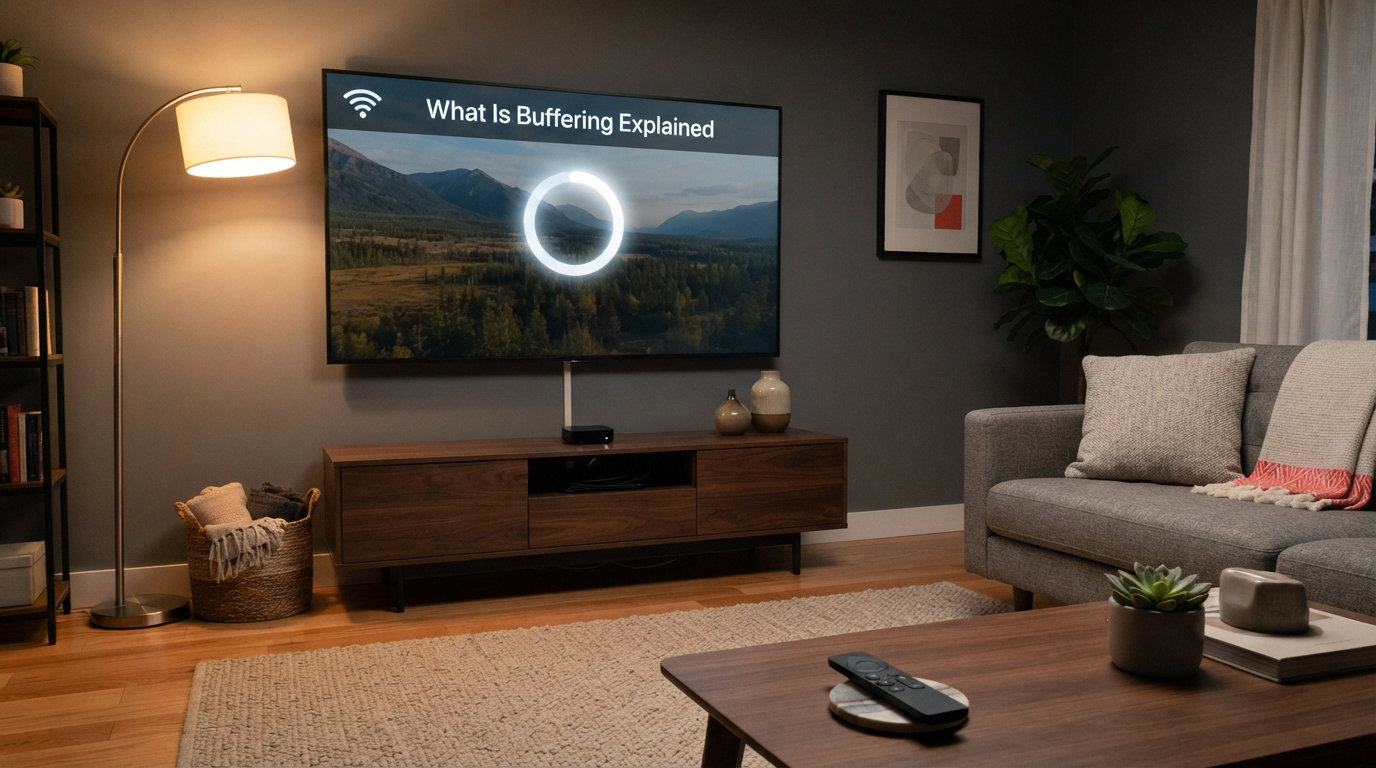
Buffering is the process of pre-loading segments of data when streaming video, audio, or game content so playback can begin before the entire file finishes downloading. You have seen it happen a hundred times. The video pauses, a spinning circle appears, and a small bar fills up beneath it. That loading bar is your device stocking up on data so the next few seconds of playback stay smooth.
I spent 2026 untangling exactly why this happens, digging through Reddit threads where users rage about constant stuttering, reading Cloudflare and Akamai engineering write-ups, and testing fixes on my own setup. This guide breaks down what is buffering at every level, from the simple definition to the memory mechanics behind it, plus the practical fixes that actually work.
By the end, you will understand why buffering happens, what makes it worse, and what you can do to stop it across streaming, music, video calls, and gaming.
Table of Contents
What Is Buffering and Why Does It Happen
Buffering means your device downloads small chunks of content into a temporary memory space (called a buffer) ahead of when you actually watch or hear them. Think of it like filling a glass of water while you sip from it. As long as water flows in faster than you drink, the glass never empties. If you drink faster than the tap refills, the glass runs dry and you wait.
The same trade-off happens with streaming. Your internet connection delivers data at a certain speed, and the video player consumes data at a certain rate. When delivery stays ahead of consumption, playback stays smooth. When delivery falls behind, the buffer drains, the video freezes, and you see that spinning wheel while the buffer refills.
So when people ask what is buffering, the short answer is this: a deliberate pre-load of data that smooths out the bumps in your connection. Buffering is not a bug or a malfunction. It is a feature that keeps your stream watchable, even when the network gets shaky.
How Buffering Actually Works
To understand buffering, picture what happens the moment you press play on a YouTube video. Your request travels to a content delivery server, usually through a CDN (content delivery network) located geographically close to you. The server starts chopping the video file into tiny data segments, often around 2 to 10 seconds of playback each.
Those segments travel across the internet to your device, where they land in a reserved area of memory. This is the buffer. The video player does not start playback instantly. Instead, it waits until enough segments have stacked up that it can keep playing even if the connection hiccups for a second or two.
Most modern streaming services target a buffer of 10 to 30 seconds before playback starts. That cushion absorbs brief slowdowns without you ever noticing. If the buffer dips too low, the player either pauses to refill or drops the video quality to buy more time.
That quality drop is called adaptive bitrate streaming. Netflix, YouTube, and Disney+ all use it. When your connection slows, the player silently switches to a lower-resolution stream that needs less data. This is why a 4K movie sometimes suddenly looks blurry and then sharpens back up minutes later. The buffer was running dry, so the player traded resolution for stability.
Adaptive streaming is the reason buffering feels less frequent today than it did ten years ago. The system quietly adjusts instead of freezing. But it cannot fix everything. If the connection drops too far below the minimum needed for even the lowest quality tier, no amount of cleverness prevents the pause.
Common Causes of Buffering
Buffering happens because the data arriving at your device falls behind the data your player is trying to consume. Several different problems can trigger that mismatch, and figuring out which one is hitting you makes all the difference in fixing it.
Insufficient bandwidth is the most obvious culprit. If you pay for 10 Mbps and try to stream 4K content that needs 25 Mbps, the math simply does not work. The buffer will never fill fast enough, and buffering becomes constant. Forum users on Reddit frequently report this exact scenario after upgrading their TV without upgrading their internet plan.
Network congestion hits even when your plan is fast enough. When four people in one household stream, game, and video-call at the same time, everyone shares the same pipe. Peak evening hours between 7 PM and 11 PM are notorious for slowdowns because your whole neighborhood is pulling data through the same local infrastructure.
Weak Wi-Fi signal causes buffering that feels random and maddening. Walls, floors, microwaves, baby monitors, and neighboring networks all interfere with wireless signals. A connection that tests fine in the living room might crawl in the bedroom two floors up. I have seen users blame their ISP for days before realizing the problem was a router wedged behind a metal filing cabinet.
Server-side problems can also trigger buffering, and these are entirely outside your control. When a popular show drops and millions of people hit the same streaming platform at once, the servers or the CDN nodes closest to you can get overwhelmed. Your connection is perfect, but the source cannot send data fast enough.
Device limitations round out the list. Older smart TVs, budget streaming sticks, and phones with limited processing power sometimes struggle to decode video fast enough, even when the network is fine. I read dozens of forum posts from users whose brand-new TV streams flawlessly while a five-year-old Fire Stick on the same network stutters constantly.
Internet Speed Requirements by Video Quality
One of the most common questions I see in forums is how much speed you actually need to stream without buffering. The answer depends almost entirely on the video quality you want. Here is a breakdown based on publicly stated recommendations from Netflix, YouTube, and major streaming platforms.
Standard definition (SD, 480p) generally needs around 3 Mbps for a single stream. High definition (HD, 1080p) wants 5 to 8 Mbps. 4K Ultra HD content demands 25 Mbps or more, and that is per stream. If two people in your home watch 4K simultaneously, you need at least 50 Mbps just for streaming, before accounting for anything else on the network.
Video calls need far less bandwidth than streaming. A standard Zoom or Teams call uses roughly 1.5 to 3 Mbps for video, which is why your meetings can run fine while Netflix buffers. Online gaming is similar in that it needs very little raw bandwidth (often under 5 Mbps) but demands low latency, which is a different problem entirely.
The practical takeaway is this: add up what your household actually uses at peak times, then make sure your plan delivers at least 20 percent more headroom. That cushion prevents the kind of buffering that shows up only when everyone is online at once.
Buffering in Online Gaming vs Video Streaming
Here is where things get interesting. The word buffering means something different in gaming communities than it does in streaming contexts, and almost no article online explains the distinction. This is a gap I noticed across every competitor I reviewed.
In video and audio streaming, buffering is about pre-loading data so playback stays smooth. It is visible, intentional, and generally helpful. In gaming, buffering refers to something called input buffering, which is a completely separate concept.
Input buffering happens when a game registers your button press but holds onto it for a frame or two before executing the action. Fighting game players talk about this constantly. If you press a move while your character is still in an animation, the game stores (buffers) that input and triggers the move the instant the animation ends. Done well, it makes controls feel responsive. Done poorly, it makes the game feel sluggish and unpredictable.
This matters because a gamer searching for buffering information might land on a streaming article and get confused. The two meanings share a word but describe unrelated mechanics. Streaming buffering is about data transfer and memory. Gaming input buffering is about how a game processes controller inputs within its frame loop.
There is also a third related concept worth knowing: network buffering in online multiplayer games. Some games intentionally add a small delay to incoming packets to smooth over lag spikes. This reduces visual stuttering but adds latency, which competitive players hate. It is a trade-off between visual smoothness and responsiveness, and it is one of the reasons competitive gamers always prefer wired connections.
How to Stop Buffering: Practical Fixes
Knowing what buffering is only helps if you can actually do something about it. I tested these fixes across my own devices and cross-referenced them with the most upvoted solutions from Reddit, Xfinity forums, and Plex community boards. Here is what genuinely works, ordered from easiest to most involved.
Step 1: Restart your router. This solves more buffering problems than any other single action. Routers accumulate connection state issues over days and weeks of uptime. A 30-second power cycle clears the cache, drops stale connections, and often restores full speed immediately. Do this before anything else.
Step 2: Switch from Wi-Fi to ethernet. A wired connection eliminates wireless interference entirely. If your streaming device has an ethernet port and your router is close enough, use it. Forum users consistently report that this single change eliminates buffering that plagued them for months. If running a cable is not practical, a powerline adapter or mesh Wi-Fi system is the next best option.
Step 3: Close background apps and downloads. Cloud backups, system updates, game downloads, and other active streams all compete for the same bandwidth. I have seen cases where a Steam game downloading in the background was silently eating 90 percent of a household’s connection, leaving barely enough for a 480p stream. Pause everything you are not actively using.
Step 4: Lower the video quality manually. Most streaming platforms auto-select quality based on detected speed, but that detection is not always accurate. Forcing 1080p instead of 4K, or 720p instead of 1080p, dramatically reduces the bandwidth needed and often eliminates buffering entirely. The trade-off is a slightly softer image, but a slightly softer image that plays smoothly beats a crystal-clear one that freezes every ten seconds.
Step 5: Update your firmware. Outdated software on your router, streaming device, or smart TV can cause buffering that no amount of network tweaking will fix. Check for updates on all three. Smart TV manufacturers in particular are notorious for shipping buggy video decoders that get patched months later.
Step 6: Check for DNS and ad-blocker interference. This is an under-discussed fix I found repeatedly in forum threads. Some users discovered that their DNS-based ad blocker (like Pi-hole or NextDNS) was throttling or blocking the domains streaming platforms use to deliver video segments. Switching DNS servers or whitelisting the streaming domain resolved persistent buffering that had frustrated them for weeks.
Does a VPN Help or Hurt Buffering
This question comes up constantly, and the honest answer is: it depends on your specific situation. A VPN adds an extra hop between you and the streaming server, which usually reduces your effective speed. If your connection is already borderline, a VPN will make buffering worse, not better.
However, a VPN can help in one specific scenario: ISP throttling. Some internet providers intentionally slow down traffic from known streaming domains during peak hours. If your ISP is throttling Netflix or YouTube specifically, routing your traffic through a VPN can hide the destination and bypass the throttle. Forum users on r/cordcutters have confirmed this works, though results vary by provider and region.
The general rule is to test it. Run a speed test with and without the VPN active. If your speed drops significantly with the VPN on, leave it off for streaming. If the speed stays similar but buffering improves, your ISP was likely throttling.
FAQs
What is the best way to stop buffering?
The most effective fixes are restarting your router, switching to a wired ethernet connection, closing background downloads, and lowering your video quality setting. If buffering persists, check for firmware updates on your router and streaming device, and verify that a DNS ad blocker is not blocking streaming domains.
What does buffering on the internet mean?
Buffering on the internet means your device is pre-loading small chunks of data into memory before playing them, so playback stays smooth even if your connection briefly slows. When you see a loading spinner, it means the buffer has emptied and your device is waiting for more data to arrive.
What are the disadvantages of buffering?
The main disadvantages are the initial wait before playback starts, the interruption when the buffer empties mid-stream, and the quality drops that adaptive streaming forces when the buffer runs low. Buffering also adds slight latency, which matters for live streams and competitive gaming.
Why is everything buffering all of a sudden?
Sudden buffering across all devices usually points to a network-wide issue: your router needs a restart, your ISP is experiencing an outage or throttling, someone in the household started a large download, or peak-hour congestion is slowing your connection. Run a speed test to check your actual throughput.
Why are my videos buffering but my internet is fine?
If your speed test looks good but videos still buffer, the problem is often device-specific: an outdated streaming app, a weak Wi-Fi signal in that room, a smart TV with limited processing power, or a DNS ad blocker interfering with the streaming domain. Try a different device on the same network to isolate the cause.
Wrapping Up: Understanding What Is Buffering
Buffering is not a glitch or a sign that something is broken. It is the mechanism that makes streaming possible at all, smoothing over the natural inconsistency of internet connections by pre-loading data into a memory cushion. When you understand what is buffering at its core, the spinning wheel stops feeling random and starts making sense.
The fix is almost always one of three things: your connection is too slow for the quality you are requesting, your local network is congested or poorly configured, or the streaming server itself is struggling. Work through those in order, and most buffering problems resolve quickly.
Start with a router restart and a speed test. From there, move to a wired connection, close background downloads, and adjust your quality settings. If you are still stuck after all of that, the issue is likely on the server side, and the best thing you can do is wait it out or try a different streaming platform.