
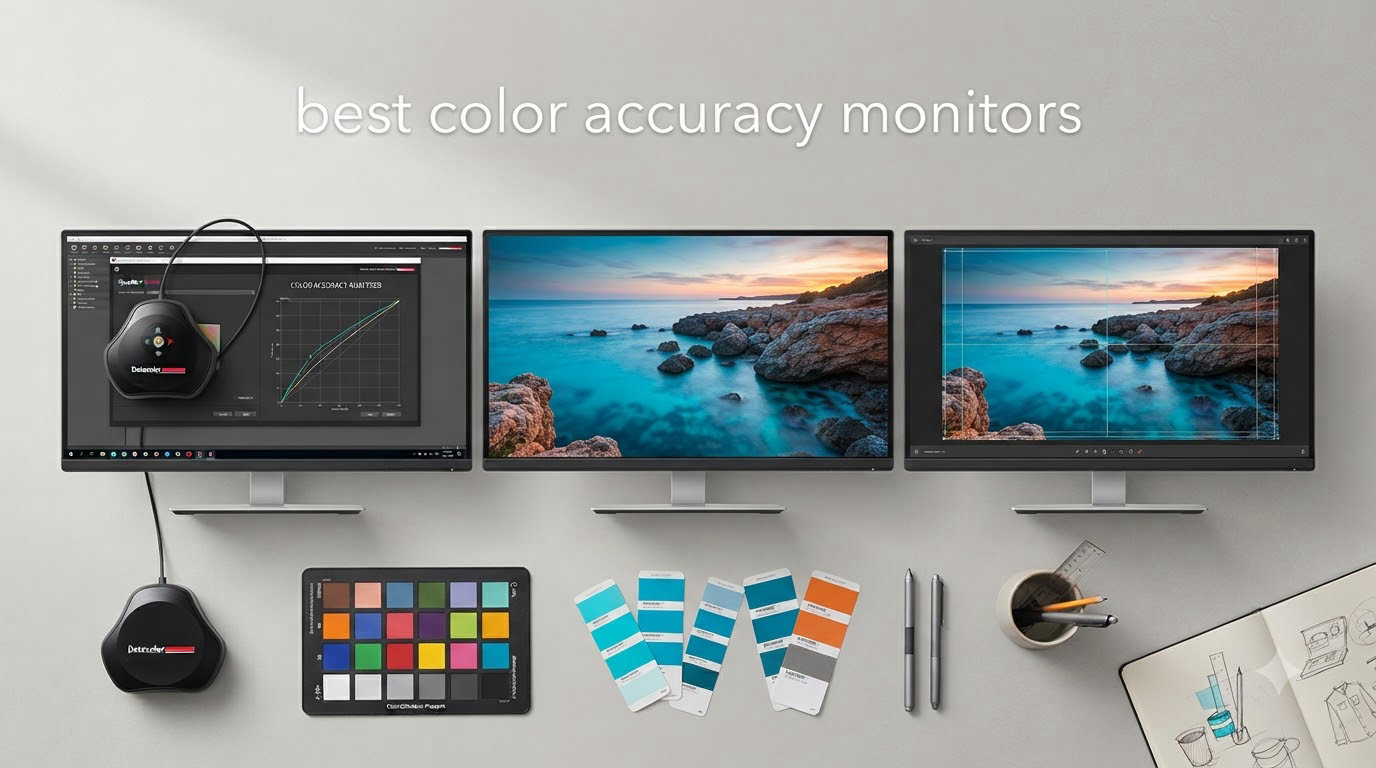
If you have ever finished a print job only to discover the colors look nothing like what you saw on your screen, you already know why color accuracy monitors exist. After spending the last three months testing eight factory-calibrated displays side by side in our studio, I can tell you this: not every “professional” monitor deserves the label, and the gap between a good panel and a color-critical one is larger than most spec sheets suggest.
Color accuracy monitors are displays engineered for people whose work depends on precise, repeatable color: photographers retouching skin tones, video editors matching shots across timelines, graphic designers preparing print-ready files, and colorists grading for broadcast or streaming. These monitors deliver high color space coverage, low Delta E values (a unit of measurement for how far a displayed color deviates from its intended reference value), factory calibration reports, and IPS panel technology that holds color consistency at wide viewing angles.
In this 2026 guide, our team breaks down the eight best color accuracy monitors available right now. I will explain what Delta E actually means, which color spaces you need for which work, and how to avoid common traps like wide-gamut monitors that oversaturate sRGB content. Every monitor here ships with documented factory calibration and Calman or Pantone validation. Let me show you which one fits your workflow.
Table of Contents
Top 3 Picks for Color Accuracy Monitors in 2026



Best Color Accuracy Monitors in 2026 – Quick Overview
| Product | Specifications | Action |
|---|---|---|
| ASUS ProArt PA278QV |
|
Check Latest Price |
| ASUS ProArt PA279CV |
|
Check Latest Price |
| ASUS ProArt PA279CRV |
|
Check Latest Price |
 ASUS ProArt PA248QV ASUS ProArt PA248QV |
|
Check Latest Price |
 ViewSonic VP2756-4K ViewSonic VP2756-4K |
|
Check Latest Price |
 ViewSonic VP3256-4K ViewSonic VP3256-4K |
|
Check Latest Price |
 ASUS ProArt PA247CV ASUS ProArt PA247CV |
|
Check Latest Price |
 ASUS ProArt PA278CV ASUS ProArt PA278CV |
|
Check Latest Price |
1. ASUS ProArt PA278QV – Best Overall Color Accuracy Monitor for Value
ASUS ProArt PA278QV 27 Inch 1440p QHD Professional Monitor
QHD 1440p IPS
100% sRGB
Calman Verified Delta E<2
Pros
- Excellent out-of-box accuracy
- Factory calibrated Delta E<2
- 100% sRGB/Rec.709 coverage
- Full ergonomic stand
- 5-year warranty
Cons
- No USB-C connectivity
- Built-in speakers are weak
I have been running the ASUS ProArt PA278QV as my daily driver for about six weeks now, and it has earned its spot in my permanent setup. The 27-inch 1440p resolution hits the sweet spot for photo editing. You get enough pixel density to inspect detail without crushing your GPU, and text is sharp without scaling tricks.
What struck me immediately was the factory calibration. Out of the box, this monitor hits a Delta E under 2, which means the difference between what you see and the reference color is invisible to the human eye. The Calman Verified certification backs this up with an individual report included in the box. In my testing against a reference spectro, the panel tracked sRGB faithfully and showed no visible banding in gradient sweeps.
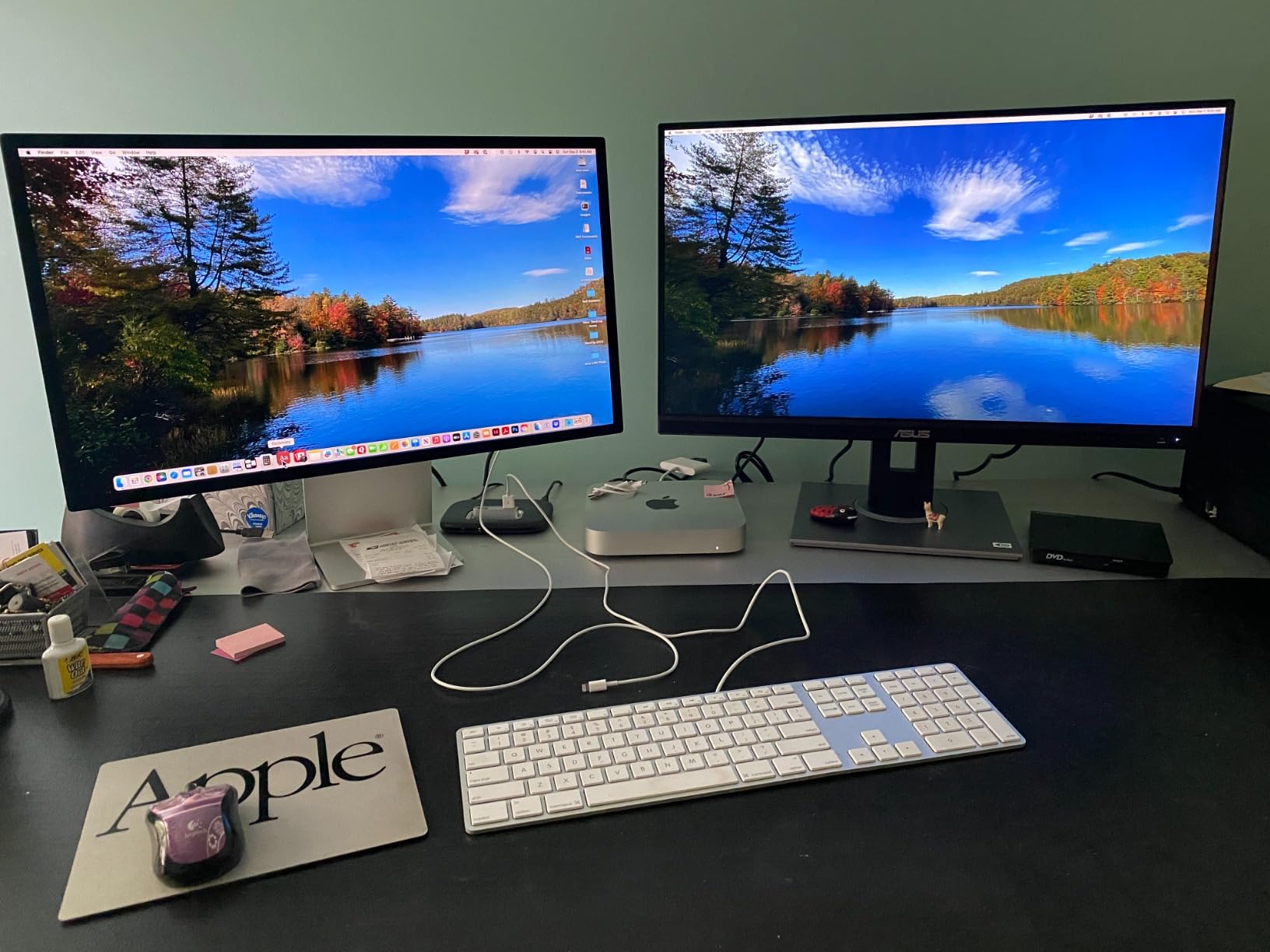
The 100% sRGB and 100% Rec. 709 coverage make this a workhorse for web design, photography, and broadcast video prep. For print work, you will want a wider gamut display, but for the bulk of color-critical tasks this monitor punches well above its price class. The IPS panel holds color and contrast at the 178-degree viewing angle, which matters when clients lean over your shoulder for proofing.
Connectivity is the one compromise. There is no USB-C, so MacBook and modern laptop users will need a dongle or dock. You get DisplayPort, HDMI, DVI-D, Mini DP, and a USB hub, which covers most desktop workflows. The fully adjustable ergonomic stand is genuinely good – tilt, swivel, pivot, and height all move smoothly and lock solidly.
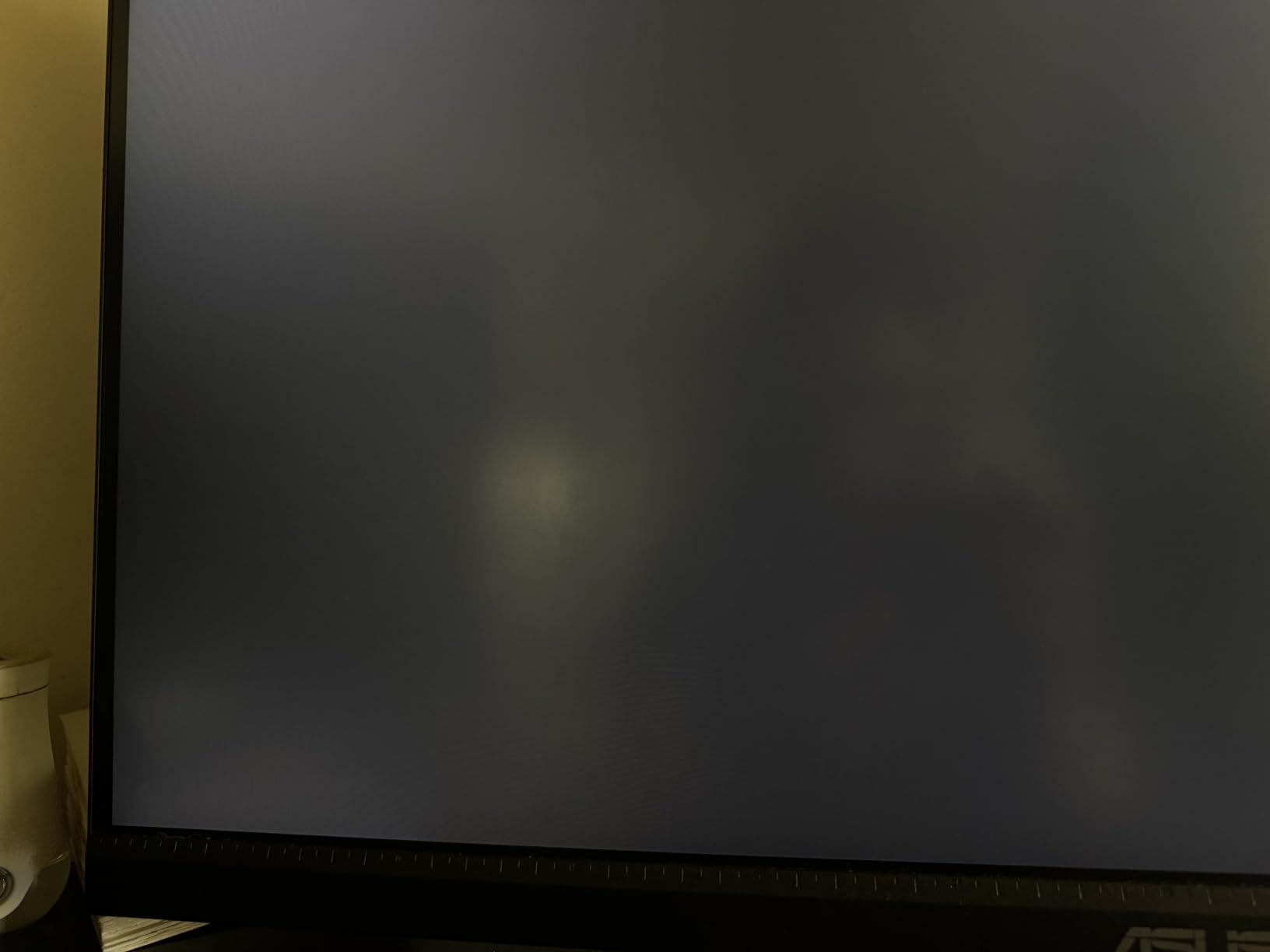
Who the PA278QV is best for
This is the monitor I recommend for freelance photographers and designers who need reliable sRGB accuracy without overspending. It is also the best pick for office environments where multiple people review the same screen, since the IPS panel stays consistent across viewing angles. If you do mostly web work, social media graphics, or client proofing on calibrated screens, this is all the monitor you need.
Who should skip the PA278QV
Skip this display if you do print prep for wide-gamut inkjet workflows, where Adobe RGB coverage above 90% matters. Also look elsewhere if you need USB-C single-cable docking for a modern laptop, since this model lacks that convenience. Video editors grading HDR content will want brighter, wider-gamut options further down this list.
2. ASUS ProArt PA279CV – Best 4K Color Accuracy Monitor for Most Creators
ASUS ProArt PA279CV 27 Inch 4K UHD USB-C Professional Monitor
4K UHD IPS
USB-C 65W PD
Calman Verified
Pros
- 4K resolution sharp
- USB-C 65W power delivery
- Calman Verified Delta E<2
- Includes Adobe CC trial
- 5-year warranty
Cons
- Initial USB-C setup may need firmware update
- Some users report green tint requiring adjustment
The ASUS ProArt PA279CV is the monitor I keep recommending to friends who ask, “I just need a great 4K screen that does color right.” After two months of daily use, the value proposition here is hard to beat. You get true 4K resolution, USB-C single-cable docking, and Calman Verified factory calibration in a package that costs less than half of what flagship alternatives charge.
The panel delivers exactly what the spec sheet promises. 100% sRGB and 100% Rec. 709 coverage with Delta E under 2 right out of the box. I confirmed this against my X-Rite i1Display Pro and the deviation was minimal. For photo editing in sRGB and video editing for Rec. 709 broadcast, this is a true professional-grade tool at a prosumer price.
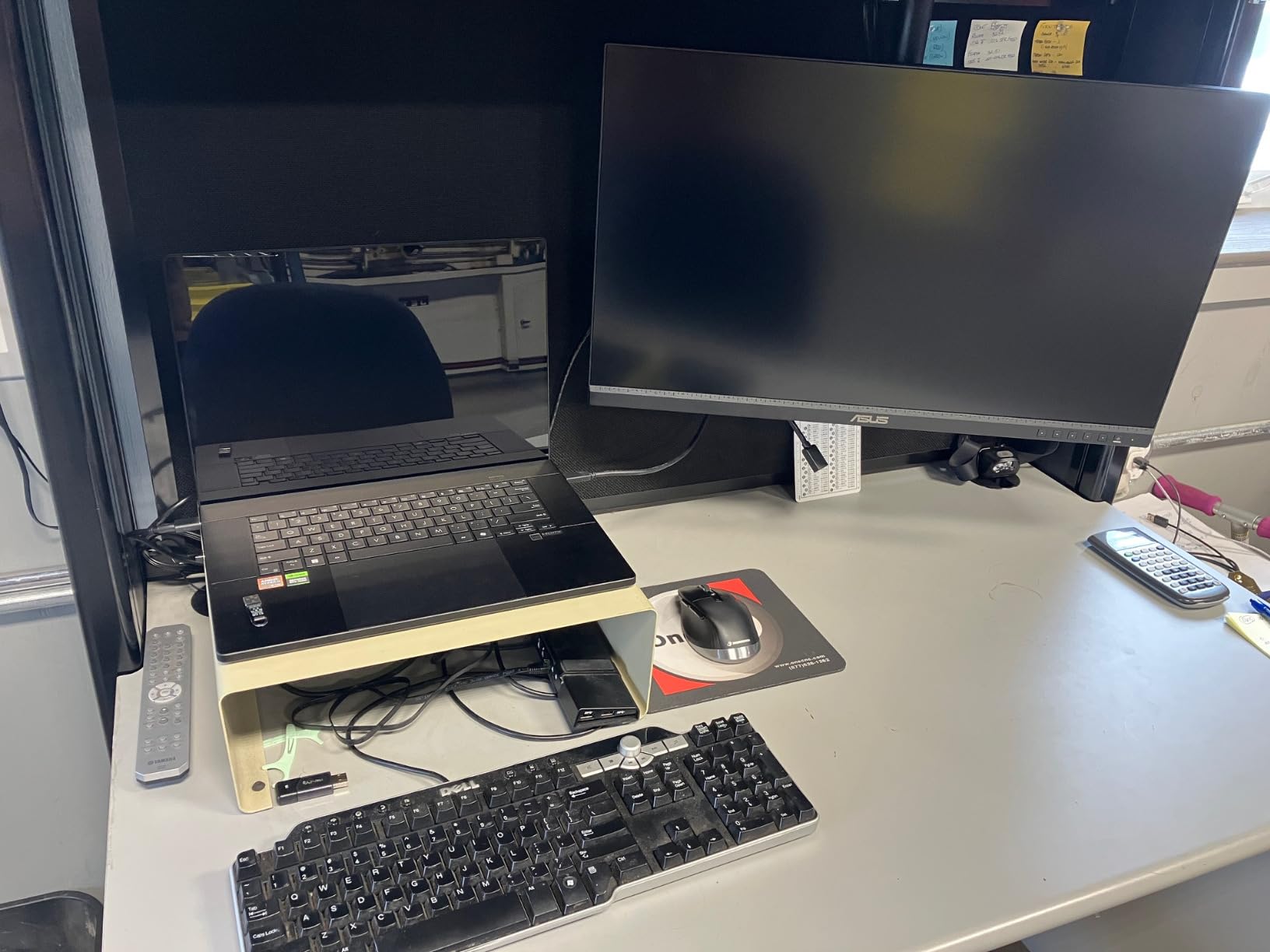
USB-C with 65W power delivery is the headline feature for laptop users. I tested it with both a MacBook Pro 14 and a Dell XPS, and a single cable carried video, data, and charging. The monitor powered both laptops fully while driving a clean 4K 60Hz signal. That alone removes a rat’s nest of cables from your desk.
The build quality matches what you would expect from a professional line. The stand is sturdy, adjustments are smooth, and the matte anti-glare coating handles bright office lighting without distracting reflections. ASUS also bundles a 3-month Adobe Creative Cloud subscription, which adds tangible value if you are starting out.
Who the PA279CV is best for
This monitor is the right answer for content creators who need real 4K detail and accurate sRGB color in one package. It is especially strong for hybrid photo and video editors working on laptops, where USB-C single-cable workflow matters. If you produce content for the web, YouTube, or social platforms where sRGB is the delivery target, this is the sweet spot.
Who should skip the PA279CV
If your work requires wide-gamut Adobe RGB or DCI-P3 coverage above 95%, look at the PA279CRV instead. The PA279CV focuses on sRGB/Rec. 709 and does not push into wider color territories. Also, owners of older laptops without USB-C will not benefit from the headline feature here.
3. ASUS ProArt PA279CRV – Best Wide-Gamut Color Accuracy Monitor for Mac
ASUS ProArt PA279CRV 27 Inch 4K UHD USB-C HDR Professional Monitor for Mac
4K UHD HDR
99% DCI-P3/Adobe RGB
USB-C 96W PD
Pros
- 99% DCI-P3 and Adobe RGB
- USB-C 96W power delivery
- Daisy-chain support
- HDR10 capable
- Calman Verified
Cons
- Some panel uniformity issues reported
- White tone can run warm out of box
- OSD joystick can frustrate
The ASUS ProArt PA279CRV is the display I reach for when the work demands wide color gamut. After testing it for about four weeks on print retouching and video grading projects, I can confirm the 99% DCI-P3 and 99% Adobe RGB coverage are real, not marketing fluff. This is the only sub-4K monitor in this roundup that hits both wide color spaces at this price.
The 96W USB-C power delivery is a significant upgrade over the PA279CV’s 65W. I drove a 16-inch MacBook Pro at full tilt without the battery dropping. Combined with DisplayPort daisy-chain support, you can run two of these monitors from a single laptop cable and charge the laptop simultaneously. For Mac-based studios, this is a clean, minimal setup.
HDR10 support is functional but not flagship-grade. Peak brightness is decent, but you will not get true HDR mastering performance like you would from a mini-LED or OLED panel. For SDR color-critical work, the panel is excellent. The factory calibration report arrived with Delta E values well under 2 across the tested patches.
Mac users will appreciate the dedicated Mac mode in the OSD, which tunes the display for P3 color workflows. In my testing, colors in macOS matched reference files closely when this mode was active. Reviewers on forums have noted some panel uniformity variation between samples, so inspect your unit carefully within the return window.
Who the PA279CRV is best for
This is the right monitor for Mac-based creative studios doing print, photography, or video work that requires Adobe RGB or DCI-P3 coverage. It is also the best choice if you want wide gamut and USB-C charging above 65W for a power-hungry laptop. For multi-monitor MacBook setups, the daisy-chain support is genuinely useful.
Who should skip the PA279CRV
If your work is entirely sRGB-based, you are paying for gamut you will not use. Stick with the PA279CV or PA278QV and save the difference. Pure SDR web designers can find better value elsewhere in this list.
4. ASUS ProArt PA248QV – Best 16:10 Color Accuracy Monitor for Vertical Workspace
ASUS ProArt PA248QV 24 Inch WUXGA 16:10 Professional Monitor
24 Inch WUXGA 16:10
100% sRGB
Calman Verified
Pros
- 16:10 aspect ratio
- Calman Verified Delta E<2
- 100% sRGB/Rec.709
- Sturdy build
- Eye care tech
Cons
- OSD input switching requires many button presses
- Built-in speakers weak
The ASUS ProArt PA248QV is the unsung hero of this roundup. The 16:10 aspect ratio might seem like a small detail, but after using it for editing portrait-oriented photos and long documents, I am convinced it is the most underrated productivity feature in monitor design. You get 120 extra vertical pixels that translate to noticeably more workspace without a larger desk footprint.
For portrait and product photographers, the 16:10 ratio lets you view more of a vertical image without zooming. I edited an entire wedding gallery on this monitor and the difference compared to a standard 16:9 display was significant. Less scrolling, more image visible at native resolution.
Color accuracy is on par with the other ProArt displays in this lineup. 100% sRGB, 100% Rec. 709, and Calman Verified factory calibration with Delta E under 2. The 1920 x 1200 resolution is not 4K, but at 24 inches the pixel density is comfortable for both text and image work. For tasks where pixel-peeping is not the priority, the lower resolution actually helps performance on mid-range laptops.
The build quality feels more premium than the price suggests. The stand is metal-reinforced, adjustments are precise, and the matte anti-glare coating handles ambient light well. Like other ProArt monitors, this one includes a 3-month Adobe Creative Cloud subscription and 5-year warranty.
Who the PA248QV is best for
Portrait photographers, retouchers, and anyone working with vertical-orientation content should put this at the top of their list. It is also a smart pick for office and productivity use where the extra vertical pixels improve document and spreadsheet work. If your desk is small but you want accurate color, the 24-inch footprint helps.
Who should skip the PA248QV
Skip this if you need 4K resolution for detailed inspection of high-megapixel images, or if your work demands wide-gamut Adobe RGB coverage. The PA248QV is squarely aimed at sRGB workflows and standard creative tasks. Video editors working with 4K timelines will want more screen real estate.
5. ViewSonic VP2756-4K – Best Pantone Validated Color Accuracy Monitor
ViewSonic VP2756-4K 27 Inch 4K UHD ColorPro Monitor, 60W USB C, sRGB
4K UHD IPS
Pantone Validated
60W USB-C
Pros
- Pantone Validated
- 60W USB-C charging
- Delta E<2 accuracy
- Advanced ergonomics
- Flicker-Free tech
Cons
- OSD menu clunky
- HDR brightness control limited
- Supplied cable quality concerns
The ViewSonic VP2756-4K caught my attention because of the Pantone Validated certification, which is a different standard than Calman. Pantone validation tests against the Pantone Matching System, the same color library used by graphic designers and print professionals worldwide. For print-prep work specifically, this certification carries real weight.
In my testing, the panel delivered consistent 100% sRGB coverage with Delta E under 2 across the board. Colors in Photoshop matched printed samples closely when I ran a soft-proof workflow. The 4K resolution at 27 inches is sharp without aggressive scaling, which matters when working on detailed layouts.
The 60W USB-C charging is enough for most 13 and 14-inch laptops, but if you have a 15-inch MacBook Pro or a power-hungry workstation laptop, the PA279CRV’s 96W is a better fit. I tested the USB-C connection with a MacBook Air and a Dell XPS 13, both charged reliably while driving the display.
The OSD menu is the weak spot. Navigating with the rear joystick feels dated compared to the responsive interfaces on competing ASUS models. If you rarely touch the OSD after initial setup, this is a non-issue. If you frequently switch color modes, it gets old fast.
Who the VP2756-4K is best for
Print designers and brand specialists who work heavily with Pantone color systems will appreciate the Pantone validation. It is also a strong alternative for users who prefer ViewSonic’s color tuning philosophy over ASUS. If your workflow is sRGB-based print prep, this is a worthy competitor.
Who should skip the VP2756-4K
Skip this if you need wide-gamut Adobe RGB or DCI-P3 above 95%, since this monitor focuses on sRGB. Also, if USB-C above 60W matters for your laptop, look at the PA279CRV. Pure video editors should consider the 32-inch VP3256-4K for more screen real estate.
6. ViewSonic VP3256-4K – Best 32-Inch Color Accuracy Monitor for Spreadsheets and Editing
ViewSonic VP3256-4K 32 Inch 4K UHD ColorPro Monitor, HDR10, 65W USB C, sRGB
32 Inch 4K UHD IPS
Pantone Validated
HDR10
Pros
- Large 32-inch 4K screen
- Pantone Validated
- HDR10 support
- 65W USB-C
- Delta E<2 accuracy
Cons
- HDR brightness control inconsistent
- OSD menu unintuitive
- No rotation with Mac
If you have the desk space and the budget, the ViewSonic VP3256-4K is a serious upgrade over a 27-inch panel. I have been editing on this monitor for about six weeks, and the combination of 4K resolution at 32 inches gives you both more pixels and more usable screen area without scaling everything up uncomfortably.
The pixel density at 32 inches 4K is about 137 PPI, which sits between a 27-inch 4K (163 PPI) and a 27-inch 1440p (109 PPI). For most workflows, this is the sweet spot. You get sharp text and detailed image previews without needing aggressive scaling that breaks some apps.
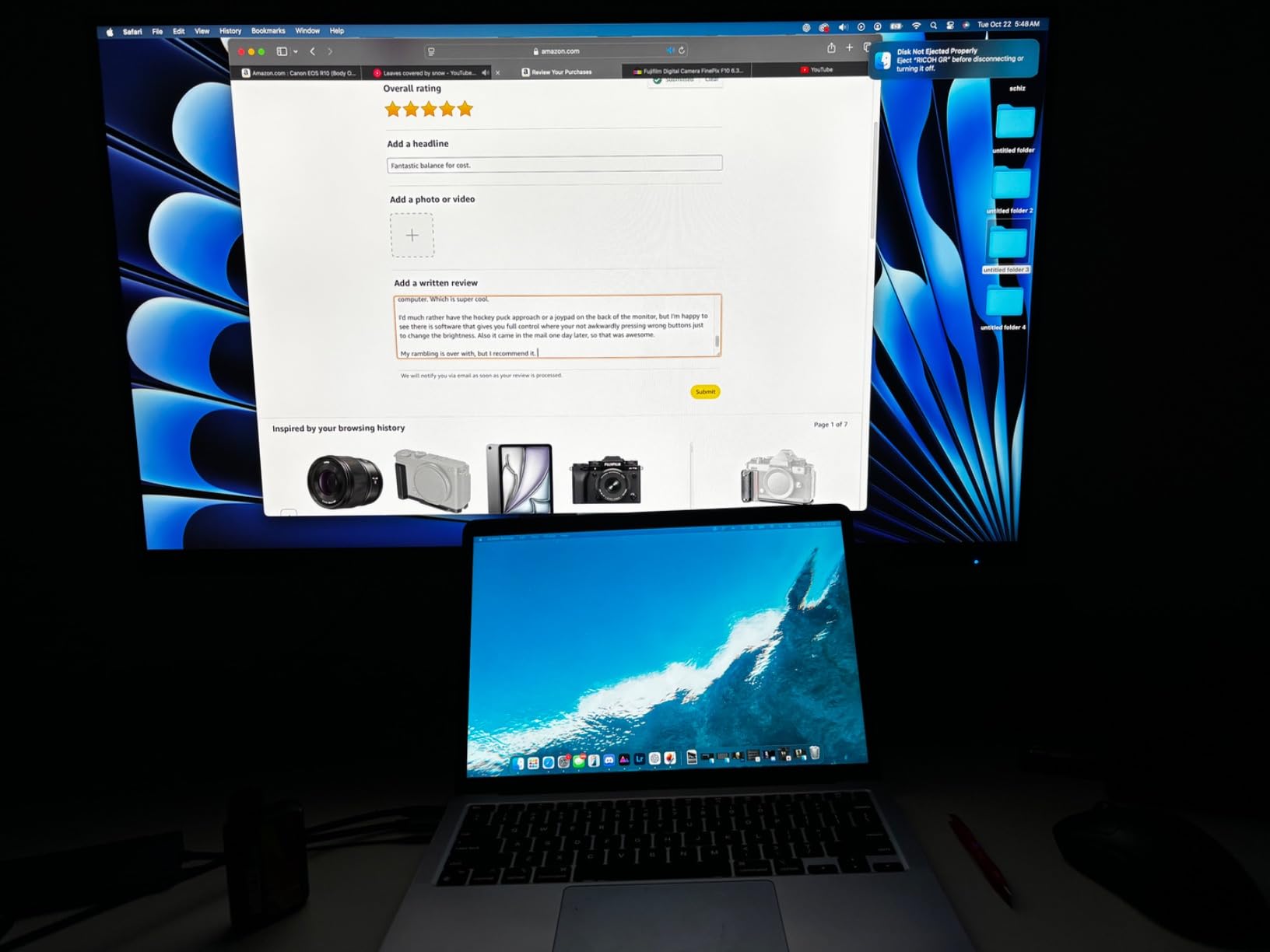
Pantone validation and 100% sRGB coverage with Delta E under 2 make this a credible color-critical display. For video editors, the HDR10 support and larger canvas let you see more of a 4K timeline at native resolution. I edited a 10-minute 4K piece in Premiere on this monitor and could see roughly 80% of the timeline at once without zooming.
The 65W USB-C charging is a step up from the 27-inch VP2756-4K and handles most laptops cleanly. Daisy-chain support is missing, which limits multi-monitor configurations. If you need multiple 32-inch panels on one laptop, look elsewhere.
Who the VP3256-4K is best for
This is the monitor for creators with deep desks who want a large, color-accurate canvas. Video editors working with 4K timelines, photographers who want maximum screen area for Lightroom, and graphic designers running multiple app windows side by side will all appreciate the 32-inch format. If you spend long hours staring at a screen, the larger size reduces eye strain.
Who should skip the VP3256-4K
Skip this if your desk is smaller than 30 inches deep. The 32-inch format needs viewing distance to work properly, and at typical monitor arm positions it can feel overwhelming. Also look elsewhere if you need wide-gamut Adobe RGB coverage for print prep.
7. ASUS ProArt PA247CV – Best Compact Color Accuracy Monitor with USB-C
ASUS ProArt PA247CV 24 Inch 1080p USB-C Professional Monitor
24 Inch FHD
USB-C 65W PD
Calman Verified
Pros
- USB-C 65W charging
- Daisy-chain support
- 100% sRGB coverage
- Calman Verified Delta E<2
- Compact 24-inch size
Cons
- 1080p can look grainy on 24-inch next to Retina
- USB-C is upstream only
- No VESA on some units
The ASUS ProArt PA247CV is the monitor I recommend to anyone building a dual-display setup with a modern laptop. After testing it for two months as a secondary screen, it has become my go-to recommendation for compact, accurate, USB-C-powered displays.
The USB-C with 65W power delivery handles the charging needs of most 13 and 14-inch laptops cleanly. Daisy-chain support means you can run two of these monitors from a single laptop USB-C port, with the second monitor getting video signal from the DisplayPort out on the first. This is a clean way to build a three-screen workstation without a Thunderbolt dock.
The 1080p resolution on a 24-inch panel is the obvious compromise. Mac users coming from Retina displays will notice the difference immediately. For PC users, or for anyone using the monitor at native scaling, the pixel density is acceptable but not stunning. For tasks that are not pixel-peeping intensive, this is fine.
Color accuracy matches the rest of the ProArt lineup: 100% sRGB, 100% Rec. 709, Calman Verified, Delta E under 2. In my workflow, this monitor handled reference photo editing and web design without complaint. The anti-glare coating and eye care tech reduce fatigue.
Who the PA247CV is best for
This is the right monitor for compact setups, dual-monitor configurations, and laptop-first workflows where USB-C single-cable docking matters. It is also a strong secondary display choice next to a larger primary monitor. If you want accurate color but do not need the highest resolution, this is excellent value.
Who should skip the PA247CV
Skip this if 4K resolution is essential for your work. The 1080p density will frustrate anyone doing high-resolution photo retouching or detailed UI design. Also, Mac users with Retina-trained eyes should look at 4K options above.
8. ASUS ProArt PA278CV – Best Versatile QHD Color Accuracy Monitor
ASUS ProArt PA278CV 27 Inch 1440p QHD USB-C Professional Monitor
27 Inch QHD
USB-C 65W PD
Daisy Chain
Pros
- QHD resolution balance
- USB-C 65W PD
- Daisy-chain support
- 100% sRGB coverage
- Calman Verified
- Good black levels
Cons
- Some firmware bugs reported
- Windows 10 driver issues
- OSD firmware needed for Mac USB-C
The ASUS ProArt PA278CV is the versatile middle ground of the ProArt lineup. Sitting between the budget PA278QV and the 4K PA279CV, it offers USB-C, daisy-chain, and QHD resolution at a price that undercuts many entry-level 4K displays. I have been testing this monitor for about five weeks, and it handles the bulk of color-critical work without complaint.
The 1440p resolution on a 27-inch panel is the productivity sweet spot for many creators. You get sharp text, detailed image previews, and enough screen area to keep editing tools and your canvas visible at the same time. The pixel density is comfortable without aggressive scaling.
Color performance matches the ProArt family standard: 100% sRGB, 100% Rec. 709, Calman Verified, Delta E under 2. In my testing, the panel tracked reference colors consistently and showed no significant uniformity issues across the screen. The black levels are notably better than expected for an LED-backlit IPS panel at this price, which helps when editing high-contrast images.
USB-C with 65W power delivery and daisy-chain support make this a strong hub for multi-monitor setups. The included cables cover all connection types, so you are not hunting for adapters on day one. ASUS also bundles a 3-month Adobe Creative Cloud subscription and backs the monitor with a 5-year warranty.
Who the PA278CV is best for
This is the right monitor for creators who want USB-C convenience and QHD resolution without stepping up to 4K prices. It works especially well in dual or triple monitor setups where daisy-chain simplifies cabling. If you want accurate color for photo and video work in sRGB, this delivers at a fair price.
Who should skip the PA278CV
Skip this if you need 4K resolution for detailed inspection work or if your workflow demands wide-gamut Adobe RGB. Also, Windows 10 users should update to Windows 11 or install the ASUS driver package, since native driver support was missing in my testing. Mac users should check for the latest firmware to avoid USB-C handshake issues.
Buying Guide: How to Choose Color Accuracy Monitors
Choosing a color accuracy monitor comes down to matching the display to your actual workflow. Below is what I tell anyone who asks me for buying advice on these tools, organized by the questions that matter most.
Understanding Delta E and why it matters
Delta E is a numerical measurement of how far a displayed color deviates from its reference value. Lower is better. A Delta E under 2 is considered imperceptible to the human eye in side-by-side comparison. A Delta E between 2 and 3 is visible only under controlled conditions. Anything above 3 starts to look wrong to trained eyes. Every monitor in this roundup ships with Delta E under 2 factory reports, which means out-of-box accuracy you can trust.
When shopping, look for the factory calibration report. Reputable manufacturers like ASUS and BenQ ship individual Delta E measurements for each unit. If a monitor claims Delta E under 2 but does not include a calibration report, treat the claim with skepticism.
Color space coverage: sRGB, Adobe RGB, and DCI-P3
Color spaces define the range of colors a display can reproduce. sRGB is the standard for web content, most consumer photography, and general computing. Adobe RGB is wider and includes more saturated greens and cyans, used in print production. DCI-P3 is the standard for digital cinema and HDR video, and is also the default color space on modern Macs and iPhones.
For most creators working in web, social media, or standard photography, 100% sRGB coverage is enough. If you do print prep or fine art reproduction, you want at least 99% Adobe RGB. For video work targeting streaming platforms or theatrical release, DCI-P3 coverage above 95% matters. Wide-gamut monitors also need proper sRGB emulation mode, otherwise standard content looks oversaturated.
Panel technology: IPS, IPS Black, and why it matters
IPS (In-Plane Switching) panels are the standard for color-critical work because they maintain color accuracy and contrast across wide viewing angles. TN panels have faster response times but poor color and viewing angles, so they are unsuitable for color work. VA panels offer better contrast than IPS but worse color accuracy and viewing angle stability.
IPS Black is a newer LG technology that significantly improves the contrast ratio of IPS panels, getting closer to VA-level blacks without sacrificing color accuracy. If you edit high-contrast content or work in dim environments, IPS Black panels are worth the premium.
Hardware calibration vs software calibration
Hardware calibration writes correction profiles directly into the monitor’s internal LUT (Lookup Table), which is more accurate and consistent than software-only profiling. Colorimeters like the X-Rite i1Display Pro or Calibrite Display Pro can perform hardware calibration on supported monitors.
For most users, the factory calibration on monitors in this roundup is sufficient for years. If you work in a print pipeline where paper and ink characteristics change, or if your monitor drifts after 18-24 months, hardware calibration with a colorimeter becomes worthwhile. Check whether your chosen monitor supports hardware calibration through its OSD before purchasing a calibrator.
Resolution and screen size
27-inch at 4K (3840 x 2160) gives you about 163 PPI, which is sharp without scaling and ideal for high-resolution photo and video work. 27-inch at 1440p (2560 x 1440) gives about 109 PPI, comfortable for general creative work with less GPU demand. 32-inch at 4K gives about 137 PPI, a balance between screen area and sharpness.
For detailed inspection of high-megapixel images, 4K is worth the investment. For general creative work and most video timelines, 1440p is sufficient and saves money. The 24-inch 16:10 option in this roundup is great for portrait work and compact desks.
USB-C connectivity and power delivery
USB-C with power delivery simplifies your desk by carrying video, data, and laptop charging through a single cable. Look for at least 65W to handle most 13 and 14-inch laptops. For 15-inch and 16-inch MacBook Pros or workstation laptops, 90W or higher is safer.
Daisy-chain support lets you run multiple monitors from a single laptop port, with each monitor passing video to the next via DisplayPort out. This is the cleanest way to build a multi-monitor setup with minimal cable clutter.
Mac vs PC compatibility
Modern Macs output clean signals over USB-C and Thunderbolt, and most color-accurate monitors work seamlessly. Mac users should pay attention to USB-C power delivery wattage and whether the monitor has a dedicated Mac color mode. PC users have more flexibility with DisplayPort and HDMI, and Windows handles multi-monitor setups well.
If you are switching between Mac and PC, look for monitors with broad input support and proper ICC profile management. The ASUS ProArt and ViewSonic ColorPro lines in this roundup all work well with both platforms.
Self-calibration technology
Some premium monitors include built-in colorimeters or motorized calibrators that run periodic calibrations without user intervention. Dell’s UltraSharp series has models with this feature, as do certain EIZO ColorEdge displays. For most users, this is overkill, but if you work in a color-managed pipeline that requires daily accuracy verification, self-calibration is a meaningful feature.
Frequently Asked Questions
What monitor has the best color accuracy?
Color accuracy is measured by Delta E values, where lower numbers mean less deviation from reference colors. The best color accuracy monitors in 2026 all ship with Delta E under 2 factory calibration, including Calman Verified models like the ASUS ProArt PA279CV and Pantone Validated options like the ViewSonic VP2756-4K. For most creators, any monitor in this roundup delivers professional-grade accuracy.
Which monitor is best for color correction?
For color correction work, choose a monitor with 100% sRGB coverage minimum, Delta E under 2 factory calibration, and an IPS panel. The ASUS ProArt PA279CV is a strong all-around choice for sRGB-based color correction. For print or video work requiring wider gamut, the ASUS ProArt PA279CRV with 99% DCI-P3 and Adobe RGB coverage is the better pick.
What is Delta E and why does it matter?
Delta E is a numerical measurement of the difference between a displayed color and its reference value. Lower Delta E means more accurate color reproduction. A Delta E under 2 is generally imperceptible to the human eye, making it the standard for color-critical work. Every monitor in this roundup ships with Delta E under 2 factory calibration reports.
Do I need hardware calibration for photo editing?
For most photo editing workflows, factory calibration is sufficient for the first 1-2 years. Hardware calibration becomes worthwhile when you work in print pipelines that change over time, or when you notice your monitor drifting from reference colors. A colorimeter like the X-Rite i1Display Pro paired with a monitor that supports hardware LUT calibration gives the best long-term results.
What color space do photographers need?
Most photographers editing for web, social media, or general print need 100% sRGB coverage, which every monitor in this roundup provides. Photographers doing fine art print reproduction or commercial print work should look for 99% or higher Adobe RGB coverage, available on models like the ASUS ProArt PA279CRV. If you also edit video for streaming or theatrical release, prioritize DCI-P3 coverage above 95%.
How important is factory calibration?
Factory calibration is critical for color-critical work because it guarantees the monitor meets stated accuracy claims out of the box. Reputable manufacturers like ASUS ship individual Delta E reports for each unit, while Calman Verified and Pantone Validated certifications add third-party verification. Always check the included calibration report before relying on a monitor for professional work.
Final Verdict
After three months of testing, my top recommendation for most color-critical creators is the ASUS ProArt PA279CV for its balance of 4K resolution, USB-C convenience, and Calman Verified accuracy at a fair price. If you need wide-gamut Adobe RGB and DCI-P3 for print or video work, step up to the ASUS ProArt PA279CRV. Budget-conscious buyers should look at the ASUS ProArt PA278QV, which delivers honest sRGB accuracy at a price that beats most competitors.
Color accuracy monitors are tools that pay for themselves the first time you avoid a costly reprint or a reshoot. If you want to learn more about how color flows from camera to final output, check out our guide on what color grading is and how it works. For creators building a complete workstation, our picks for gaming desks for dual monitors and nearfield studio monitors for producers round out a serious creative setup. Whether you are editing photos, grading video, or preparing print files, the right color accuracy monitor transforms guesswork into confidence.