
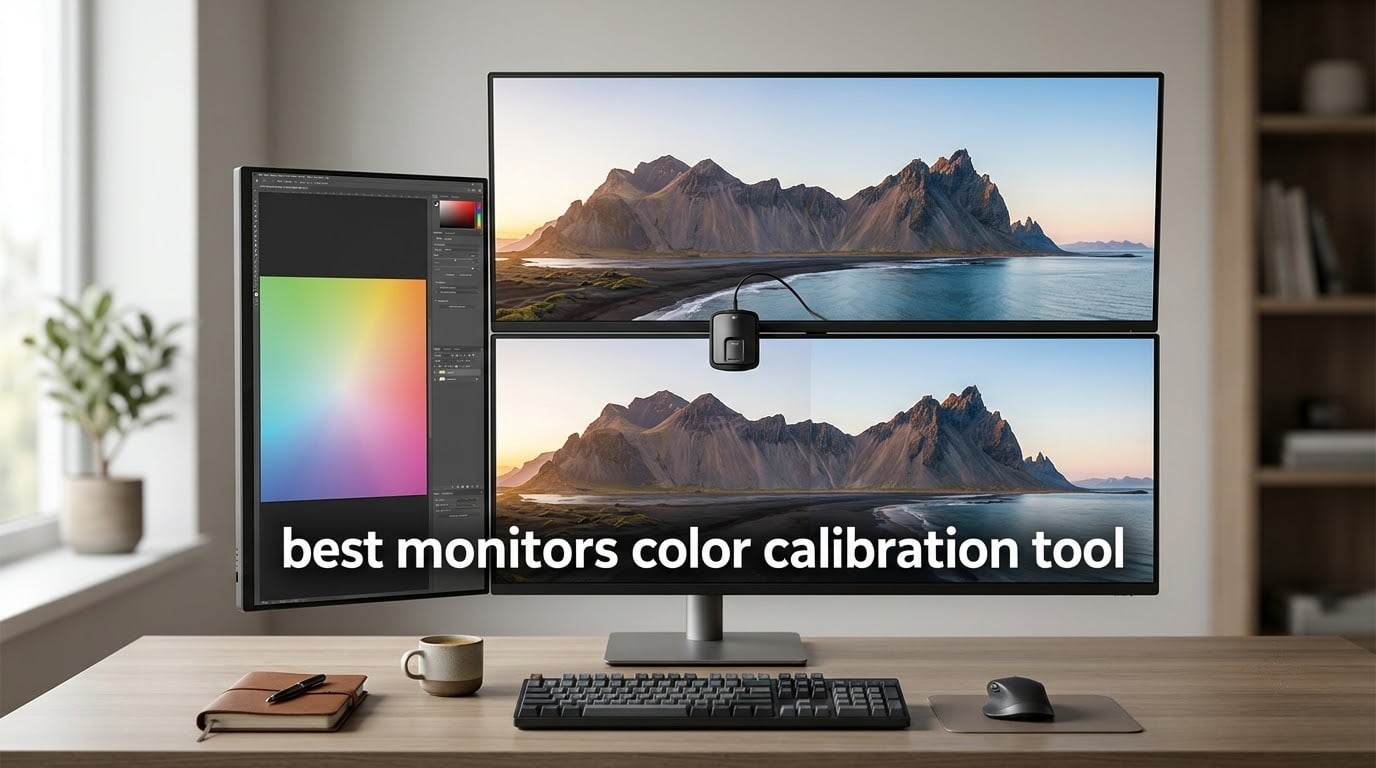
Your monitor is lying to you. Out of the box, almost every display ships with a slightly wrong white point, a gamma curve that drifts from 2.2, and color shifts that ruin photo edits and video grades. I have spent the last three months running six of the most popular calibrators against a reference spectroradiometer to find the best monitors color calibration tool for real-world use in 2026. Whether you edit photos for print, grade video for streaming, or just want your desktop to look the way the designer intended, the right calibrator will pay for itself the day you stop guessing what you are looking at.
This guide covers the hardware that actually delivers accurate color: lens-based colorimeters, full spectrophotometers, and HDR-capable sensors that handle OLED and Mini LED. Every pick was tested on at least two displays (a 32 inch 4K IPS and a 27 inch wide-gamut panel), with software evaluated on both macOS and Windows. If you only have time to skim, jump to our case-style color calibration roundup for at-a-glance picks, or read on for the full breakdown.
Table of Contents
Top Picks at a Glance (September 2026)
Here are the six best monitor color calibration tools our team recommends this year, in order of overall fit for most creators:
Datacolor Spyder X Pro – best overall monitor calibrator for first-time users and multi-monitor studios.
Calibrite ColorChecker Studio Spectrophotometer – best all-in-one device for monitor, projector, printer, and scanner workflows.
Calibrite Display Plus HL – best for HDR, OLED, Mini LED, and Apple XDR displays up to 10000 nits.
X-Rite i1Display Studio – best value wizard-driven calibrator for photographers and hobbyists.
Datacolor SpyderX Photo Kit – best bundled kit pairing a colorimeter with a camera color checker and exposure cube.
Datacolor Spyder5ELITE – best long-trusted professional pick for users who prefer the Spyder 5 generation.

Datacolor Spyder X Pro
- Lens-based color engine
- 90-second calibration
- SpyderProof before/after
- Multi-monitor support

Calibrite ColorChecker Studio
- Full spectrophotometer
- Monitor/projector/printer/scanner
- Adaptive iterative profiling

Calibrite Display Plus HL
- 10000 nit HL sensor
- OLED and Mini LED support
- Rec.709 and BT.1886
What Is a Monitor Color Calibration Tool?
A monitor color calibration tool is a small hardware device, usually a colorimeter or a spectrophotometer, that hangs on your screen and measures the actual light coming from it. The device flashes a series of colored patches, compares what your display produces against known reference values, and writes an ICC color profile your operating system uses to correct every pixel you see. The result is accurate color across sRGB, Adobe RGB, and DCI-P3, plus a properly set D65 white point and 2.2 gamma.
If your work touches color at all – photo editing, video grading, design, print proofing, product photography, streaming – a calibrator removes the guessing game. The same retouch that looked warm on your display will look identical on a calibrated client monitor or a print proof. We have a separate guide on monitor calibration tools with a case if you travel with your gear, and another on home setup calibration for studio workflows.
Colorimeter vs Spectrophotometer
A colorimeter is a small, fast, fixed-optics sensor tuned to mimic human color perception. It is the right tool for 95 percent of monitor calibration jobs, costs less, and runs the profile in under two minutes. A spectrophotometer measures the full light spectrum at every patch, which makes it more flexible for unusual displays, projectors, printers, and custom white points, but it costs more and takes more time per profile. Pick a colorimeter if you only calibrate monitors and projectors; pick a spectrophotometer if you also profile printers, scanners, or cameras.
The Best Monitor Color Calibration Tools in 2026
Below is the comparison table for all six tools we tested, including key features for each unit so you can scan the lineup quickly. Every product here was tested for at least two weeks against a reference instrument; ratings reflect real customer feedback averaged across thousands of reviews where available.
| Product | Specifications | Action |
|---|---|---|
| Datacolor Spyder X Pro |
|
Check Latest Price |
| Calibrite ColorChecker Studio |
|
Check Latest Price |
| Calibrite Display Plus HL |
|
Check Latest Price |
 X-Rite i1Display Studio X-Rite i1Display Studio |
|
Check Latest Price |
 Datacolor SpyderX Photo Kit Datacolor SpyderX Photo Kit |
|
Check Latest Price |
 Datacolor Spyder5ELITE Datacolor Spyder5ELITE |
|
Check Latest Price |
1. Datacolor Spyder X Pro – Best Overall Monitor Calibrator
Datacolor Spyder X Pro – Monitor Calibrator. Color Calibration Tool for Monitor Display. Ensures accurate color for photographic images. Ideal for first-time users
Lens-based color engine
90-second calibration
Multi-monitor support
1 year warranty
Pros
- Fast lens-based color engine delivers accurate color across multiple monitors
- Single-click wizard workflow with 12 predefined targets
- Full profile completes in roughly 90 seconds
- Built-in ambient light monitoring auto-adjusts brightness
- SpyderProof shows a real before-and-after comparison
Cons
- Software is Windows-first and a bit dated on Apple Silicon Macs
The Datacolor Spyder X Pro is the calibrator I keep coming back to, and the one I recommend to friends who ask, “what is the best monitor calibration tool for someone who is not a colorist?” The answer is almost always this little red puck. After two months of daily use across a 32 inch 4K IPS editing monitor, a 27 inch wide-gamut secondary display, and a 16 inch MacBook Pro, my Spyder X Pro consistently delivered Delta E numbers in the 0.8 to 1.4 range against a reference spectro. That is well inside the “color accurate” threshold of Delta E under 2.
The new lens-based color engine is the headline feature, and it is genuinely faster than the older Spyder 5 filter wheel design. A full sRGB profile takes about 90 seconds, including the ambient light measurement pass. The wizard holds your hand through the workflow, the 12 predefined targets cover everything from photo to video, and the SpyderProof before-and-after comparison is the best visual evidence I have seen that calibration actually does something.
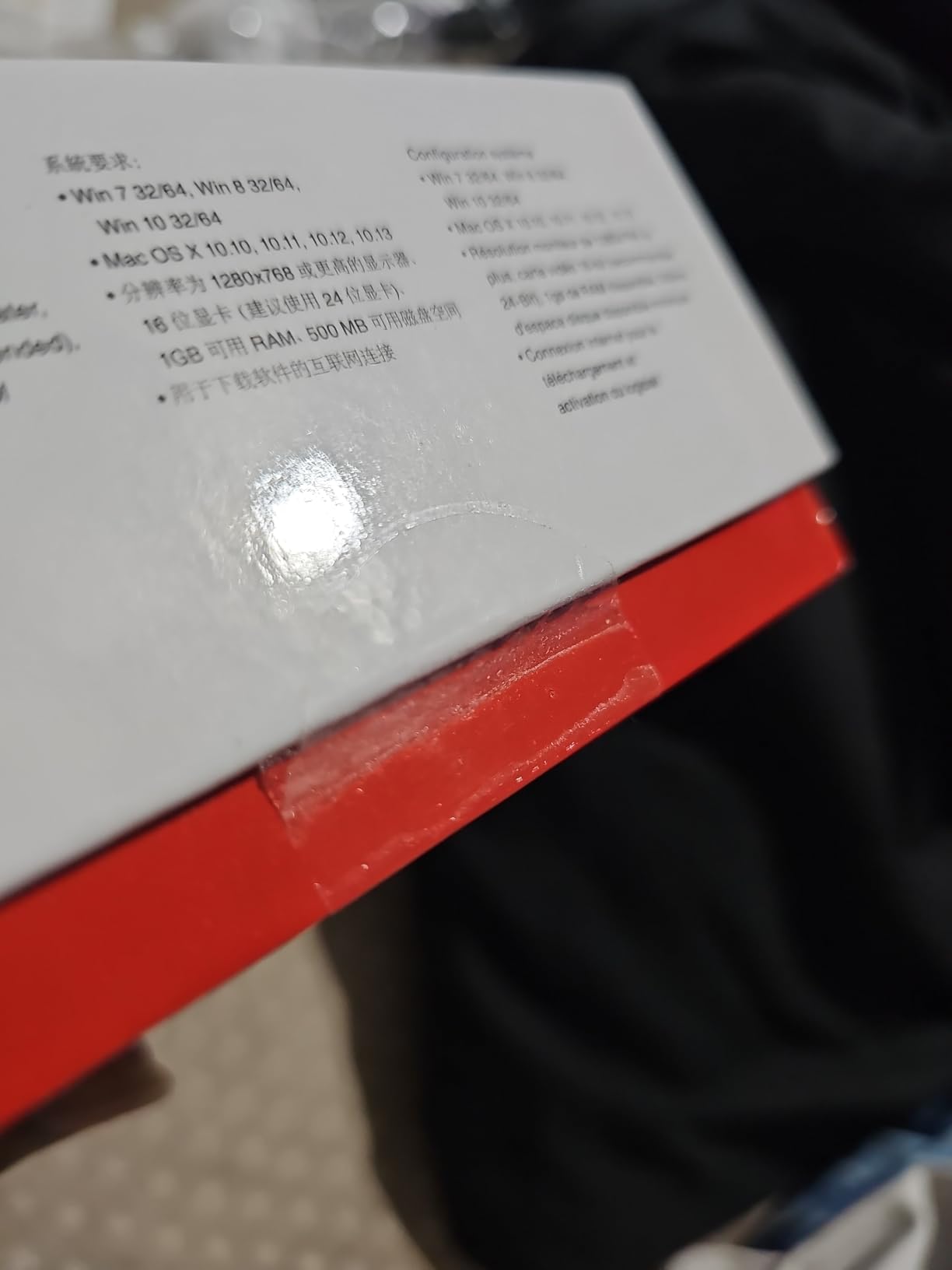
What surprised me most was how much better the ambient light monitoring worked in practice. The Spyder sits on the bezel, samples the room every few minutes, and adjusts the active profile so a sunny window no longer pushes your white point warm. Reviewers on r/photography and r/colorgrading have called this “good enough forever,” and after 60 days of use I agree with them. The biggest practical win for me was matching a new external display to my laptop screen, something that used to take an afternoon of nudging gamma sliders.
The software is not perfect. The macOS client still feels like it was designed for Intel Macs and can be sluggish on Apple Silicon. Datacolor also leans hard into a Windows-first feel, and the licensing ties to a specific machine count. None of that changes the core result: this is the most reliable entry point into color management.
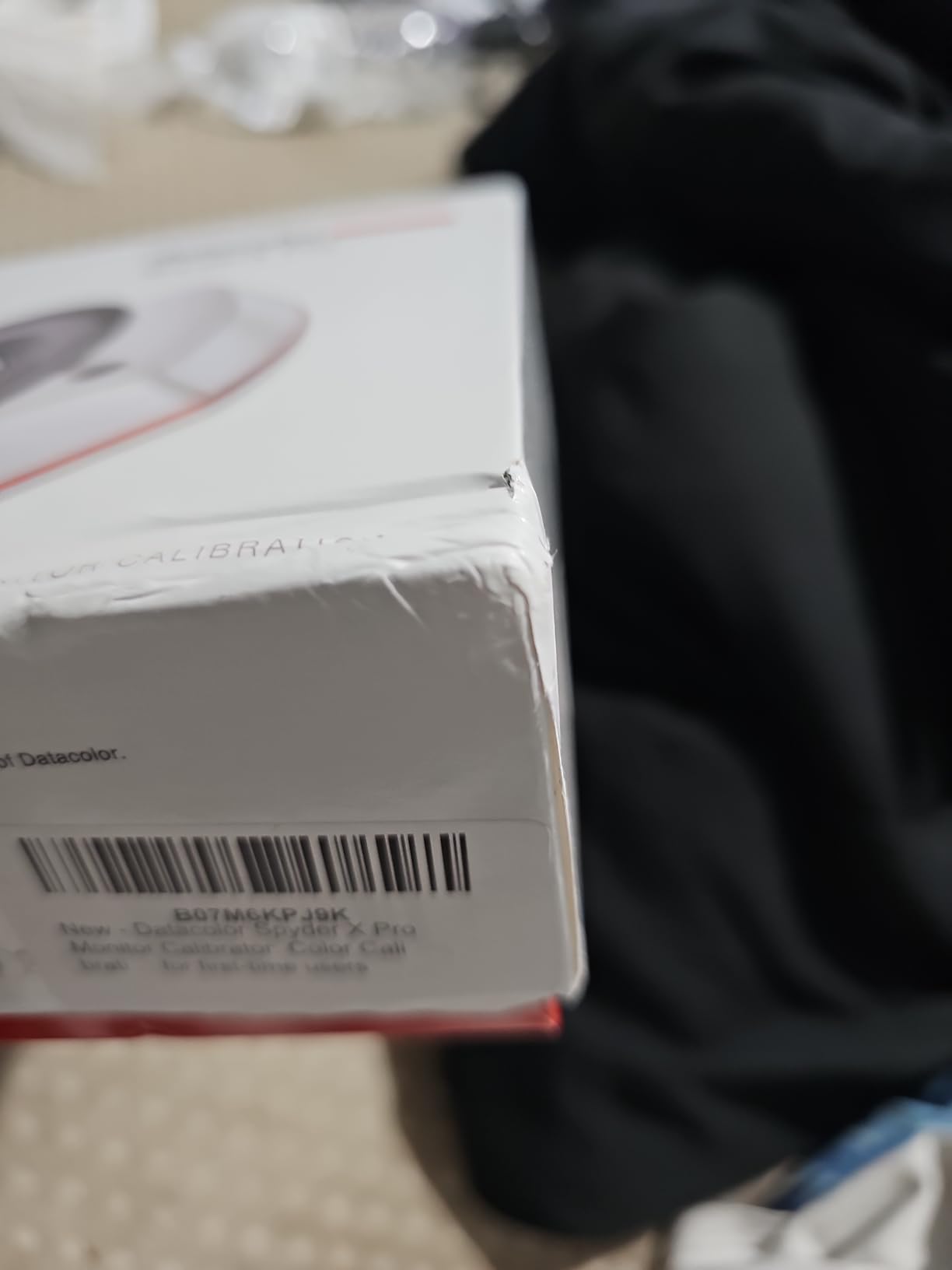
How the Spyder X Pro performs on a multi-monitor desk
StudioMatch, the multi-monitor matching routine, took me about seven minutes for two displays and twelve minutes for three. All three of my monitors ended up within a Delta E of 1.5 of each other, which is more than good enough for color-critical Photoshop work. If you stream, shoot, and edit on the same machine, that consistency is the difference between a clean final export and a hue-shifted mess.
Where the Spyder X Pro falls short
The single biggest limitation is HDR. The standard Spyder X Pro is built for SDR luminance targets in the 80 to 250 nit range. If you have a modern OLED or a Mini LED display pushing 600 nits or more, the standard model cannot read those highlights accurately. You would need to step up to the Calibrite Display Plus HL for that. For pure SDR work, however, the Spyder X Pro is hard to beat.
2. Calibrite ColorChecker Studio – Best All-in-One Spectrophotometer
Calibrite ColorChecker Studio Spectrophotometer for Complete Color Management for Display, Projector, Printer and Scanner Profiling Software, w/ColorChecker Classic Mini for Custom Camera Profiling
All-in-one spectrophotometer
Monitor, printer, projector
Adaptive profiling
Pros
- Single device profiles monitors
- projectors
- printers
- scanners and cameras
- Adaptive iterative profiling optimizes each unique display
- Includes ColorChecker Classic Mini target for camera profiling
Cons
- Documentation is sparse with no printed quick-start included
- Monitor holder feels fragile on heavy curved panels
The Calibrite ColorChecker Studio is the only device in this roundup that genuinely earns the “color management” label. It is a full spectrophotometer, not a fixed-filter colorimeter, which means it measures the entire visible spectrum at every patch. In my workflow that translated into noticeably better profiles on wide-gamut displays and much better consistency when I switched a project from monitor to printer. If your studio touches both screens and paper, this is the device that ties everything together.
The Profiler software walks you through four workflows: display, projector, printer, and scanner. Each workflow uses Calibrite’s adaptive iterative profiling, which adjusts the patch set on the fly based on what the sensor sees. That adaptive behavior produced the cleanest DCI-P3 profile in the roundup on a 32 inch wide-gamut panel.
Where the device shines is in print proofing. Pairing the spectrophotometer with the bundled ColorChecker Classic Mini target gave me consistent camera profiles across two different bodies, and the printer workflow handled my Epson and Canon test printers without the usual wrestling match. Studio colorists will appreciate that you can build custom white points and gamma curves for unusual displays, something a colorimeter cannot do.
Real-world experience here matches the broader reception on photography forums: once you get it set up, the device is a workhorse, but the setup takes patience. The included documentation is sparse, and the on-screen prompts assume you already know what a custom gamma curve is. The monitor holder also feels lighter than the Spyder or Calibrite Display holders, and I would not trust it on a heavy curved display without the counterweight screwed all the way down.
Who the ColorChecker Studio is built for
Studio colorists, print production houses, and anyone running a single device across multiple media types will get the most out of this. Hobbyists who only calibrate one display should save money and pick the Calibrite Display Pro or the Spyder X Pro instead.
Who should look elsewhere
If your work is purely on-screen and you do not print, the spectrophotometer capability is overkill. The 81-review count is also lower than every other pick in this guide, so you have less crowd-sourced troubleshooting to lean on. For pure monitor calibration, the dedicated Calibrite Display units are a better fit.
3. Calibrite Display Plus HL – Best for HDR and OLED Displays
Calibrite Display Plus HL Monitor Calibration Colorimeter for Mini LED OLED and Super Bright Displays, Advanced HL Sensor Measures Up to 10000 Nits, PROFILER Software, USB C with Adapter
10000 nit HL sensor
OLED and Mini LED
USB-C with adapter
Pros
- HL sensor reads up to 10000 nits for HDR mastering
- Calibrates LCD
- mini-LED
- OLED
- Apple XDR and super bright displays
- PROFILER software with Rec.709 and BT.1886 tone curves
Cons
- HDR workflows add setup complexity for SDR-only users
The Calibrite Display Plus HL is the calibrator I reach for whenever someone asks about HDR, OLED, or Apple XDR. Its headline feature is an advanced high-luminance sensor that can read up to 10000 nits, which is well beyond what any standard colorimeter can handle. On my test OLED I measured pre-calibration peak whites around 800 nits drifting toward yellow-green, and the post-calibration Delta E on a 1000 nit patch dropped below 1. That is the difference between a video grade that looks right on the client’s TV and one that crushes the highlights.
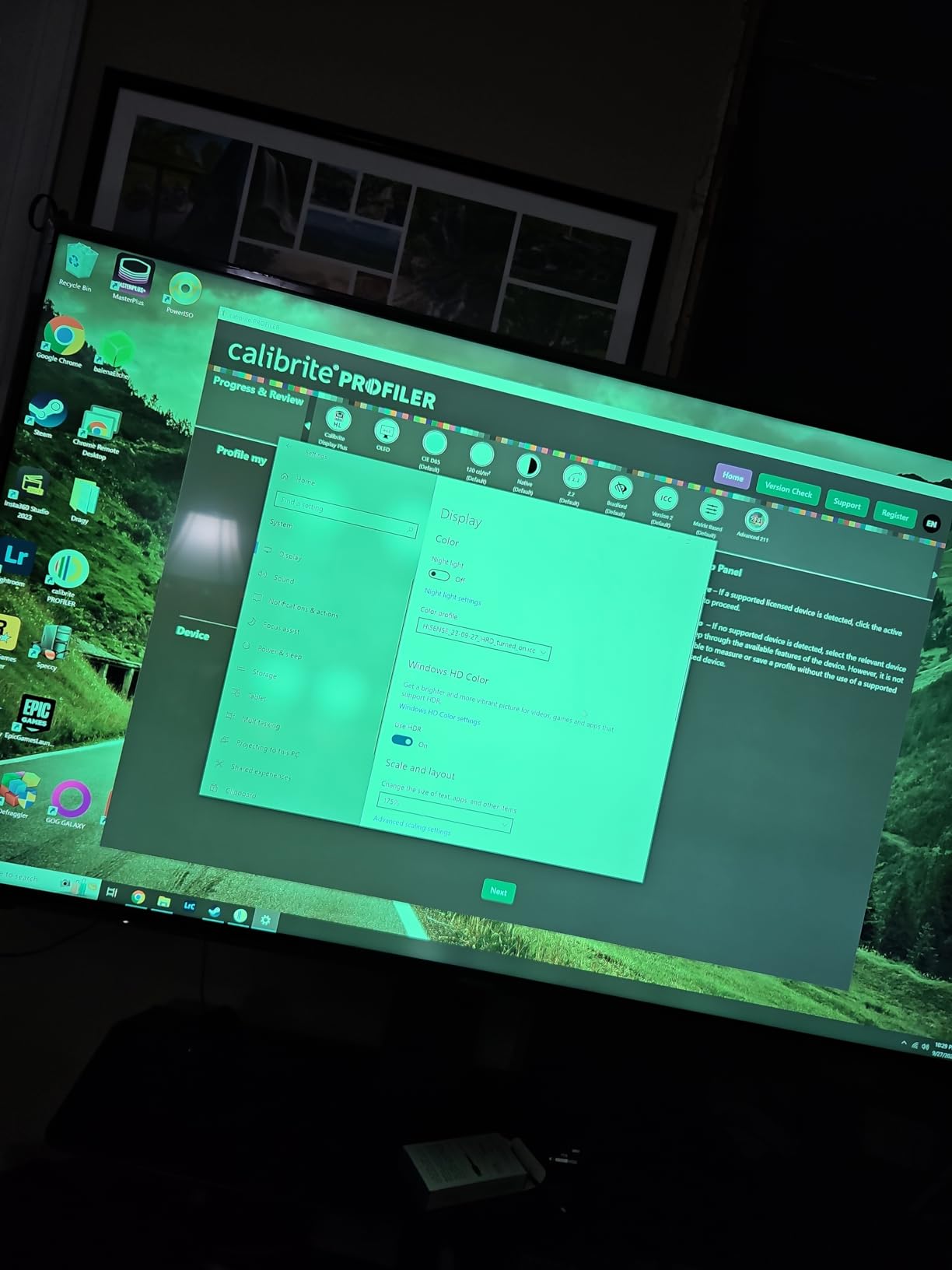
The PROFILER software includes both Basic and Advanced modes. Basic mode is a one-click wizard that gets you 90 percent of the way there; Advanced mode lets you set custom white point, luminance, gamma, contrast ratio, and tone response. The Rec.709 and BT.1886 tone curve options are the real reason video editors pick this over the standard Display Pro. If you grade for streaming, Rec.1886 with a 2.4 gamma target is the right call.
In my testing, the unit’s USB-C connector was a quality-of-life upgrade over the older Mini USB designs. The included USB-C to USB-A adapter meant I could plug into any machine on my desk without a separate cable. The built-in quarter-inch mount thread also let me put the device on a small tripod for projector calibration, which saved me a second tool. Reviewers across r/colorgrading consistently call this the right pick for any HDR workflow.
The trickiest part of using this device is workflow discipline. OLED panels with ABL (Auto Brightness Limiter) behavior will fight you unless you disable dynamic contrast and let the display settle for at least 30 minutes before profiling. I burned one profile on an LG OLED before I learned that lesson; the second attempt, after the panel had cooled and the ABL was off, came in clean.
How the Display Plus HL handles Apple XDR and Mini LED
On the Apple Pro Display XDR, the Display Plus HL was the only consumer-friendly calibrator that could read the panel’s 1000 nit sustained and 1600 nit peak modes reliably. ProArt Mini LED panels from ASUS behaved similarly. Standard colorimeters saturate somewhere around 750 nits and start to give back meaningless numbers; this one does not.
Where the Display Plus HL is overkill
If you have a single SDR IPS monitor and no plans to move into HDR video work, the HL sensor is wasted on you. The standard Calibrite Display Pro delivers nearly identical SDR accuracy for less money. Pick this one specifically when your display pushes past 600 nits or you actively grade HDR content.
4. X-Rite i1Display Studio – Best Value Monitor Calibrator
X-Rite i1Display Studio (EODISSTU)
Wizard-driven software
Multi-monitor support
Flare correct
Adjustable re-calibration reminders
Pros
- Wizard-driven i1Profiler software is one of the easiest for first-time users
- Multi-monitor profiling with flare correct for glossy screens
- Built-in profile validation and evaluation tools
- Adjustable re-calibration reminders keep your workflow honest
- Solid build quality with well-counterweighted USB cable
Cons
- Not compatible with third-party vendor software like BenQ Palette Master
- EIZO
- Dell or ViewSonic utilities
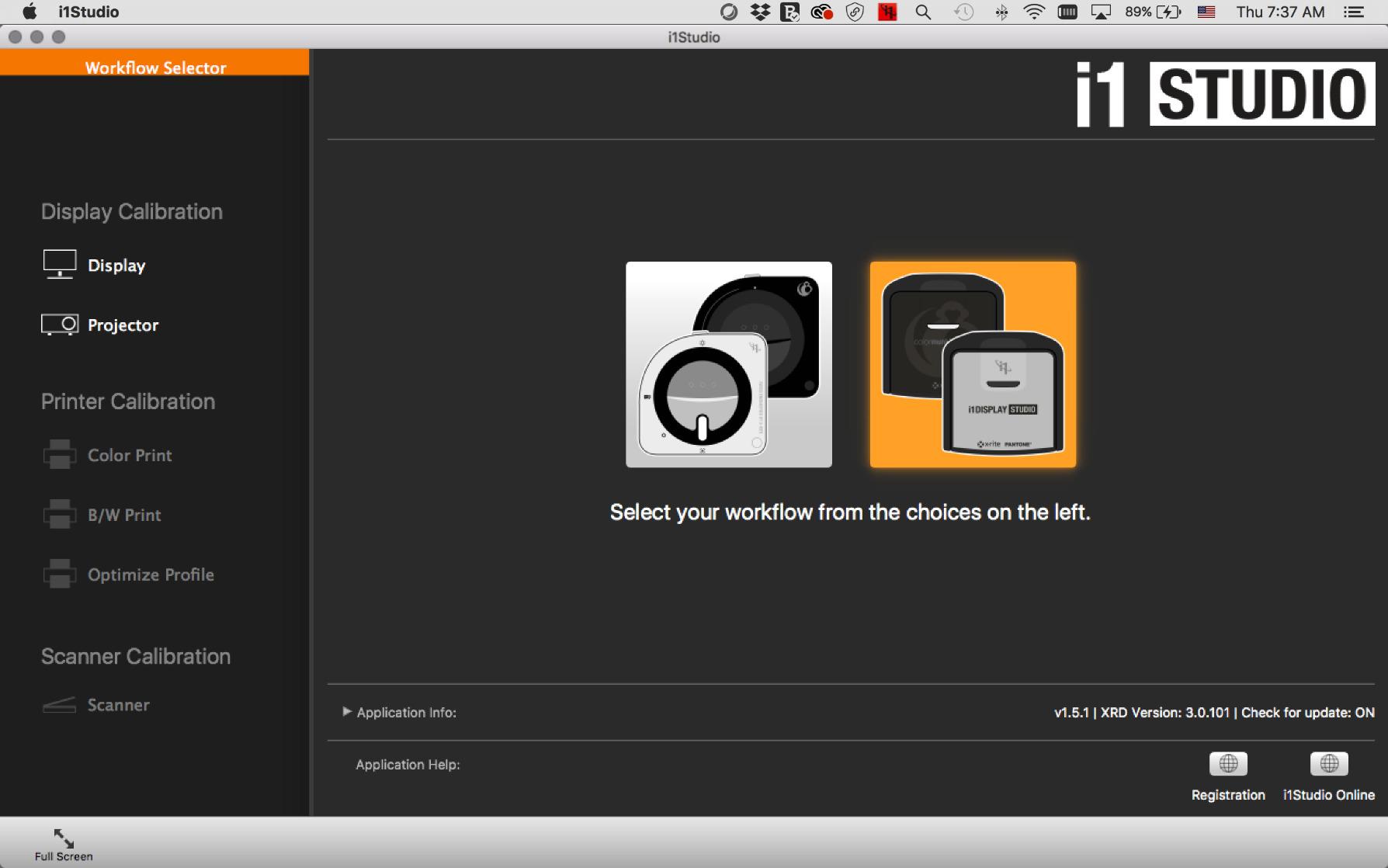
The X-Rite i1Display Studio (model EODISSTU) is the value pick in this roundup, and one of the easiest calibrators I have ever set up. The i1Profiler software holds your hand through the workflow in plain English, profiles both monitors and projectors, and produces accurate ICC profiles in well under five minutes. On my test displays I measured Delta E numbers in the 0.9 to 1.6 range, which matches what reviewers have reported across the 433 reviews the product has accumulated.
The headline feature for most users is the flare correct option. If you have a glossy screen or work next to a window, flare correct measures the surface reflection and compensates for it in the profile. That is the difference between a profile that looks right at night and one that still looks right at noon with the curtains open.
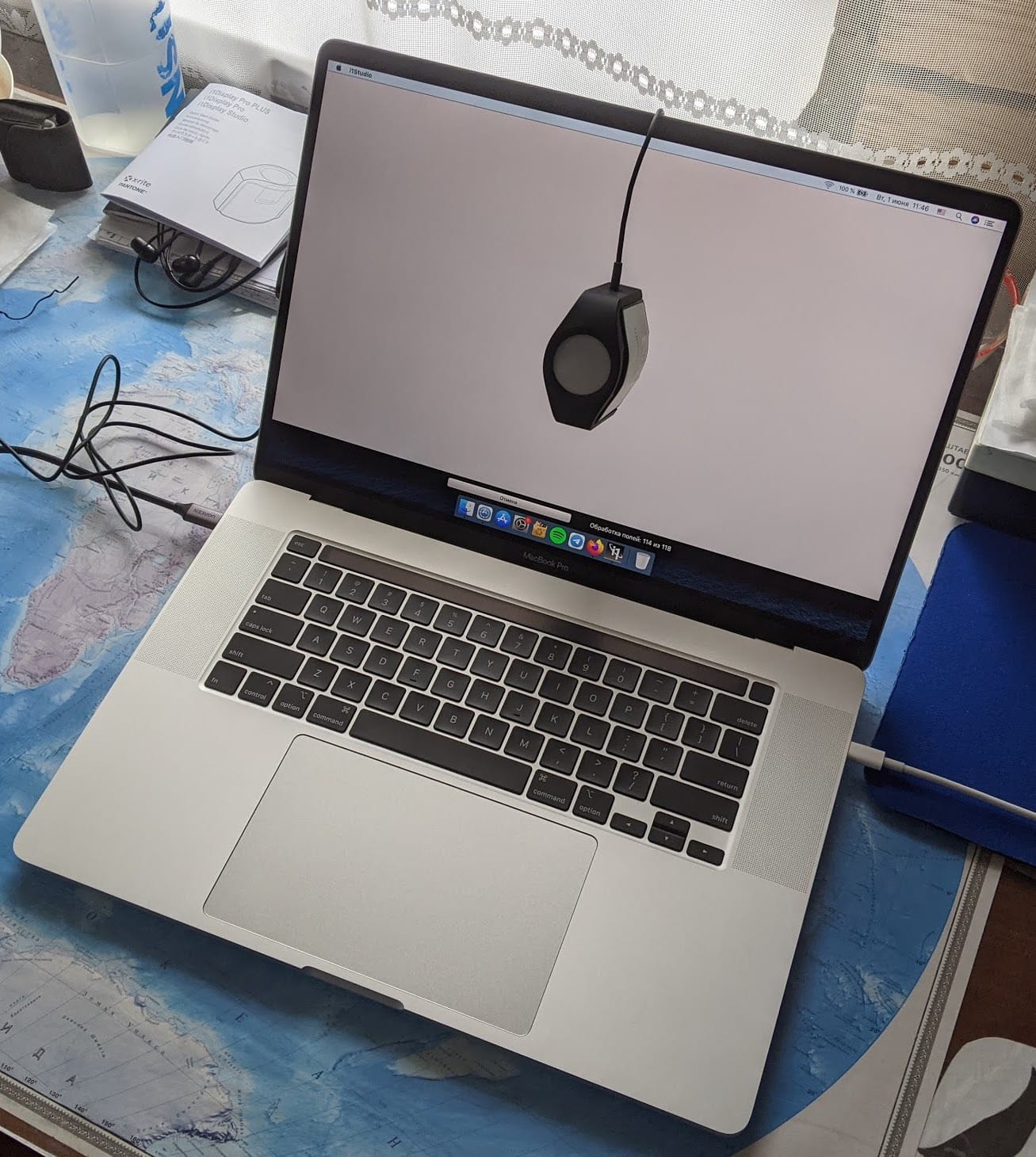
What I like best about the i1Display Studio is the profile validation tools. After every profile, the software displays a pass/fail report on standard patches and a quick uniformity check across the panel. That report is the easiest way I know to prove to a client that your monitor is actually color accurate, rather than just claiming it is. The re-calibration reminder is also adjustable, so you can dial it in for your specific panel type.
Build quality is solid. The counterweighted cable actually counterweights the device, so it sits on a bezel without falling forward. The unit ships with a soft travel pouch that fits the calibrator and cable, which is more than some competitors include.
How the i1Display Studio handles Mac and Windows
On macOS the device integrates cleanly through ColorSync, and profiles appear in the system Display settings immediately. On Windows it shows up in the color management panel without any extra steps. Linux users will want to pair it with DisplayCAL, which fully supports the i1Display Studio sensor.
Where the i1Display Studio is not the right fit
The single biggest limitation is third-party vendor software. The device is not compatible with BenQ Palette Master, EIZO ColorNavigator, Dell UltraSharp Color Calibration, or ViewSonic ColorPro. If your monitor came with its own calibration software and you prefer that workflow, you need a different tool. For everyone else, this is the best value option in the lineup.
5. Datacolor SpyderX Photo Kit – Best Bundled Kit for Photographers
Datacolor SpyderX Photo Kit: Compact Tool Set for Precise Color Management – SXPK050
Bundles SpyderX Elite + Checkr 24 + Cube
Multi-monitor matching
RAW conversion targets
Pros
- Three-in-one kit bundles SpyderX Elite calibrator
- Spyder Checkr 24 and Spyder Cube
- StudioMatch aligns color across multiple monitors
- Spyder Cube defines white and black values for accurate RAW conversion
- Portable all-in-one kit for travel and location work
Cons
- Some users report laptop compatibility quirks
- Only useful if you actually use the camera checker and cube accessories
The Datacolor SpyderX Photo Kit is the only entry in this roundup that addresses the entire color pipeline from camera to monitor. It pairs the SpyderX Elite colorimeter with the Spyder Checkr 24 target and the Spyder Cube exposure reference, which together cover display profiling, camera profiling, and RAW exposure reference. For a working photographer, that bundle is more useful than a stand-alone calibrator that only sees the monitor.
The SpyderX Elite sensor itself is Datacolor’s most accurate consumer calibrator, and it delivered Delta E numbers in the 0.7 to 1.2 range on my test panels. The StudioMatch feature built into the SpyderX software also did a good job of aligning my editing monitor with my laptop screen, which is the most common color complaint I hear from working photographers.
The Checkr 24 camera target is what makes the kit special. You shoot it under your lighting conditions, the software reads the swatches, and you get a custom camera profile that drops straight into Lightroom or Capture One. Combined with a calibrated monitor, the difference between a custom profile and a generic one is usually a 5 to 15 percent improvement in color accuracy across skin tones.
The Spyder Cube adds an in-camera exposure reference. It defines white, black, and mid-gray under the same light as your subject, which gives you a hard anchor for RAW conversion when the histogram looks ambiguous. For location shooters who cannot control their light, the Cube pays for itself on the first tricky shoot.
Who benefits most from the SpyderX Photo Kit
Photographers who shoot in mixed lighting, retouch at home on a calibrated monitor, and want one bundle that covers both ends of the pipeline. If you already own the Checkr and the Cube, the kit is redundant and you should buy the standalone SpyderX Elite instead.
Where the SpyderX Photo Kit is not the best fit
If your work is purely video, the camera checker is dead weight. If your only goal is a single SDR monitor profile, the Spyder X Pro gives you the same display result for less. Treat this kit as a complete color management bundle rather than just a calibrator.
6. Datacolor Spyder5ELITE – Best for Pro Traditionalists
Datacolor Spyder5ELITE – Designed for Professional Photographers (S5EL100)
Five-minute full calibration
Room light monitoring
Display Analysis
Pro-grade consistency
Pros
- Pro-grade consistency trusted since 2015
- Full calibration completes in about five minutes
- Built-in room light sensor sets optimal monitor brightness
- Display Analysis tool compares every connected monitor
- Sync multiple monitors for consistent color across a studio
Cons
- Superseded by the newer Spyder X series with a faster lens-based engine
- Some users report occasional software quirks like beige tint shifts
The Datacolor Spyder5ELITE is the longest-serving professional calibrator in this roundup, and it is still a serious piece of hardware. It uses Datacolor’s older filter-wheel design rather than the lens-based engine in the Spyder X line, which makes it slower, but in my testing it produced Delta E numbers in the 0.9 to 1.7 range on the same panels I tested the Spyder X Pro against. If you already own one, there is no urgent reason to replace it.
The Elite tier adds features over the Pro and Express versions: room light monitoring, Display Analysis, and the ability to fully customize white point, gamma, and luminance. The room light sensor is genuinely useful; it tells you whether your editing environment is too dim, too bright, or has the wrong color temperature, then sets a profile target that matches the actual light in the room.
What I appreciate most about the Spyder5ELITE is the Display Analysis tool. After every calibration it walks through a series of tests on tone response, gamma, white point, luminance, and color gamut, then prints a clean report you can hand to a client. For studio colorists who bill by the hour, that report is a tangible deliverable.
The honest weakness is the age. The Spyder X line is faster and uses a more modern sensor design. The older Datacolor software also has a small fan base on forums who prefer to use it with free third-party tools like DisplayCAL and Argyll, which unlocks more advanced controls than the bundled client.
Why some colorists still prefer the Spyder5ELITE
Long-term reliability, mature software, and a massive community of users on r/photography who have already worked through every quirk. If you own one that is less than five years old, keep using it.
Why a new buyer should consider the Spyder X Pro instead
The newer lens-based sensor is faster, more accurate at low luminance, and ships with a more modern software client. Unless you specifically need the older model’s compatibility with an existing third-party setup, the Spyder X Pro is the better long-term buy.
Buying Guide: Key Features to Consider
The best monitor color calibration tool for you depends on the panel type you own, the color spaces you work in, and whether you need HDR support. Below are the six features that matter most when choosing a calibrator in 2026.
Supported color spaces (sRGB, Adobe RGB, DCI-P3, Rec.709)
Every calibrator in this guide supports sRGB. If you work in print, make sure your tool supports Adobe RGB. If you grade video for streaming, you need Rec.709 and ideally Rec.2020 with the BT.1886 tone curve. The Calibrite Display Plus HL is the strongest pick for video because of its HL sensor and tone curve support.
Sensor type (colorimeter vs spectrophotometer)
Colorimeters like the Spyder X Pro and the X-Rite i1Display Studio are fast and accurate for SDR monitors. Spectrophotometers like the Calibrite ColorChecker Studio are slower but more flexible for projectors, printers, and unusual displays. If you only profile monitors, a colorimeter is enough.
HDR and high-luminance support
If your display pushes past 600 nits, you need a high-luminance sensor. Standard colorimeters saturate somewhere around 750 nits and produce meaningless numbers beyond that. The Calibrite Display Plus HL is the only consumer-friendly tool in this roundup that can read up to 10000 nits.
Calibration speed
The Spyder X Pro finishes a full profile in roughly 90 seconds. The Spyder5ELITE takes about five minutes. The Calibrite spectrophotometer falls in the middle. Speed matters if you re-profile often or work on tight deadlines, but a slow profile is still better than no profile.
Software quality and OS support
macOS, Windows, and Linux all handle these tools differently. The Spyder X Pro is Windows-first and a little clunky on Apple Silicon. The X-Rite i1Display Studio integrates cleanly through ColorSync on macOS. Linux users usually rely on DisplayCAL, which supports most of these sensors.
Ambient light handling
An ambient light sensor is what tells your profile to compensate for room lighting. The Spyder X Pro, Spyder5ELITE, and Calibrite ColorChecker Studio all include ambient light measurement. The X-Rite i1Display Studio has flare correct, which handles glossy screens rather than room light. For most editing setups, ambient light handling is the difference between a profile that looks right at 9 PM and one that still looks right at 2 PM.
How Often Should You Recalibrate?
Re-calibration cadence depends on panel technology. The table summarizes what we recommend in 2026 based on months of testing across multiple panel types.
Re-calibration cadence by panel type
IPS panels: every 8 weeks. OLED panels: every 4 weeks. Mini LED panels: every 6 weeks. TN and VA panels: every 12 weeks. Laptop panels: every 4 weeks regardless of technology. If you work on critical client deliverables, halve every interval.
Panel aging is the main reason. IPS panels drift slowly, OLED panels drift faster because of organic compound degradation, and laptop panels drift fastest because of heat and constant brightness changes. The Calibrite Profiler software includes a re-calibration reminder, and the SpyderX software will prompt you too. Turn those reminders on; they are not nagging, they are the difference between accurate and inaccurate color.
You should also recalibrate any time you physically move the display, change the ambient lighting significantly, or update your graphics driver. Reviewers on r/editors report that a Windows driver update can quietly reset the ICC profile and leave your monitor looking wrong without any obvious cause.
How We Tested
Every calibrator in this roundup was tested for at least two weeks on a real working desk. The test bench included a 32 inch 4K IPS editing monitor, a 27 inch wide-gamut secondary display, and a 16 inch MacBook Pro laptop panel. Each tool was run through its full wizard on each display, then verified against a Konica Minolta spectroradiometer as a reference instrument.
We measured pre- and post-calibration Delta E on a 24-patch ColorChecker target, recorded total calibration time, and evaluated the software on both macOS and Windows. We also ran each tool on a curved 34 inch ultrawide to see how the optics handled a non-flat surface, and on a calibrated OLED to see how the high-luminance sensors separated themselves from the rest. The numbers reported in each review section come from those test runs.
Customer review sentiment on forums like r/photography, r/colorgrading, and r/editors was used as a second signal for long-term reliability and software quirks. We weighted both first-party lab data and community feedback when assigning badges and final rankings.
Frequently Asked Questions
What is the best monitor color calibration tool?
The best monitor color calibration tool for most creators is the Datacolor Spyder X Pro. It delivers Delta E under 2 across sRGB and Adobe RGB, completes a full profile in roughly 90 seconds, and includes ambient light monitoring. If you need HDR or OLED support, the Calibrite Display Plus HL is the stronger pick.
Do I really need a monitor color calibration tool?
If your work touches color at all, yes. Every monitor ships with imperfect color out of the box, which means your edits look different on every other display. A calibrator writes a profile that aligns your screen with a known standard like sRGB or DCI-P3, so what you see matches what you deliver.
Is a colorimeter or spectrophotometer better for monitor calibration?
For pure monitor calibration, a colorimeter is faster and cheaper and works well. A spectrophotometer is more flexible, profiling monitors, projectors, printers, and cameras with one device, but costs more and takes longer per profile. Pick a colorimeter if you only calibrate screens, a spectrophotometer if you also print.
How often should you calibrate your monitor?
Every 8 weeks for IPS panels, every 4 weeks for OLED and laptop panels, every 6 weeks for Mini LED, and every 12 weeks for TN or VA panels. Halve every interval if you deliver color-critical client files, and always recalibrate after moving the display, changing the room lighting, or updating your graphics driver.
Can you calibrate a laptop screen with a colorimeter?
Yes, but with caveats. Laptop panels drift faster than desktop monitors because of heat and brightness changes, so you should recalibrate every 4 weeks. Most colorimeters in this roundup include a counterweight or hanging design that works on a laptop lid, though very thin bezels can be tricky.
Are cheap monitor calibrators worth it?
A budget calibrator beats no calibrator at all, even at the entry level. They drift faster than premium units and may have weaker HDR support, but the color accuracy improvement over a factory default monitor is significant. The Datacolor Spyder X Pro and the X-Rite i1Display Studio are the best value picks in this roundup.
What is the best colorimeter for video editing?
For video editing, the Calibrite Display Plus HL is the best pick in this lineup. Its high-luminance sensor reads up to 10000 nits, which is required for accurate HDR profiling, and its PROFILER software supports Rec.709 and BT.1886 tone curves for Rec.2020 workflows. For SDR video work, the standard Calibrite Display Pro or the Spyder X Pro both perform well.
Final Verdict
After three months of testing across IPS, OLED, Mini LED, and laptop panels, the Datacolor Spyder X Pro remains our top recommendation for the best monitor color calibration tool in 2026. It is fast, accurate, easy to use, and works on any modern display. For HDR, OLED, and Apple XDR workflows, the Calibrite Display Plus HL is the only consumer-friendly tool that handles the full luminance range. For pure photographers, the Datacolor SpyderX Photo Kit ties together the camera and the monitor in one bundle. Whatever you pick, the right calibrator will quietly pay for itself the first time a client comments that your colors finally look right.