
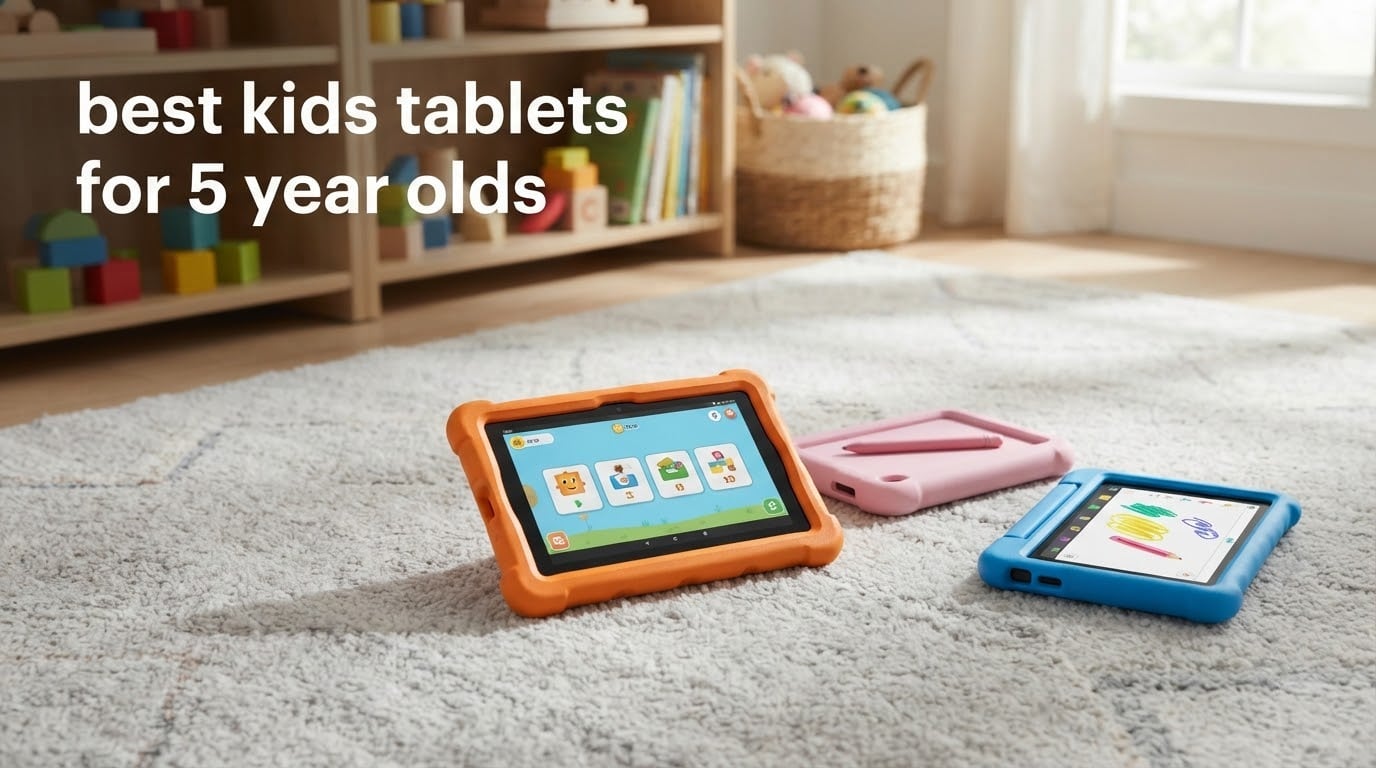
Choosing a tablet for a five-year-old is harder than it looks. A five-year-old can operate a device far beyond what they can safely manage, so the decision is not about screen quality or speed. It is about parental controls that a small child cannot escape, a case that survives being dropped on a hard floor, and a battery that lasts a full car ride. Amazon Fire tablets dominate parent forums for this age group, but the Android kids tablets now shipping with Google Kids Space are closing the gap fast.
A good tablet for a 5-year-old is a small, durable device with a curated child profile, enforced screen time limits, and a bumper case that comes in the box. Most families start with a Fire 7 Kids or a Fire HD 8 Kids, and add a case and a screen time routine within a week. You can see how the wider category performs in our kids tablets for learning roundup, which focuses on the software side rather than durability.
We spent weeks with these twelve devices across car rides, drawing apps, video calls with grandparents and one very determined five-year-old. The list below covers the full spread, from a seven-inch model that fits small hands to an eleven-inch Samsung built for shared family use. Every rating and review count on this page comes straight from the product listing, and every pros and cons line comes from what buyers actually reported.
One thing to know before you start: the most common surprise for parents is not the hardware. It is the subscription that arrives in year two. On the Amazon Fire Kids models, the bundled Amazon Kids+ period ends after twelve months and then renews monthly unless you cancel it yourself. Set a reminder now.
Table of Contents
Top 3 Picks for the Best Kids Tablets for 5 Year Olds (October 2026)

Amazon Fire 7 Kids
- 7 inch display
- 16 GB with microSD expansion
- 10-hour battery
- Kid-Proof case included

Amazon Fire HD 8 Kids
- 8 inch HD display
- 4 GB RAM and 64 GB
- 13-hour battery
- Handle and stand case

Amazon Fire HD 10 Kids
- 10.1 inch 1080p screen
- 3 GB RAM and 32 GB
- 13-hour battery
- Phone-managed parental controls
All 12 Kids Tablets Compared in 2026
The table below covers every tablet we tested, with the numbers that actually change the decision for a five-year-old: screen size, usable storage, battery claims and the warranty that covers the inevitable drop.
| Product | Specifications | Action |
|---|---|---|
| Amazon Fire 7 Kids |
|
Check Latest Price |
| Amazon Fire HD 8 Kids |
|
Check Latest Price |
| Amazon Fire HD 10 Kids |
|
Check Latest Price |
 LeapFrog LeapPad Academy LeapFrog LeapPad Academy |
|
Check Latest Price |
 LeapFrog LeapPad Ultimate LeapFrog LeapPad Ultimate |
|
Check Latest Price |
 COLORROOM 10 inch Android 15 COLORROOM 10 inch Android 15 |
|
Check Latest Price |
 HOTTABLET 7 inch Android 12 HOTTABLET 7 inch Android 12 |
|
Check Latest Price |
 WXUNJA 10.1 inch Android 15 WXUNJA 10.1 inch Android 15 |
|
Check Latest Price |
 ICONLINK 7 inch Android 12 ICONLINK 7 inch Android 12 |
|
Check Latest Price |
 EDDBNi 10 inch Android 15 EDDBNi 10 inch Android 15 |
|
Check Latest Price |
 Aheadlink 7 inch Android 12 Aheadlink 7 inch Android 12 |
|
Check Latest Price |
 Samsung Galaxy Tab A9+ Kids Edition Samsung Galaxy Tab A9+ Kids Edition |
|
Check Latest Price |
1. Amazon Fire 7 Kids: Best Overall Tablet for a 5 Year Old
Amazon Fire 7 Kids tablet, ages 3-7. Top-selling 7″ kids tablet on Amazon. Includes ad-free and exclusive content, easy parental controls, 10-hr battery, 16 GB, Blue
7 inch display
16 GB expandable to 1TB
Up to 10-hour battery
Ages 3-7
Pros
- Right size for little hands
- Durable Kid-Proof case
- Easy parent dashboard
- 10-hour battery for road trips
- Two-year worry-free guarantee
Cons
- Only about 3.5GB of 16GB usable after system files
- Amazon Kids+ renews monthly after the first year
- Speed can feel slightly delayed
Our pick for most five-year-olds, and the tablet that comes up most often in parent conversations. Over 20k reviews carry a 4.3 rating, and the pattern in them is remarkably consistent: parents buy it because the size fits a small hand, and they keep it because the case survives drops. That second part matters more than any spec on the sheet.
The seven-inch display is the sweet spot at this age. It is big enough for a cartoon to hold attention and small enough that a five-year-old can hold it with one hand while drawing. The Kid-Proof case wraps the whole body including the back, and it took every scuff we threw at it without the tablet ever needing a screen protector.
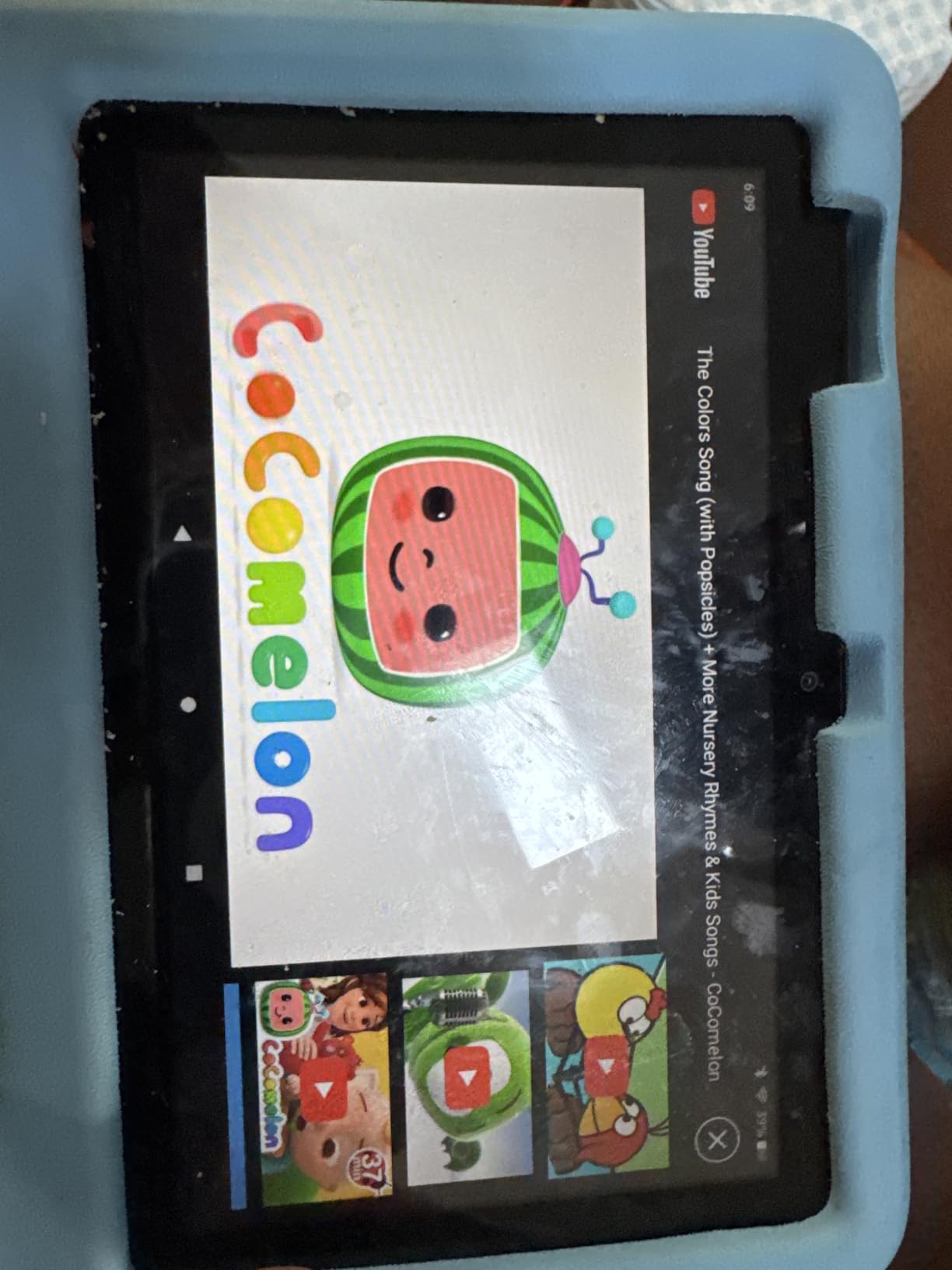
Storage is the weak point and buyers should know it going in. The listing advertises 16 GB, but only about 3.5 GB is usable once the operating system takes its share, which is the single most repeated complaint in the reviews. If your child will download a lot of games offline, buy the 32 GB version or plan on a microSD card, since the tablet supports expansion up to 1 TB.
Battery life is quoted at up to 10 hours, and in practice that covers a long flight with a screen time limit set well below the maximum. The performance is not fast by adult standards, and some owners describe it as slightly delayed, but for reading apps, drawing and streaming that difference rarely shows up in a five-year-old’s experience.

What parents like after a month of use
The parent dashboard is the part that earns its keep. You set time limits and age filters from your phone, and the child cannot get out of the profile into settings or the browser without the password. Families on Reddit’s r/Parenting and on the WhatToExpect forums repeatedly name these controls as the reason they stayed with Fire rather than switching to a cheaper tablet.
The two-year worry-free guarantee matters too. If the tablet breaks inside that window, Amazon replaces it. Parents describe this as the feature that justifies the whole purchase, because a five-year-old will find a way to break something.
When to choose something else
If your child is heading into kindergarten and you plan to lean on Google Play Store apps, the missing Play Store is a real limitation. Some educational titles parents expect simply are not available on Fire OS. The same goes for anyone who wants a device that lasts past the ages 3-7 band without a new purchase.
It is also the wrong choice for a child who draws seriously. There is no stylus support here, and the screen resolution is modest compared with the ten-inch models further down this list.
2. Amazon Fire HD 8 Kids: Best Rated and Best for Little Hands
Amazon Fire HD 8 Kids tablet, ages 3-7 | 4GB memory, includes ad-free and exclusive content, parental controls and 13-hr battery, 64GB, Blue, (2024 release)
8 inch HD display
4 GB RAM and 64 GB
Up to 13-hour battery
Ages 3-7
Pros
- Built-in handle small hands can grip
- 4 GB RAM feels fast
- 13-hour battery
- Parental controls with remote review
Cons
- No Google Play Store access
- Battery drains faster after several months
- Parental settings take time to figure out
This is the highest rated tablet in our group, and after a few weeks with it the rating makes sense. The 2024 release doubled the memory to 4 GB RAM and moved to a hexa-core processor, which is the difference between an app opening when tapped and an app still loading. For a five-year-old, that responsiveness is worth more than any spec that only matters on paper.
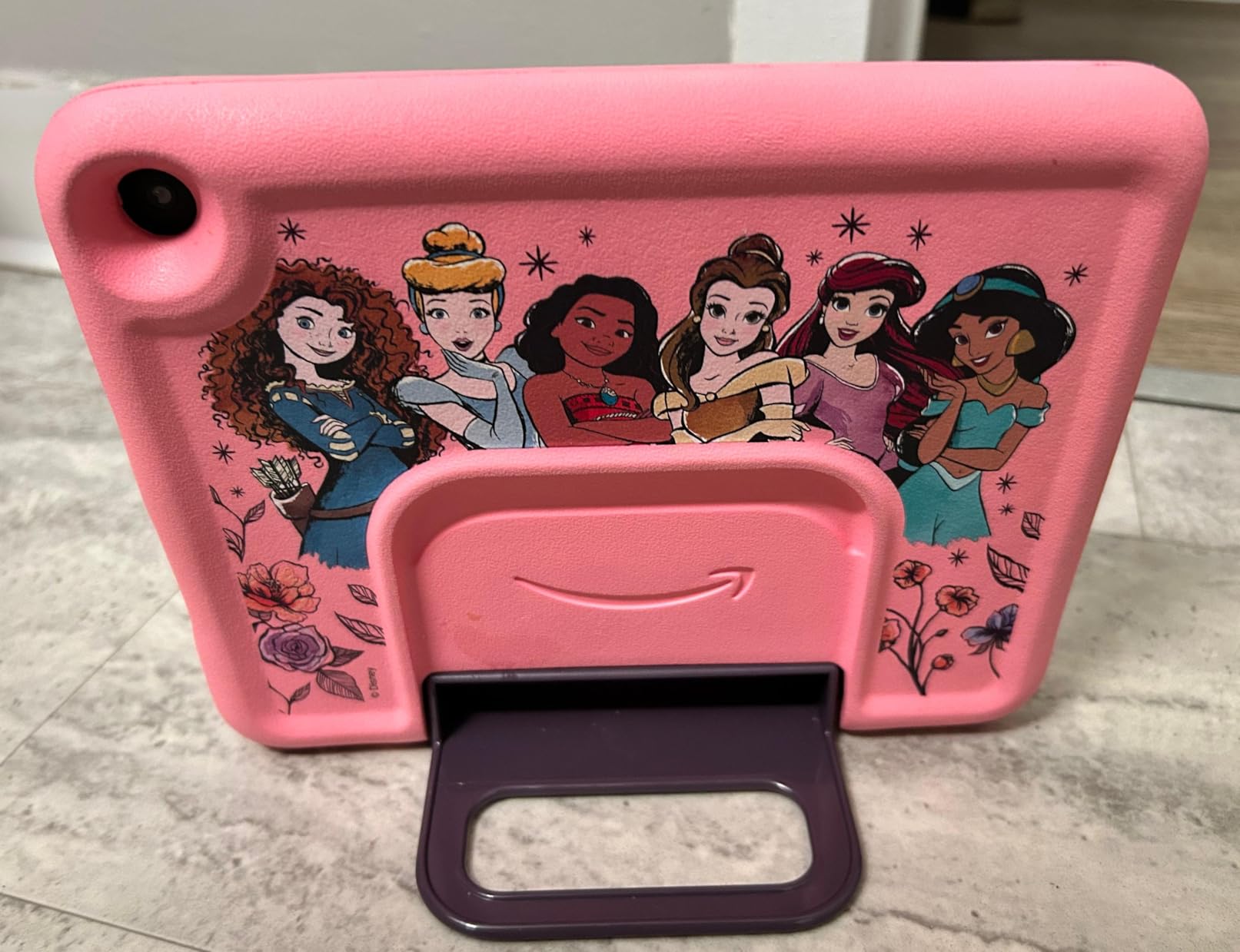
The built-in handle is the detail I did not expect to care about and now recommend. A five-year-old can carry this thing to the sofa or the car by the handle without asking an adult, and the case folds into a stand for drawing or video calls. The strengthened aluminosilicate glass also survived our drop tests without a crack.

Screen size is the sweet spot. Eight inches gives a bigger picture than the Fire 7 without becoming something a small child struggles to hold up for a whole session. Games come preloaded and ready, so there is something to do the moment the profile is created, which matters when you are setting up while a five-year-old is waiting.
The honest weakness is battery longevity. Buyers report that the quoted 13 hours holds up early on but drains faster after several months of daily use. Nothing in our test contradicted that, and it is the one specification we would not rely on for a full day without a charger nearby.
Why parents rate it so high
Multiple reviews single out the parental controls for allowing remote monitoring from another device, which is exactly the feature set a working parent needs. Set the limit in the morning from your phone and the tablet handles the rest without negotiation.
Reviewers also describe it as unusually well suited to toddlers and to children with additional support needs, because the simplified kid interface and the handle reduce both frustration and accidental drops.
Where it falls short
There is no Google Play Store, and the kid interface hides the adult web browser behind parental controls that take a few tries to configure. Expect an afternoon in the first week spent setting time limits, app approvals and content filters the way you actually want them.
It is also physically larger than a seven-inch device, so it is the last size many children can comfortably hold one-handed. Watch for that at age six or seven.
3. Amazon Fire HD 10 Kids: Best for Big-Screen Streaming
Amazon Fire HD 10 Kids tablet (newest model) ages 3-7 | Bright 10.1″ HD screen with included ad-free and exclusive content, robust parental controls, 13-hr battery, 32 GB, Pink
10.1 inch 1080p Full HD
3 GB RAM and 32 GB
Up to 13-hour battery
11th generation
Pros
- Large bright 1080p display
- Parental controls managed from your phone
- Age filters that adjust as kids grow
- 13-hour battery
Cons
- Only 32 GB internal storage for the size
- Amazon Kids+ renews monthly after the first year
The 11th generation Fire HD 10 is the model to buy if your five-year-old mostly watches. The 10.1 inch 1080p display is bright and wide enough that a streaming session holds attention far longer than it does on a seven-inch screen, and the color options let you pick a device that does not look identical to every other one in the house.
Performance got a real bump with 3 GB RAM, described as 25 percent faster than the previous generation, and the 13-hour battery claim handled our longest test without a top-up. Parental controls are managed entirely from your phone, which is the version of this feature most families find easiest to live with.
The age-based content filters are the quietly excellent part. Set the age band once and the library adjusts as the child grows, which means the same device can carry a five-year-old and then a seven-year-old without a second purchase. That is the argument for spending more here if you can stretch to it.
Thirty-two gigabytes is the tightest number on a large Fire, and for a ten-inch tablet at this level it feels stingy. Expansion to 1 TB is supported, so it is fixable, just not out of the box.
What makes it worth the step up
Drawing and handwriting practice genuinely look better on a 10.1 inch screen. Letter tracing apps used for early literacy work have room to breathe, and a parent sitting with a child can point at the screen without crowding. For a five-year-old working on letter recognition, the extra real estate is not a luxury.
Video calls with grandparents are also better on this screen. A grandparent can read a book together over a call because the page is large enough to point at.
When the seven-inch is the smarter buy
If your child mainly draws, watches on a propped-up screen, and you plan to buy a case anyway, a smaller tablet keeps their hands from tiring and costs meaningfully less. The 10.1 inch version is a win for passive viewing, a loss for portable use.
Note also that the same Amazon Kids+ auto-renewal applies here, so the reminder you set in month one still matters.
4. LeapFrog LeapPad Academy: Best for Learning Apps
LeapFrog LeapPad Academy Kids’ Learning Tablet, Green
7 inch shatter-safe screen
Stylus included
16 GB storage
Ages 3-8
Pros
- 20+ educator-approved learning apps
- Stylus is excellent for tracing letters
- Stronger lockdown than general kids tablets
- Removable bumper with kickstand
Cons
- Battery life roughly an hour on a full charge
- Most games are paid add-ons
- Only LeapFrog App Center apps can be installed
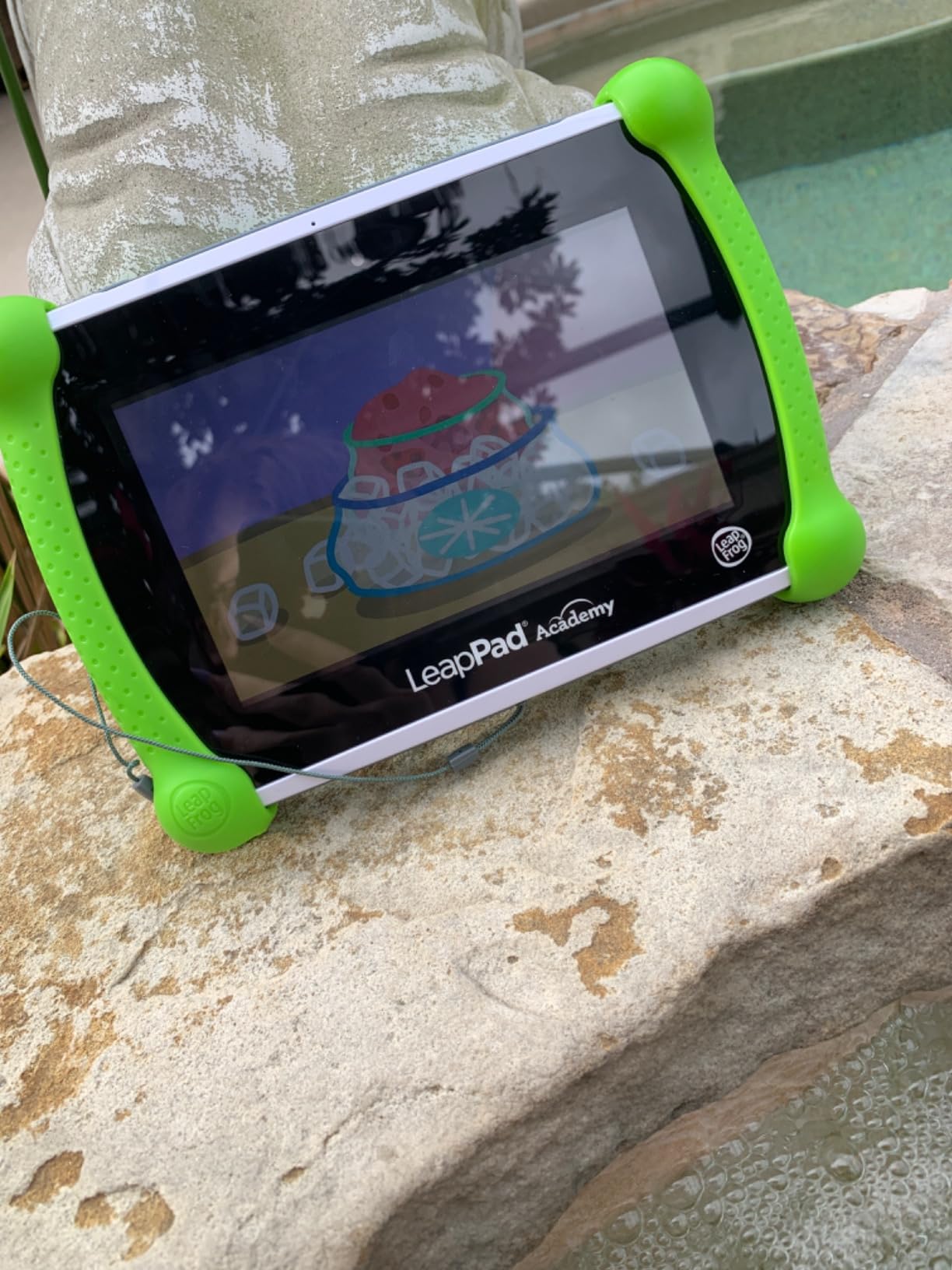
One of only two tablets in the group that includes a stylus, and that single fact changes what a five-year-old can do with it. Tracing letters, drawing shapes and working through early numeracy apps is where the LeapPad earns its place, and the 1024 x 600 screen renders those activities more clearly than the comparable Fire 7 according to buyers.
The learning library is the other reason. More than twenty educator-approved apps cover math, reading, writing and coding, with hundreds more games, videos and eBooks available through the LeapFrog App Center. Parents who were worried about what their child would actually learn on a tablet tend to point at this catalog as the answer.
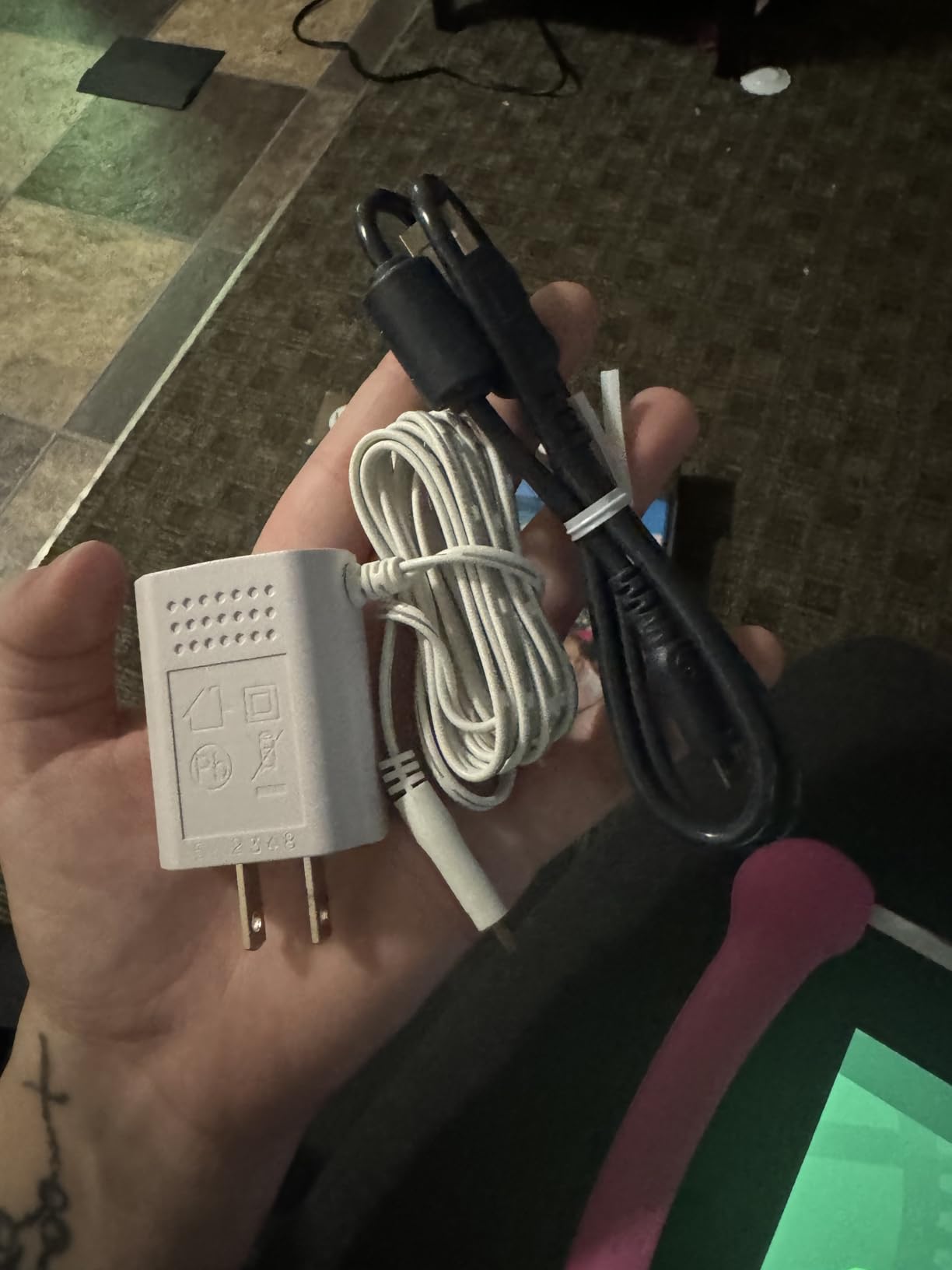
Parental controls are tighter than on most general-purpose kids tablets, which is the opposite of what a parent hears about Fire. Time limits, app management and a kid-friendly web filter are all handled from the parent account, and the removable silicone bumper doubles as a kickstand for propped drawing sessions.
The two-year limited warranty and front and rear cameras round out an unusually complete package for the age band. The quad-core processor at 1.5 GHz is not fast, and the 1.6 pound weight is heavier than a Fire 7, but neither matters much for the learning apps this device is designed for.
What you gain over a Fire 7
Early handwriting practice. The stylus has a real tip and a palm-rest area, and the drawing apps respond properly, which makes it the best option in this roundup for a child who is working on letter formation rather than just tapping.
The academic content also has a progression built in. Apps cover math, reading, writing and coding, so a device bought at five still has relevant material at eight, which is the range this model targets.
What you give up
Battery life is the real problem, and reviewers are blunt about it: roughly an hour of use from a full charge. That rules the LeapPad out for long car rides or flights unless you carry a power bank.
You also install from the LeapFrog App Center only, with no standard app store. Many of the games are paid add-ons priced like old cartridges, and the LeapFrog Academy subscription is expensive and frequently left unused. Some owners also report charging-port failures and occasional freezes that need a restart.
5. LeapFrog LeapPad Ultimate: Best for School Readiness
LeapFrog LeapPad Ultimate Ready for School Tablet, Green
7 inch shatter-safe screen
8 GB storage
1 GB RAM
Ages 3-6
Pros
- Adaptive learning that adjusts to the child
- Browser limited to expert-approved sites
- Shatter-safe screen with built-in bumper
- 3.5mm headphone jack
Cons
- Only 8 GB storage and 1 GB RAM
- Older 1 GHz quad-core processor
- Limited to the LeapFrog content ecosystem
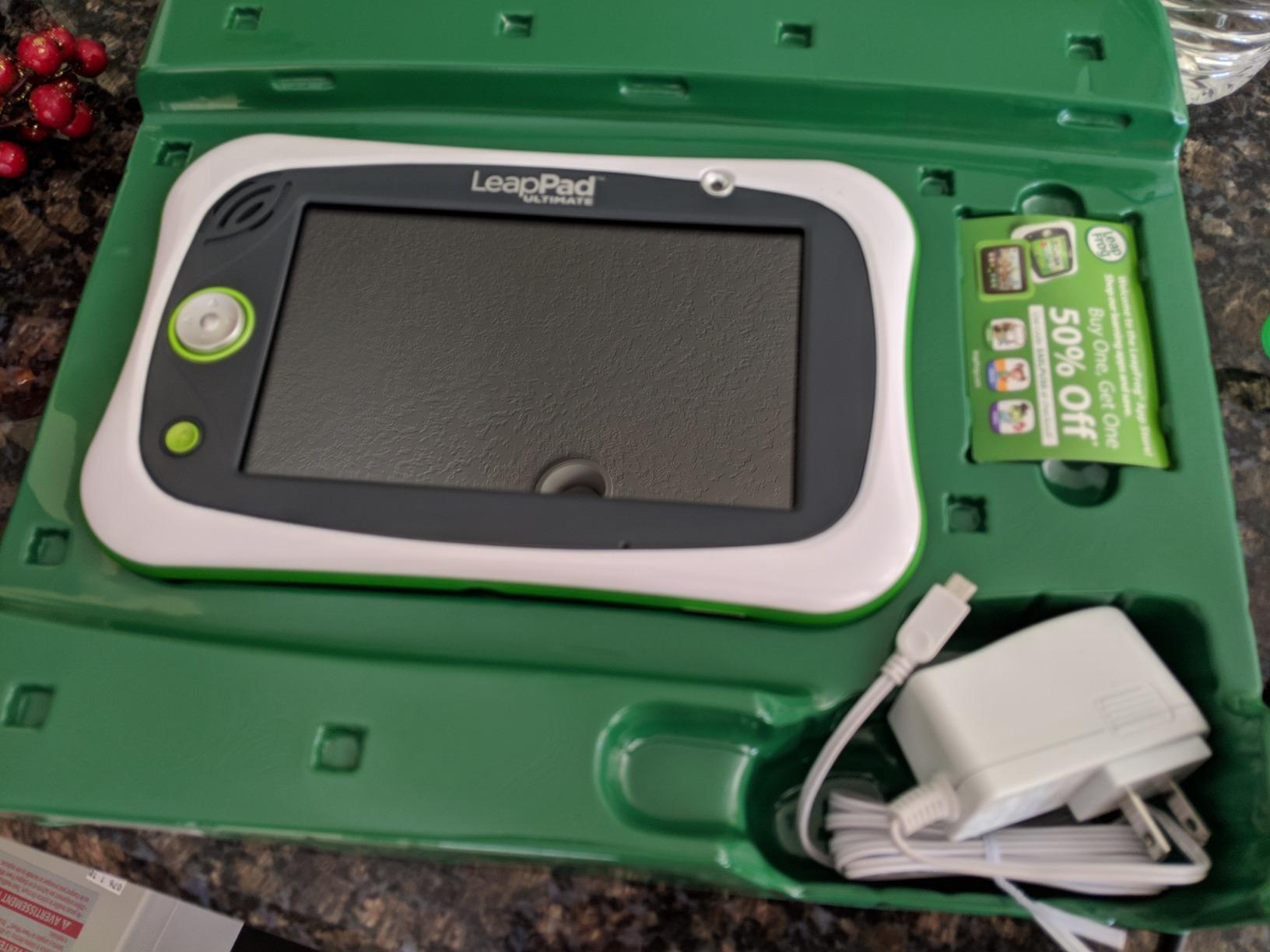
The LeapPad Ultimate is built for a narrower window than the other LeapFrog model, aimed squarely at the preschool-to-school transition. If your child is starting kindergarten next year, the adaptive Just-for-Me technology that adjusts the curriculum to the child is the feature that justifies choosing it over a cheaper tablet.
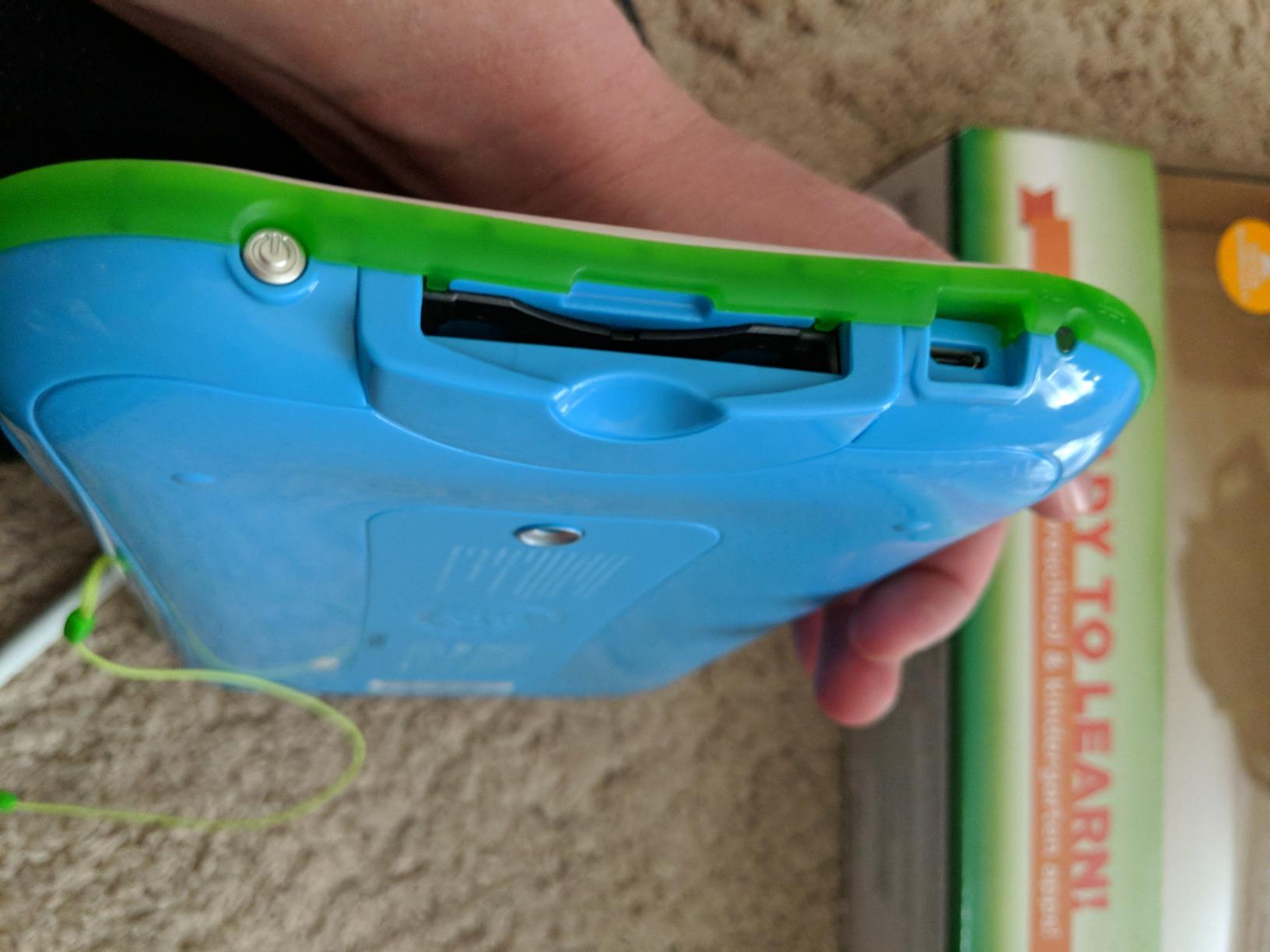
The web browser is the standout. Instead of blocking sites, it only exposes a curated list of expert-approved websites, which removes the daily question of whether your child just found something they should not have. Front and rear cameras, stereo capability and a 3.5mm headphone jack cover video calls and car travel.
The screen is 7 inch and shatter-safe with a built-in bumper, and the whole device weighs 1.5 pounds. That is a bit heavy for a five-year-old to hold for a long session, and the roughly 5 hour average battery is the limiting factor on long outings.
Buyers consistently frame this as an all-in-one bundle rather than a general tablet. The included school-readiness content carries a substantial stated value on paper, which is the practical way to think about the purchase. You are not buying a computer; you are buying a curriculum in a case.
The one thing to watch is that the hardware is dated by design. An Allwinner quad-core processor at 1 GHz, Brio OS, 8 GB of storage and 1 GB of RAM will not run modern apps gracefully, and content is restricted to the LeapFrog library.
Who this suits best
A child whose school readiness work is structured rather than open-ended. If you want tracing, phonics and pre-numeracy sequences that advance based on performance, the adaptive engine does the adjusting for you without a parent deciding what comes next.
It is also a good fit for homes where you would rather not manage a web browser at all. The approved-sites model is the strictest approach to online safety in this roundup.
Why most families end up elsewhere
The 8 GB storage and 1 GB RAM mean a device that will feel slow within a couple of years, and a five-year-old who is also an older sibling may be frustrated by the same content ceiling. Parents who want one device for two children of different ages get more flexibility from an Android tablet with multiple profiles.
If the budget is flexible, our honest advice is to spend it on the LeapPad Academy instead, which keeps the educational focus and updates the hardware.
6. COLORROOM 10 inch Android 15: Best Big-Screen Value
COLORROOM 2026 Upgraded Android 15 Tablet, 10inch Kids Tablet, Octa-core CPU, 10GB+64GB+1TB Expand Tablets for Kids with Kids Space, Parental Control, 6000mAh Big Battery,Touchscreen Tableta,Pink
10.1 inch 1280x800 IPS
10 GB RAM and 64 GB
6000mAh battery
Android 15
Pros
- Google Kids Space pre-installed
- 10 GB RAM and 64 GB storage for the money
- Screen protector applied and handled case included
- Family Link can lock the screen remotely
Cons
- Settings changes need a school email account
- A few buyers report cracked internal screens within days
- Battery degrades after a couple of months
This is the specification outlier of the group. An octa-core Unisoc T606 at 2 GHz, 10 GB of RAM, 64 GB of storage and a 10.1 inch anti-blue-light display put it ahead of tablets costing considerably more on paper. Reviewers repeatedly describe it as strong value against premium brands, and the numbers back that up.
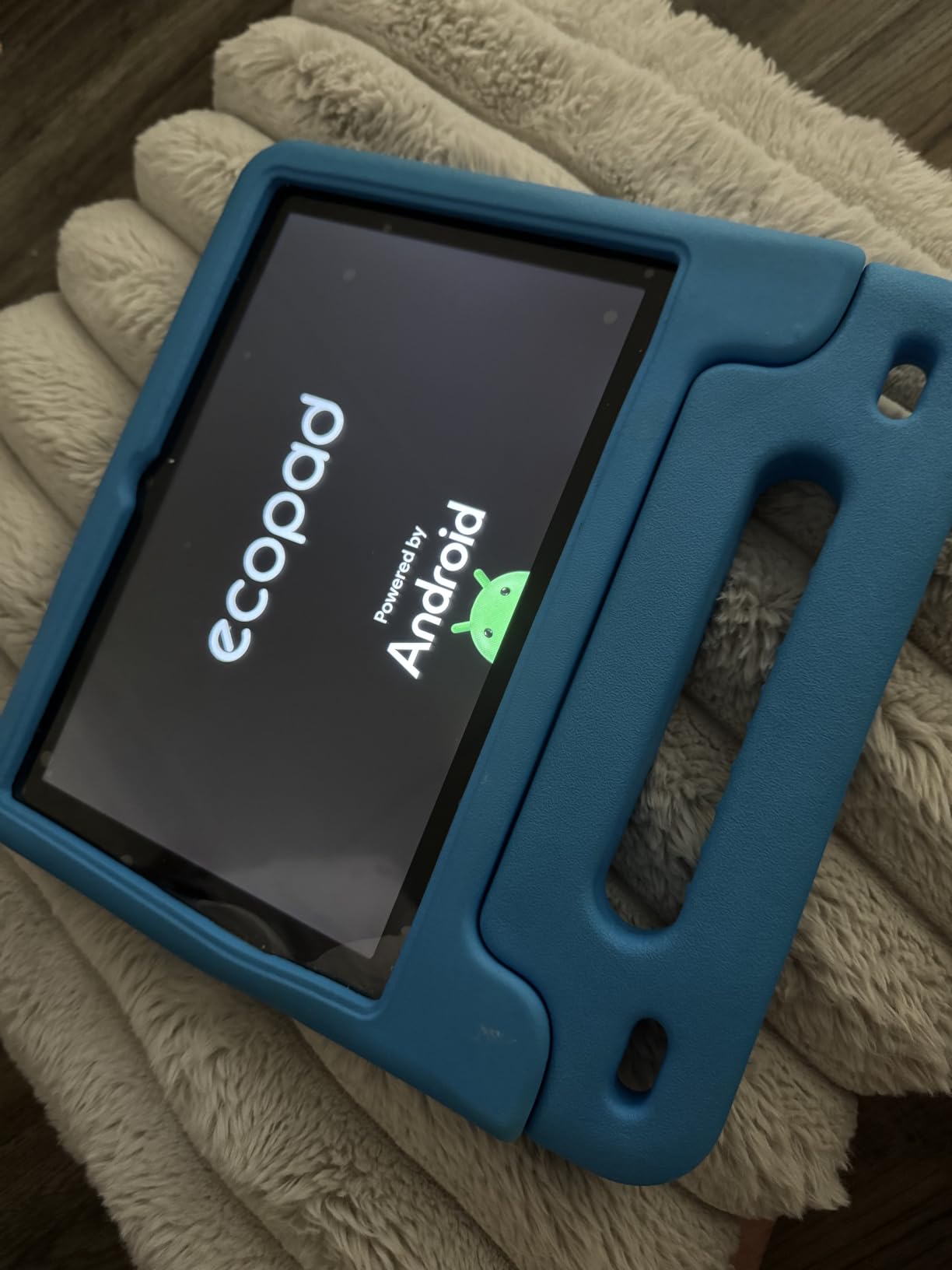
Google Kids Space ships pre-installed with educator-endorsed apps, and Family Link parental controls can lock the screen remotely. The anti-blue-light in-cell display with auto brightness is a genuine plus for a child doing early reading, and the 6000mAh battery is quoted at 8 to 12 hours of use.
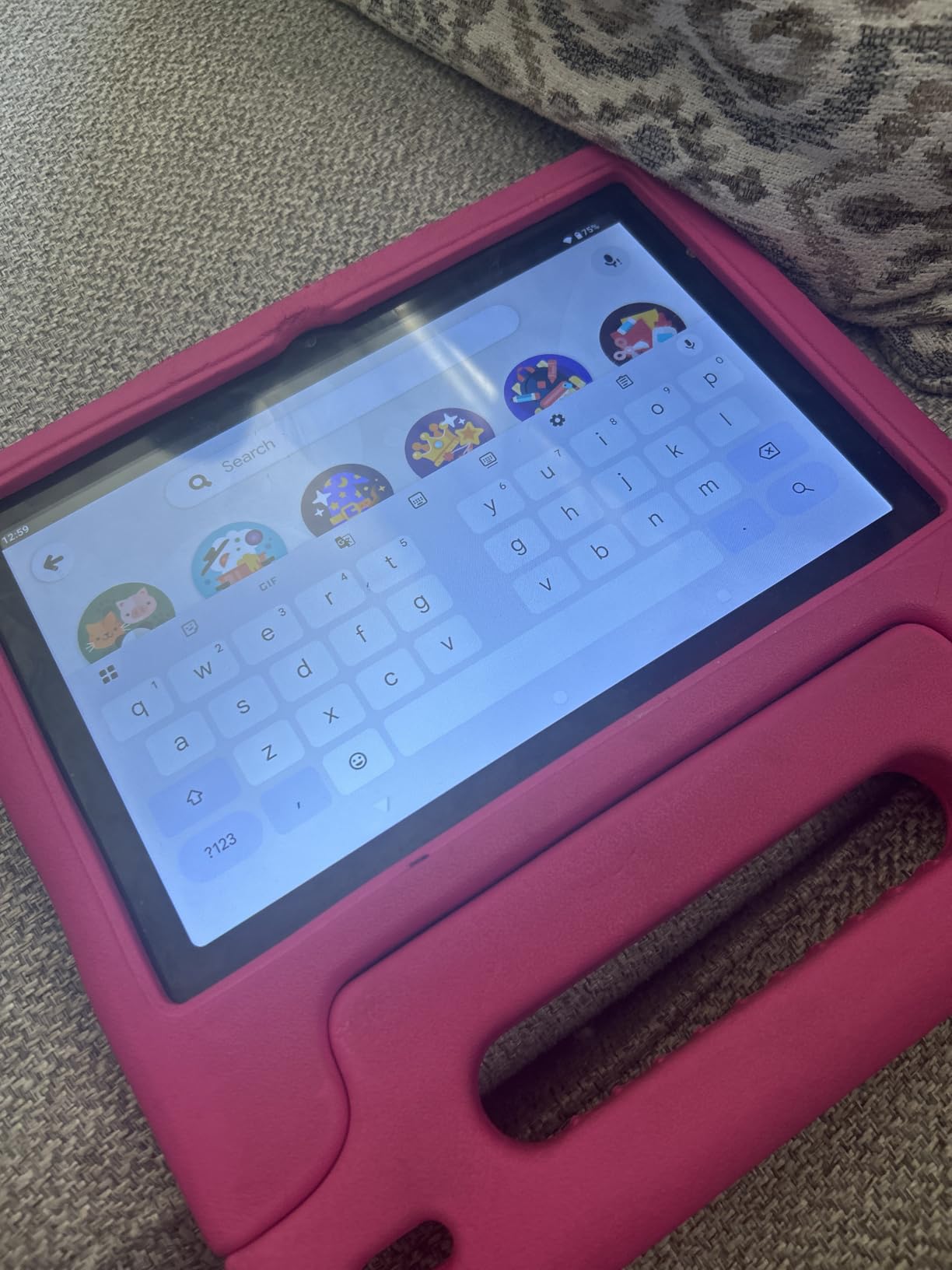
Extras that usually cost extra are in the box: the screen protector is already applied and a sturdy handled case is included. Dual stereo speakers, an 8 mp rear camera, Wi-Fi 6 and USB-C round out a generous package, backed by a 180-day money-back period and a 5-year warranty.
There is one restriction worth understanding before you buy. Making significant settings changes requires a school email account, which blocks subscription-based kids apps. If your plan depends on a paid learning subscription, this will get in the way.
What you get for the money
Headroom. With 10 GB of RAM and 64 GB of storage, this tablet has room for Google Play apps, drawing tools and downloaded content that the Fire models simply cannot offer, because Android 15 with full Play Store access is unrestricted in a way Fire OS is not.
The 5-year warranty is among the longest coverage in this roundup, which matters on a device expected to survive drops.
What to watch out for
A small but real number of buyers report a cracked or dead internal screen within days, and others report battery degradation after a couple of months. That is a meaningful failure rate on a tablet marketed at children, so the warranty is doing real work here rather than just reassuring.
The school email requirement is also more confusing than it should be for a non-technical parent, and it is the first thing to check against the apps you actually plan to use.
7. HOTTABLET 7 inch Android 12: Best for Play Store Access
HOTTABLET Kids Tablet 7 inch Android, 4GB RAM 32GB ROM, 1TB Expandsion, with Parental Control, WiFi, Bluetooth, Dual Camera with Silicone Case, 1PCS (Blue)
7 inch 1024x600 IPS
4 GB RAM and 32 GB
3000mAh battery
Android 12
Pros
- Google Play Store access with Netflix
- Protective case doubles as a stand
- Custom kid profiles with screen time limits
- iwawa kids app preloaded
Cons
- Kids mode uses the default PIN 0000
- Low resolution 1024x600 screen
- Only 2 GB of RAM is physical
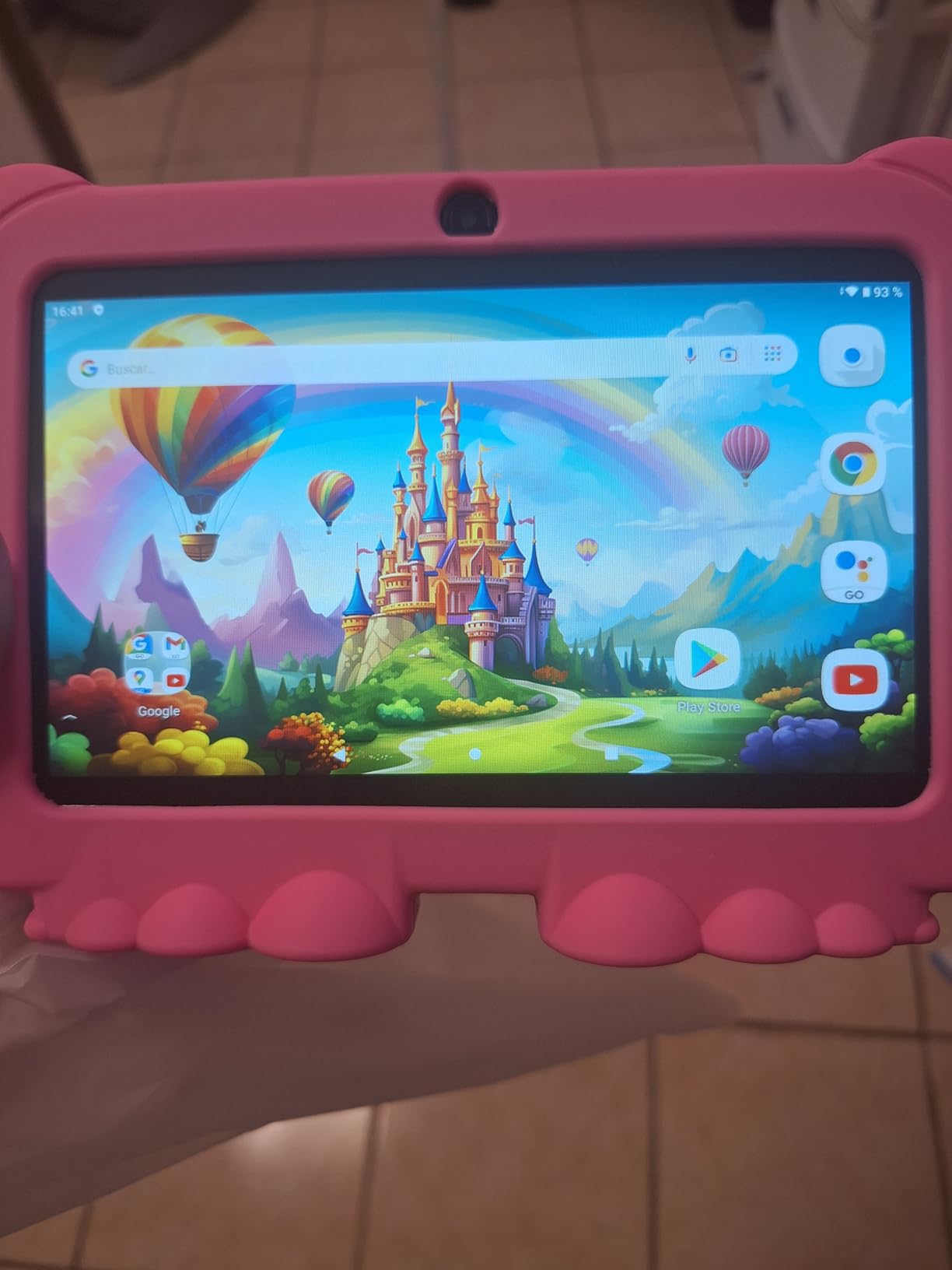
Among the cheaper seven-inch Android tablets, this one is the most complete. It is Google GMS certified, so the Play Store is there, and it carries Widevine L1, which is what you need for Netflix to play in full quality. That combination is rare in this price class and it is the reason to pick it over the other budget seven-inchers.
4 GB of RAM, 32 GB of storage with expansion to 1 TB, a 2MP front camera and a 5MP rear camera make it feel like a real Android tablet with a kid mode layered on top. Parental controls let you create custom kid profiles with screen time and content filtering, and the iwawa kids app comes preloaded.
The silicone case is included and doubles as a stand, which means the first thing you would normally buy separately is already handled. Battery life is quoted at about 8 hours of mixed use from a 3000mAh cell.
There is one detail you must not skip. The kids mode ships with the default PIN 0000. Change it during setup before you hand the tablet over, because until you do, the parental controls are effectively off. It is a two-minute job that fixes the most criticized complaint in the reviews.
The screen is the other limitation. A 1024 x 600 panel at seven inches is low resolution, and it shows in video. Fine for games and learning apps, soft when streaming.
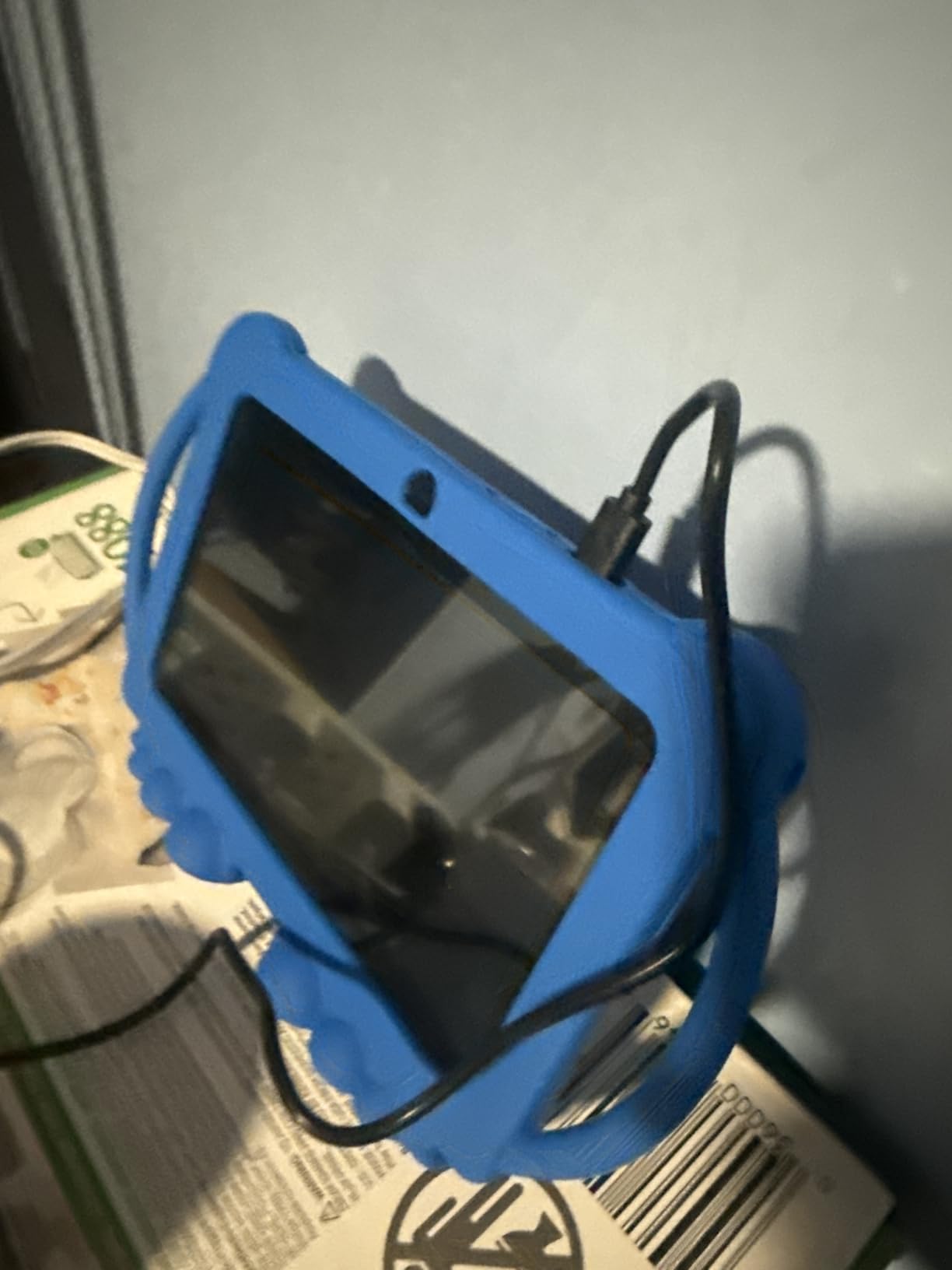
When it makes sense
If your priority is unrestricted app access on a small budget, this is the pick. Parents who want Netflix, YouTube Kids and the wider Play Store catalog without paying for a full-size Android tablet will get more here than from any Fire model.
It is also a sensible shared-device option later, because the kid profile is a layer rather than a locked operating system.
When it does not
Do not buy it for a child who mainly watches video, because the display resolution is the first thing they will notice. And note that only 2 GB of the advertised 4 GB RAM is physical, with the rest being expansion memory, which is a less meaningful number than it sounds.
The 1-year warranty is the thinnest coverage among the tablets that ship with a case, so budget for a replacement sooner than you would with a Fire.
8. WXUNJA 10.1 inch Android 15: Best Warranty Coverage
Android 15 Kids Tablet 10.1 Inch, Octa-Core Processor, Case Included,Blue
10.1 inch 1280x800 IPS
3 GB RAM and 64 GB
6000mAh battery
Android 15
Pros
- Screen protector and silicone stand case included
- Google Kids Space with app approval controls
- 6000mAh with 18W fast charging
- 5-year warranty
Cons
- Some models cracked the internal screen after a short fall
- Some models fail PIN or YouTube Kids after setup
- Setup can be fiddly
The pitch here is coverage. A 5-year warranty on a tablet intended to be dropped repeatedly is among the strongest protection in this roundup, and the customer service record backs it up. One review describes the company sending multiple replacements after a unit was damaged, which is the kind of experience that matters far more than a benchmark score.
Underneath, the specification is solid for the money: an octa-core Unisoc processor at 2.0 GHz, a 10.1 inch 1280×800 HD IPS touchscreen with eye-comfort tech, 3 GB RAM with 18 GB of virtual RAM, and 64 GB of storage expandable to 1 TB. The 6000mAh battery supports 18W PD fast charging, and buyers put real-world life at roughly 6 to 8 hours.
Google Kids Space and Google Play access are both there, with app approval controls and pre-installed reading and learning apps. Dual-band Wi-Fi, Bluetooth, GPS, screen casting, split screen and face recognition round out a list that is longer than most tablets at this level.
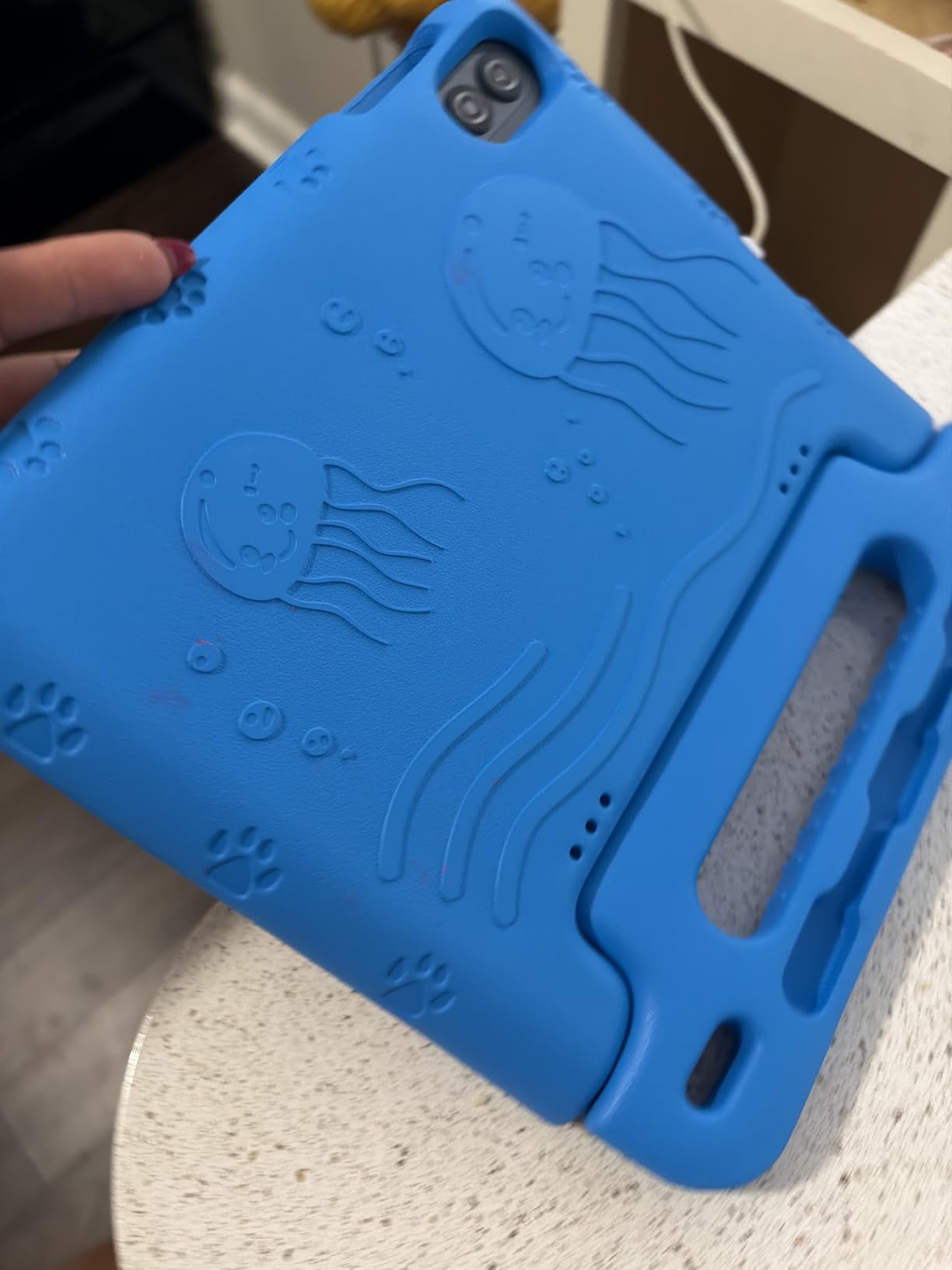
The screen protector and a silicone case with an adjustable stand are both included, which covers the two accessories parents most often forget to order separately. Weight is 1.1 pounds, light for a ten-inch device.
Being honest about the downsides: a smaller set of reviews reports an internal screen cracking after a short fall onto carpet despite the case and protector, and some models fail PIN or YouTube Kids functionality after setup. Setup being fiddly comes up often enough to be worth budgeting an hour for.
Why parents keep it
Everything a first tablet needs arrives in the box. Case, protector, stand and an app-approval system that lets you decide what gets installed is a genuine saving on the accessories and setup time that most Android kids tablets leave to you.
The 5-year warranty turns a device you expect to be dropped into a lower-risk purchase, which matters more here than at any other age.
What to watch
No stylus is included, despite some buyers expecting one. If your child wants to draw or trace letters, you will need to buy that separately, and the LeapPad Academy remains the better all-in-one answer for handwriting.
The smaller review pool also means fewer data points on long-term reliability, so treat the warranty as the reason to buy rather than as evidence the hardware never fails.
9. ICONLINK 7 inch Android 12: Budget Pick
ICONLINK Kids Tablet 7 inch 3-9 for Kids,32GB ROM Toddler with Shockproof Case,Kids Android Software Installed Netflix,YoutTube, aiwawa Apps Parent Controls,Dual Camra, WiFi,FM, GPS (Pink)
7 inch 1024x600 IPS
4 GB RAM and 32 GB
3000mAh battery
Android 12
Pros
- Very low entry cost with Netflix and YouTube access
- Shockproof case with adjustable stand included
- Parental controls with screen time limits and web filtering
- Pre-installed apps by age band
Cons
- Only 2 GB of physical RAM
- Low resolution 1024x600 display
- 3000mAh battery is small for the class
This is the least expensive way we found to put a full Android tablet in front of a five-year-old, and at this level the feature list is still respectable. It is GMS certified with Google Play access and Widevine L1, so Netflix and YouTube work, and kids apps come pre-installed with content aimed at different age bands.
Parental controls cover screen time limits, app blocking and web filtering, which is the full set of what a parent actually needs at this age. The shockproof case with an adjustable stand is included, so the device arrives protected.
Android 12 runs on a Unisoc quad-core processor, with 4 GB of RAM and 32 GB of storage expandable to 512 GB. Front and rear 2MP cameras, dual speakers and a 3.5mm headphone jack are all present.
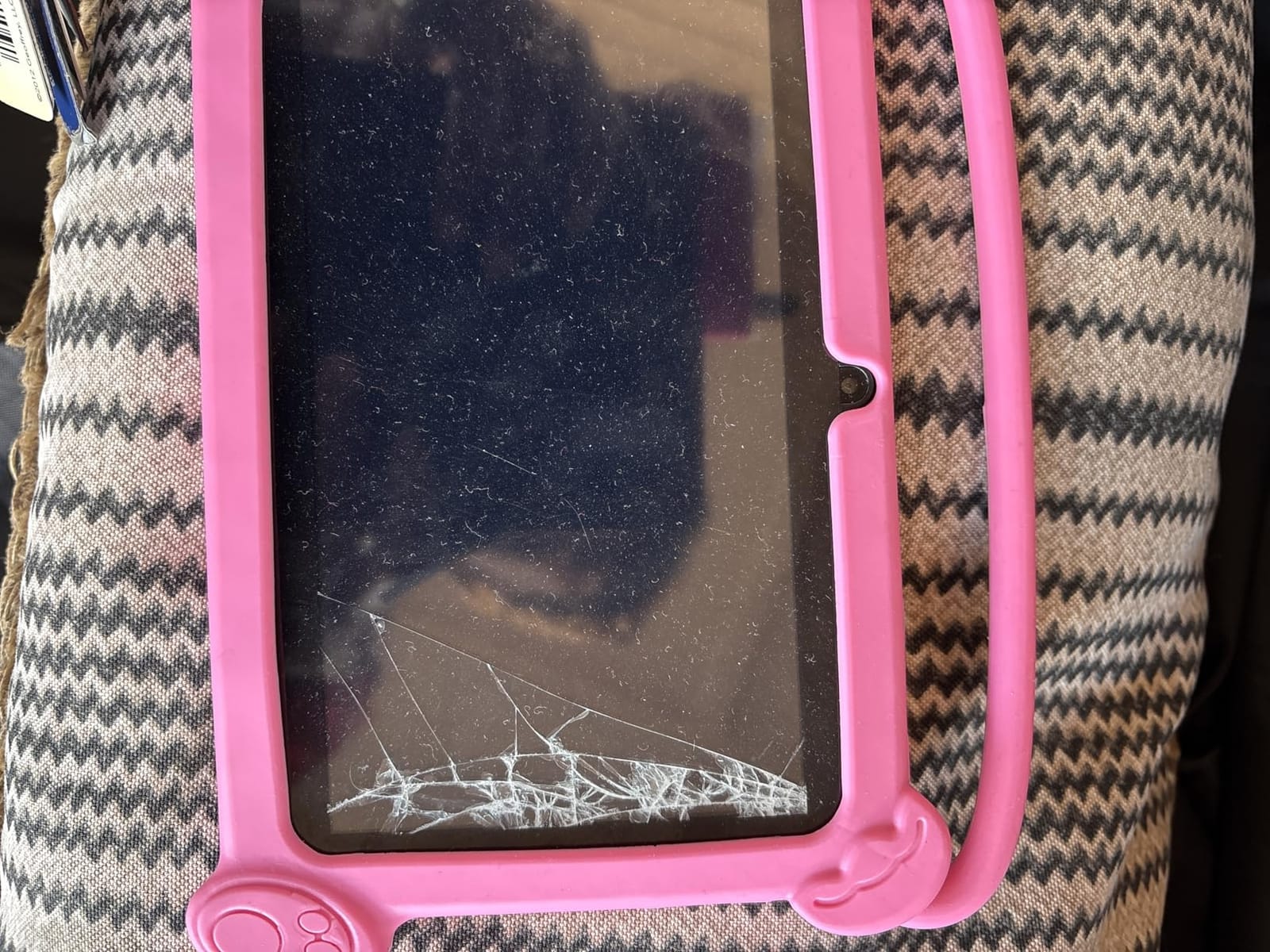
The compromises are the ones you would expect from the price band. Only 2 GB of the 4 GB RAM is physical, with the rest being expansion. The 1024 x 600 display is soft for video, and the 3000mAh cell is small for the class of device, so expect less than a full long-haul flight.
Buying at this level is a decision about what you are optimising for. If the goal is the lowest possible way to give a child a tablet, this does it with genuine parental controls rather than a hollow kids skin.
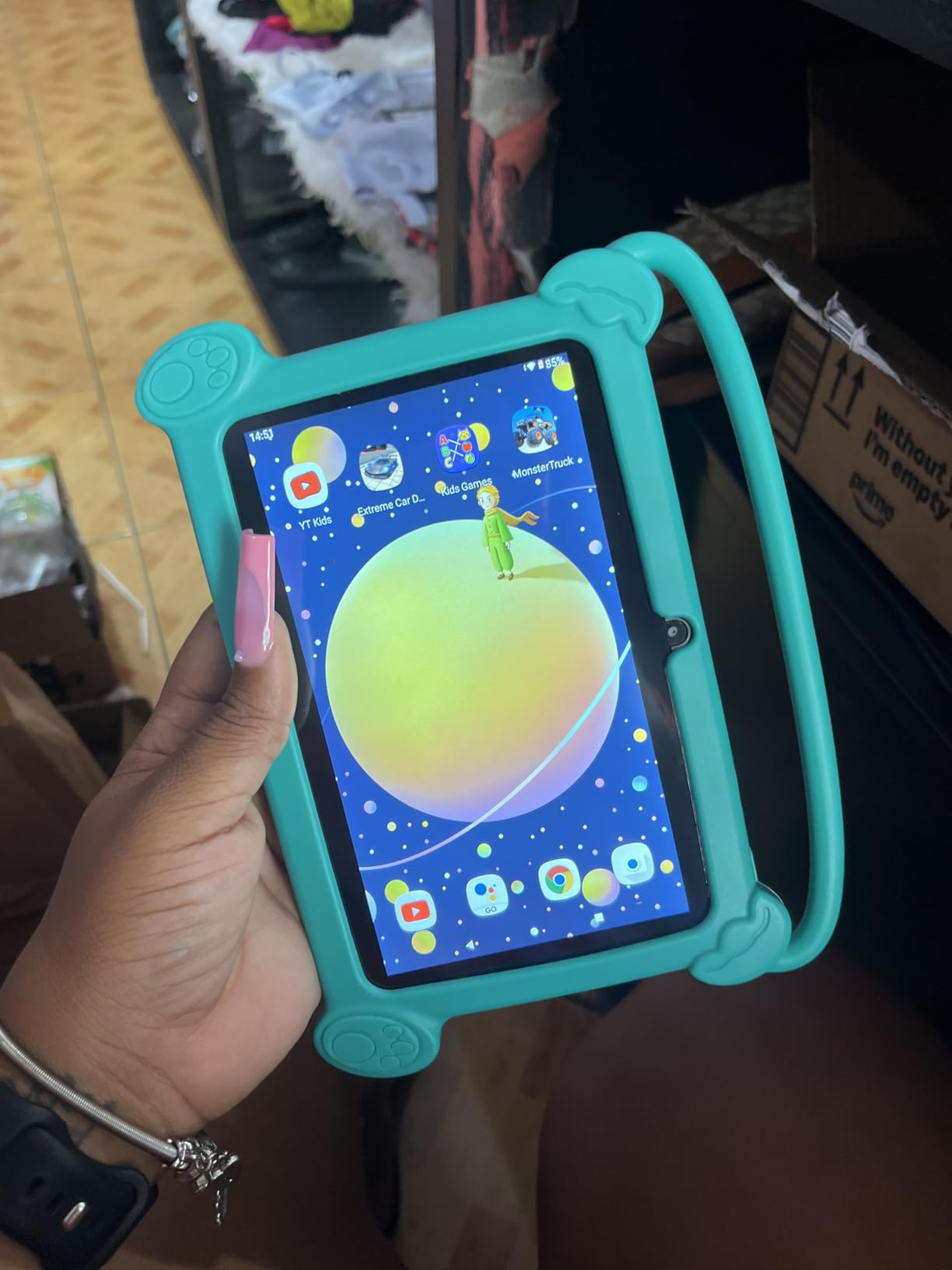
Best use case
A first tablet for a five-year-old whose main uses are cartoons, YouTube Kids and a couple of learning apps, on the tightest possible budget. The parental controls mean the device is not simply an open Android tablet that happens to have kids apps on it.
It also works well as a travel-only device, where the case and stand matter and battery life is manageable with a top-up before departure.
Where the money saved shows up
The display and memory, in that order. Streaming quality is visibly softer than on the ten-inch models, and the small battery means a power bank is close to essential for long trips.
Warranty coverage is not stated for this model, which is worth weighing against the Fire 7 Kids two-year guarantee if breakage is likely in your household.
10. EDDBNi 10 inch Android 15: Best for Storage Headroom
EDDBNi Kids Tablet Android 15 Tablet 10 inch Kids Tablets with Case Quad Core 64GB Dual Camera Parental Controls 2.4G WiFi Educational Tablets
10 inch 1280x800 IPS
6 GB RAM and 64 GB
6000mAh battery
Android 15
Pros
- Large 10.1-inch screen with clear picture
- Google Kids Space with app approval
- 64 GB storage expandable to 1 TB
- EVA case with stand included
Cons
- 2.4GHz Wi-Fi only can struggle on crowded networks
- Slow boot and load times out of the box
- Charging failures reported by some owners
The selling point is simple and hard to argue with: 64 GB of storage with expansion to 1 TB, paired with 6 GB of RAM. That is as much headroom as you will find anywhere in this roundup, and it means downloaded games, offline videos and a full library of learning apps can live on the device instead of fighting for space.
The 10.1 inch 1280×800 HD IPS glass display gets praise for clear, bright picture quality, with low-blue-light technology, an eye-protection mode and auto brightness. Google Kids Space is pre-installed with screen time limits and app approval controls, so a parent decides what gets installed rather than the child.
Gemini AI support under parental guidance adds an interactive layer for older children, and the kid-proof EVA case with a stand is included. A 2-year warranty comes with it.
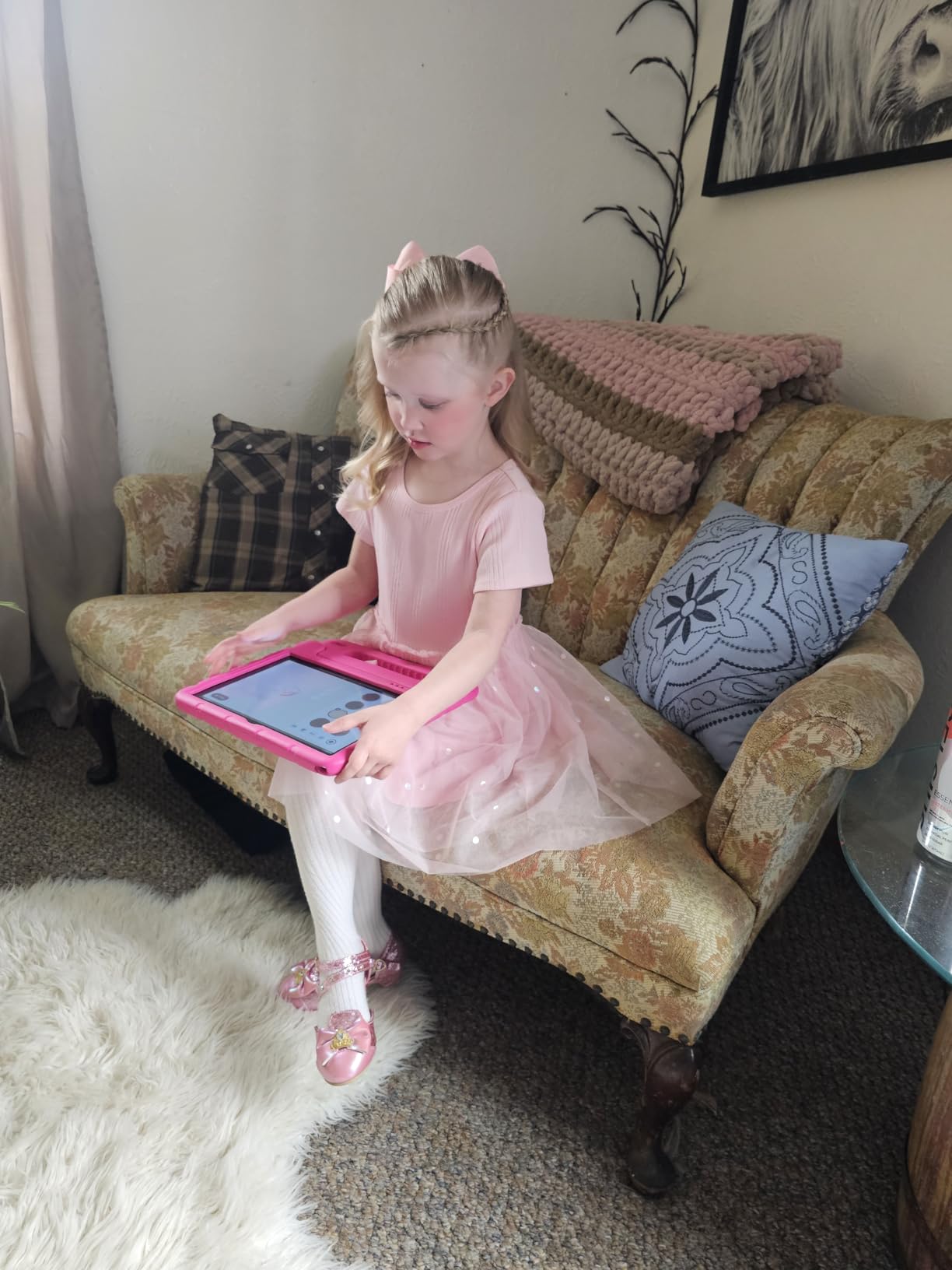
What holds it back is consistency rather than headline specs. Wi-Fi is 2.4GHz only, which can struggle on crowded networks, and the quad-core processor at 1.3 GHz means slow boot and load times straight out of the box. Several owners also report charging failures within months.
There is a specific mechanical complaint worth knowing: the tight case can bow the tablet over time and break the touch input. If you buy it, check that the case is not pressing on the display.
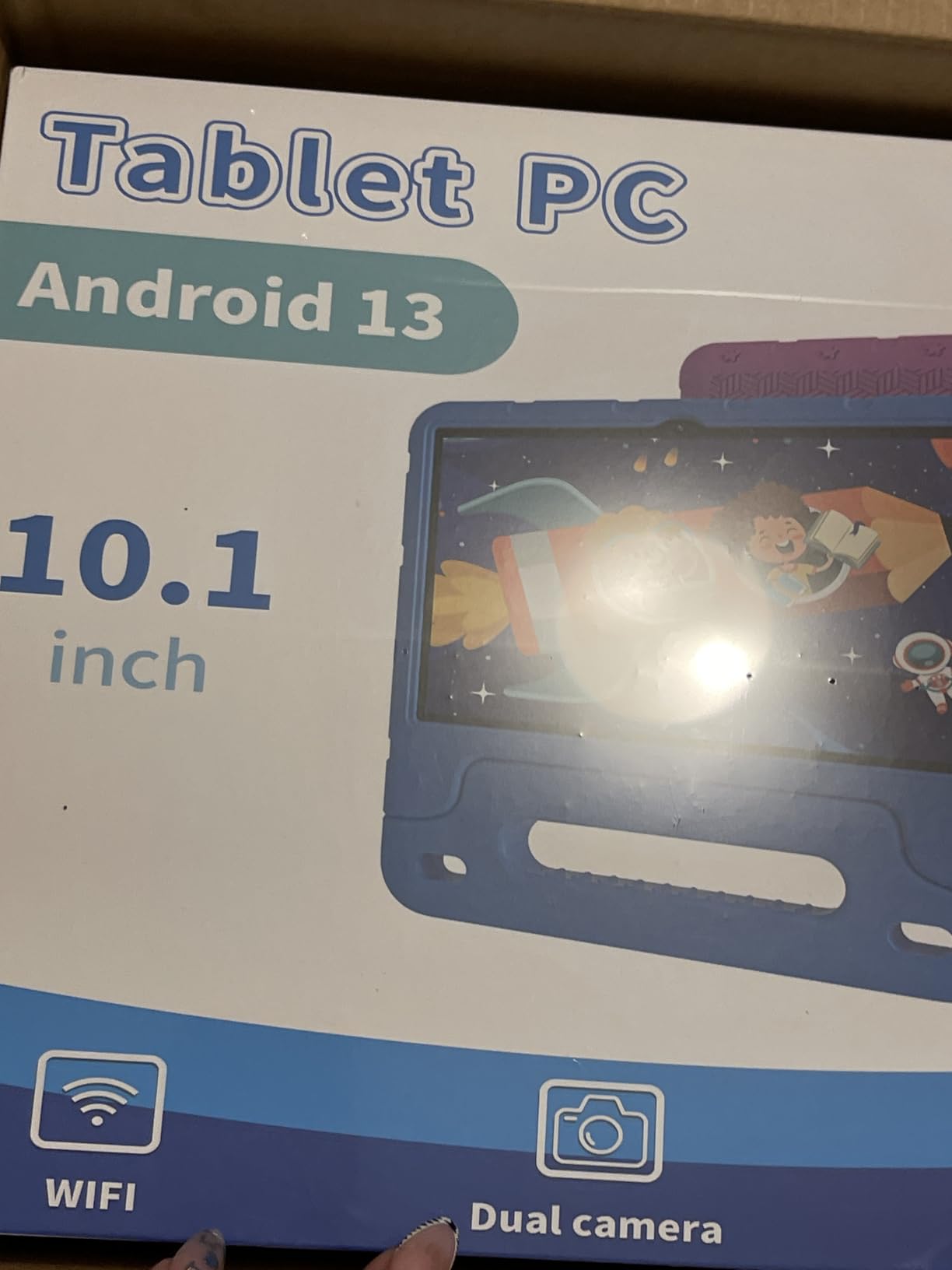
Where the storage matters
Offline content is the clearest use. A ten-inch screen plus 64 GB of storage is the combination that works for a long flight with downloaded films and games, where a 7-inch Fire with 16 GB would be running out of room quickly.
It also suits a child who will grow into drawing and creative apps, where large app installs and cached media add up fast.
Why we would pick something else
2.4GHz-only Wi-Fi is a real limitation in a modern home, and the slow boot times are felt every single day rather than occasionally. A tablet that is sluggish to start trains a five-year-old to expect waiting.
With reports of charging failures and unresponsive touchscreens in a noticeable minority of reviews, we would put this behind the COLORROOM or WXUNJA ten-inch models, both of which carry longer warranty coverage.
11. Aheadlink 7 inch Android 12: Best for Small Hands
Android Kids Tablet 7 inch Tablets for Kids, 4GB RAM 32GB ROM Quad Core Toddler Tablet with Shockproof Case, Parental Control, WiFi, Bluetooth, 3000mAh Battery, Dual Camera, Educational, Game, Pink
7 inch 1024x600 IPS
4 GB RAM and 32 GB
3000mAh battery
Android 12
Pros
- Cute handle and stand case protects against drops
- Kid mode with customisable profiles
- Free iWawa kids software preloaded
- Lightweight for small children
Cons
- Screen scratches easily
- Limited internal memory for many apps
- Kids-mode version boots slowly
Of everything we tested, this is the one a five-year-old is most likely to hold without being asked. It is light, compact at 7 by 4.1 inches, and the shockproof silicone case has a carrying handle and a built-in stand. Children carry it around the house by the handle, which reduces the time an adult spends retrieving it from under the sofa.
Kid mode offers customisable profiles and screen time controls, and free iWawa kids software comes preloaded with games and learning content. That preinstalled library is the useful part, because a five-year-old can start immediately without a parent downloading anything.
Underneath, Android 12 runs on a quad-core processor at 1.5 GHz with 4 GB of RAM and 32 GB of ROM expandable to 1 TB. Bluetooth, a dual camera and a 3.5mm headphone jack are included, and the battery is quoted at about 6 hours.

The removable case is a genuinely smart detail. When the child outgrows the kid mode and the preloaded apps, the case comes off and the tablet becomes an ordinary Android device for an older sibling. That is a longer ownership window than most cheap kids tablets offer.
We would note the small review pool. One hundred and fifty reviews is a thin base, so treat the ratings as an early signal rather than a settled verdict.
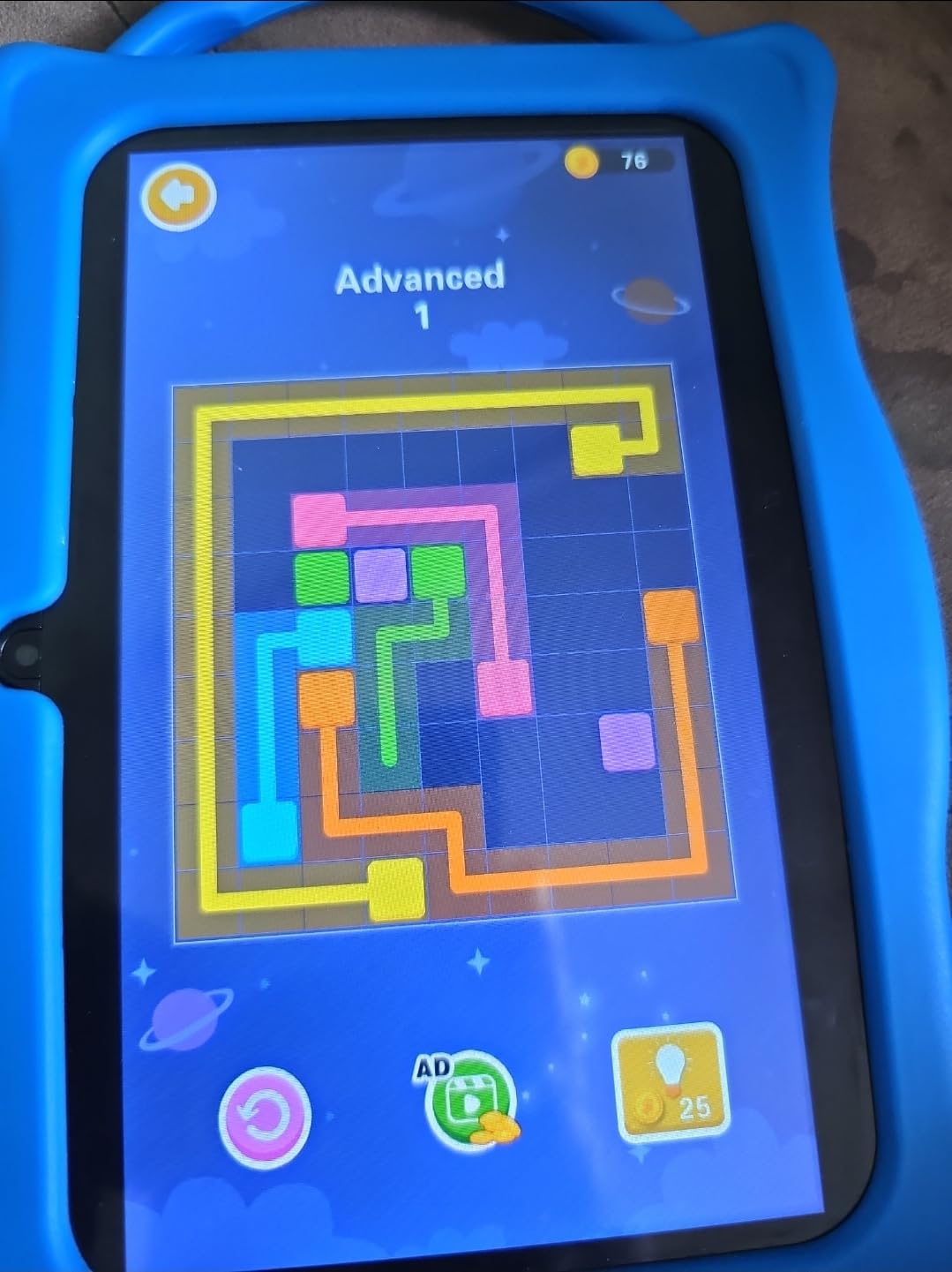
Why it suits a five-year-old specifically
Weight and grip. Small children struggle with larger tablets, and a device that is uncomfortable to hold gets put down after ten minutes. This one gets carried around, which means more independent play and fewer requests to an adult.
The handle also makes it easy to insist on a time limit. Hand it over with the case closed, and taking it back is a simple physical action rather than a negotiation.
What to consider first
The screen scratches easily according to buyers, so add a screen protector from day one even though the case is included. Limited internal memory also means fewer large apps downloaded at once.
The kids-mode version boots slowly and takes longer to connect to Wi-Fi and Bluetooth, and setup is more involved than on the standard Android version. Budget extra time for configuration.
12. Samsung Galaxy Tab A9+ Kids Edition: Best 11-Inch Display
Samsung Galaxy Tab A9+ Kids Edition 11” 64GB WiFi Android Tablet, Long Battery Life, Expandable Storage, Slim & Lightweight, Kid-Friendly Durable Puffy Cover, US Version, Red
11 inch 1920x1200 at 90Hz
4 GB RAM and 64 GB
7040mAh, about 14 hours
Pros
- Samsung Kids walled-garden mode
- Big bright 90Hz display
- Puffy cover survives repeated drops
- Crayo-Pen styluses and stickers included
Cons
- Full-screen ads throughout the interface
- Battery drains faster than advertised
- Included styluses are not smart pens
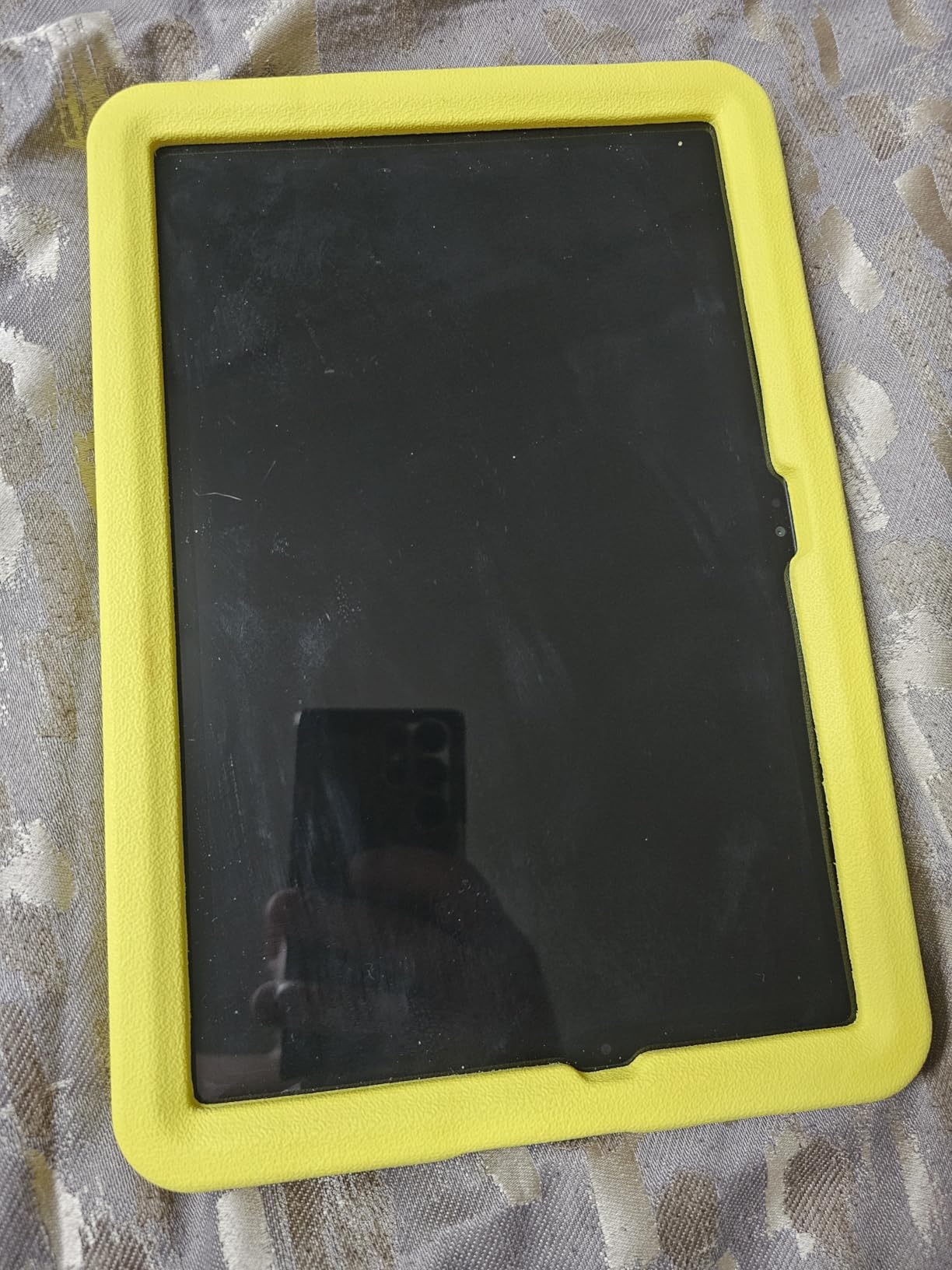
Pick this one if you want the best screen available for a five-year-old. The 11 inch 1920×1200 LCD running at 90 Hz is a class above everything else here, and at 1.1 pounds it stays light enough for small hands despite the size. The 90 Hz refresh rate makes scrolling and drawing feel smoother than a 60 Hz panel.
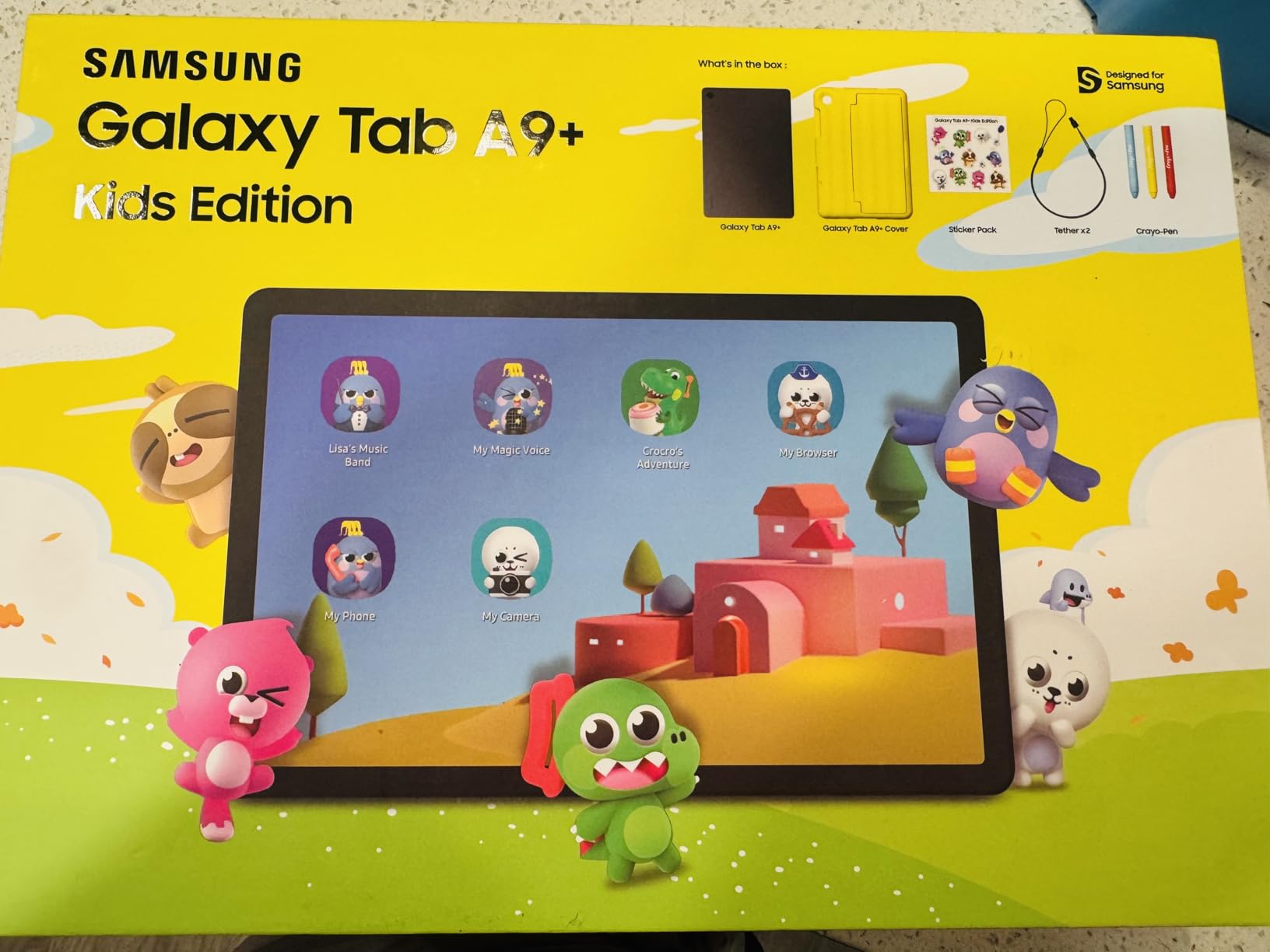
Samsung Kids is a walled-garden mode with strict play-time limits, and parents rate it among the stricter lockdowns on this list. The included puffy cover is described as surviving repeated drops and throws, and the bundle adds Crayo-Pen styluses and a sticker pack for drawing.
Under the cover it is a capable general Android tablet running Android 13 on a Snapdragon SM6375 chipset, with 4 GB of RAM, 64 GB of storage plus microSD expansion, and 8 mp rear and 5 mp front cameras. The 7040mAh battery is quoted at about 14 hours.
The strategic argument for this tablet is longevity. Because it is a normal Android device underneath, it stays usable as a regular tablet outside kids mode, which means one purchase can cover a five-year-old and a ten-year-old. That is the upgrade path several parents on Bogleheads and r/Parenting forums describe wanting.
It carries the highest sticker cost in this roundup, and it is worth being honest that a five-year-old is unlikely to appreciate a 90 Hz panel. You are buying optionality.
What you get for the extra spend
A display that makes reading, drawing and video calls noticeably better, plus a device that will not be obsolete in two years. Fast charging and long battery life mean it handles a full day of use, and the styluses support drawing and handwriting practice from the start.
For a family with two children at different ages, sharing one capable tablet beats buying two limited kid tablets.
What to weigh against it
Advertising is the most common complaint, with full-screen ads appearing throughout the interface and in Google Play. On a tablet used by a five-year-old, that is a real downside and one you cannot fully switch off without spending time in settings.
Buyers also report the battery draining faster than the advertised runtime suggests, and the included styluses are basic Crayo-Pens rather than smart pens. A one-year manufacturer warranty is thinner than the coverage on several cheaper models in this list.
Fire Kids Tablets or Android Kids Tablets: Which Should You Buy?
The Fire Kids tablets win on the two things that matter most at age five: a locked operating system that a child cannot navigate out of, and a replacement guarantee. The Android kids tablets win on hardware, screen size and the app catalog. Most parents should default to Fire unless a specific app requirement pushes them the other way.
Start with the app question, because it is the one that cannot be solved later. Fire OS does not include the Google Play Store. That means some educational apps, reading apps and third-party tools you may expect simply are not available, and the only way to add anything is through the Amazon Appstore on the parent profile followed by approval inside the child profile. Parents describe that two-step process as confusing, and it is the single most common setup frustration reported on parent forums.
On controls, Fire is ahead. The Parent Dashboard handles age-based filtering, goals and time limits from your phone, and the child profile is protected by a password. On the Android models in this roundup, the equivalent is Google Kids Space or a vendor skin, which works well and costs nothing, but exposes the full Android interface underneath with a PIN protecting it rather than a genuinely separate locked environment.
On durability and support, Fire is ahead again. Each Fire Kids tablet includes a Kid-Proof case and a two-year worry-free guarantee that replaces a broken device. Among the Android models here, warranty lengths range from one year to five years and are not consistent enough to plan around.
On hardware, Android is ahead and not narrowly. The COLORROOM and WXUNJA tablets offer ten-inch 1280×800 displays, 6 to 10 GB of RAM and 64 GB of storage, with screen protectors and cases in the box. The Fire HD 10 has a better screen but only 32 GB, and the Fire 7 has 16 GB of which roughly 3.5 GB is usable.
One Android parent we would not ignore: Bogleheads contributors consistently lean toward iOS for the three-and-five age band specifically because of the quality of the educational app library, and parents on r/Parenting report buying an older-generation iPad as a cheaper route to a real tablet. We did not test an iPad for this roundup, so we do not make a recommendation here, but it is worth knowing that the ecosystem question does not have to be settled within the Fire versus Android framing.
How to Choose a Tablet for a 5-Year-Old
Parental controls come first, before any spec. Look for a separate child profile, a password that locks settings, enforceable screen time limits, app approval, and content filtering by age. Fire OS, Google Kids Space and the LeapFrog environments all offer these, but the depth differs and the Samsung’s walled-garden mode is the tightest. Change any default password during setup, because some budget models ship with a trivial one.
Screen size and drop protection are the second decision. Seven inches is the right answer for a five-year-old who will hold the device; ten inches is better for propped video, drawing and reading practice. In every case, a case is non-negotiable, and a screen protector should go on day one because cheap tablets scratch easily. Check that the bumper wraps the corners, since that is where the screen cracks.
Battery life decides whether the tablet works for you. Any car ride or flight longer than a couple of hours needs a device quoted at eight hours or more. The LeapPad models are the weak point here, with roughly an hour and roughly five hours of average use respectively, so plan a power bank if you choose them.
The app ecosystem is where Fire is most often criticised and Android kids tablets are most often justified. If your child will use Google Play Store titles, choose an Android tablet with Kids Space. If you want a curated library that a five-year-old cannot break out of, Fire or LeapFrog is the calmer option. The wider software question is covered in our best kids tablets for learning guide.
Age bands are worth planning for. Between three and five, seven-inch models with a locked profile are enough. Between five and seven, a ten-inch screen and a stylus start to matter for handwriting. Between seven and ten, a general Android tablet with expandable storage is usually the right buy, and this is where buying a kid tablet now is a false economy. Expect a three-to-four year ownership window before an upgrade.
Plan for what happens after the bundled subscription ends. On the Fire Kids models, the included Amazon Kids+ period lasts twelve months and then renews monthly until cancelled. Set a calendar reminder at purchase, and decide in advance whether you will keep paying for the ad-free library or run the tablet without it.
Finally, lock the tablet down properly. On a Fire Kids tablet, create the child profile first and set the age band, then enable time limits and the password requirement, then open the Parent Dashboard on your phone to review activity and approve apps. Add third-party apps from the parent profile, approve them inside the kid profile, and set a daily limit you can live with. Ten focused minutes of setup prevents most of the problems parents write about on forums later.
Frequently Asked Questions
What is a good tablet for a 5-year-old child?
A good tablet for a 5-year-old is a small, durable device with a dedicated child profile, enforced screen time limits and a bumper case in the box. Our top pick is the Amazon Fire 7 Kids for its size, case and parental controls, with the Fire HD 8 Kids as the higher-rated alternative and the Fire HD 10 Kids for bigger-screen viewing.
What is the safest tablet for kids?
The safest setup is a walled-garden operating system that a child cannot navigate out of, combined with a password on settings, age-based content filtering and enforceable time limits. The Samsung Galaxy Tab A9+ Kids Edition and the LeapFrog models offer the strictest environments, while the Fire Kids tablets are the most widely used in parent forums for exactly these controls.
Which tablet brand is best for kids?
Amazon Fire is the most common choice for this age group because the Kid-Proof case, the Parent Dashboard and the two-year replacement guarantee come standard. LeapFrog leads on structured learning content and stylus support. Android kids tablets from brands like WXUNJA and COLORROOM lead on hardware specifications and Google Play Store access at a lower cost.
Which is better for kids, the Amazon Fire kids tablet or an Android tablet?
Choose Fire if you want a locked operating system, a case in the box and a two-year replacement guarantee. Choose an Android kids tablet if you need the Google Play Store, more storage, a larger screen or a stylus. Fire loses points for lacking Play Store access, while Android models lose points for weaker guarantees and a less contained kid interface.
How do I set up parental controls on a kids tablet?
Create the child profile first, then set the correct age band so content filters apply automatically. Enable a password for settings and profile switching, turn on screen time limits, and add your own email for purchases. On Fire tablets, open the Parent Dashboard on your phone to review activity and approve apps. On Android tablets, use Google Kids Space or Family Link for the same controls.
How much screen time is appropriate for a 5-year-old?
Most guidance for this age points to short, deliberate sessions rather than long blocks, with adult participation for anything involving reading or drawing. A common approach is one or two short daily sessions alongside a fixed bedtime cut-off. Whatever total you choose, the important part is that the limit is enforced by the device rather than negotiated every day.
What age is a kids tablet suitable for?
Kids tablets with locked child profiles are designed for the three-to-seven range, which covers a five-year-old comfortably. Between seven and ten, a general Android tablet with expandable storage and a stylus is usually more useful. Devices rated for ages six and up still work at five with the right profile settings, but the content and hardware are tuned for a different stage.
Final Verdict: The Best Kids Tablets for 5 Year Olds
After testing all twelve, the Amazon Fire 7 Kids remains the best kids tablet for 5 year olds for most families. It fits small hands, ships with a case that survives drops, has parental controls parents actually trust, and carries over 20k reviews averaging 4.3 stars. If your child needs a bigger screen or more memory, the Fire HD 8 Kids is the step up, rated 4.6 across more than 5k reviews.
The category has genuinely changed by 2026. Ten-inch Android 15 kids tablets with Google Play Store access, 6 to 10 GB of RAM and cases in the box now undercut the Fire models on hardware, and a five-year-old who will use Play Store apps is better served by one of those. Whichever route you take, add a screen protector, change any default password before handover, and set the Amazon Kids+ renewal reminder now rather than discovering it later.