
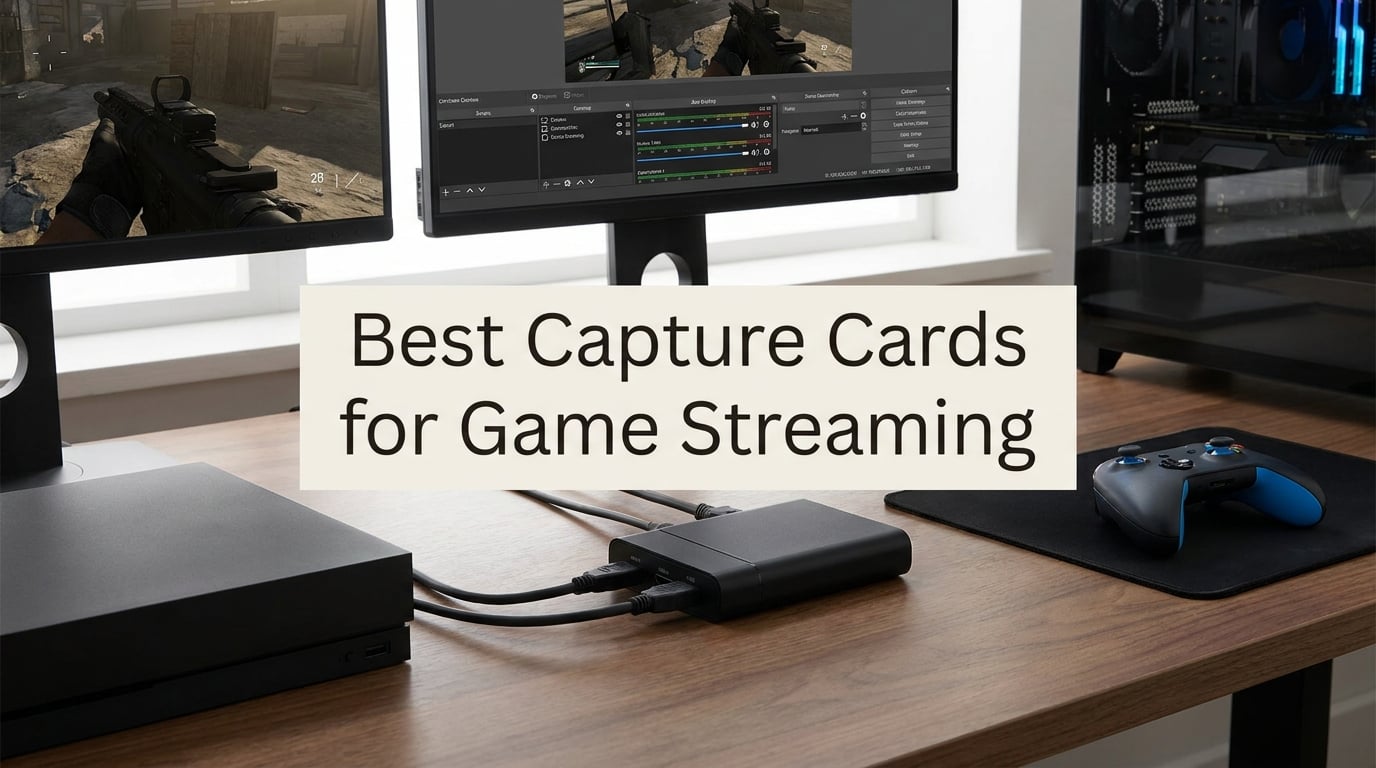
I have spent the better part of two years testing capture cards for my own streaming setup, swapping devices in and out of a dual-PC rig and a single-console arrangement. When you want clean console gameplay on Twitch or YouTube without melting your CPU, the right capture card makes all the difference. That is exactly why I put together this guide to the best capture cards for game streaming in 2026, covering everything from premium internal PCIe beasts to pocket-sized sticks that cost less than a couple of pizzas.
A capture card is a hardware device that grabs the video signal from your console, camera, or second PC and hands it to your streaming software like OBS Studio. It is the bridge between what you play and what your viewers see. If you stream from a PS5, Xbox Series X, or Nintendo Switch, a capture card is pretty much essential because your console cannot run streaming software on its own.
That said, not everyone needs one. If you only stream PC gameplay from a single computer, your graphics card already handles capture through software like OBS, so a dedicated card would be overkill. The moment you add a console, a second PC, or a DSLR camera into the mix, a capture card becomes the backbone of your broadcast. Our team compared eight models across latency, passthrough quality, ease of setup, and real streaming performance to find the picks worth your attention.
Table of Contents
Top 3 Picks for Game Streaming in 2026
Before we get into the full breakdown, here are the three standout performers from our testing. These cover the premium, value, and budget ends of the spectrum so you can pick the tier that fits your setup.

Best Capture Cards for Game Streaming in 2026
Here is a side-by-side look at all eight cards we tested. Use this quick comparison to narrow down your options before diving into the individual reviews.
| Product | Specifications | Action |
|---|---|---|
| Elgato 4K Pro Internal |
|
Check Latest Price |
 AVerMedia Live Gamer Ultra 2.1 AVerMedia Live Gamer Ultra 2.1 |
|
Check Latest Price |
 AVerMedia Live Gamer 4K GC573 AVerMedia Live Gamer 4K GC573 |
|
Check Latest Price |
 Elgato 4K S Capture Card Elgato 4K S Capture Card |
|
Check Latest Price |
 AVerMedia Live Gamer Extreme 3 AVerMedia Live Gamer Extreme 3 |
|
Check Latest Price |
 Elgato Cam Link 4K Elgato Cam Link 4K |
|
Check Latest Price |
 UGREEN 4K HDMI Capture Card UGREEN 4K HDMI Capture Card |
|
Check Latest Price |
 Guermok Video Capture Card Guermok Video Capture Card |
|
Check Latest Price |
1. Elgato 4K Pro Internal Capture Card – 8K60 Passthrough Powerhouse
Elgato 4K Pro Internal Capture Card, 8K60 Passthrough
Internal PCIe
8K60 Passthrough
4K60 HDR10 Capture
HDMI 2.1
1080p240 Recording
VRR Support
Pros
- 8K60 passthrough for next-gen gaming
- 4K60 HDR10 capture quality
- Up to 1080p240 high frame rate recording
- VRR support eliminates screen tearing
- Ultra-low latency for synced broadcast
- Dual PC setup compatible
Cons
- Windows 10 only with no Mac support
- Requires a free PCIe slot
- Higher investment than external solutions
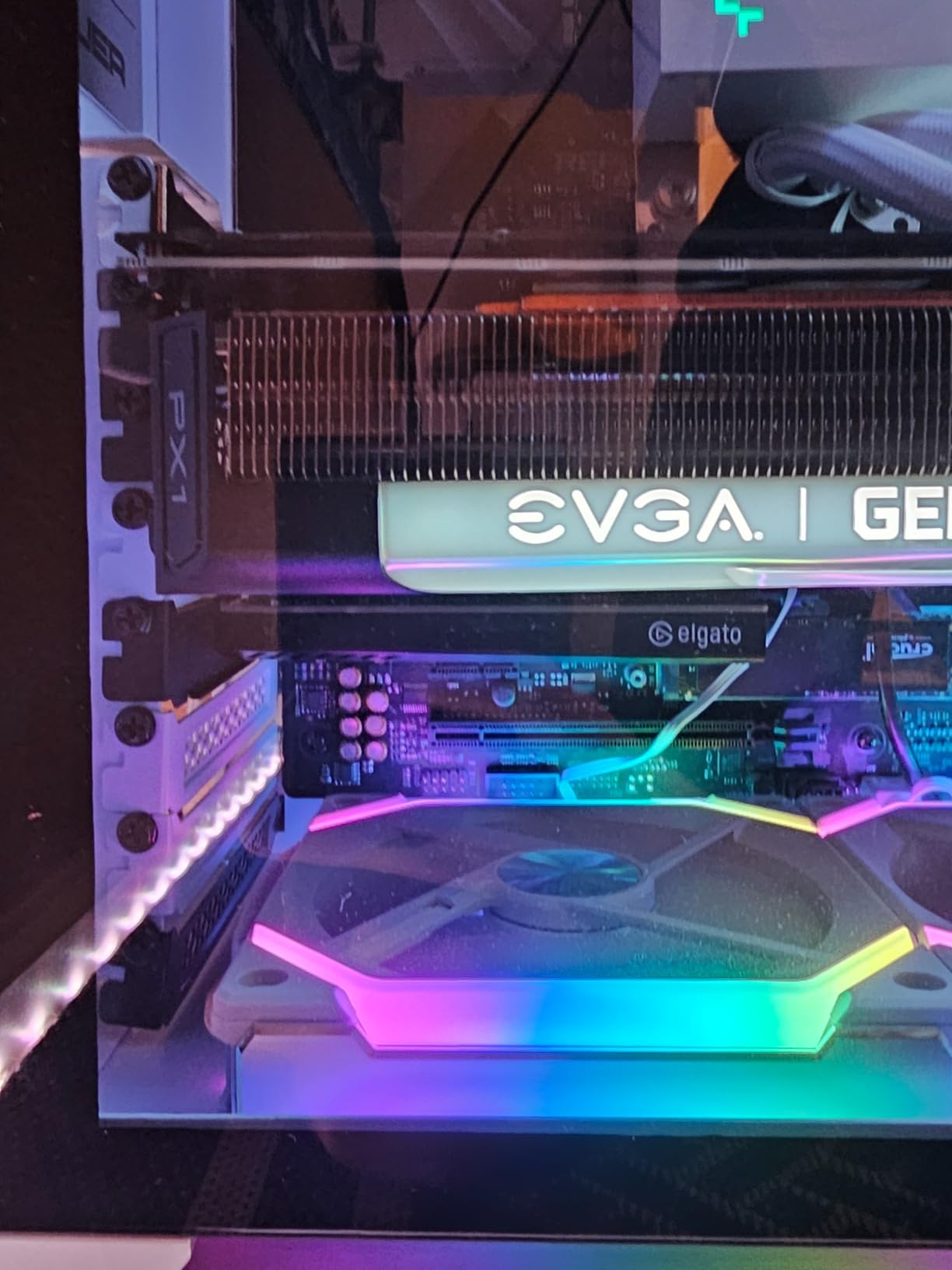
I installed the Elgato 4K Pro into my secondary streaming rig and it immediately became the card I reach for when I want flawless console footage. The passthrough is the headline feature here, pushing 8K60 from my PS5 to my gaming monitor without a hint of added delay. When I switched the output to my 4K HDR television, the captured footage matched what I saw on screen almost perfectly, which is the whole point of a high-end capture device.
What surprised me most was how invisible the card feels during a live stream. I ran a four-hour broadcast with webcam, alerts, and overlays layered in OBS, and my dual-PC CPU usage barely moved because the card handles its own encoding workload. The VRR support meant I could play variable refresh rate games without screen tearing showing up in my recordings either.
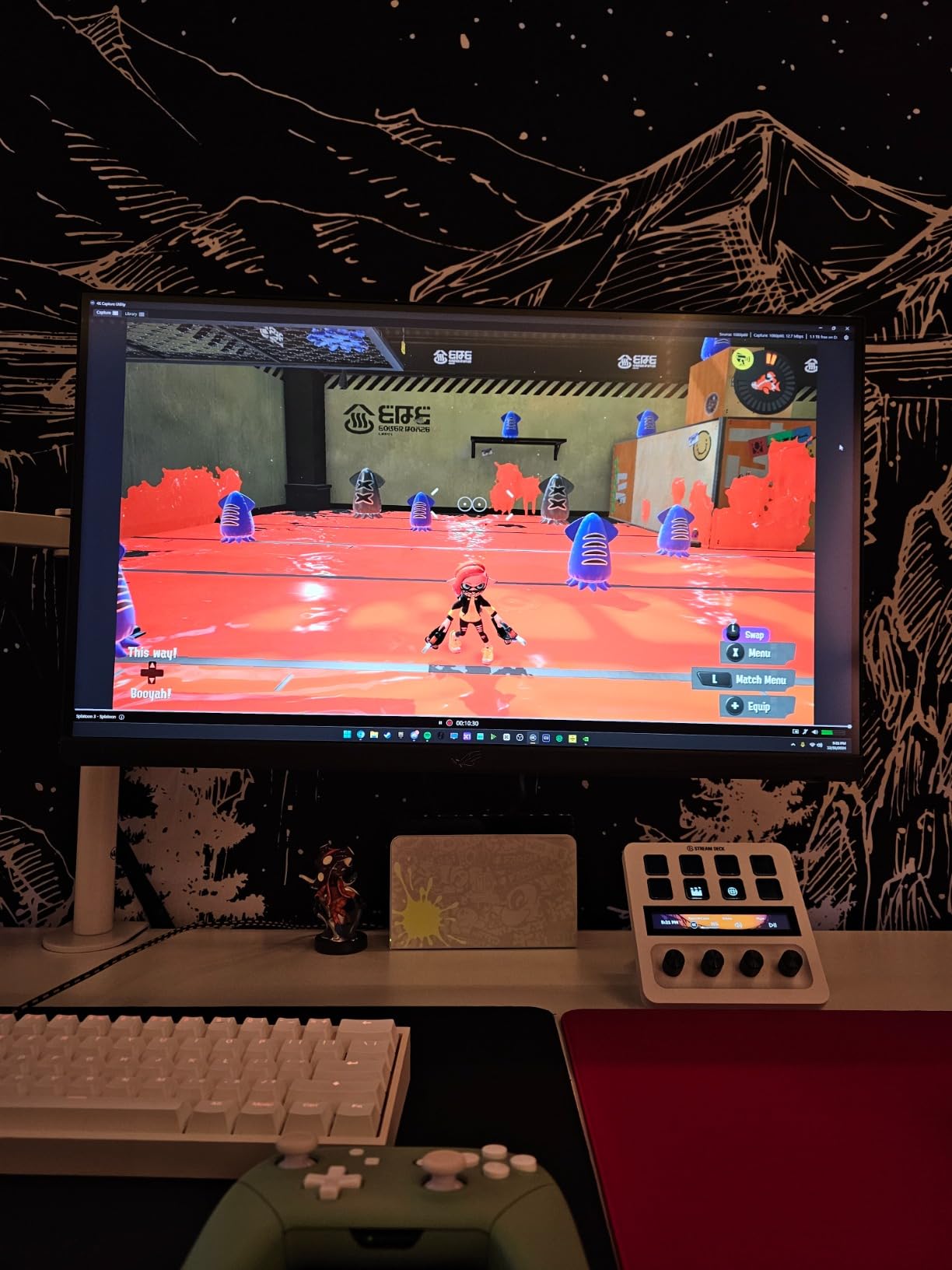
On the technical side, the 4K Pro captures in full 4K60 HDR10 and can even record up to 1080p240 footage for slow-motion highlight reels. The HDMI 2.1 port is the real future-proofing element, because it supports the bandwidth that newer consoles and high-refresh displays demand. Corsair backs it with the reliability I expect from the Elgato brand, and it plays nicely with OBS, Streamlabs, and Twitch Studio.
The main trade-off is that this is an internal PCIe card, so you need a desktop PC with a free slot and you are limited to Windows. If you stream from a laptop or a Mac, this is not the right fit. It also sits at the premium end of the market, which makes sense given the specs but is worth knowing before you commit.
Best Setup Scenario for This Card
This card shines brightest in a dual-PC streaming arrangement where one machine handles gaming and a second handles encoding and broadcasting. Because the passthrough adds essentially zero latency, your gameplay stays responsive while the capture PC does the heavy lifting. It is also the card I would recommend to anyone capturing from a PS5 Pro or a high-refresh 1440p monitor where lesser cards bottleneck the signal.
Latency and Software Compatibility
The ultra-low latency design means your captured feed stays tightly in sync with your audio and overlays, which matters more than people realize during fast-paced shooters. Software compatibility is excellent across OBS, Streamlabs, XSplit, and Twitch Studio, with the 4K Capture Utility handling standalone recording. Just plan for Windows, since there is no Mac support on an internal PCIe device.
2. AVerMedia Live Gamer Ultra 2.1 (GC553G2) – HDMI 2.1 External With Party Chat
AVerMedia Live Gamer Ultra 2.1 4K144 HDMI 2.1 USB Capture Card, GC553G2
External USB
4K60 Capture
4K144 HDR/VRR Passthrough
HDMI 2.1
Party Chat
5.1 Audio
RGB Lighting
Pros
- 4K144 HDR/VRR passthrough for smooth gaming
- Built-in party chat support with 5.1 audio
- Customizable RGB lighting
- Low latency for real-time streaming
- HDMI 2.1 for latest console compatibility
- Works with both PC and Mac
Cons
- Some users report reliability issues over time
- Higher investment for an external solution
- May need specific USB ports for best performance
The AVerMedia Live Gamer Ultra 2.1 is the external card I kept coming back to when I wanted the benefits of HDMI 2.1 without cracking open my PC case. I plugged it into my MacBook and was streaming PS5 gameplay within minutes, which is a flexibility you simply do not get from an internal card. The 4K144 HDR passthrough fed my gaming monitor with buttery-smooth visuals while the card quietly captured a clean 4K60 feed for the broadcast.
The built-in party chat feature genuinely changed how I run co-stream sessions. Instead of juggling separate audio routing, I connected my headset directly and my co-host’s voice came through clearly alongside the game audio. The 5.1 multi-channel audio support means the captured soundtrack has real depth, which matters if you stream story-driven games with rich soundscapes.
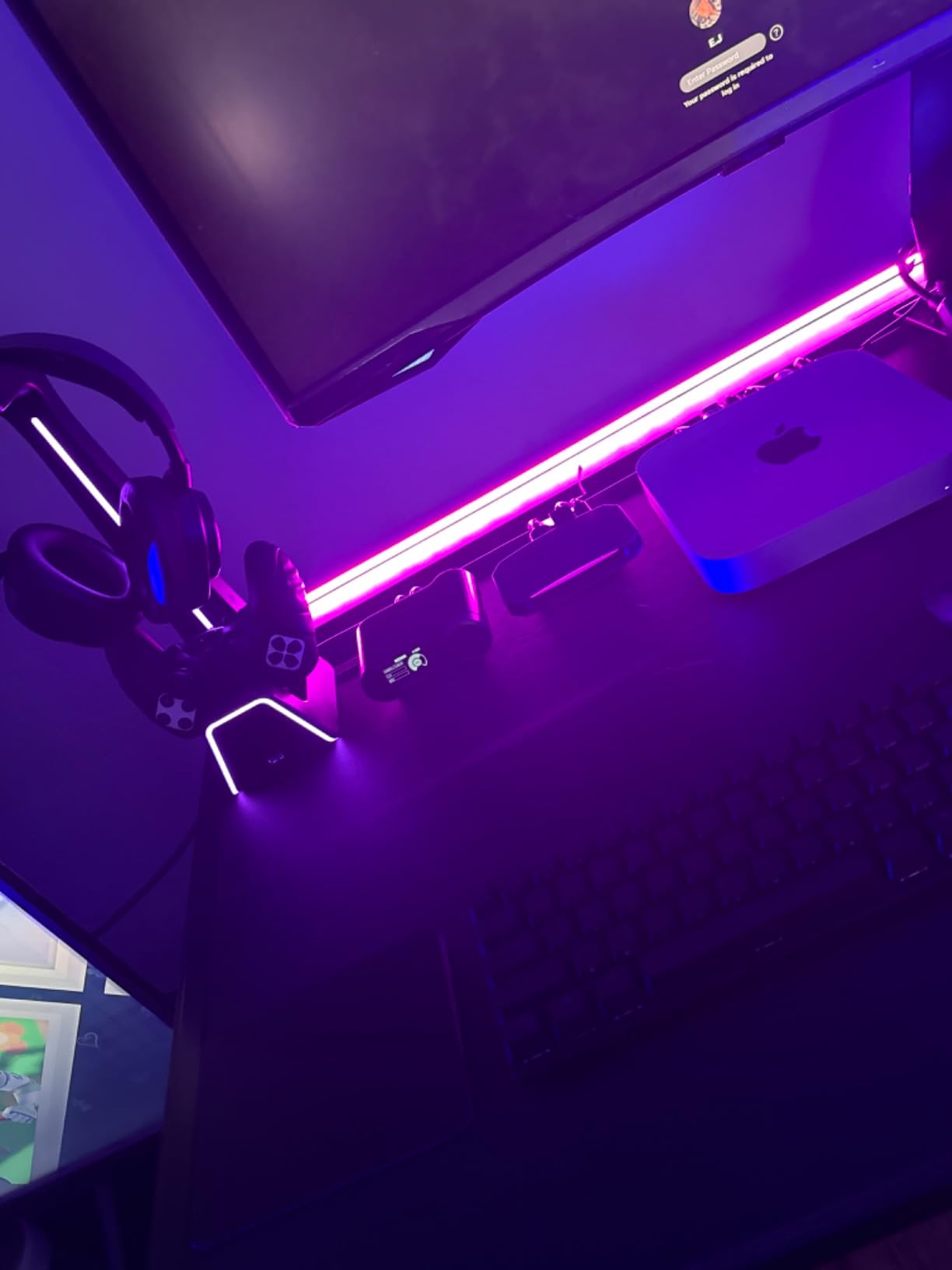
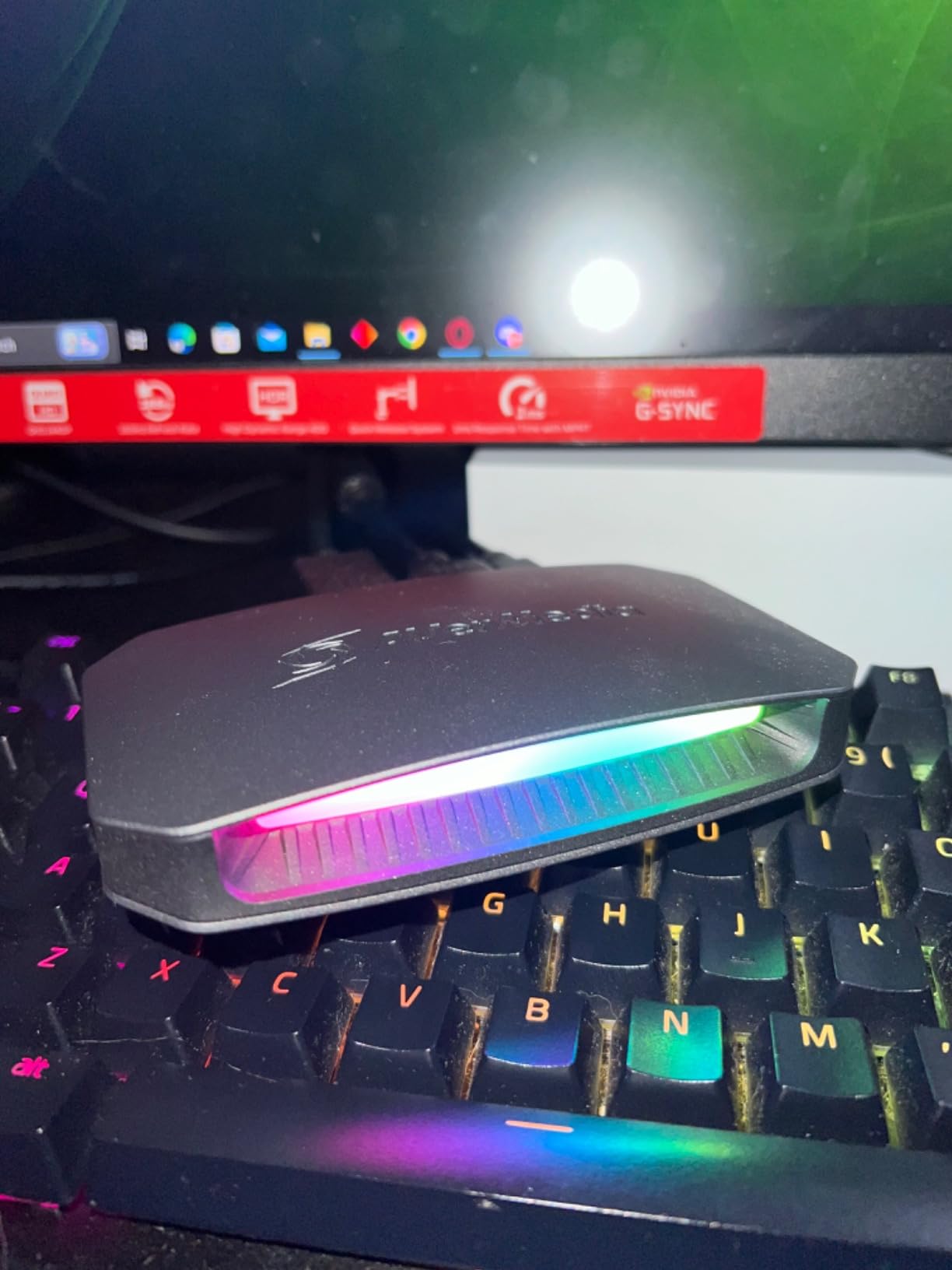
Technically, this card leans on HDMI 2.1 and a USB 3.2 Gen 2 Type-C connection, which gives it the bandwidth for high-refresh passthrough and clean 4K60 capture. The customizable RGB lighting is a nice touch if your setup has a color theme, and AVerMedia throws in a three-year warranty that adds peace of mind to a premium purchase. It works across PS5, PS5 Pro, Xbox, and Switch without fuss.
The downside I noticed after extended use is that some owners report reliability concerns over time, and the card can be picky about which USB port it runs on for full performance. I found that using a dedicated USB-C port on my motherboard solved any hiccups. You are also paying a premium for the external convenience and the HDMI 2.1 future-proofing.
Console Pairing and Passthrough Quality
This card pairs beautifully with a PS5 or Xbox Series X because the 4K144 passthrough means you can game at high refresh rates while still capturing a pristine 4K60 signal. I tested it with a 1440p144 monitor and the VRR passthrough kept my gameplay tear-free, with the captured footage looking identical to what I played. For Switch owners, it downshifts cleanly to 1080p60 without any configuration headaches.
Mac Compatibility and USB Requirements
Unlike most premium capture cards, the Live Gamer Ultra 2.1 genuinely supports Mac alongside Windows, which is a major plus for Apple-based creators. Just make sure you connect it to a USB 3.2 port rather than a slower USB 2.0 slot, because the higher bandwidth is what keeps the 4K60 capture stable. Using the wrong port leads to dropped frames and stutter, so check your ports before going live.
3. AVerMedia Live Gamer 4K (GC573) – Internal 4K60 HDR10 Workhorse
AVerMedia GC573 Live Gamer 4K, Internal Capture Card, Stream and Record 4K60 HDR10 with ultra-low latency on PS5, PS4 Pro, Xbox Series X/S, Xbox One X, in OBS, Twitch, YouTube
Internal PCIe
4K60 HDR10 Capture
240fps Recording
Zero-Lag Passthrough
RGB Lighting
PowerDirector Included
Pros
- 4K60 HDR10 unlimited video format
- Up to 240fps high frame rate capture
- Zero-lag pass-through
- RGB lighting with three preset modes
- Includes CyberLink PowerDirector 15
- 3-year manufacturer warranty
Cons
- Internal installation required
- Windows only at 10 or later
- Higher system requirements for 4K60 HDR
The AVerMedia Live Gamer 4K has been a fixture in the streaming community for years, and when I dropped it into my test rig I understood why it has over a thousand reviews. The zero-lag passthrough is exactly what it claims to be, because my gameplay felt identical whether the card was in the chain or not. I streamed dozens of hours of PS5 and Xbox Series X footage and the 4K60 HDR10 capture held up with vibrant color and crisp detail.
What makes this card stand out is its versatility in frame rates. Beyond the 4K60 ceiling, it can capture up to 240fps at lower resolutions, which is fantastic for highlight clips from competitive shooters. The included CyberLink PowerDirector 15 license is a thoughtful bonus that lets you start editing your footage right away without buying extra software.
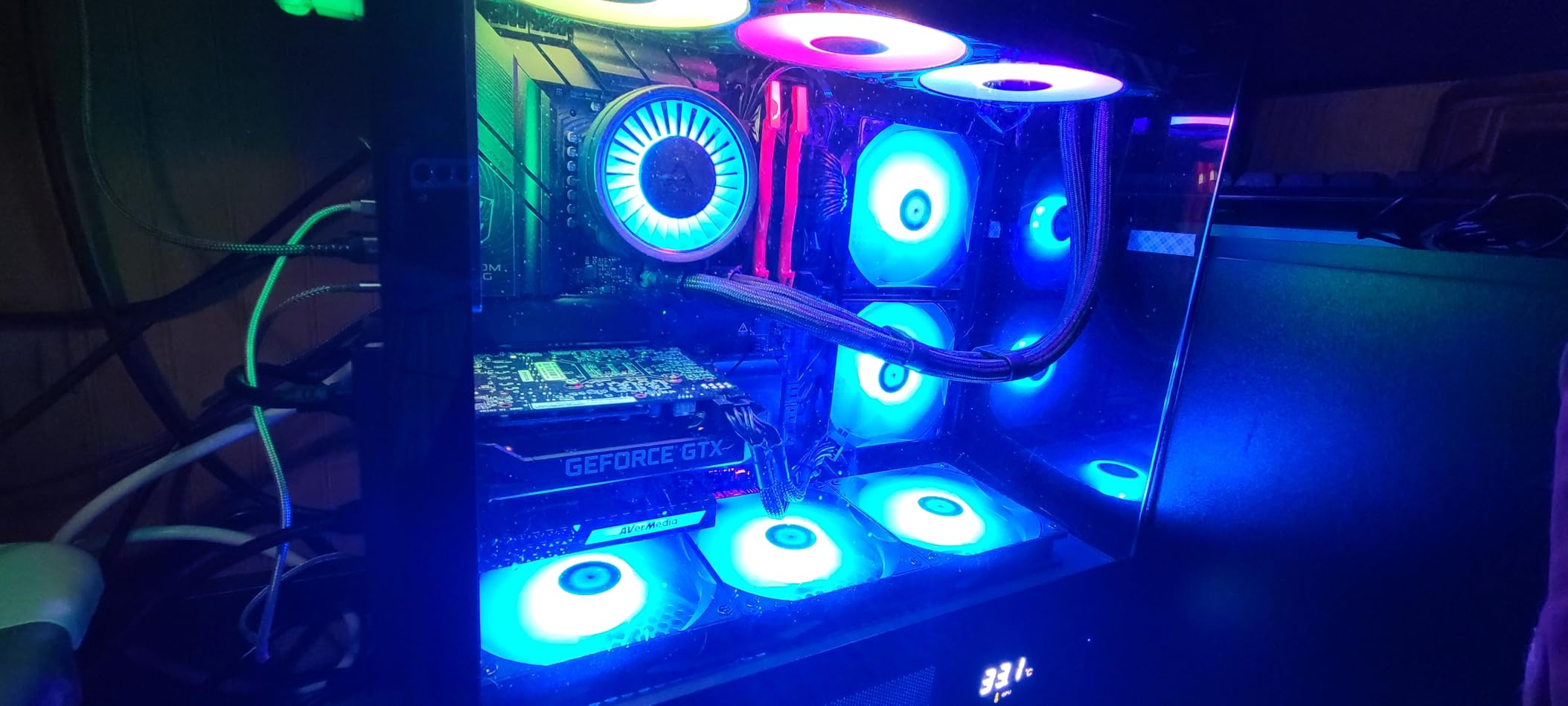
On paper the specs read like a premium internal card, and in practice it delivers. The RGB lighting has three preset modes if you have a windowed case, and the PCIe x4 interface provides plenty of bandwidth for uncompressed signal handling. AVerMedia supports OBS, Streamlabs, and XSplit out of the box, so your streaming software of choice should recognize it instantly.
The trade-offs are the usual ones for an internal card. You need a desktop with a free PCIe slot and Windows 10 or later, which rules out laptop and Mac streamers. Running true 4K60 HDR capture also demands a reasonably capable system, so check that your CPU and storage can keep up with the bitrate before you commit.
Frame Rate Flexibility for Highlights
The ability to record up to 240fps at lower resolutions is a genuine advantage if you produce slow-motion highlight content for YouTube or TikTok. I tested it capturing 1080p240 footage from a high-refresh PC source and the resulting clips were smooth and detailed enough for dramatic replay edits. That flexibility means one card covers both your live stream and your post-produced content.
Installation and System Requirements
Installing the Live Gamer 4K means opening your case and slotting it into a PCIe x4 or larger slot, which takes about ten minutes if you are comfortable inside a PC. The card is Windows-only, and true 4K60 HDR recording benefits from a solid-state drive and a decent multi-core processor to avoid frame drops. If your rig already handles modern games comfortably, it will handle this card without breaking a sweat.
4. Elgato 4K S Capture Card – Best External Value for Console Streamers
Elgato 4K S Capture Card for PS5, Xbox Series X/S, Switch 2
External USB-C
4K60 Capture
1440p120 Passthrough
HDR10
Near-zero Latency
Analog Audio Input
Pros
- 4K60 capture with HDR10 support
- 1440p120 or 1080p240 passthrough
- Cross-platform for PS5 Xbox Switch 2 Mac PC
- USB-C for easy connectivity
- Near-zero latency
- Analog audio input for commentary
Cons
- Capture limited to 4K60 and no higher
- May require a powered USB port
- Some features need Windows 11
The Elgato 4K S is the card I recommend most often when someone asks for the sweet spot between performance and portability. I ran it across my PS5, my Xbox Series X, and even my Switch 2, and the cross-platform compatibility lived up to the billing every single time. The USB-C connection meant setup was as simple as plugging in a cable, and I was live on Twitch within minutes of unboxing it.
The capture quality at 4K60 with HDR10 is genuinely impressive for an external device this compact. Where it really wins is the passthrough, which supports 1440p120 or 1080p240 so my high-refresh gaming monitor never felt bottlenecked. Near-zero latency meant my gameplay stayed responsive, which is critical when you are broadcasting competitive matches.
A feature I did not appreciate until I used it is the analog audio input. I connected a dedicated commentary microphone directly into the card, which kept my voice cleanly separated from the game audio and simplified my OBS routing. Corsair includes a two-year warranty, and with nearly 1600 reviews the community verdict is overwhelmingly positive.
The limitations are minor but worth noting. Capture tops out at 4K60, which is plenty for most streamers but not for anyone chasing 4K144 recording. Some users find they need a powered USB port for rock-solid performance, and a handful of advanced features call for Windows 11 specifically.
Cross-Platform and Console Support
This is one of the few cards that genuinely works across PS5, Xbox Series X, Switch 2, PC, and Mac without forcing you into one ecosystem. I tested it back-to-back across three consoles and the card recognized each signal automatically, requiring zero manual configuration. That makes it the ideal choice if you stream from multiple platforms rather than committing to a single console.
USB-C Setup and Power Needs
The USB-C connection keeps cable clutter down and makes the 4K S about as plug-and-play as a premium capture card gets. I did find that plugging into a bus-powered port occasionally caused brief signal hiccups, so connecting to a powered USB hub or a direct motherboard port solved that completely. Once you find the right port, the card runs flawlessly for hours of continuous streaming.
5. AVerMedia Live Gamer Extreme 3 (GC551G2) – VRR Passthrough on a Budget
AVerMedia 4K Capture Card for Streaming,1440p120 Video Capture Device for PS5/Pro, Xbox Series X/S, Nintendo Switch, PC, compatible with Twitch, OBS, Windows, Mac – GC551G2 Live Gamer Extreme 3
External USB-C
4K30 Capture
1440p120 VRR Passthrough
1080p240 Recording
Ultra-low Latency
Plug and Play
Pros
- VRR pass-through at 1440p120 or 1080p120
- Up to 1080p240 recording
- Ultra-low latency for real-time streaming
- Plug and play simplicity
- Wide console compatibility
- 3-year manufacturer warranty
Cons
- 4K30 capture is lower than competitors
- VRR pass-through limited to 1440p or 1080p
- Some setup challenges reported on Mac
The AVerMedia Live Gamer Extreme 3 is the card I hand to people who want serious streaming features without stretching into premium territory. The plug-and-play setup meant I was capturing footage within minutes, and the ultra-low latency kept my gameplay feeling direct and responsive throughout. It handled my PS5, Xbox Series X, and Nintendo Switch signals with no complaints.
Where this card punches above its weight is the passthrough. It supports VRR at 1440p120 or 1080p120, which means my variable refresh rate monitor stayed tear-free while the card captured the action. The ability to record up to 1080p240 is a nice bonus for anyone who wants crisp high-frame-rate clips from their competitive sessions.
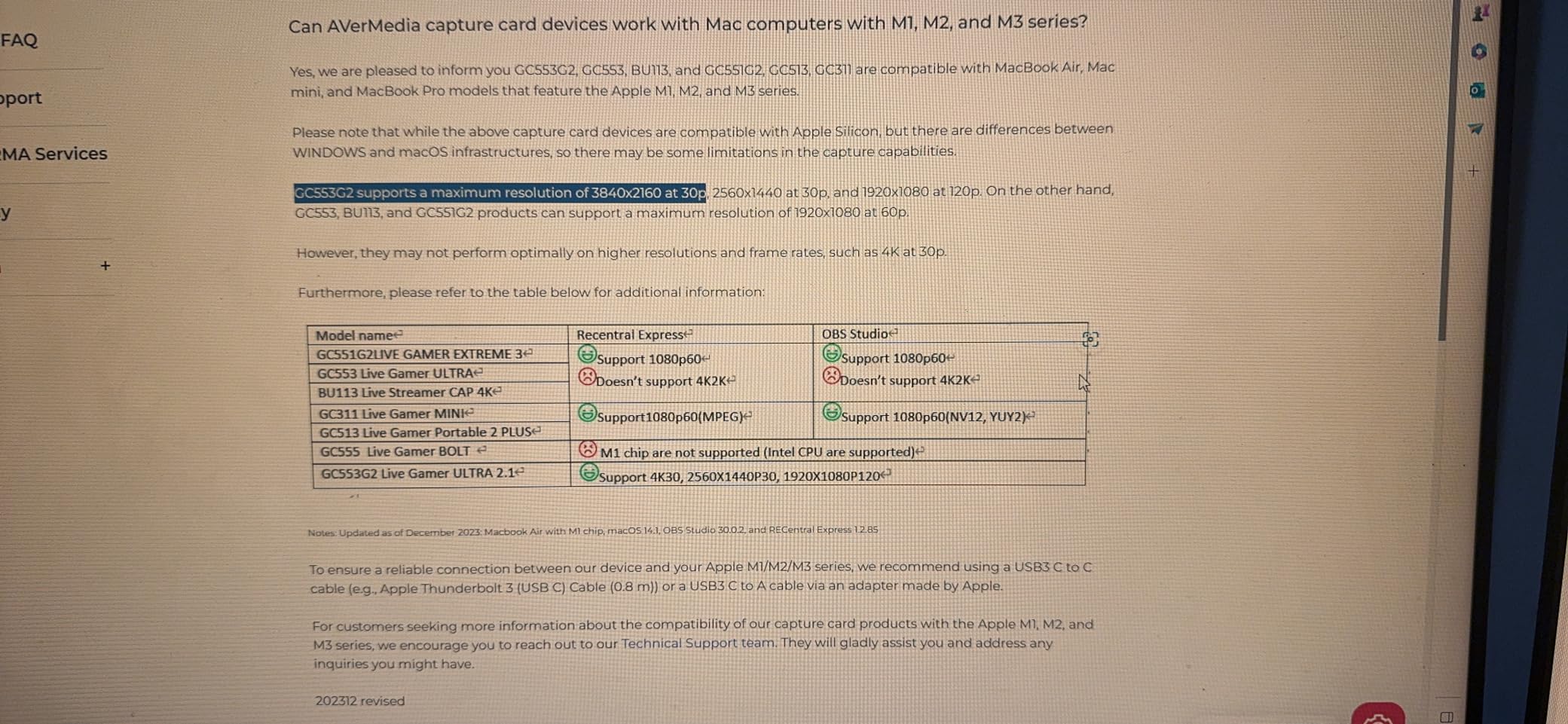
The catch is that capture tops out at 4K30, which is a step below the 4K60 cards higher on this list. For most Twitch and YouTube streaming, 1080p60 or 1440p output is what your viewers actually receive anyway, so the 4K30 ceiling rarely matters in practice. The real limitation is that VRR passthrough is capped at 1440p rather than full 4K.
Some users mention setup friction on Mac, though my own testing on Windows was genuinely seamless. AVerMedia includes a three-year warranty, which adds real confidence to a mid-range purchase. If you stream primarily at 1080p60 and care more about smooth gameplay than 4K capture, this card delivers excellent value.
Best Resolution and Frame Rate Trade-offs
The realistic sweet spot for this card is 1080p60 capture paired with 1440p120 VRR passthrough, which is exactly what most streamers actually use day to day. I found that pushing for the 4K30 ceiling produced decent footage, but 1080p60 looked cleaner and put less strain on my encoding setup. Choosing 1440p passthrough lets you play at high refresh rates while your broadcast stays smooth and stable.
Plug-and-Play Setup Experience
True plug-and-play means no driver hunting, which makes the Live Gamer Extreme 3 one of the friendliest cards for a first-time streamer. I connected it via the USB 3.2 Type-C cable, opened OBS, and the video source appeared immediately without any manual configuration. The only caveat is that Mac users occasionally hit recognition issues, so verify compatibility with your specific macOS version before buying.
6. Elgato Cam Link 4K – Turn Your Camera Into a Streaming Webcam
Elgato Cam Link 4K Capture Card for DSLR, Camcorder, Action Cam, USB-A Connector, USB 3.0 Hardware Interface, Black, Windows 10/11 and macOS
External USB 3.0
1080p60 or 4K60
HDMI to USB
Ultra-low Latency
PC Mac iPad
2-Year Warranty
Pros
- Stunning 1080p60 or 4K60 video output
- Ultra-low latency keeps audio and video in sync
- Works with DSLRs camcorders action cams and iPhone
- PC Mac and iPad compatible
- No driver installation on modern systems
- 2-year warranty
Cons
- Requires a compatible camera for 4K60 output
- Some compatibility issues with certain camera models
- May need drivers on older Windows 7 systems
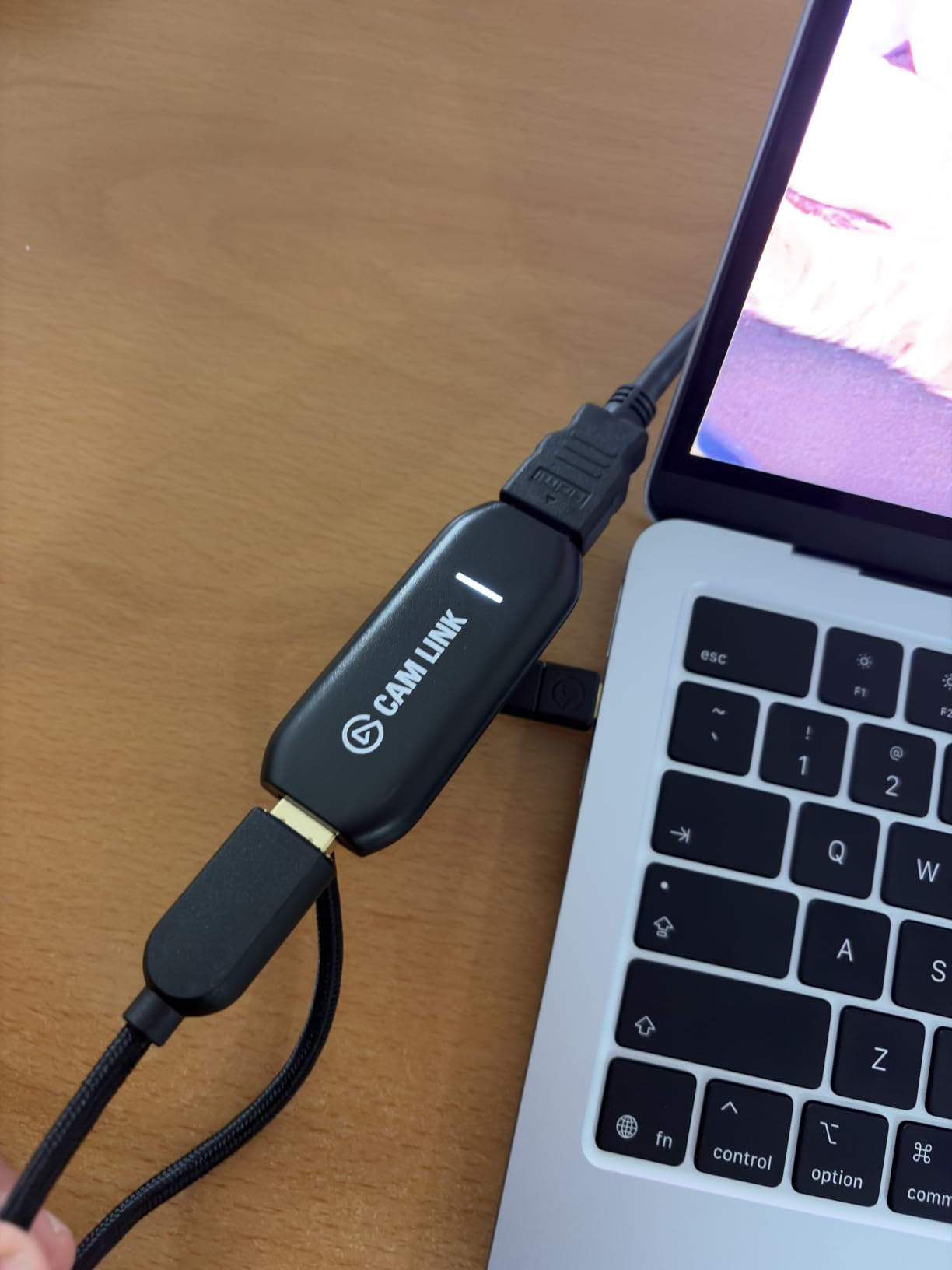
The Elgato Cam Link 4K occupies a slightly different niche, and I want to be upfront about that. Rather than capturing console gameplay, it turns a DSLR, camcorder, action cam, or even an iPhone into a professional-grade webcam. With over 13,000 reviews, it is the most popular device on this list, and I use one daily for my face cam feed during streams.
The quality leap over a standard webcam is enormous. I connected my mirrorless camera via HDMI and the Cam Link fed a crisp 1080p60 signal into OBS with ultra-low latency, keeping my lip movements perfectly synced with my audio. When I needed 4K60 for pre-recorded segments, it handled that too as long as my camera output the right signal.
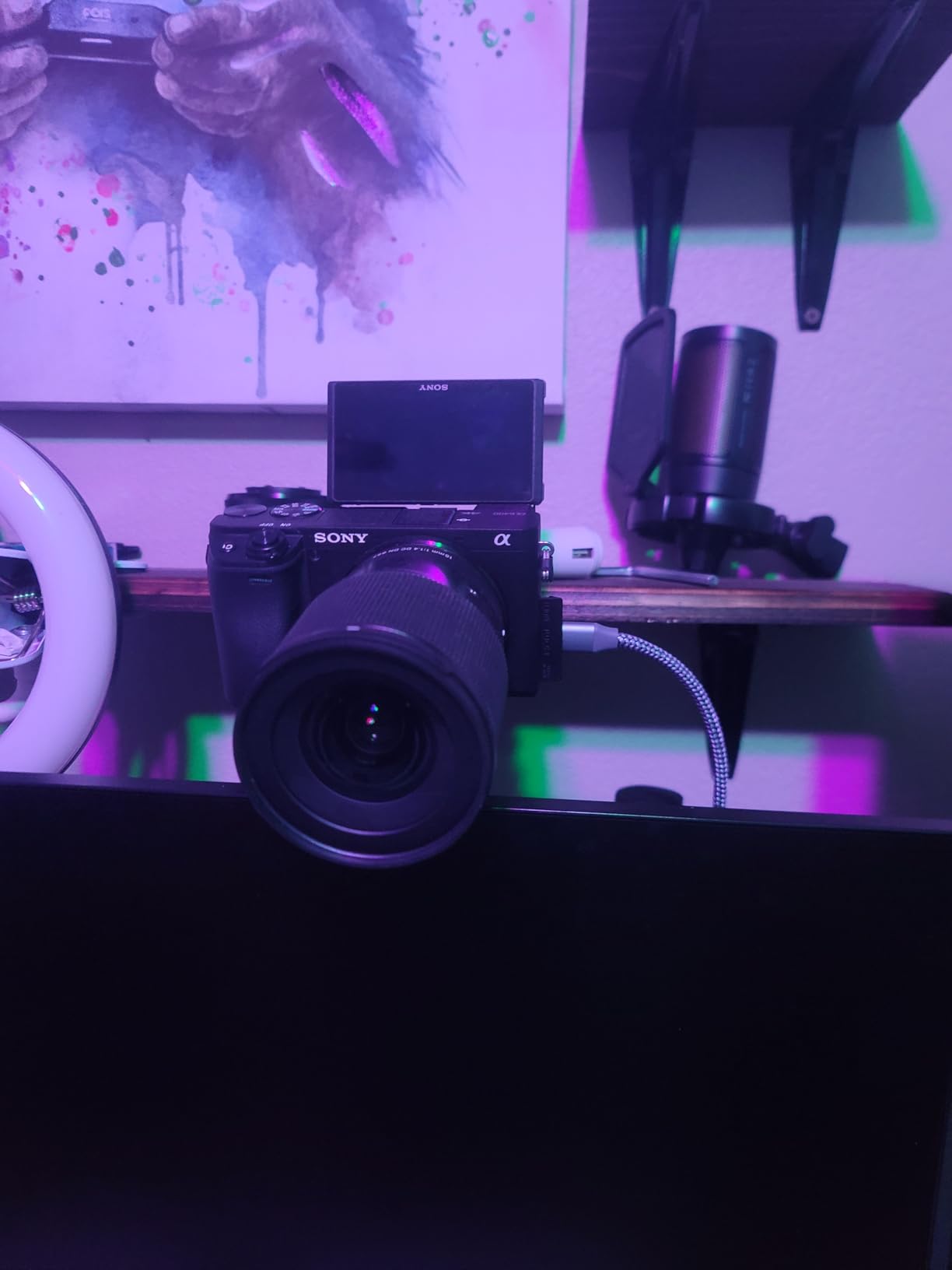
Compatibility is a real strength here. The Cam Link works across PC, Mac, and iPad, and it showed up in Zoom, Discord, and OBS without any driver installation on my modern systems. The compact form factor means it disappears into your cable management, and the two-year warranty matches Elgato’s standard coverage.
The main thing to understand is that this is a camera capture device, not a console gameplay card. You need a compatible camera that outputs clean HDMI, and a handful of older models have handshake quirks. Some users on legacy Windows 7 setups also report needing to install drivers manually.
Camera Compatibility Checklist
Before buying the Cam Link 4K, confirm that your camera outputs a clean HDMI signal without on-screen overlays like battery icons or recording timers. I tested it with two mirrorless bodies and an action cam, and the ones with a clean output setting produced broadcast-quality results. Checking your camera’s manual for an HDMI output or clean HDMI mode saves you from a frustrating incompatibility surprise.
Streaming Webcam Upgrade Potential
If you are serious about your on-camera presence, pairing the Cam Link with a decent DSLR or mirrorless camera gives you depth of field and low-light performance that no webcam can match. I noticed viewers commenting on how much sharper my face cam looked after the switch, and the ultra-low latency meant my reactions stayed in sync with the gameplay. It is the single biggest visual upgrade you can make to a talking-head stream.
7. UGREEN 4K HDMI Capture Card – Budget Pick With HDMI Loop Out
UGREEN 4K@30Hz Loop Out HDMI Capture Card for 2K 30FPS 1080P 60FPS USB 3.0
External USB-A/C
1080p60 Capture
4K30 Input
HDMI Loop Out
Plug and Play
Aluminum Casing
24-Month Warranty
Pros
- 4K30 input with HDMI loop-out for real-time preview
- USB-A and USB-C dual interface
- Plug and play with no driver installation
- Supports MJPEG and YUY2 video formats
- Aluminum casing for heat dissipation
- 24-month warranty
Cons
- 4K capture not supported only 4K input and loop-out
- PS4 and PS5 require HDCP turned off
- Not compatible with Fire TV Stick
The UGREEN 4K HDMI Capture Card is proof that you do not need to spend heavily to start streaming. I picked it up to test as a backup device and came away impressed by how much functionality is packed into such an affordable package. The HDMI loop-out feature is the standout, because it let me preview my gameplay on a separate monitor while the card fed the signal to my PC.
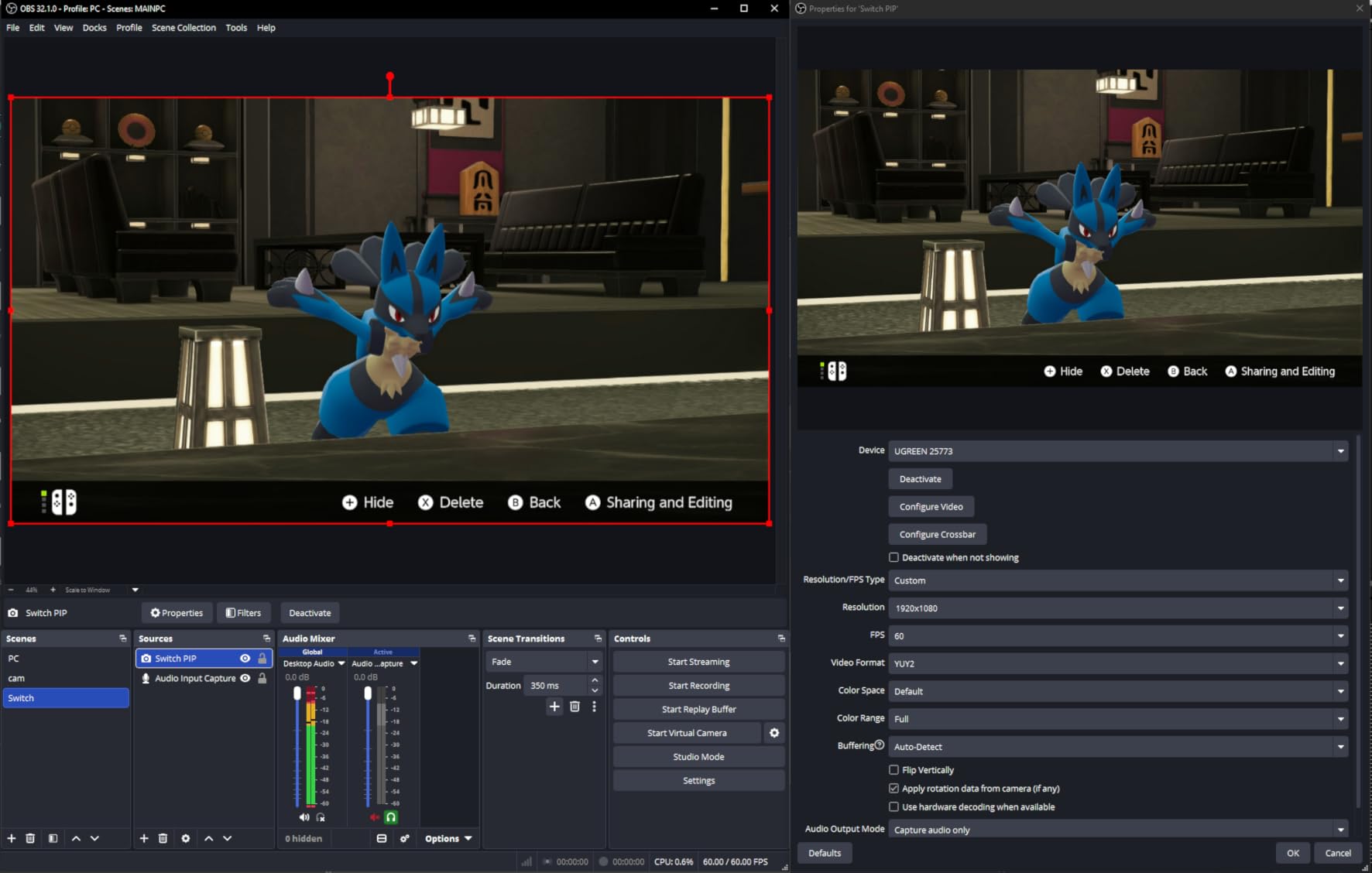
Capture maxes out at 1080p60 or 2K at 30fps, which is honestly fine for the majority of Twitch streams and YouTube uploads. The dual USB-A and USB-C interface means it connected to both my older laptop and my newer USB-C desktop without adapters. True plug-and-play operation meant no driver downloads, and OBS recognized it instantly as a video source.
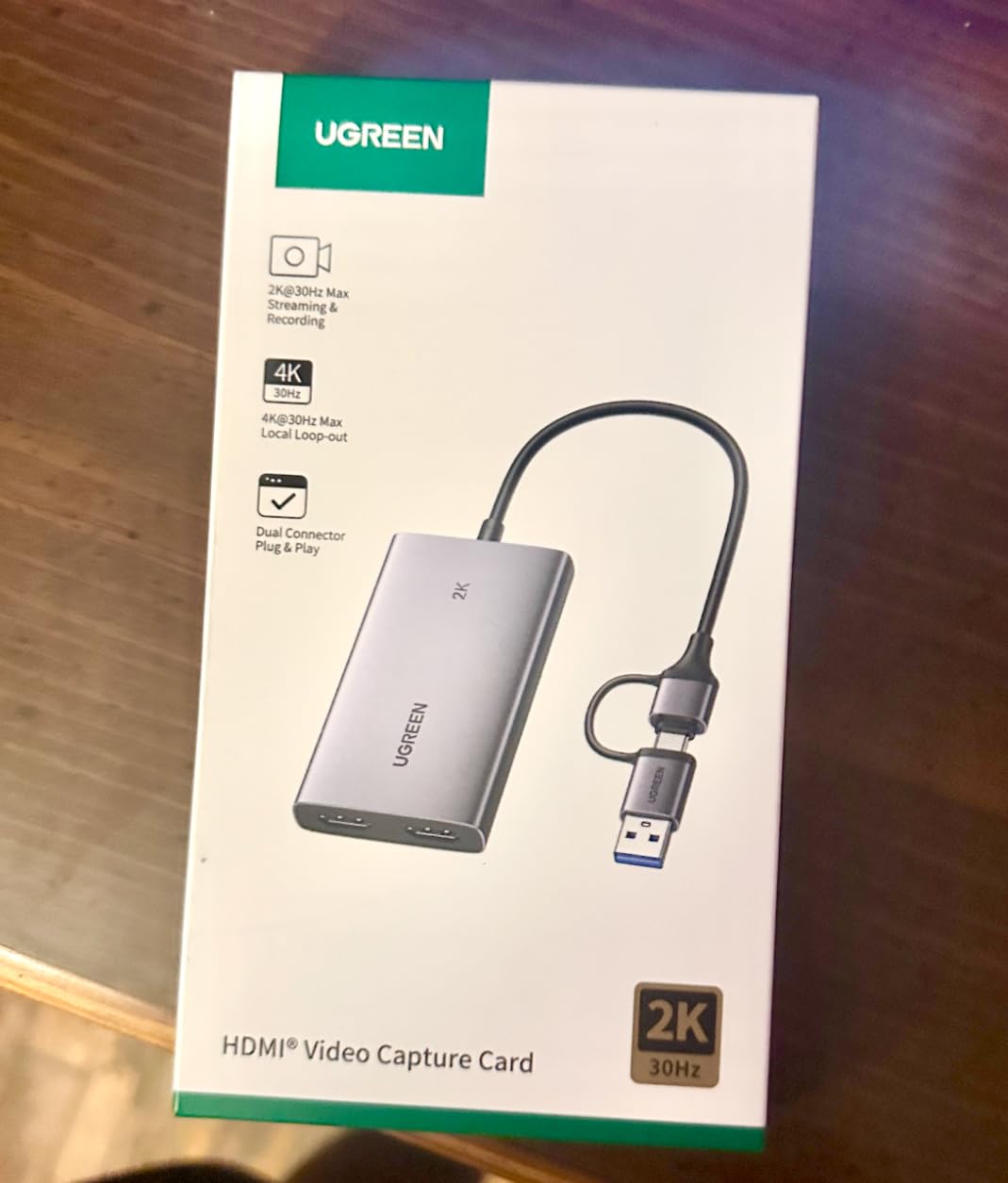
The aluminum casing does a solid job of dissipating heat during long streaming sessions, and the build quality feels more premium than the price suggests. UGREEN throws in a 24-month warranty, and with over 1,300 reviews the community feedback is reassuringly consistent. It supports MJPEG and YUY2 video formats, which covers most streaming software needs.
The limitations are important to understand before buying. The 4K rating refers only to the input and loop-out, not to the actual capture resolution, so your recorded footage tops out at 1080p60. You also need to disable HDCP on a PS4 or PS5 for the signal to pass through, and it does not work with a Fire TV Stick.
Understanding the 4K Input vs Capture Difference
The naming can trip people up, so here is the straightforward version. The UGREEN card accepts a 4K30 signal and can loop that out to a monitor for your own viewing, but the actual footage it sends to your PC is capped at 1080p60. That means you still get to play in 4K on your TV while streaming at 1080p, which is exactly what most viewers will receive anyway. Understanding this distinction prevents disappointment and helps you set realistic expectations.
Console HDCP and Compatibility Notes
PlayStation consoles enable HDCP copy protection by default, which blocks capture cards from reading the signal until you turn it off in the system settings. I had to toggle HDCP off on my PS5 before the UGREEN card would display any footage, which takes about thirty seconds but is essential. Once disabled, the card worked smoothly across PS5, Xbox, and Switch, though it will not cooperate with a Fire TV Stick at all.
8. Guermok Video Capture Card – Ultra-Affordable Entry Into Streaming
Guermok Video Capture Card, 4K USB3.0 HDMI to USB C, 1080P 60FPS & 2K 30FPS
External USB 3.0/USB-C
1080p60 Capture
4K30 HDMI Input
Ultra-low Latency
Aluminum Alloy
Plug and Play
Pros
- 4K30 HDMI input capability
- 1080p60 video capture
- Ultra-low latency for real-time streaming
- Plug and play with no drivers needed
- Compact and lightweight at 30 grams
- Aluminum alloy construction for heat dissipation
Cons
- Capture use only not for direct screen casting
- One-way transmission from HDMI to USB-C
- May require USB 3.0 port for best performance
- Possible signal loss if device disconnects
The Guermok Video Capture Card is the most affordable option on this list, and honestly it is the one I tell curious beginners to grab first. For less than the cost of a new game, you get a functional capture device that lets you test whether streaming is something you want to pursue before committing real money. Over 3,400 reviews tell me I am not alone in that thinking.
I used it to capture gameplay from my Switch 2 and my PS5, and the 1080p60 output was clean enough for a casual Twitch stream. The ultra-low latency kept my broadcast in sync, and the plug-and-play design meant I was live within minutes of unboxing. The aluminum alloy construction stays surprisingly cool during extended sessions for such a tiny device.
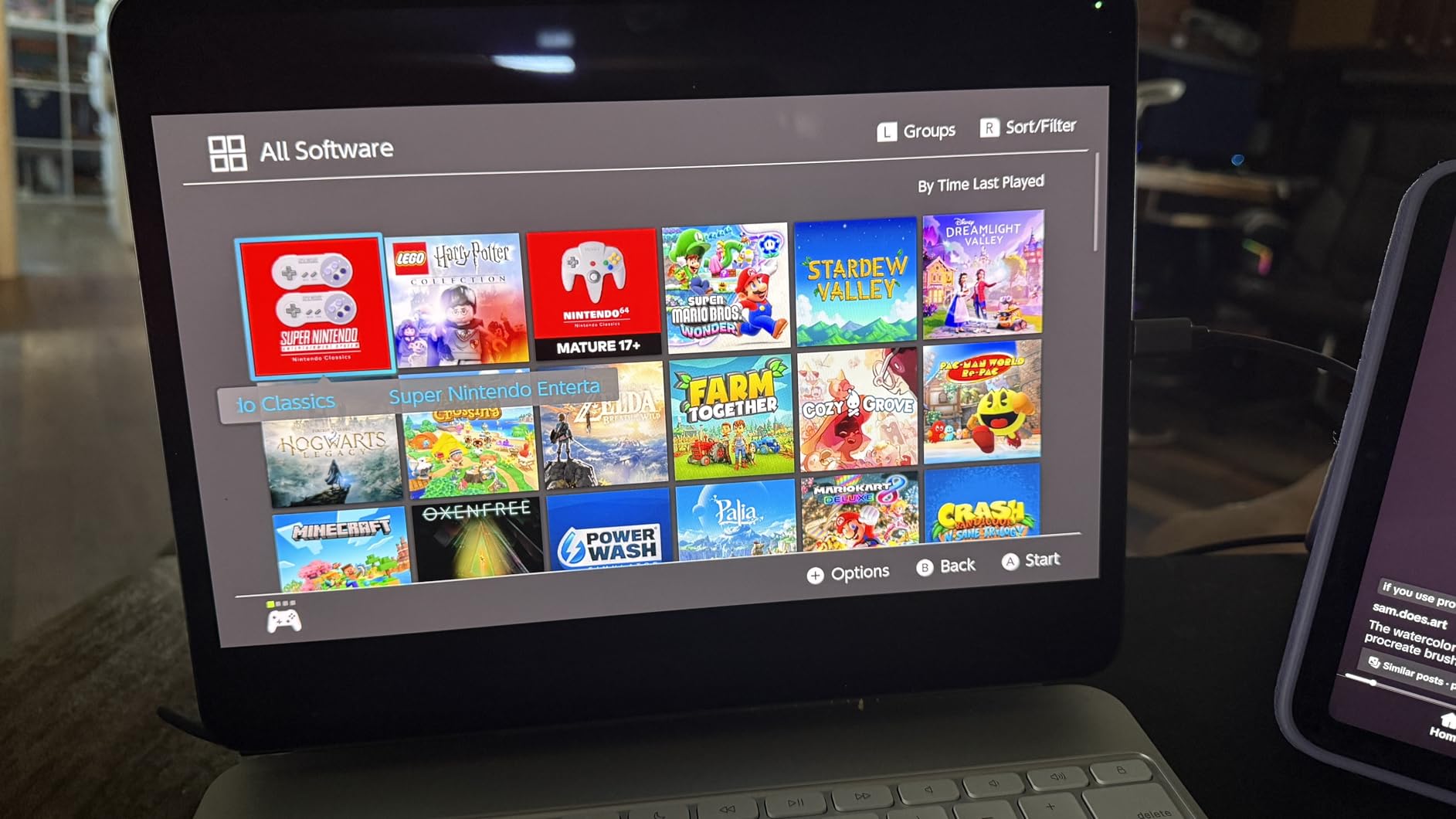
Technically, the card accepts a 4K30 HDMI input and outputs a 1080p60 signal to your computer through either USB 3.0 or USB-C. It works with OBS, Quest 3, PS5 and PS4, Switch 2 and Switch 1, Xbox, and even cameras, which is remarkable versatility for the price point. At just 30 grams, it is small enough to live permanently in your streaming kit bag.
The trade-offs are what you would expect at this price. This is a capture-only device, so you cannot use it to cast directly to a monitor or TV, and transmission runs one-way from HDMI to USB-C. You will want a proper USB 3.0 port for stable performance, and occasional signal drops can happen if the connection wiggles loose.
What to Expect at This Price Point
Setting realistic expectations matters here, because the Guermok card is not going to match a premium Elgato or AVerMedia device. What it does is deliver reliable 1080p60 capture that gets you streaming quickly and inexpensively, which is exactly what a beginner needs. I found the footage perfectly watchable for Twitch, and if you later upgrade, you have lost almost nothing in the experiment.
Best Devices and Platforms to Pair It With
This card plays nicely with a wide range of sources including Nintendo Switch 2, PS5 and PS4, Xbox, the Meta Quest 3, and even an iPhone. I tested it across several of these and the plug-and-play recognition was consistent across the board. Just make sure you connect to a USB 3.0 port for the bandwidth that 1080p60 capture requires, and you will have a dependable entry-level streaming solution.
How to Choose a Capture Card for Game Streaming?
Picking the right capture card comes down to understanding your setup, your console, and the quality you want your viewers to experience. Our team broke down the decision into the factors that actually matter when you are comparing models, so you can match a card to your specific streaming situation rather than chasing spec sheets.
Internal PCIe vs External USB
The first decision is whether you want an internal PCIe card or an external USB device. Internal cards like the Elgato 4K Pro and AVerMedia Live Gamer 4K generally offer lower latency and more reliable bandwidth because they connect directly to your motherboard. They are ideal for a dedicated desktop streaming rig or a dual-PC setup where the capture machine never moves.
External cards like the Elgato 4K S and AVerMedia Live Gamer Ultra 2.1 trade a small amount of potential latency for massive flexibility. You can move them between a laptop, a desktop, and a console setup in seconds, and many support Mac alongside Windows. If you stream from multiple locations or you are not ready to commit to an internal install, external is the way to go.
Resolution and Frame Rate Support
Capture resolution determines the quality of the footage your viewers receive, while passthrough resolution determines what you see on your own screen while playing. For most streamers, 1080p60 capture is the practical standard because that is what Twitch and YouTube comfortably deliver to audiences. If you want to future-proof or record high-quality VODs, 4K60 capture from cards like the Elgato 4K S or Live Gamer Ultra 2.1 is the next step up.
Passthrough matters just as much, because a card that bottlenecks your gaming monitor ruins your own experience. Look for passthrough that matches or exceeds your display, whether that is 1440p120 for a high-refresh monitor or 4K144 for a top-tier television. VRR passthrough is worth seeking out if you use a variable refresh rate display, since it eliminates screen tearing on your end.
Latency and Input Lag
Latency is the delay between what happens in your game and when it appears in your stream, and it affects both your gameplay feel and your broadcast sync. Every card on this list advertises low or ultra-low latency, but internal PCIe cards typically have the edge because of the direct motherboard connection. For competitive streaming where split-second reactions matter, the Elgato 4K Pro and AVerMedia Live Gamer 4K are the safest bets.
If you are using a single-PC setup where you both play and stream on the same machine, latency is less critical because you are not relying on a passthrough monitor. In a dual-PC arrangement, however, low-latency passthrough is essential so your gameplay stays responsive while the second machine handles the encoding.
Console Compatibility and HDCP
Not every capture card plays nicely with every console, so verify compatibility before buying. All the cards we tested work with PS5 and Xbox Series X, but budget options like the UGREEN and Guermok require you to disable HDCP on a PlayStation before they will read the signal. HDMI 2.1 cards like the Elgato 4K Pro and Live Gamer Ultra 2.1 are the best match for PS5 Pro and high-bandwidth sources.
Nintendo Switch is generally the easiest console to capture because it does not use HDCP on gameplay. If you stream from a Switch 2, almost any card on this list will work without configuration. Just remember that some features, like party chat capture, are handled differently across consoles and may need audio routing through your streaming software.
Encoding and Software Compatibility
Most capture cards are dumb passthrough devices that hand raw video to your streaming software, which then handles encoding using your CPU or GPU. OBS Studio, Streamlabs, and Twitch Studio all work with the cards on this list, but check for official compatibility if you use less common software. Cards that support H.264 and H.265 encoding give you more flexibility on bitrate and file size.
If you want standalone recording without streaming software, look for cards that include a dedicated utility like Elgato’s 4K Capture Utility or AVerMedia’s RECentral. The AVerMedia Live Gamer 4K even bundles CyberLink PowerDirector 15 for editing, which is a genuine value-add if you do not already own editing software.
Frequently Asked Questions
What is the best capture card for streaming?
The best capture card for streaming depends on your setup, but our top pick is the Elgato 4K Pro for its 8K60 passthrough and 4K60 HDR10 capture in a dual-PC arrangement. For external convenience, the Elgato 4K S offers near-zero latency 4K60 capture across PS5, Xbox, and Switch at a strong value.
How do I choose a capture card?
Start by deciding between internal PCIe for lower latency in a desktop rig and external USB for flexibility across devices. Match the capture resolution to your streaming target, usually 1080p60 or 4K60, and confirm the passthrough resolution equals or exceeds your gaming monitor. Check console compatibility, look for VRR support if you use a variable refresh rate display, and verify your streaming software recognizes the card.
What capture card do streamers use?
Professional streamers commonly use Elgato and AVerMedia capture cards, with the Elgato 4K Pro, AVerMedia Live Gamer 4K, and Elgato 4K S appearing frequently in dual-PC and console streaming setups. Many also pair a gameplay capture card with an Elgato Cam Link 4K to run a DSLR as a high-quality face cam.
Is a capture card necessary for streaming?
A capture card is necessary if you stream from a console like a PS5 or Xbox, or if you capture from a second PC, because those devices cannot run streaming software on their own. If you stream PC gameplay from a single computer, your graphics card already handles capture through OBS, so a dedicated card is not required unless you add external video sources.
Final Thoughts on the Best Capture Cards for Game Streaming
After testing all eight cards, the landscape is clearer than it first appears. The Elgato 4K Pro Internal is the best capture card for game streaming if you want zero-compromise 4K60 HDR10 capture and 8K60 passthrough in a dedicated rig. The Elgato 4K S earns the best value spot for external flexibility across every major console, while the Guermok card is the smartest first step for anyone testing the streaming waters on a tight budget.
Your choice ultimately comes down to where you play, what you capture, and how seriously you take your broadcast. Pick a card that matches your console and your display, prioritize low latency for responsive gameplay, and let your streaming goals guide the resolution tier. Whichever you choose from this 2026 lineup, you will have a reliable bridge between your gameplay and your audience.